Managing a team's members as a super admin in the
RingCentral
app
===================================================================================================================================
RingCentral
app super admins have several options for managing a team's members, such as viewing members, adding new members, removing members, making existing members a team admin, and revoking a member's team admin permissions.
Viewing team members
--------------------
As a super admin, you can view the members of any private or public teams even if you're not a member of that team.
* In the desktop or web app, click **Settings**.
* Under **Administration** , click **Public teams** or **Private teams**.
* Hover over the team you want to view the members of, then click the **Team settings** icon.
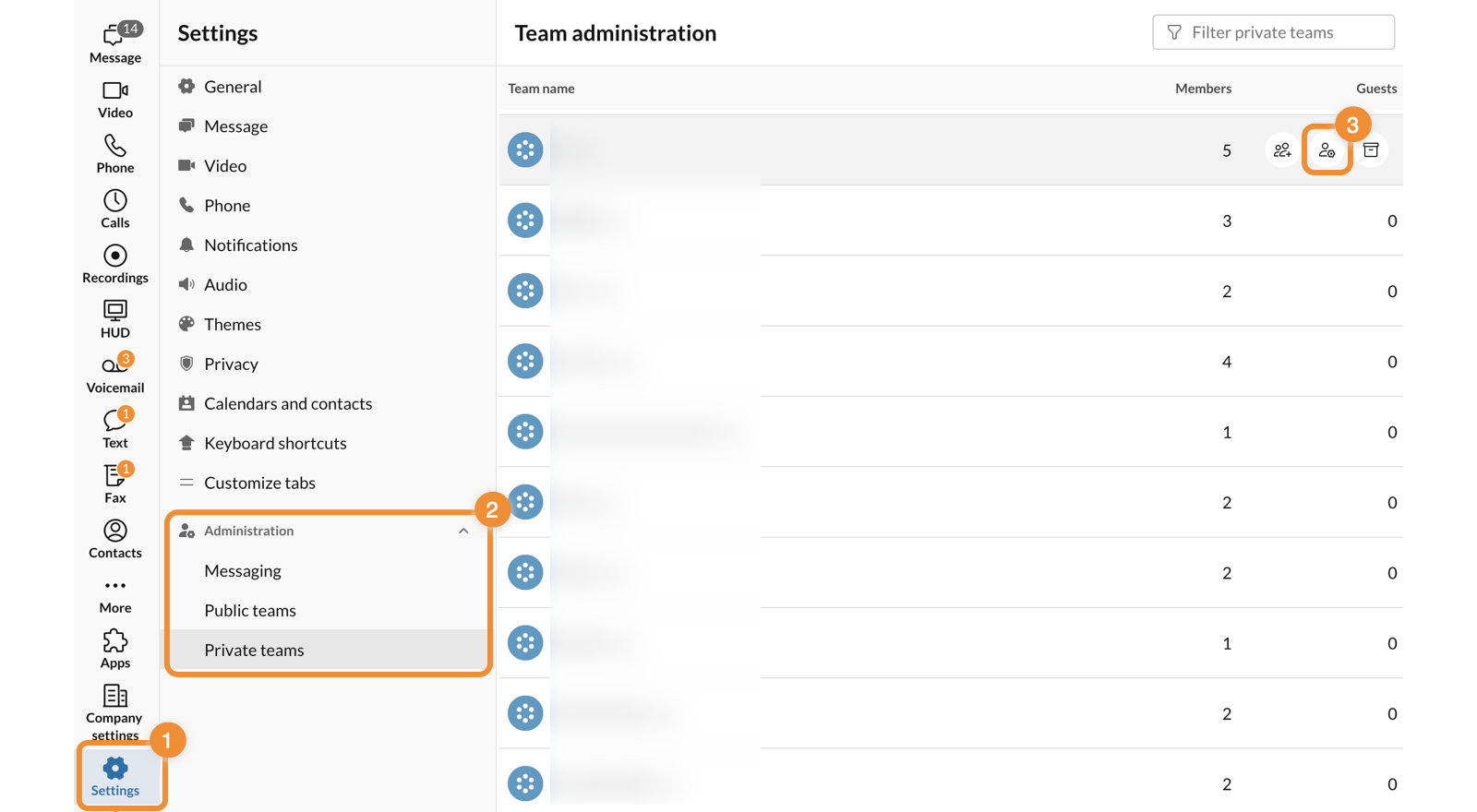
You can find a full list of team members under the Team members tab.
Adding members
--------------
As a super admin, you can add members to any team you're a member of (even if you're not a team admin). If you're not a member of a team and want to add another member, you have to join that team first.
* In the desktop or web app, click **Settings**.
* Under **Administration** , click **Public teams** or **Private teams**.
* Hover over the team you want to add a member to, then click the **Team settings** icon.
* Click the **Add team members** icon to the right of the search field.
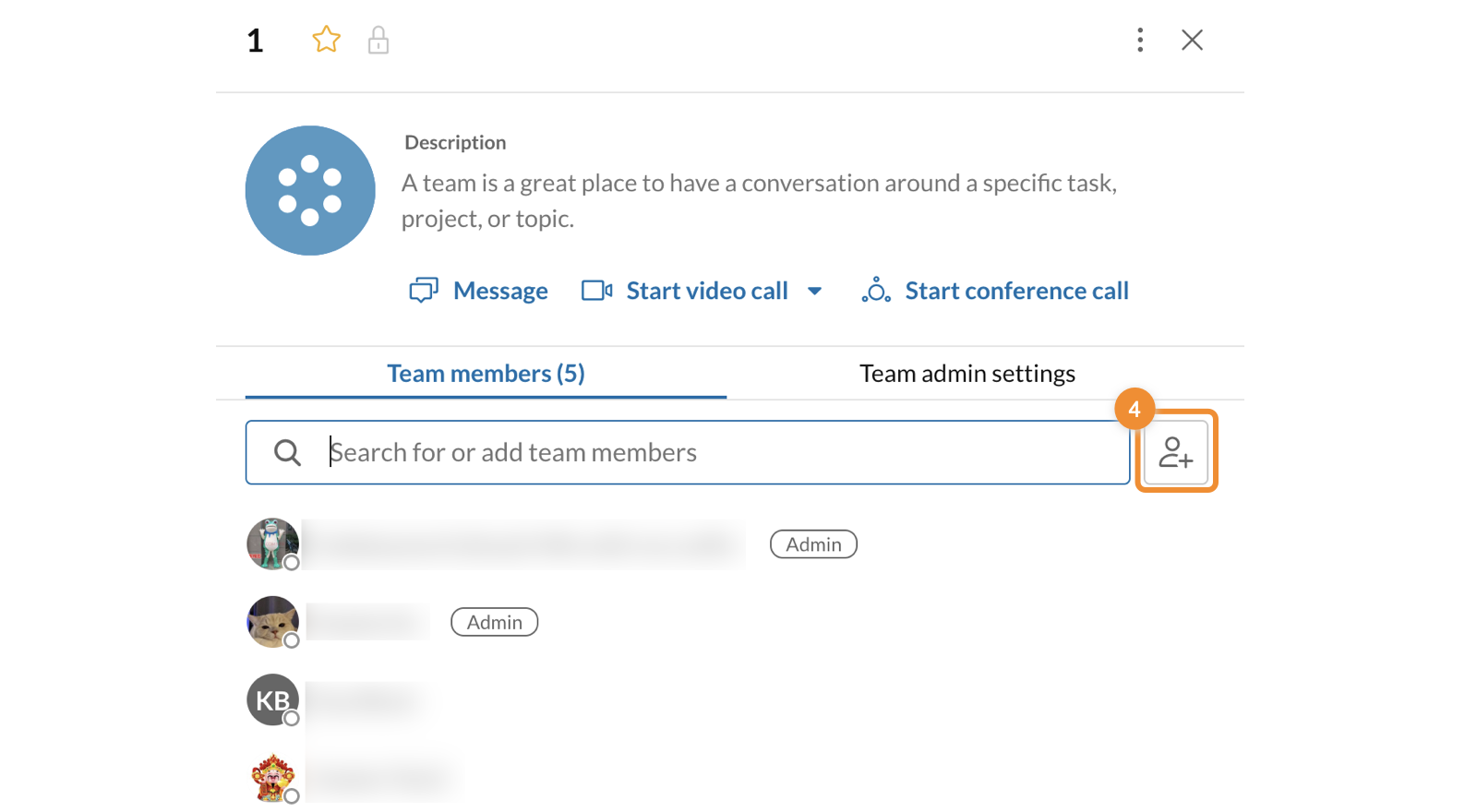
* In the **Members** field, type the name of a user in the field and select from the dropdown or enter a list of email addresses separated by commas or semicolons.
* Click **Add** .

Note: If you're inviting a non-
RingCentral
app user to a team, they will receive an email prompting them to set up an account so they can begin conversing with your team.
Removing a team member
----------------------
As a super admin, you can remove a user from a team even if you're not a member of that team. You can also remove a team admin as a member of that team as long as there's at least one other team admin left.
* In the desktop or web app, click **Settings**.
* Under **Administration** , click **Public teams** or **Private teams**.
* Hover over the team you want to remove a member from, then click the **Team settings** icon.
* Hover over the name of the person, then click the three-dot **More** icon at the far right.
* Click **Remove from team** .

Assigning a team admin
----------------------
As a super admin, you can make any team member, including yourself, an admin of that team.
* In the desktop or web app, click **Settings**.
* Under **Administration** , click **Public teams** or **Private teams**.
* Hover over the team name and click **Team settings** at the far right.
* On the **Team members** tab, hover over your name or the name of the person you'd like to make a team admin and click the three-dot **More** icon at the far right.
* Click **Assign as team admin** .

Unassigning a team admin
------------------------
Note: If there's only one team admin, you can't revoke that person's permissions.
* In the desktop or web app, click **Settings**.
* Under **Administration** , click **Public teams** or **Private teams**.
* Hover over the team name and click the **Team settings** icon.
* On the **Team members** tab, hover over your name or another team admin's name, then click the three-dot **More** icon at the far right.
* Click**Unassign as team admin** .

Changing a team's settings
--------------------------
* In the desktop or web app, click **Settings**.
* Under **Administration** , click **Public teams** or **Private teams**.
* Hover over the team name and click the **Team settings** icon.
* Click the **Team admin settings** tab.

* Turn the toggle on or off for each permission, as detailed below.
### Team admin settings
You can configure the following settings under Allow team members to:
* *Add team members*: Allows non-admin team members to invite new members.
* *Post messages*: Allows non-admins to post in the team.
* *@team mention*: Allows non-admins to use the @team mention.
* *Pin posts*: Allows non-admins to pin posts in the conversation.
* *Add apps*: Allows non-admins to set up app integrations in the conversation.