Creating tasks in the
RingCentral
app
=======================================================================================================
Tasks help you to stay on top of all your projects by providing visibility on the items assigned to you by your teams. You can create tasks for yourself or others in the tasks tab or in a direct message, group chat, or team conversation.
Once a task has been created, you can view and manage it in the conversation details within the **Message** tab, or in the **Workspace** tab.
## Desktop & web
Creating tasks in the desktop or web app
----------------------------------------
Tasks can be created in the **Workspace** menu under the **Calendar** or **Tasks** tabs or directly in a conversation.
### Creating tasks in the Workspace menu
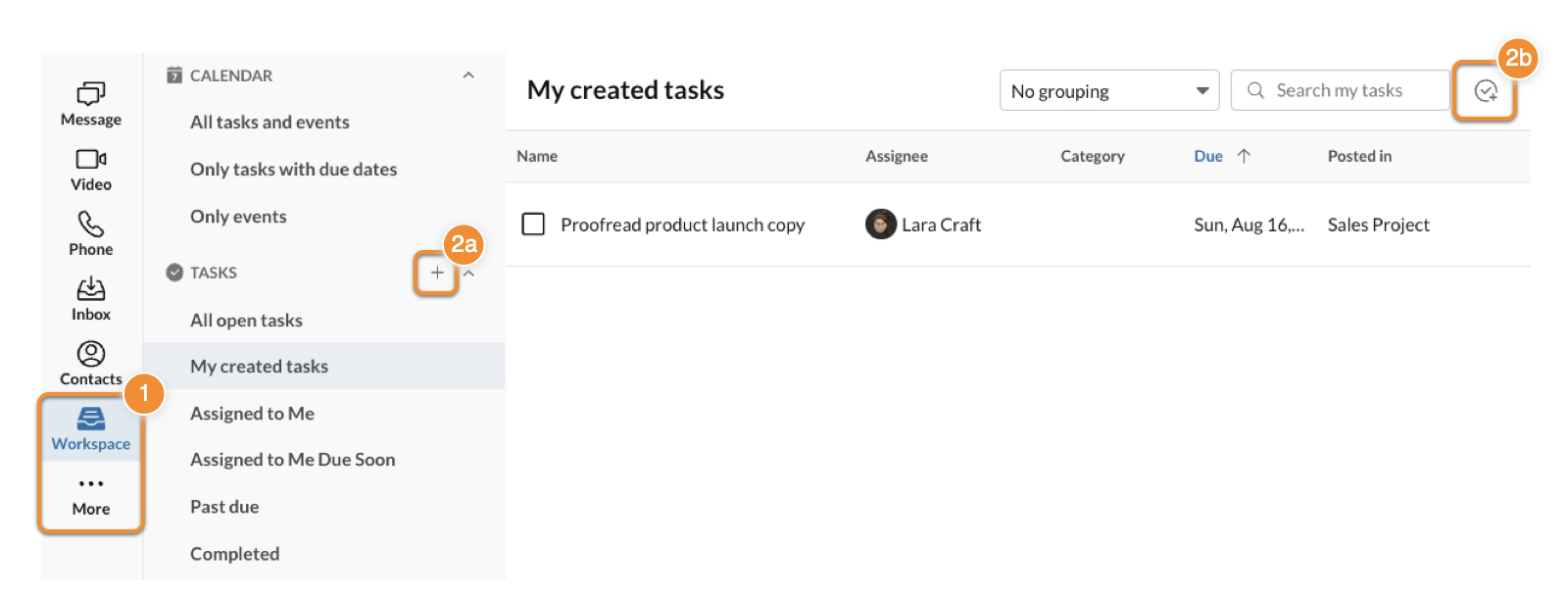
* Click **Workspace** in the navigation bar.
Note: If you don't see **Workspace** , click the three-dot **More** icon. For more info about customizing the menu tabs, go to [Customizing tabs in the
RingCentral
app desktop and web](https://support.ringcentral.com/article-v2/Customizing-tabs-in-the-RingCentral-app.html?brand=RingCentral&product=RingEX&language=en_US "").
* Click the **Task created** plus icon (a) on the **Tasks** tab or click the **Create a task** check icon (b) on the upper right.
Note: The **Create a task** check icon can also be found under the **Calendar** tab when managing **All tasks and events** and **Only tasks with due dates**.
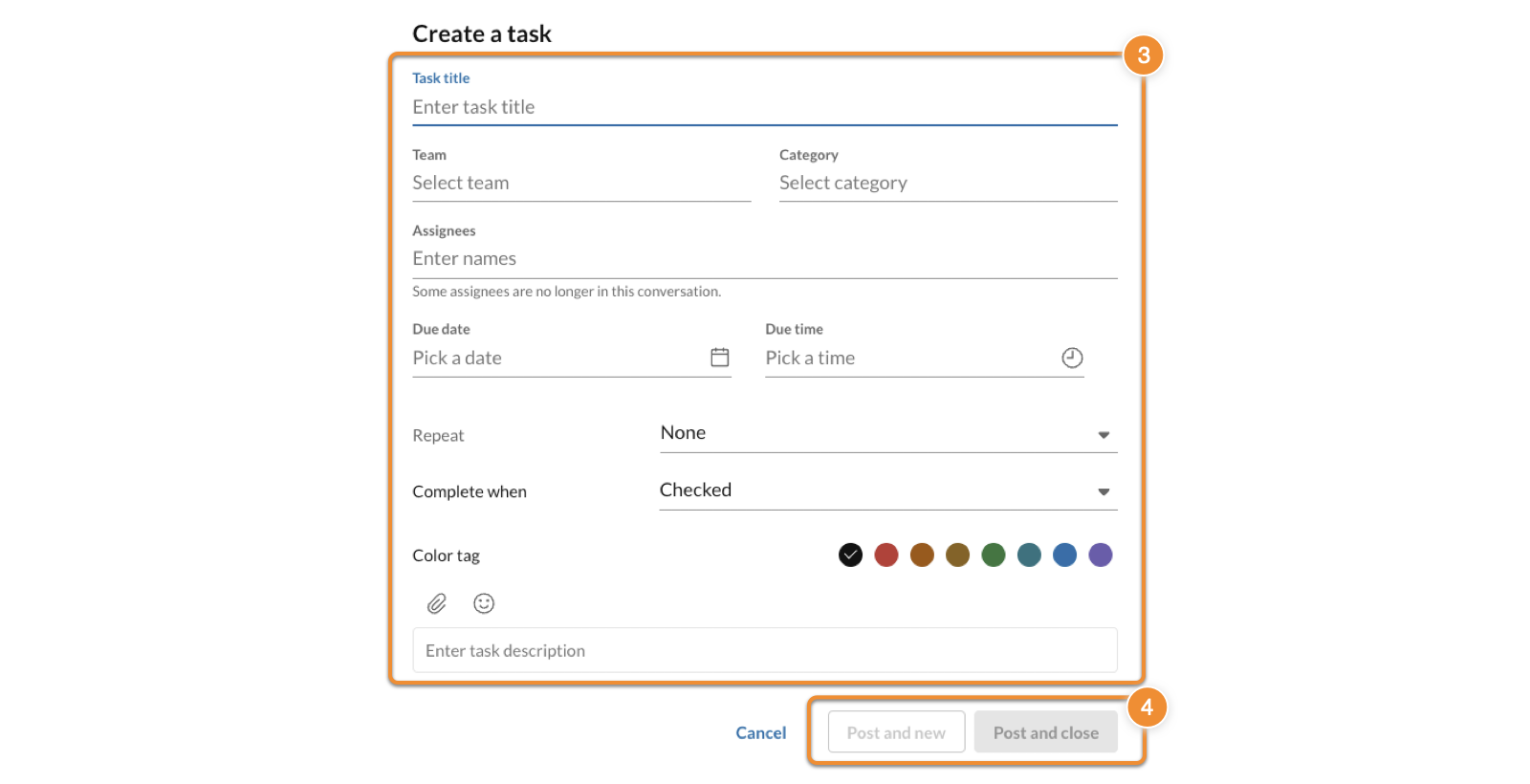
* Fill out the task form. See **Task form fields** for a description of the fields.
* Click **Post and close** to create the task and close the window or click **Post and new** to finish creating that task and open a new task.
Once you create a task, a quick pop-up message will appear at the top of the app. Click on **Go to conversation** to see the task in the message thread of the team you selected. The post will include some or all of the following information: the task name, the task duration, the task assignees, and the task description.
### Creating tasks in a conversation
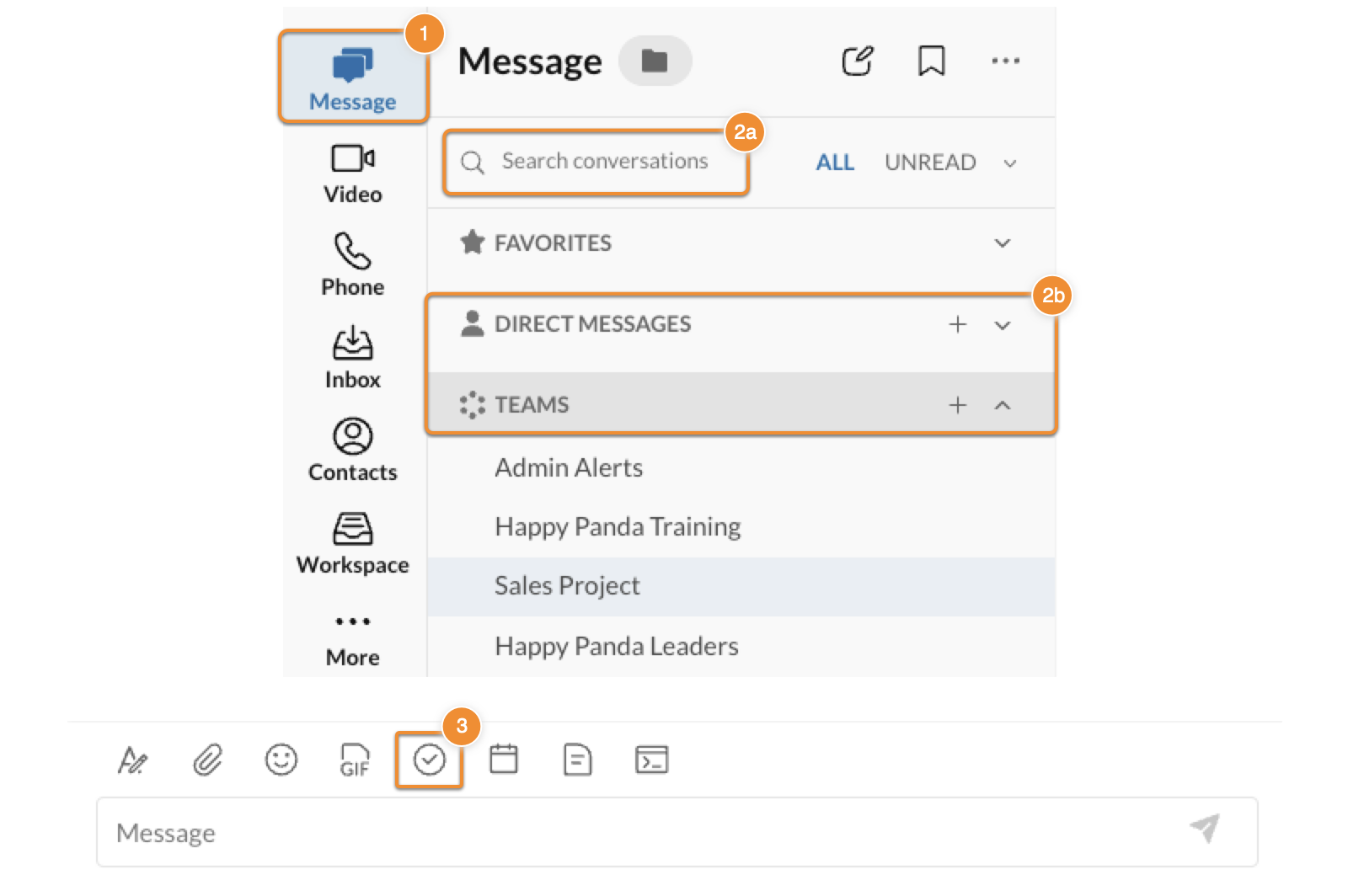
* Click **Message** in the navigation bar.
* Use the **Search conversations** field (a) to locate a conversation or select a conversation from the **Direct Messages** or **Teams** lists (b).
* Click the **Create a task** check icon, located above the message field at the bottom of the app.
* Fill out the task form. See **Task form fields** for a description of the fields.
* Click **Post and close** to create the task and close the window or click **Post and new** to finish creating that task and open a new task.
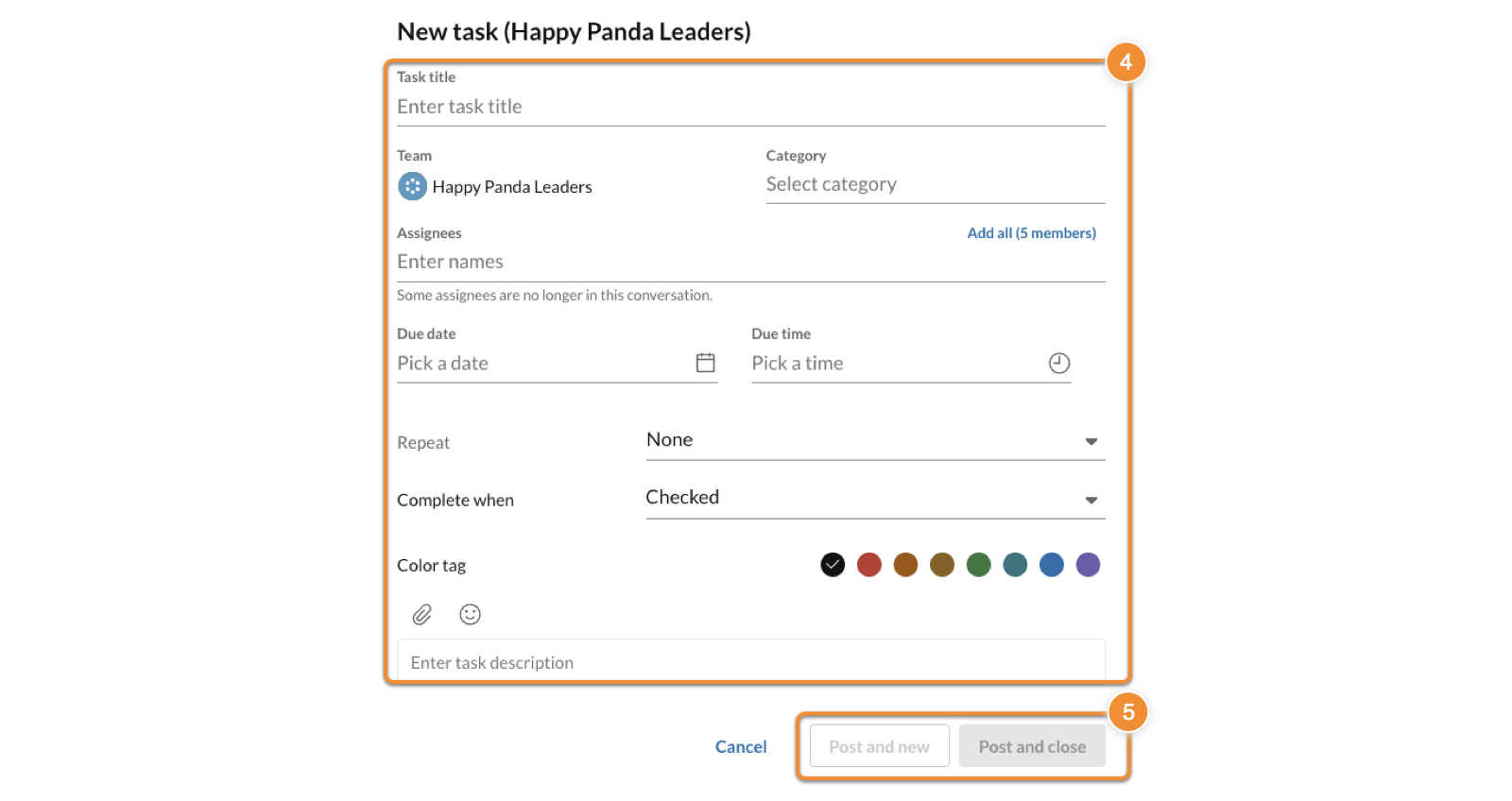
Once you create a task, it will appear in the message thread and will include some or all of the following information: the task name, the task assignees, the task duration, and the task description.
Task form fields
----------------
* **Task title**: The preferred title of the task.
* **Team**: The name of the person, group, or team where the task will be posted in. This setting only appears when configuring a task in the Workspace menu.
* **Category** : Creates a category or assigns an existing category to a task. Tasks associated with a category can be searched using the **Filter tasks** search bar in the **Tasks** tab in the Workspace menu. You can create a new category by typing the name of the category and clicking *Create new category*.
* **Assignee**: The user(s) assigned to the task. Assignees must already be a member of that conversation.
* **Due date**: The date on which you'd like this task to be completed. Use the datepicker to select a date.
* **Due time**: The time you want the task completed on the due date.
* **Repeat** : Choose from a dropdown menu how frequently you'd like this task to repeat (if at all). Options include *None* , *Every day* , *Every weekday* , *Every week* , *Every month* , or *Every year.*
* **Complete when** : Set the condition in which you'd like this task to be marked as complete. Options include the following:
* *Checked*: When the task is checked by one person, this will mark the task as complete.
* *Checked by all assignees*: If this task is assigned to multiple people, choose this option to ensure that the task will not be marked as complete until all assignees have checked this task.
* *100% done*: If you'd like to set this task so it can be completed in 10% increments, select this option and it will be marked as complete once they get to 100%.
* **Color tag**: Select the color you'd like to set for this task.
* **Enter task description** : Provide a task description in the field at the bottom of the window. Use the **Attach files** paperclip icon to [attach any relevant files](https://support.ringcentral.com/article-v2/Attaching-files-to-messages-in-the-RingCentral-app.html?brand=RingCentral&product=RingEX&language=en_US ""), or select the **Emoji** smiling face icon to include an emoji.
## Mobile
Creating tasks in the mobile app
--------------------------------
Using the mobile app, you can create tasks in a conversation or in the **Tasks** tab.
### Create tasks in a conversation
* Tap **Message** on the bottom menu bar.
* Tap the conversation where you want to add a task.
* Tap the **Plus** icon on the bottom left.
* Tap **New task**.
* Fill out the task form and tap **Done** on the top right. See **Task form fields** for a description of the fields.

### Create tasks using the Tasks tab
* Tap **More** on the bottom menu bar.
* Tap **Tasks**.
* Tap the **Plus** icon on the top right.
* Fill out the task form and tap **Done** on the top right. See **Task form fields** for a description of the fields.

Once you create a task, it will appear in the message thread and include some or all of the following information: the task name, the task assignees, the task duration, and the task description.
Task form fields
----------------
* **Task name**: The preferred title of the task.
* **Assignee(s)**: The user(s) assigned to the task. Assignees must already be a member of that conversation.
* **Start date**: The date you'd like the task to start. Use the datepicker to select a date.
* **Due date**: The date on which you'd like this task to be completed. Use the datepicker to select a date.
* **Due time**: The time you want the task completed on the due date.
* **Repeat** : Choose how frequently you'd like this task to repeat (if at all). Options include *Never* , *Every day* , *Every weekday* , *Every week* , *Every month* , or *Every year*.
* **Complete when** : Choose when you want this task to be marked complete. Options include:
* *Checked*: When the task is checked by one person, this will mark the task as complete.
* *Checked by all assignees*: If this task is assigned to multiple people, choose this option to ensure that the task will not be marked as complete until all assignees have checked this task.
* *100% done*: If you'd like to set this task so it can be completed in 10% increments, select this option and it will be marked as complete once they get to 100%.
* **Add attachment**: Attach a file, photos, or videos to the task.
* **Color**: Select the color you'd like to set for this task.
* **Section**: Use this field to group tasks related to a specific project.
* **Add a description**: Provide a task description in this field.