Intro to
Message
in the
RingCentral
app
===========================================================================================================================================================================
RingCentral
Message
lets you:
* Create an efficient workflow
* Chat with coworkers in real-time, either one-on-one or in a group conversation
* Stay on top of conversations as messages instantly sync across all applications
* Create dedicated teams for projects or topics
* Share files
* Create shared notes, tasks, and events
Types of conversations
----------------------
There are three types of conversations in
Message
:
* **Direct messages**: One-on-one conversations with another person in your company. Labeled with the full name of the person you're messaging.
* **Group conversations**: Conversations with three or more people, including yourself. Listed with your direct messages and labeled with the first names of the other people in the group.
* **Team conversations** : Similar to group conversations, but created and managed by team admins. Listed under **Teams** on your conversation list and labeled with a name created by your team admin.
* Members can be added and removed anytime. New members will see the full conversation history when they join the team.
You have options to [organize your messages](https://support.ringcentral.com/article-v2/Organizing-your-conversations-in-the-RingCentral-app.html?brand=RingCentral&product=RingEX&language=en_US ""), like using folder view, adding conversations to your favorites, or viewing only your @mentions or unread messages.
Where do you want to use your messages?
## Desktop & web
Messaging in the
RingCentral
app for desktop and web
----------------------------------------------------------------------------------------------------------------------
### Conversation list
The conversation list is where you manage your conversations. Click any conversation to open it.

These icons appear at the top of the conversation list:
* **Folder** : Click the folder icon to **Show folders** or **Hide folders**. Hiding your folders will list all conversations with the most recent on top.
* **New message**: Click to start a conversation.
* **Reminders**: Click to schedule reminders for messages you want to return to later.
* Three-dot **More** : Click to access these options:
* **Bookmarks**: Messages you've bookmarked for later reference.
* [](https://support.ringcentral.com/article-v2/Creating-a-new-team-in-the-RingCentral-app.html?brand=RingCentral&product=RingEX&language=en_US#pills-nav=desktop_&_web "")**[](https://support.ringcentral.com/article-v2/Creating-a-new-team-in-the-RingCentral-app.html?brand=RingCentral&product=RingEX&language=en_US#pills-nav=desktop_&_web "")[@mentions](https://support.ringcentral.com/article-v2/Using--mentions-in-the-RingCentral-app.html?brand=RingCentral&product=RingEX&language=en_US "")**: Click to view a page that lists all of your @mentions.
* **New folder**: Click to add a new folder.
* **Show message preview**: Click the toggle on to see previews of messages in your conversation list.
* **Sort favorites** : Choose how you want to sort the conversations you've marked as favorites. Select *Manually or Most* recent on top.
* **Sort folders** : Choose how your folders are sorted. Select *Manually* or *Most* recent on top.
* **Message settings**: Click to open the message settings panel.
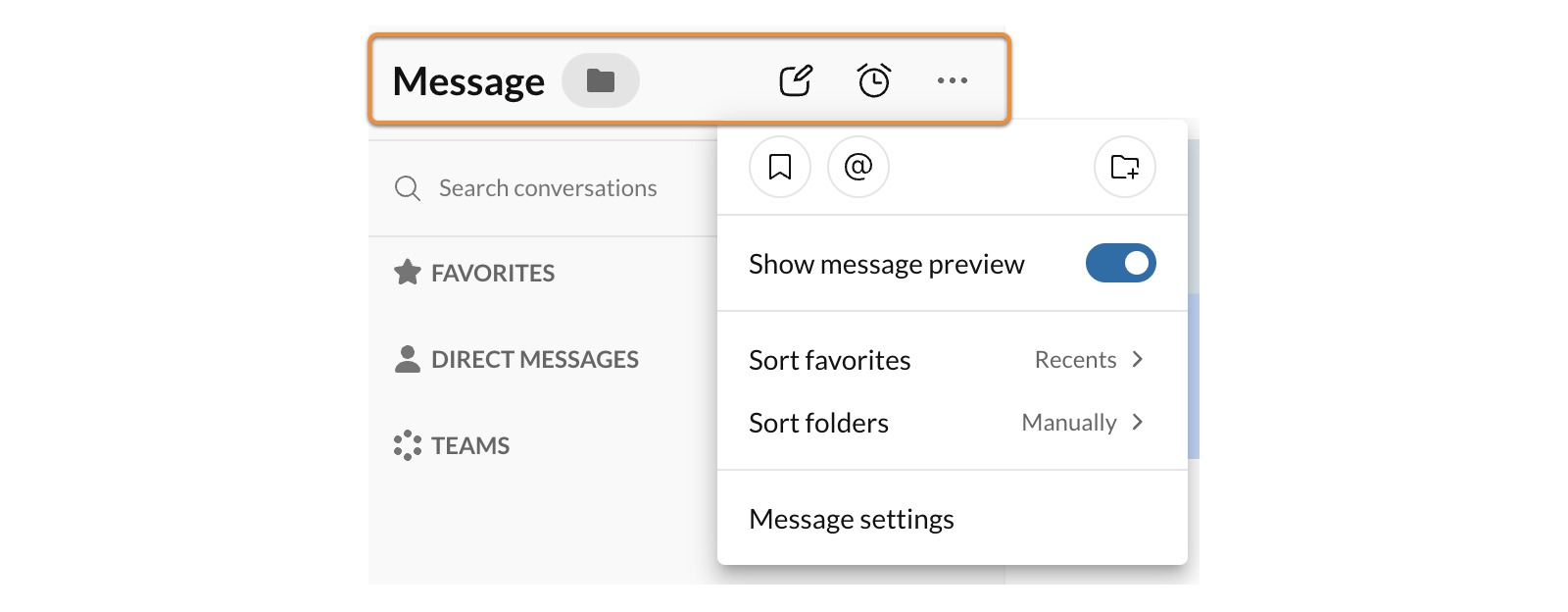
Below the main icons, you can filter your conversations:
* **Search conversations**: Search for individual or team conversation names.
* **ALL**: Click to show all conversations.
* **UNREAD**: Click to only show unread conversations.
* Click the dropdown icon for additional filters:
* Unread
* Unread @mentions
* Draft
* Failed
* Muted

When in folder view, your messages are organized into three sections:
* **Favorites**: Direct messages, group conversations, and team conversations that you've favorited.
* **Direct messages**: Your one-on-one and group conversations.
* **Teams**: Your team conversations.
Note: If you have hidden any direct messages or team conversations, you can use the **[Search bar](https://support.ringcentral.com/article-v2/Using-the-search-bar-in-the-RingCentral-app.html?brand=RingCentral&product=RingEX&language=en_US "")** to locate them.
### Message thread
Clicking a conversation opens the message thread in the main panel, where you can view and [respond to messages](https://support.ringcentral.com/article-v2/Sending-a-message-in-the-RingCentral-app.html?brand=RingCentral&product=RingEX&language=en_US ""). Messages sent within two minutes will be clustered together.
Use the buttons at the top of a message thread to start a **Video call** , make a **Phone** call, or click the three-dot **More** icon to:
* View a user's profile
* Mute a conversation to turn off message notifications
* Access your notification preferences
* Copy the conversation URL to create a direct link back to the conversation
* Post a message via email
* Add apps to incorporate other available messaging add-ins

### Conversation details
The right panel shows the profile pictures of everyone in the conversation, as well any pinned messages, files, tasks, notes, links, or events that have been published to the conversation.

## Mobile
Messaging in the
RingCentral
mobile app
---------------------------------------------------------------------------------------------------------
The **
Message
** screen is divided into the following tabs:
* **All**: Tap to show all conversations. Tap any conversation to open the message thread.
* **Direct**: Your one-on-one and group conversations.
* **Teams**: Your team conversations.
* **Favorites**: Direct messages, group conversations, and team conversations that you've favorited.

**Search**: Tap the magnifying glass icon at the top right to search for specific contacts or messages in a conversation. You can also use the search to locate any hidden direct messages or team conversations.
**New Actions** : Tap the **Plus** icon to access the following options:
* *New message*: Send a new message to one or more of your contacts.
* *Invite*: Invite one or more contacts to a conversation.
* *Create team*: Create a new team.
Note: On Android devices, **New actions** is in the lower right. On iOS devices, **New actions** is in the upper right.
**Filter**: Tap the filter icon below the tabs to filter your conversation list to show only:
* Unread messages
* Unread @mentions
* Unsent drafts
* Messages that failed to send
* Messages in muted conversations
**Other features**: You can also access your @mentions, bookmarks, and Me conversations from the Message window.
* iOS users: Tap the **Filter** icon to access these features.
* Android users: Tap the three-dot **More** icon at the top right to access these features.
### Message thread
Tapping a conversation opens the message thread, where you can view and respond to messages.
Tap the buttons at the top of a message thread to start a phone call, video call, view conversation details, or tap the three-dot **More** icon to view files shared in the conversation.
