Assigning a team member as an admin
===================================
If you'd like to assign a member as an admin in a team conversation, you must be an admin of the team.
Where do you want to assign a team admin?
## Desktop & web
* Go to **
Chat
** in the left navigation bar.
* Select a team from your conversation list.
* Click **Members** at the top right of the conversation details panel.

OR
Click the three-dot **More** icon at the top right, then click *View team profile*.

* Under **Team members** , hover over the name of the person you'd like to assign as an admin, then select the three-dot **More** icon at the far right.
* Select *Assign as team admin* from the dropdown.
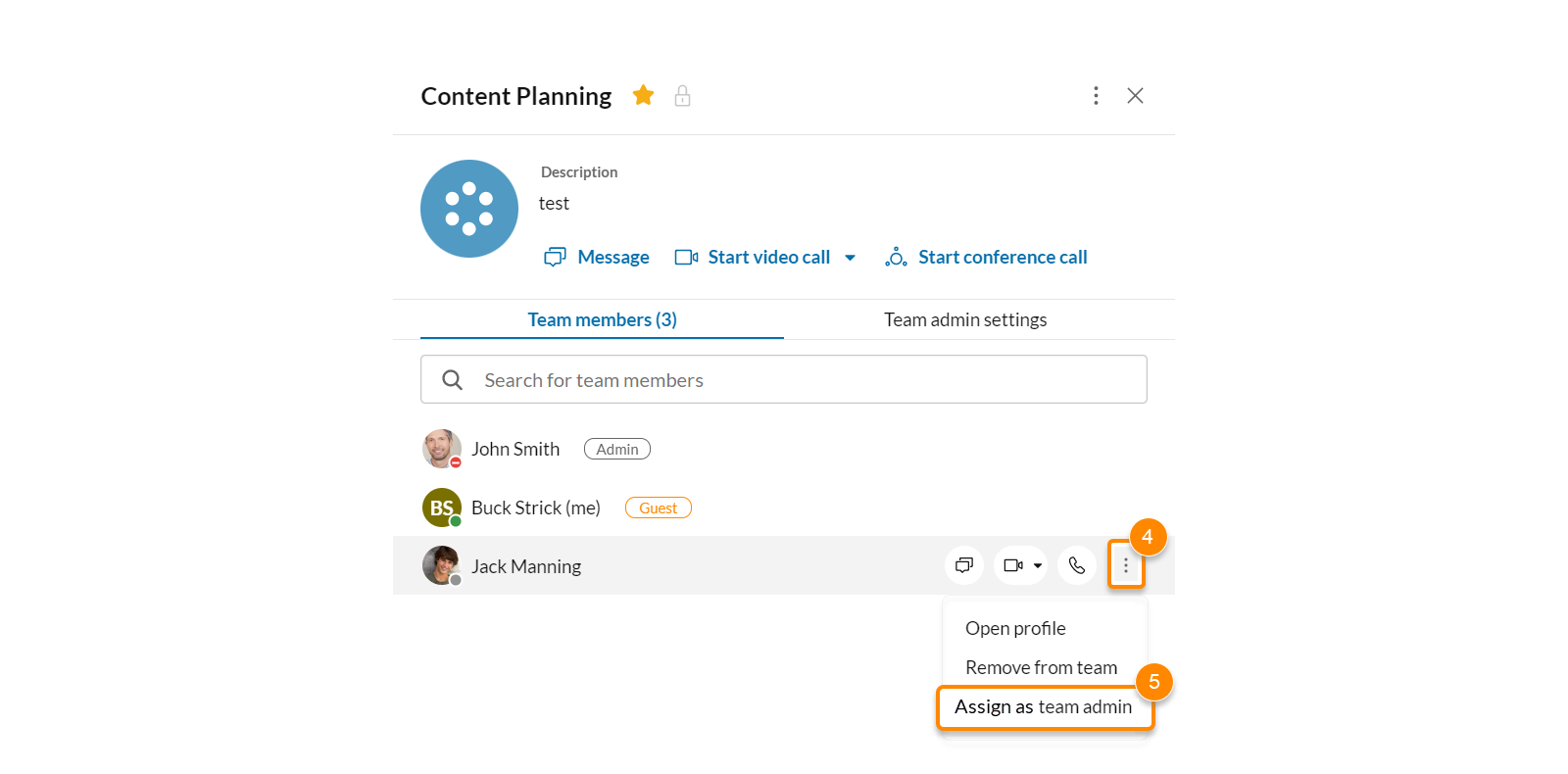
Once you assign someone as a team admin, an **Admin** status badge will appear to the right of their name.
You can also revoke a team member's admin status by following the steps above and selecting *Unassign team admin* instead of *Make team admin* from the dropdown.
Assigning yourself or a team member as an admin
-----------------------------------------------
A team can lose admins when their accounts are deactivated. In this case, every team member can assign themselves or someone else as the new team admin.
* Go to **
Chat
** via the left navigation bar.
* Select the team from your conversation list.
* Click Members to open the team profile in the conversation details panel at the top right.
OR
Click the three-dot **More** icon at the top right of the center pane and click *View team profile*.
* Under **Team members** , hover over the name of the person you'd like to assign as an admin (can be yourself), then click the three-dot **More** icon at the far right.
* Select *Assign as team admin* from the dropdown.
* If you select someone other than yourself as an admin, you'll see a message asking if you'd like to be a team admin.
* **Yes**: The selected member and you become the new team admins.
* **No**: Only the selected member becomes the team admin.
## Mobile
* Navigate to **
Message
** in the bottom menu bar.
* Go to the **Teams** tab and select the team you want to manage.

* Tap the team name, then a team member, and select **Assign as team admin** .

OR
Tap the gear icon in the top right and tap **Update team admins**, then:

* Android user: Enter the name of the member you want to make an admin in the **To** field, then tap **Next**.
* iOS user: Scroll to the member's name, then tap **Update**.
Once you make someone a team admin, an **Admin** status badge will appear to the right of their name.

You can also revoke a team member's admin status by following the steps above and tapping *Unassign as a team admin* or unchecking the user in the **Update team admins** setting.