Using the search bar in the
RingCentral
app
=============================================================================================================
You can use the search field in the
RingCentral
app to find any of the following:
* Conversations (message and text)
* Contacts
* Groups \& Teams
* Settings related to:
*
Message
*
Video
* Phone
* Notifications
* Audio
* Connected accounts
* Themes
* Data and storage
* Help topics
Select where you want to use the search bar.
## Desktop & web
Using the search bar in the
RingCentral
desktop \& web app
----------------------------------------------------------------------------------------------------------------------------
Click the search bar at the top of your app to reveal a list of your recent searches.
Enter text into the search bar to begin your search. As you enter the text, a dropdown menu will appear and display a list of matching search results.

Your results will be separated into some or all of the following categories:
* [Content](#topic_2_content ""), or specific [Messages](#topic_4_messages "")
* [Contacts](#topic_6_company-contacts "")
* [Groups \& Teams](#topic_8_groups-teams "")
* [Text conversations](#topic_5_text "")
* [Settings](#topic_9_settings "")
* [Help](#topic_3_help "")
To view the full list of search results for that category, click **Show more** at the far right of the category's name.

### Content search
Under **Content** search, you can click your search term (a) to split the categories into separate tabs along the top. Select any category tab to see a full list of search results.
You can also click **\[your search term\] in this conversation** (b) to view all occurrences of that term within your current direct, group, and team conversations.

#### Messages
From the **
Message
** tab (a), you can search for a specific message in any conversation. The number of search results appears next to **Results** (b). Hover over a result, then click **View in conversation** (c) to go to that result's precise spot in the conversation.
To narrow your search results, you can use the **Filters** pane (d) on the right side of the window. You can use the following filters:
* **Posted by**: Enter the name or email address of the person who posted the message you're looking for.
* **Posted in**: Enter the name of a conversation (a user's name or a team name) to search for a message in a particular conversation.
* **Type** : Click this dropdown to filter search results by message type: *All* , *Messages* , *Events* , *Files* , *Links* , *Notes* , *Tasks* , or *Code Snippets*.
* **Time posted** : Click this dropdown to filter the search results by date range: *Anytime* , *This Week* , *This month* , or *This year*.

#### Text conversations
In the **Text conversations** tab, the results will display each text conversation that includes your search term, and lists the names and phone numbers of those in the text conversation. Hover over the conversation to access the **Text** and **Call** icons. In a group text, only the **Text** icon is available.

#### Company contacts
The **Company contacts** tab lists your coworkers, [external contacts](https://support.ringcentral.com/article-v2/Managing-the-shared-directory-of-external-contacts-in-the-RingCentral-Admin-Portal.html?brand=RingCentral&product=RingEX&language=en_US ""), and [guest users](https://support.cloudwork.bt.com/article-v2/Intro-to-users-in-the-RingCentral-app.html?brand=BT&product=Cloud_Work&language=en_US "") who match your search. Hover over a user's name to see the **Message** , **Start video call** , **Text**, **Call** , **Fax** , and **View profile** icons for that contact.

#### Personal contacts
The **Personal contacts** tab lists contacts you've manually added to your
RingCentral
app, and those added from your Microsoft or Google accounts. Personal contacts don't include coworkers or guests. Hover over a user's name for options to contact the person or view their profile.

#### Groups \& Teams
The **Groups \& Teams** tab lists all of your active groups and teams that match your search. Hover over the name of a group or team to send a message, start or schedule a video meeting, or view the group or team's profile.
If a team that you haven't joined appears in your search results, hover over its name to reveal a **Join** button at the far right. Click the button to join the team.
Note: Only public groups and teams appear in search results. To join a private team, you must first be invited by an existing member of that team.

#### Settings
The **Settings** tab displays search results related to your personal app settings. Click a result to go to the page in the app where you can manage that specific setting.

### Help
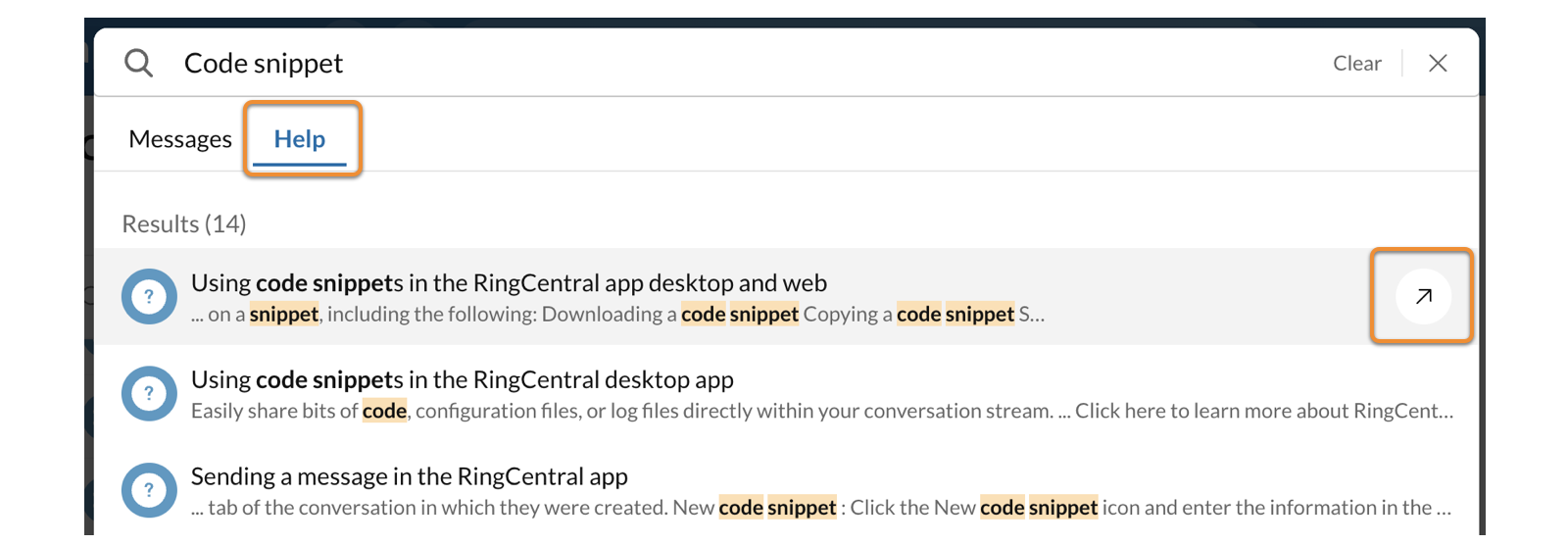
In the **Help** tab, the results from your search list support articles related to your search terms. Click any result to open the article in your web browser.
## Mobile
Using the search bar in the
RingCentral
mobile app
--------------------------------------------------------------------------------------------------------------------
* Tap **
Message
** in the bottom menu bar.
* Tap the **Search** icon at the top.
* In the search bar, enter a name, keyword, or phrase, then click **Search**.
You can narrow your search by tapping the tabs in the top menu:
* **Contacts** : Search for coworkers, [external contacts](https://support.ringcentral.com/article-v2/Managing-the-shared-directory-of-external-contacts-in-the-RingCentral-Admin-Portal.html?brand=RingCentral&product=RingEX&language=en_US ""), and [guests](https://support.ringcentral.com/article-v2/Intro-to-users-in-the-RingCentral-app.html?brand=RingCentral&product=RingEX&language=en_US ""). To filter company contacts by department:
* Android: Enter the name, extension, email, or phone number of the contact in the search field at the top. Tap **Department: All,** then select a department name.
* iOS: After entering a full or partial name, tap **View all** . On the next screen, tap **Department: All**, then select a department name.
* **Messages**: Search within your direct, group, and team conversations.
* **Settings**: Search for specific settings you'd like to manage.
* **Help**: Search for support articles to help with your topic. Click a result to view that article.
