Using keyboard shortcuts in the
RingCentral
app
=================================================================================================================
Keyboard shortcuts let you quickly navigate the
RingCentral
desktop and web apps without using a mouse or trackpad. You can use the shortcuts to answer calls, switch between conversations, send messages, and navigate through the app.
Accessing keyboard shortcuts
----------------------------
To view or change your keyboard shortcuts:
* In the navigation bar, click **Settings**.
* Click **Keyboard shortcuts**.
* Click the **Keyboard shortcuts** toggle on or off.
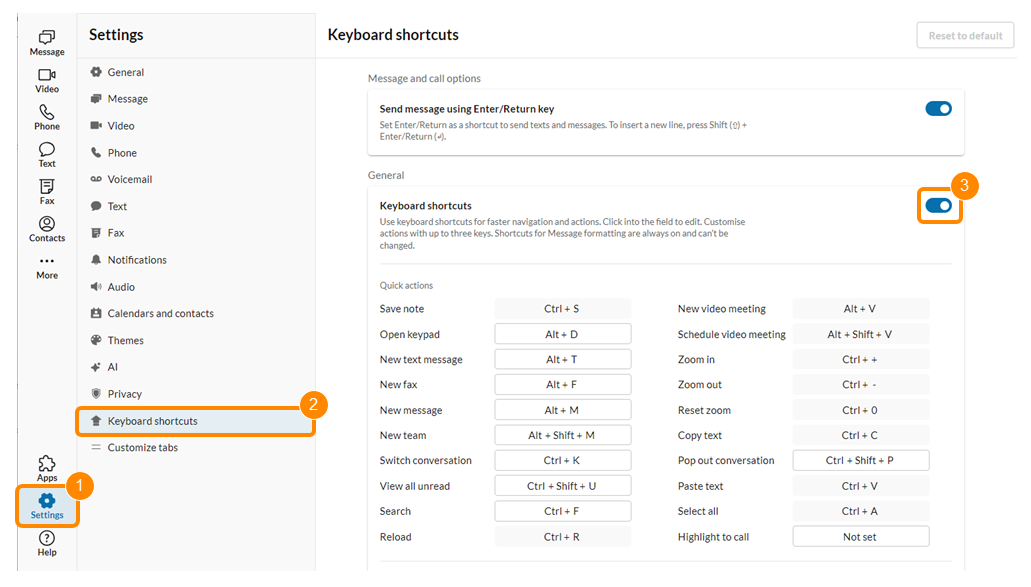
Managing the keyboard shortcuts
-------------------------------
You can turn shortcuts on or off, customize individual shortcuts, or reset them to their defaults as needed.
### Message and call options
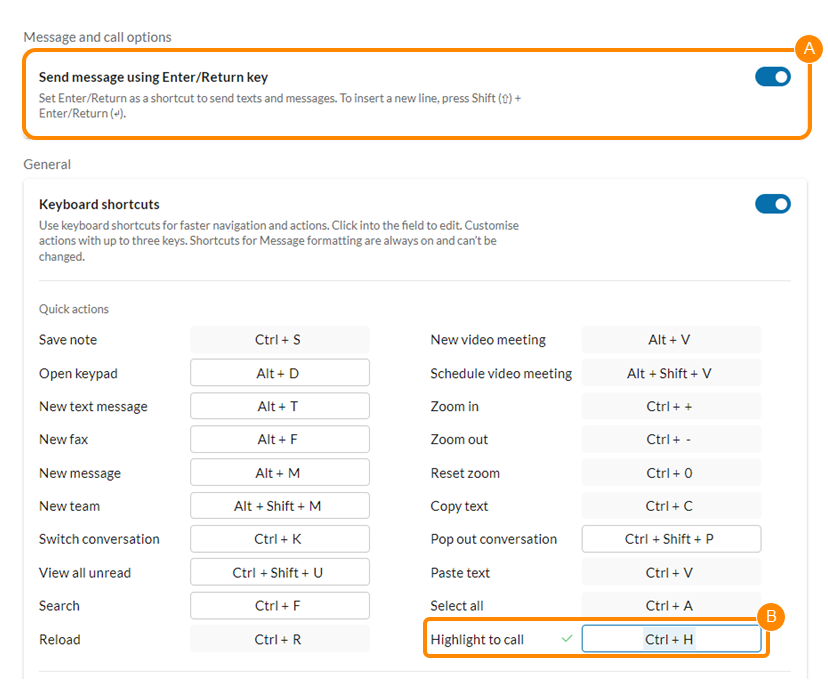
Under **Keyboard shortcuts**, click the toggles to turn these features on or off:
* **Send message using Enter/Return key** (A): Turn this setting on to press **Enter** (Windows) or **Return** (Mac) to send your texts and messages. To add a new line, press **Shift+Enter** or **Shift+Return**.
* **Highlight to call** (B): Create a shortcut to highlight and call any phone number in another app or web page. Click the option to [enter a custom shortcut](#customizing-keyboard-shortcuts ""). This is turned off by default and may be hidden based on your app permissions. Available in the desktop app only.
### Customizing keyboard shortcuts
You can change your keyboard shortcuts to match your preferences. Shortcuts are saved locally to your
RingCentral
app or the browser it's run on. If you use the app on multiple computers, you'll need to set your shortcuts on each device.
Some shortcuts, such as those that are system specific, can't be edited and will appear greyed out.
To edit a shortcut:
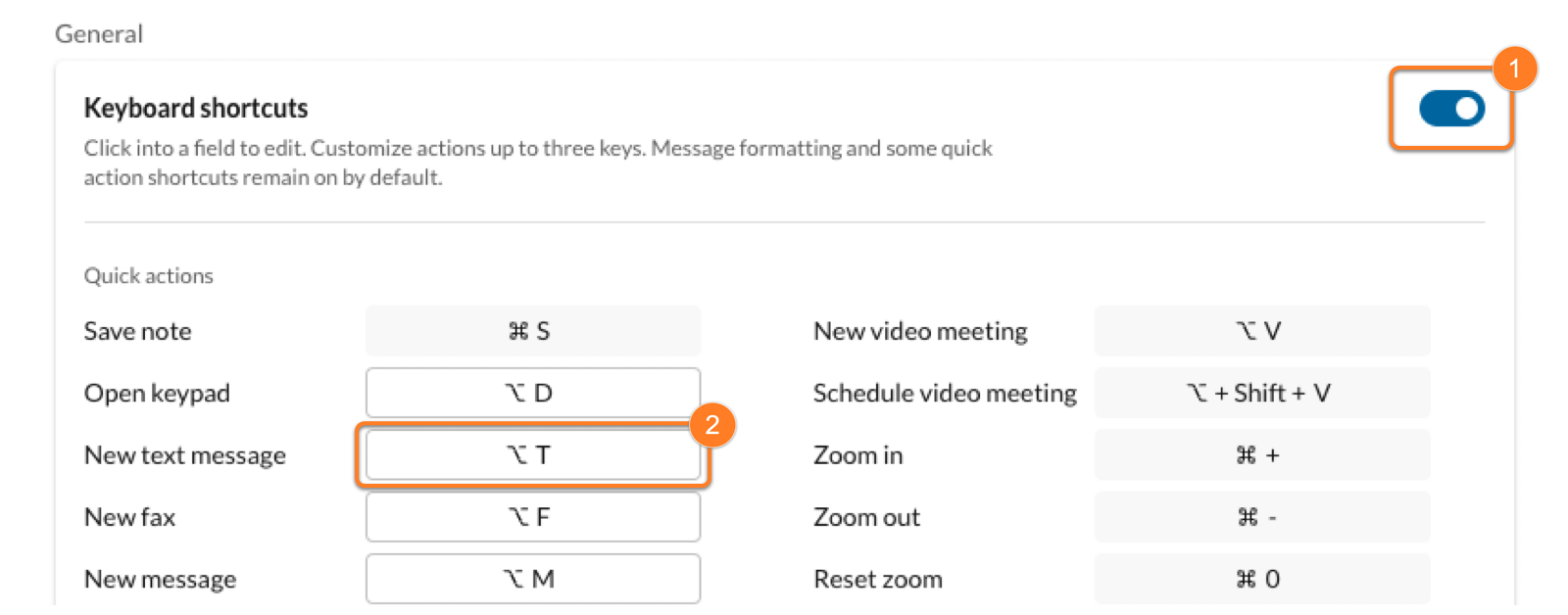
* Click the **Keyboard shortcuts** toggle on.
* Click the shortcut you want to customize, then enter a new key combination.
* Include one modifier (Control, Command, Shift, or Option) and one non-modifier (all other keys).
* Use a maximum of three keys. Additional keys won't be saved.
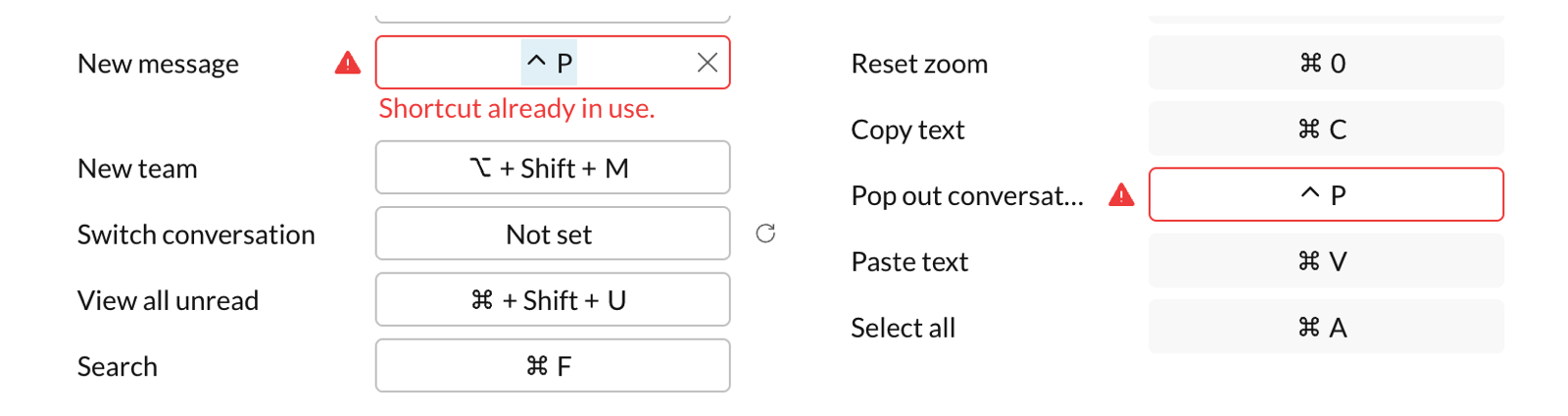
* If you enter a key combination that's already in use, an alert appears. The shortcut will revert to its previous setting after you click anywhere on the page or press **Esc** or **Enter** .
To remove a shortcut:
* Hover over the shortcut and click the **X** icon. It will then show as **Not set** .

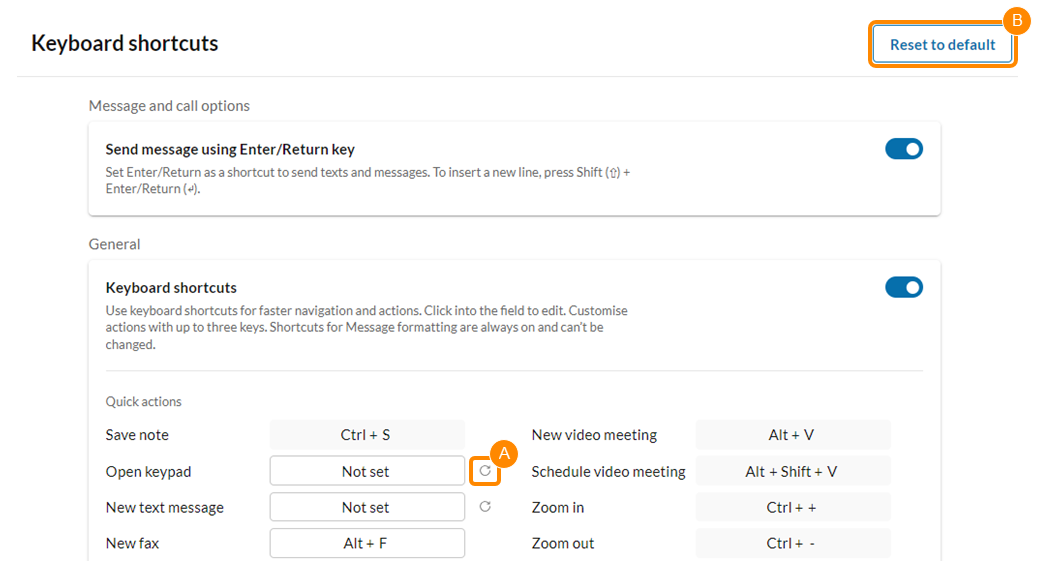
To restore the default shortcuts:
* Click the **Reset** icon (A) to revert a specific shortcut.
* Click **Reset to default** (B) at the top right to restore all shortcuts.
Note
If you've already set a custom keyboard shortcut and a new feature rolls out with the same shortcut, your custom shortcut will remain active, and the new feature's default shortcut will be disabled.