Attaching files to messages in the
RingCentral
app
====================================================================================================================
You can attach files to a direct or team message in the
RingCentral
app. This includes documents, images, or videos, as long as the combined attachment size is less than 5GB.
Note: Admins need to turn on file sharing sources before users can share files. Go to [Managing file sharing in the
RingCentral
app](https://support.ringcentral.com/article-v2/Managing-file-sharing-sources.html?brand=RingCentral&product=RingEX&language=en_US "") to learn more.
Where do you want to attach a file?
## Desktop & web
Attaching a file in the desktop and web app
-------------------------------------------
You can attach up to 10 files to a message from your computer or cloud storage services like Google Drive, OneDrive/SharePoint, Box, and Dropbox.
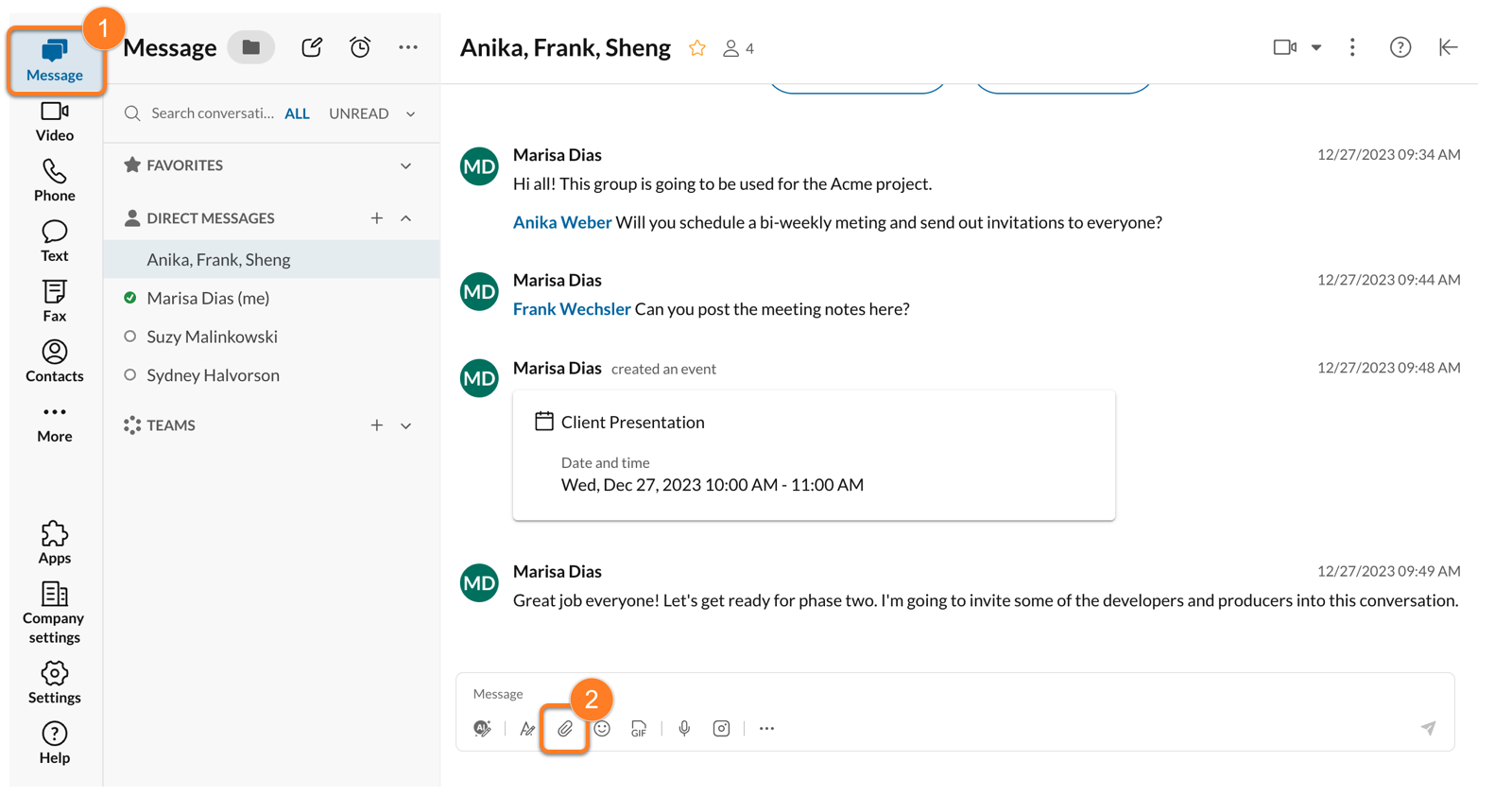
* In the navigation bar, click **
Message
** and open a conversation.
* Click the **Attach file** icon in the message field.
### Attaching a file from your computer
* Select **Computer** in the **Upload files from** popup window.

* Select the files you want to add, then click **Open** to attach them to the message.
* Press **Enter** or **Return** on your keyboard, or click the **Send** icon to send your message.
Note: You can also drag a file from your computer into the message field, and then click **Send**.
### Attaching a file from other sources
* In the **Upload files from** popup window, select *Google Drive*, *OneDrive/SharePoint* , *Box* , or *Dropbox*.
* Select the account from which you'd like to import your files and sign in.
Note: If this is your first time importing files from this account, you'll be prompted to allow
RingCentral
to access the account. Click **Allow** to continue, then return to the app and attach your file.

* Click any files you'd like to attach to the message.
* Attach the files.
* Press **Enter** or **Return** on your keyboard, or click the **Send** icon to send your message.
Attachments from Google Drive, OneDrive/SharePoint, Dropbox, and Box will appear as thumbnails. To view the files in your web browser, click the **View in browser** icon.

### Attaching a Google Drive file using the URL
* Paste the link to a Google Drive file into the message field.
* Click **Connect** to give RingCentral access to your Google Drive. You can also click:
* **Not now**: Close the dialog box, but the option to connect will appear again when you paste another Google Drive URL into a message.
* **Don't ask again** : Close the dialog box, but you won't have the option to connect to the Google Drive through messages in the future.
* To connect to the drive, you'll have to go to **Settings \> Calendar and contacts \> Google \> Manage** , then choose **Access Google Drive**.

* Once connected, every time you post a Google Drive link into a message, it will show a preview with the file name and type.

* Press **Enter** or **Return** on your keyboard, or click the **Send** icon to send your message.
A list of all Google Drive documents sent in a conversation is located under the **Files** tab in the conversation details panel on the right side of the message thread.
## Mobile
Attaching a file in the mobile app
----------------------------------
You can attach up to 20 documents, images, and videos to a message from your mobile device or cloud storage services like Google Drive, OneDrive/SharePoint, Box, and Dropbox.
* Tap **Message** in the bottom menu bar.

* Select a conversation from the list.
* Tap the **Add** button on the bottom left.

* Tap **Attach files** .

* Choose where you'd like to import files from, then select and open the files you want to attach.
* Tap the **Send** icon.
Once sent, you can tap the file to open it in full screen.