Managing your
Message
s in the
RingCentral
app
=================================================================================================================================================================================
After you've sent or received a message in the
RingCentral
app, you can manage it using features such as editing, quoting, translating, bookmarking, forwarding, and more.
Where do you want to manage your messages?
## Desktop & web
Managing your
Message
in the desktop or web app
-----------------------------------------------------------------------------------------------------------------
Jump to a task:
* [Translating a message](#translating "")
* [Using emojis to react to a message](#emoji "")
* [Summarizing a message](#summarize "")
* [Quoting a message](#quote "")
* [Forwarding a message](#forward "")
* [Marking messages as unread](#unread "")
* [Setting a message reminder](#reminder "")
* [Pinning a message](#pin "")
* [Bookmarking a message](#bookmark "")
* [Creating a task from a message](#task "")
* [Editing a sent message](#edit "")
* [Deleting a sent message](#delete "")
Translating a message
---------------------
You can translate received messages into your preferred language when translation settings are turned on.
Note
This feature is available for customers on the RingEX Advanced and Ultra plans.
* Click **Settings** in the navigation bar.
* Click **AI**.
* Click the **Translate to**dropdown and select the language that your messages will be translated into.
* Click the**Show Translate button** toggle on to display a button on messages that aren't in your selected language.

To translate a message:
* Click **
Message
** in the navigation bar.
* Select the conversation in the left panel.
* Click the **Translate** link that appears when the system detects a language different from the one you selected in the translation settings.
* You can also click the three-dot **More** icon, then click **Translate** to select a language.

The content will be translated into the selected language. Click **Show original** to revert the message to the original text.
Using emojis to react to a message
----------------------------------
React to a message with an emoji to acknowledge it or share a quick response without sending a new message. Emoji reactions can also notify the sender, depending on their [notification settings](#translating_ol_12 "").
* In the navigation bar, click **
Message
**.
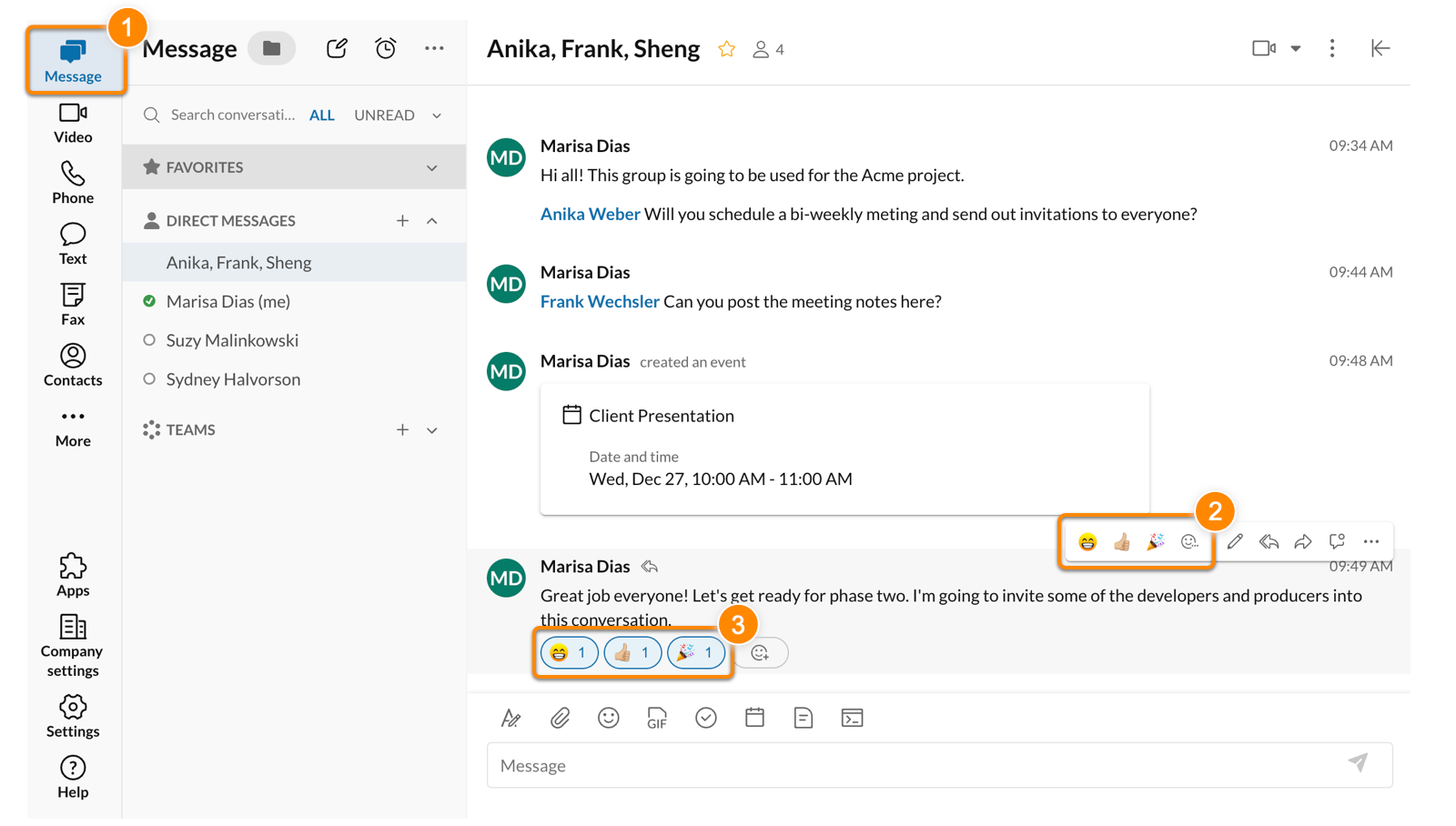
* Hover over any message in a conversation. You can choose from your frequently used emojis or for a larger selection, click the **More emojis** icon to open the emoji picker.
* Your emoji reaction will appear in an oval below the message. Repeat to add more emojis to the same message. Click the emoji oval to remove your reaction.
Summarizing a message
---------------------
Hover over any message in a conversation and click the **Summarize** icon to generate a summary of that message, which you can then copy or share with a coworker. Learn more about [AI message summaries](https://support.ringcentral.com/article-v2/Using-AI-to-write-and-improve-messages-in-the-RingCentral-app.html?brand=RingCentral&product=RingEX&language=en_US "").

Quoting a message
-----------------
* Hover over any message in a conversation and click the **Quote** icon. The text of the quoted message will appear in the message field, with the name of its original sender above it.

* Edit or add to the quoted message as desired.
* To send the quoted message within the same conversation, click the **Send** icon.
* To send the quoted message in a new conversation:
* Select and copy all of the text. Once it's copied, delete the text from the message field.
* Click any conversation in the left panel or click the **+ New actions** button at the top right to start a new conversation. Paste in the quoted text.
* Click the **Send** icon.
Forwarding a message
--------------------
* Hover over any message in a conversation. Click the **Forward** icon.

* In the popup window, select or search for the name of the person or team you'd like to forward the message to. Click the recipient's name to forward the message automatically.
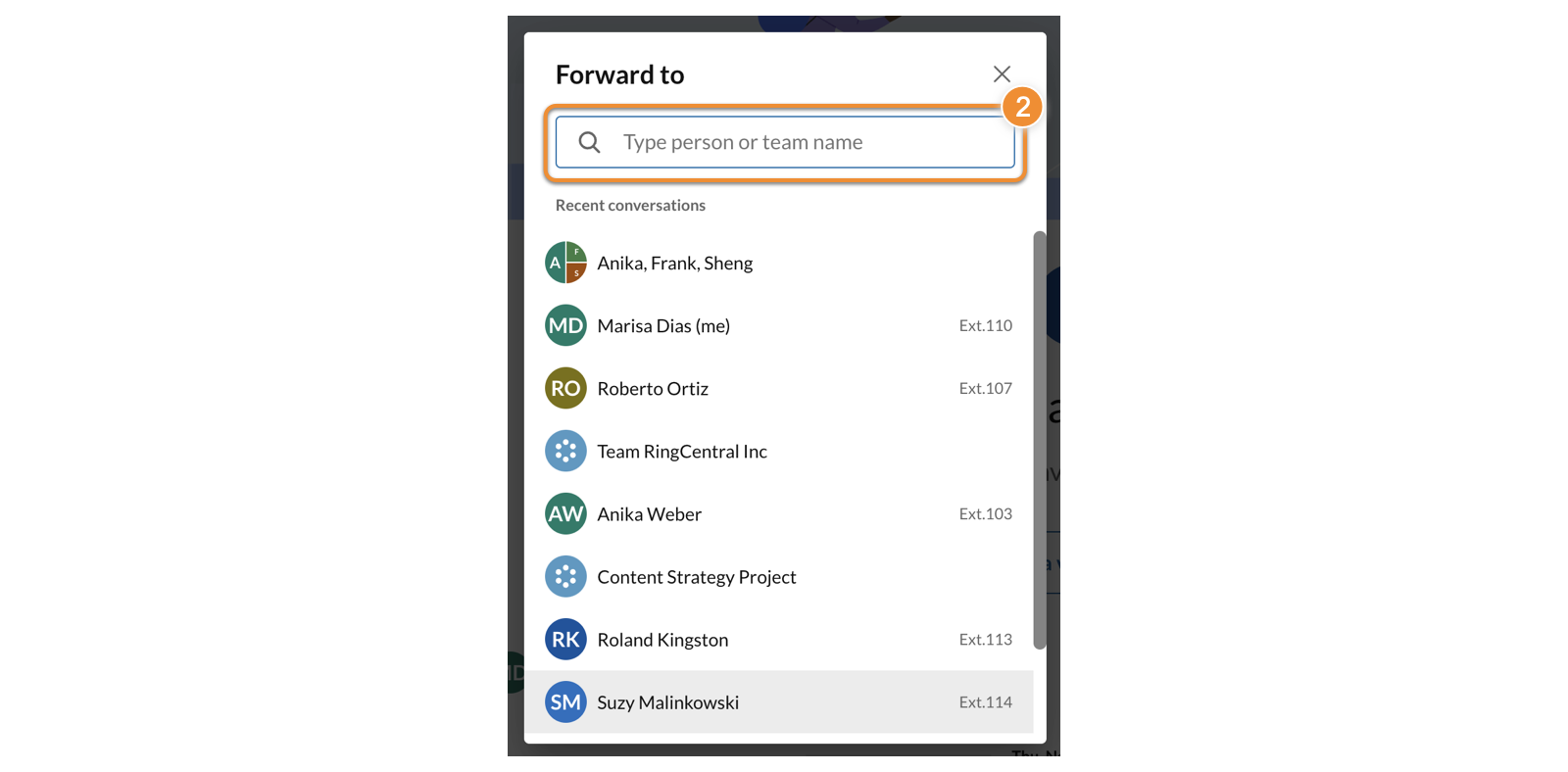
A forwarded message contains the original sender's name, the team name (if any), a quote of the original message, and any attachments included in the original message.
Marking messages as unread
--------------------------
Marking messages as unread is a way to prompt yourself to go back and read one or more messages later.
* Hover over any message in a conversation, then select the **Mark unread from here** icon.

* In the conversation, the oldest message marked as unread will have a **New messages** line break just above it. The unread notification count in the toolbar and left panel will also increase.

Setting a message reminder
--------------------------
Set message reminders to keep track of important messages and action items.
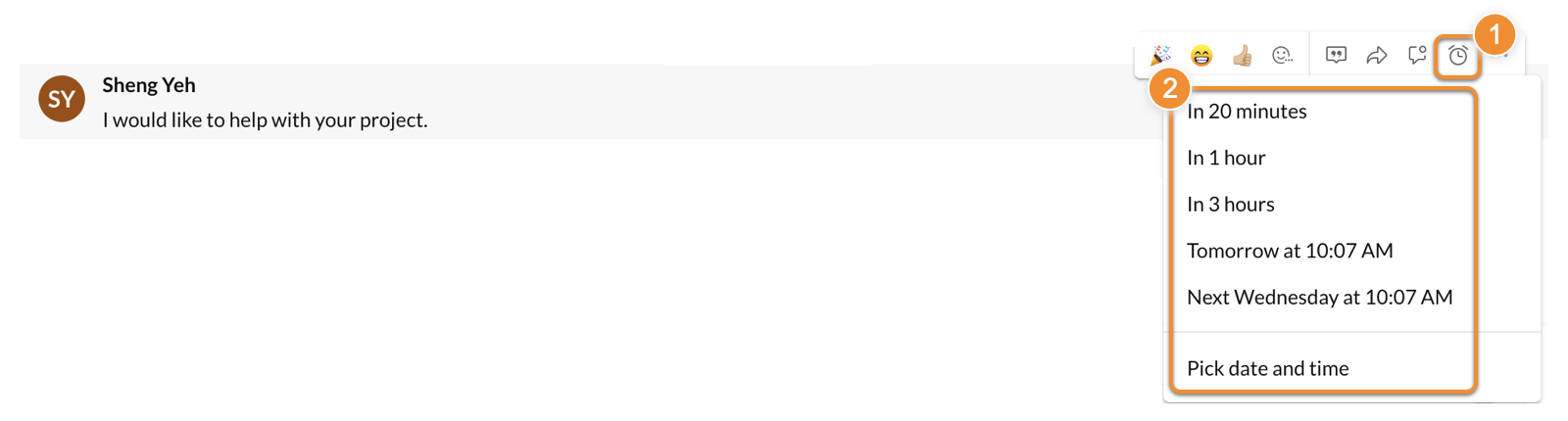
* Hover over any message in a conversation, then click the **Remind me** icon.
* Select one of the predefined times or *Pick date and time* to create a custom reminder. Learn more about [managing your message reminders](https://support.ringcentral.com/article-v2/Using-reminders-in-the-RingCentral-app.html?brand=RingCentral&product=RingEX&language=en_US&pills-nav=desktop_%26_web "").
Pinning a message
-----------------
Pinning a message lets you mark it as important so everyone in the conversation can easily find it later.
* Hover over any message in a conversation. Click the three-dot **More** icon at the far right.
* Select **Pin for everyone** .
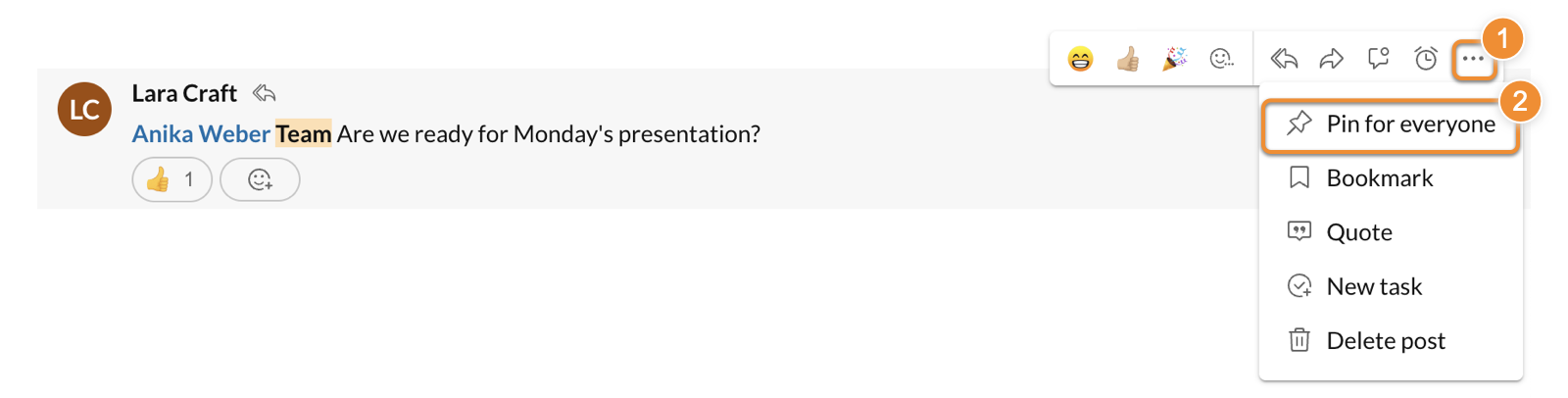
* Once the message is pinned, everyone in the conversation will see it in the Pinned section of the right panel.

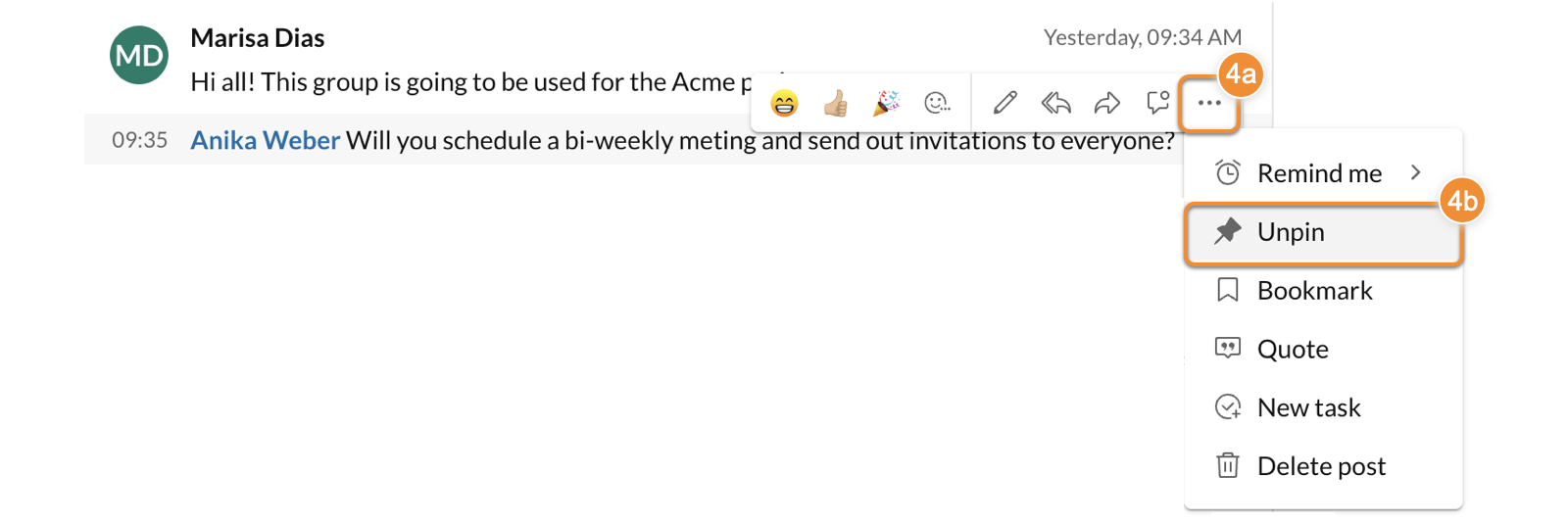
* To remove a message from the Pinned section, hover over the pinned message, click the three-dot **More** icon (a) at the far right, then click **Unpin** (b).
Bookmarking a message
---------------------
Bookmarking a message lets you save a message so you can return to it later.
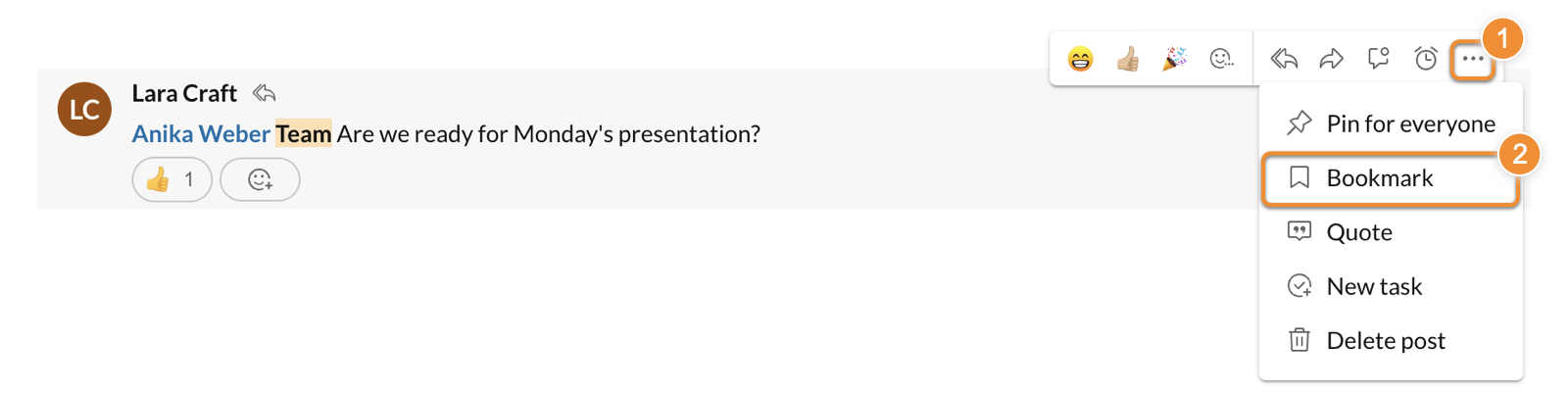
* Hover over any message in a conversation. Click the three-dot **More** icon at the far right.
* Select **Bookmark** .
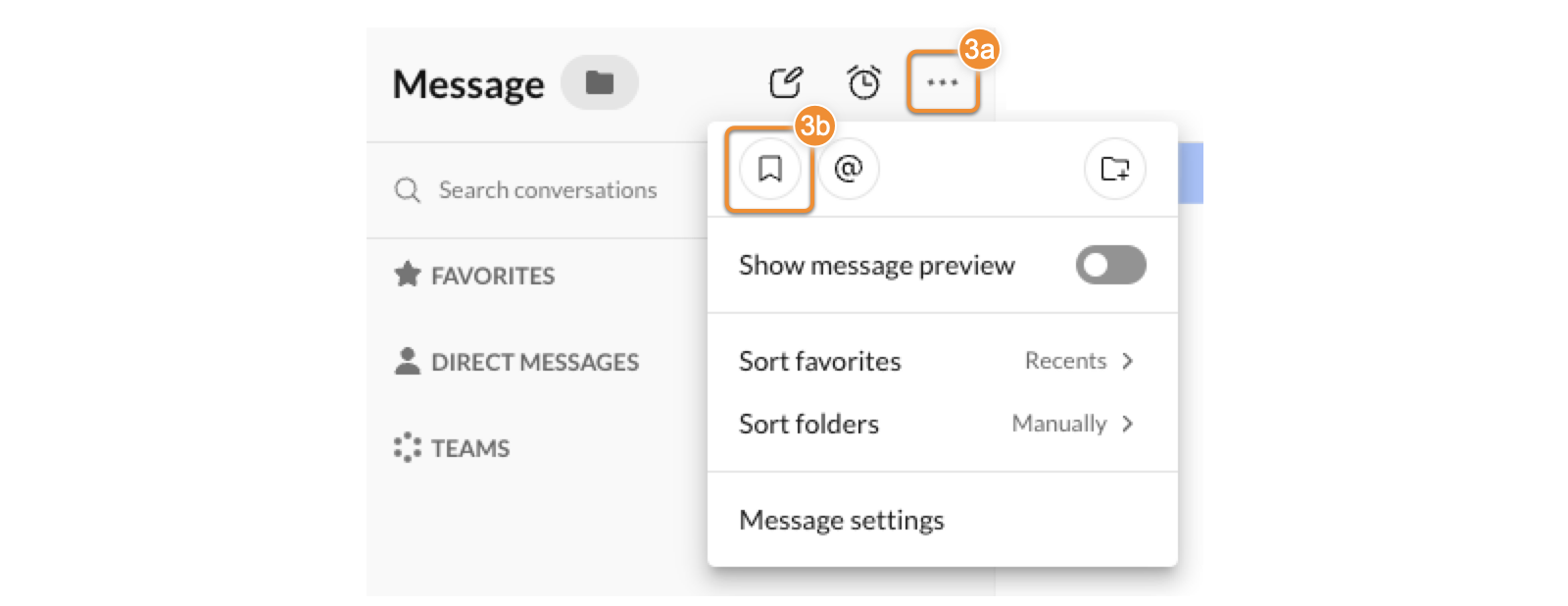
* To access bookmarked messages, click the three-dot **More** icon (a) at the top of the Message panel, then click the **Bookmarks** icon (b). After viewing bookmarked messages, return to the main conversation by clicking the person or team name above the bookmarked message.
* To remove a bookmark, hover over the bookmarked message, then click **Remove bookmark** .

Creating a task from a message
------------------------------
Creating a task from a message is a quick way to use
RingCentral
's auto-fill capabilities to create an assignment or schedule a meeting. Learn more about [creating a task from a message](https://support.ringcentral.com/article-v2/Creating-a-task-in-the-RingCentral-app.html?brand=RingCentral&product=RingEX&language=en_US "").
Editing a sent message
----------------------
* In any conversation, hover over a message that you've sent, then click the **Edit** icon.

* Edit the text in the message field as desired.
* When you're done editing, click the **Send** icon or press Enter or Return. The edited message will appear in the conversation along with the word *Edited* .

Deleting a sent message
-----------------------
* Hover over any message you've sent. Click the three-dot **More** icon at the far right.
* Select **Delete post** .
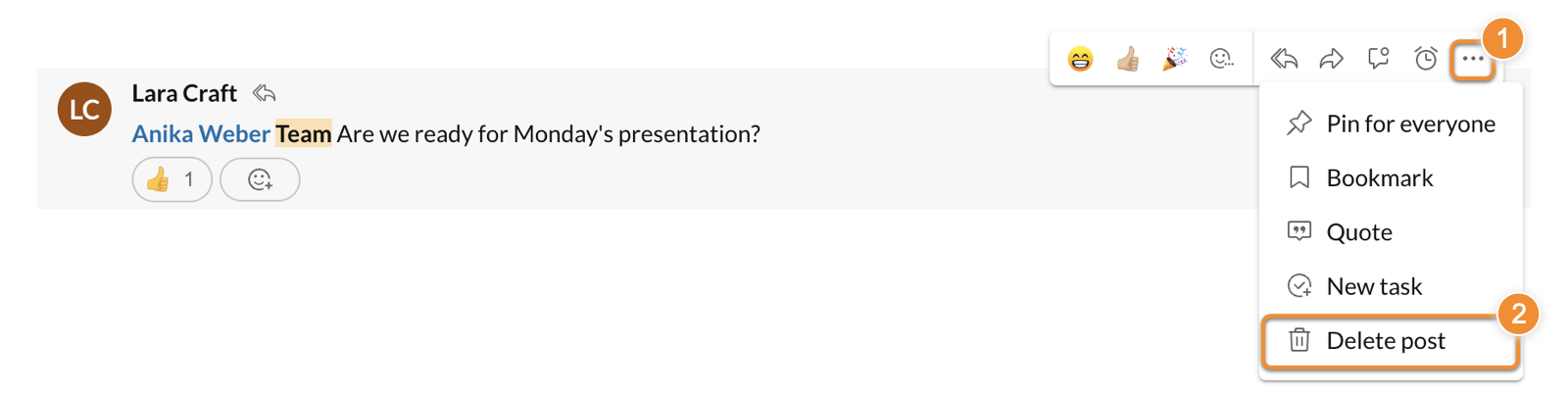
* Click **Delete** in the popup window to confirm.
**Additional resources**
[Sending a message](https://support.ringcentral.com/article-v2/Sending-a-message-in-the-RingCentral-app.html?brand=RingCentral&product=RingEX&language=en_US "")
[Sending audio and video recordings using messages](https://support.ringcentral.com/article-v2/Sending-audio-and-video-messages-in-the-RingCentral-app.html?brand=RingCentral&product=RingEX&language=en_US "")
[Using AI to write and improve messages](https://support.ringcentral.com/article-v2/Using-AI-to-write-and-improve-messages-in-the-RingCentral-app.html?brand=RingCentral&product=RingEX&language=en_US "")
[Using message summaries](https://support.ringcentral.com/article-v2/Using-message-summaries-in-the-RingCentral-app.html?brand=RingCentral&product=RingEX&language=en_US "")
[Using emoji reactions in your messages](https://support.ringcentral.com/article-v2/Using-emojis-in-your-messages-in-the-RingCentral-app.html?brand=RingCentral&product=RingEX&language=en_US "")
## Mobile
Managing your
Message
in the mobile app
---------------------------------------------------------------------------------------------------------
Jump to a task:
* [Translating a message](#translating "")
* [Using emojis to react to a message](#emojis "")
* [Summarizing a message](#summarize "")
* [Quoting a message](#quote "")
* [Forwarding a message](#forward "")
* [Copying a message](#copy "")
* [Setting a message reminder](#reminder "")
* [Marking messages as unread](#unread "")
* [Bookmarking a message](#bookmark "")
* [Pinning a message](#pin "")
* [Editing a sent message](#edit "")
* [Deleting a sent message](#delete "")
Translating a message
---------------------
You can translate received messages into your preferred language when translation settings are turned on.
Note
This feature is available for customers on the RingEX Advanced and Ultra plans.
* Tap your profile icon.
* Under Settings, tap **AI**.
* Tap **Translate to** and select the language that your messages will be translated into.
* Tap the **Show Translate button** toggle on to display a button on messages that aren't in your selected language.

To translate a text message:
* Tap **Message** in the bottom menu bar.
* Tap the conversation.
* Tap the **Translate** link that appears when the system detects a language different from the one you selected in the translation settings. Tap the **Translate** link.
* You can also tap and hold the message, then tap **Translate** to select a language.

The content will be translated into the selected language. Tap **Show original** to revert the message to the original text.
Using emojis to react to a message
----------------------------------
React to a message with an emoji to acknowledge it or share a quick response without sending a new message. Emoji reactions can also notify the sender, depending on their [notification settings](#topic_12 "").
* Tap **
Message
** in the bottom menu bar, then tap any conversation.

* Tap the message you want to react to. You can choose from your frequently used emojis or for a larger selection, tap the **More emojis** icon to open the emoji picker.
* Your emoji reaction will appear in an oval below the message. Repeat to add more emojis to the same message. Click the emoji oval to remove your reaction.

Summarizing a message
---------------------
Tap any message, then tap **Summarize** to generate a summary of that message, which you can then copy or share with a coworker. Learn more about [AI message summaries](https://support.ringcentral.com/article-v2/Using-AI-to-write-and-improve-messages-in-the-RingCentral-app.html?brand=RingCentral&product=RingEX&language=en_US&pills-nav=mobile "").

Quoting a message
-----------------
* Tap any message, then tap **Quote message**. The text of the quoted message will appear in the message field, with the name of its original sender above it.
* Edit or add to the quoted message as desired.
* To send the quoted message within the same conversation, tap the **Send** icon.

* To send the quoted message in a new conversation:
* Select and copy all of the text. Once it's copied, delete the text from the message field.
* Tap the back arrow at the top left, then tap any conversation or tap the **+ New Actions** button to start a new message.
* Paste in the quoted text.
* Tap the **Send** icon.
Forwarding a message
--------------------
* Tap any message, then tap **Forward message**.
* Select or search for the name of the person or team you'd like to forward the message to.
* Tap to enter that person's or team's name in the **To** field of a new message, then tap **Send** at the top right.
* You can also tap Create team, then [set up a new team](https://support.ringcentral.com/article-v2/Creating-a-new-team-in-the-RingCentral-app.html?brand=RingCentral&product=RingEX&language=en_US&pills-nav=mobile "") to forward the message to.

Note
A forwarded message contains the original sender's name, the team name (if any), a quote of the original message, and any attachments included in the original message.
Copying a message
-----------------
Tap any message, then tap **Copy**. You can then paste the text of the message into another message or any other app.

Setting a message reminder
--------------------------
[Set and manage message reminders](https://support.ringcentral.com/article-v2/Using-reminders-in-the-RingCentral-app.html?brand=RingCentral&product=RingEX&language=en_US&pills-nav=mobile "") to keep track of important messages and action items.
* Tap any message, then tap **Remind me**.
* Select one of the predefined times or *Pick date and time* to create a custom reminder. Learn more about [managing your message reminders](https://support.ringcentral.com/article-v2/Using-reminders-in-the-RingCentral-app.html?brand=RingCentral&product=RingEX&language=en_US&pills-nav=mobile "").
Marking messages as unread
--------------------------
Marking messages as unread is a way to prompt yourself to go back and read one or more messages later.
* Tap any message, then tap **Mark unread from here** .
* In the conversation, the oldest message marked as unread will have a **New messages** line break just above it. The unread notification count will increase.

Bookmarking a message
---------------------
Bookmarking a message lets you save a message so you can return to it later.
* Tap any message, then tap **Bookmark**.
* To access bookmarked messages:
* On iOS: Tap the **Filter** icon at the top right of the main panel.
* On Android: Tap the three-dot **More** icon from the main panel, then tap **Bookmarks**.
* To remove a bookmark, tap the message, then tap **Remove bookmark** .

Pinning a message
-----------------
Pinning a message lets you mark a message as important so everyone in the conversation can easily find it later.
* Tap any message, then tap **Pin for everyone**.
* Once the message is pinned, everyone in the conversation will see it in the **Pinned** area. To view pinned messages in a conversation, tap the three-dot **More** icon at the top right of that conversation, then tap **Pinned**.
* To remove a message from the **Pinned** area, tap the pinned message, then tap **Unpin** .

Editing a sent message
----------------------
* Tap any message you've sent, then tap **Edit message**.
* Edit the text in the message field as desired. Then tap **Save** . The edited message will appear in the conversation along with the word *Edited* .

Deleting a sent message
-----------------------
* Tap any message you've sent, then tap **Delete message**.
* Tap **Delete** in the popup window to confirm.

**Additional resources**
[Sending a message](https://support.ringcentral.com/article-v2/Sending-a-message-in-the-RingCentral-app.html?brand=RingCentral&product=RingEX&language=en_US&pills-nav=mobile "")
[Sending audio and video recordings using messages](https://support.ringcentral.com/article-v2/Sending-audio-and-video-messages-in-the-RingCentral-app.html?brand=RingCentral&product=RingEX&language=en_US&pills-nav=mobile "")
[Using AI to write and improve messages](https://support.ringcentral.com/article-v2/Using-AI-to-write-and-improve-messages-in-the-RingCentral-app.html?brand=RingCentral&product=RingEX&language=en_US&pills-nav=mobile "")
[Using message summaries](https://support.ringcentral.com/article-v2/Using-message-summaries-in-the-RingCentral-app.html?brand=RingCentral&product=RingEX&language=en_US&pills-nav=mobile "")