app for desktop and web
==================================================================================================================
RingCentral
releases monthly updates for the desktop and web apps, typically at 12 AM PST.
If your organization has your app set to auto-update, the updates will occur in the background without interrupting active calls or meetings. Message drafts are saved during updates, and the app restarts automatically once the update is complete.
If your app hasn't been updated for more than three months, it becomes outdated. You'll need to update to continue using the desktop app; otherwise, you can switch to the web app. After seven months, outdated versions are no longer supported.
Updating your app when prompted
-------------------------------
\\\Your browser does not support the iframe element.\
If your app is outdated, a banner will appear at the top prompting you to update to the latest version. To install the update:
* Click **Update** now. If you close the banner instead of updating, it will reappear in a few days.

* Windows users:
* The app will close during the update.
* Once it's updated, you'll need to relaunch the app.
* Rebooting your computer isn't required.
* Mac users:
* Choose between closing the app to update it immediately or deferring the update to a later time.
* The app will relaunch automatically once it's updated.
* Rebooting your computer isn't required.
Updating your app manually
--------------------------
* There are two places to check for updates:
* **In the app menus**
* Click your profile photo at the top left corner of the
RingCentral
desktop or web app, then select **Check for updates** in the dropdown.

* **In your operating system menus**
* **macOS users** (b): With the desktop app open, click **
RingCentral
** in the Mac menu bar, then select **Check for updates** in the dropdown.
* **Windows users** (c): With the desktop app open, click **Help** in the top menu bar, then select **Check for updates** in the dropdown.

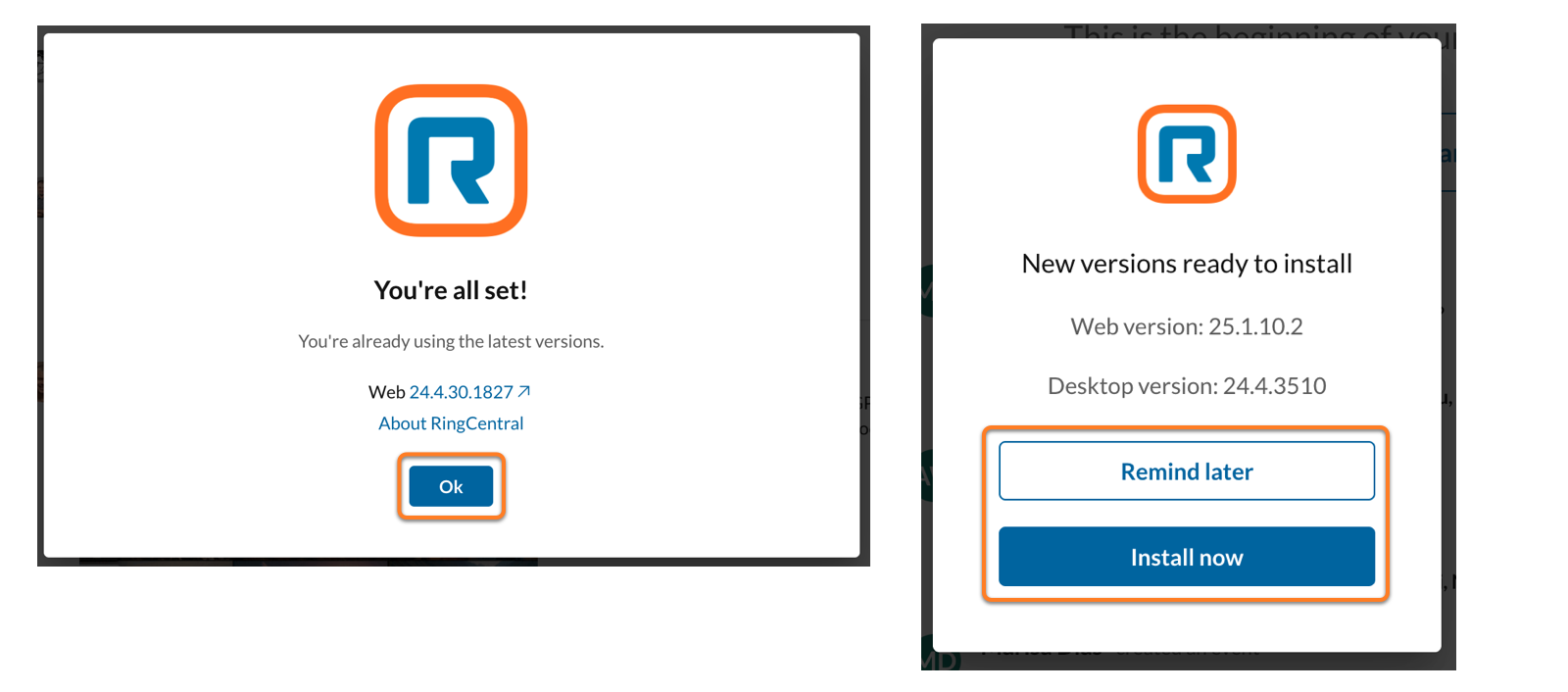
* Once selected, a popup window will appear.
* If your app is up to date, the popup will show you're using the latest version. Click **Ok** to close the window.
* If an update is available, the popup will prompt you to install it.
* Click **Install now** to install the update.
* Click **Remind later** to close the popup without installing the update.
Once the app has updated, click **View release notes** in the confirmation banner to learn more about the updated version.
