Navigating the
RingCentral
app
================================================================================================
You can find all your available
RingCentral
features within the desktop, web, and mobile apps. Finding your way around and learning how to customize your app will create a more personalized experience for your needs.
Note: Your app may vary based on your permissions or the features available to your company.
Which
RingCentral
app will you be using?
## Desktop & web
Top bar
-------
In the
RingCentral
desktop app, the content in the top bar will always remain the same regardless of where you are in the app.

The top bar contains (from left to right):
* Your profile picture: Click your profile picture for these options:
* **[View profile](https://support.ringcentral.com/article-v2/Editing-your-profile-in-the-RingCentral-app.html?brand=RingCentral&product=RingEX&language=en_US "")**: Click to open and update your profile.
* **[Presence](https://support.ringcentral.com/article-v2/Setting-your-presence-in-the-RingCentral-app.html?brand=RingCentral&product=RingEX&language=en_US "")** : *Available* , *Do not disturb* , or *Invisible*.
* **[Set status message](https://support.ringcentral.com/article-v2/Sharing-your-status-in-the-RingCentral-app.html?brand=RingCentral&product=RingEX&language=en_US "")**: Click to set or update your status.
* **[Call rules](https://support.ringcentral.com/article-v2/Setting-up-how-incoming-calls-are-handled.html?brand=RingCentral&product=RingEX&language=en_US "")**: Set rules for managing your incoming calls.
* **Accept queue calls**: Click the toggle on to receive calls from a queue.
* **[Add account](https://support.ringcentral.com/article-v2/Switching-between-RingCentral-accounts.html?brand=RingCentral&product=RingEX&language=en_US "")** : Use to add, switch, and manage additional
RingCentral
user accounts.
* **Manage company account**: Link to the company's Admin Portal (admins only).
* **Check for updates**: View the current version of your app and access the update button.
* **Sign out** : Click to sign out of the
RingCentral
app.
* Your company name.
* Back and forward arrows to go to pages you've recently visited in the app. Click and hold the arrow to see your history.
* A [search bar](https://support.ringcentral.com/article-v2/Using-the-search-bar-in-the-RingCentral-app.html?brand=RingCentral&product=RingEX&language=en_US "") to look up messages, users, groups, and teams.
* The New layout toggle to turn on the updated app view.
* A dialpad to call coworkers or external numbers.
* New actions plus icon to perform quick actions:
* **[New message](https://support.ringcentral.com/article-v2/Sending-a-message-in-the-RingCentral-app.html?brand=RingCentral&product=RingEX&language=en_US "")**
* **[Create team](https://support.ringcentral.com/article-v2/Creating-a-new-team-in-the-RingCentral-app.html?brand=RingCentral&product=RingEX&language=en_US "")**
* **[Start a video meeting](https://support.ringcentral.com/article-v2/Starting-RingCentral-Video-meetings-instantly.html?brand=RingCentral&product=RingEX&language=en_US "")**
* **[Schedule a video meeting](https://support.ringcentral.com/article-v2/Scheduling-a-RingCentral-Video-meeting.html?brand=RingCentral&product=RingEX&language=en_US "")**
* **[Create webinar](https://support.ringcentral.com/article-v2/Scheduling-a-webinar.html?brand=RingCentral&product=Webinar&language=en_US "")**
* **[Start a conference call](https://support.ringcentral.com/article-v2/Starting-a-conference-call-in-the-RingCentral-app.html?brand=RingCentral&product=RingEX&language=en_US "")**
* **[Send new text](https://support.ringcentral.com/article-v2/sending-viewing-text-messages-desktop-web-app.html?brand=RingCentral&product=RingEX&language=en_US "")**
* **[Send new fax](https://support.ringcentral.com/article-v2/Sending-a-fax.html?brand=RingCentral&product=RingEX&language=en_US "")**
* **[Invite to
RingCentral
](https://support.ringcentral.com/article-v2/Inviting-a-new-user-in-the-RingCentral-app.html?brand=RingCentral&product=RingEX&language=en_US "")** : Hover for invitation options: *By email* , *From contacts* , *By text* , and *By sharing a link*.
Navigation bar
--------------
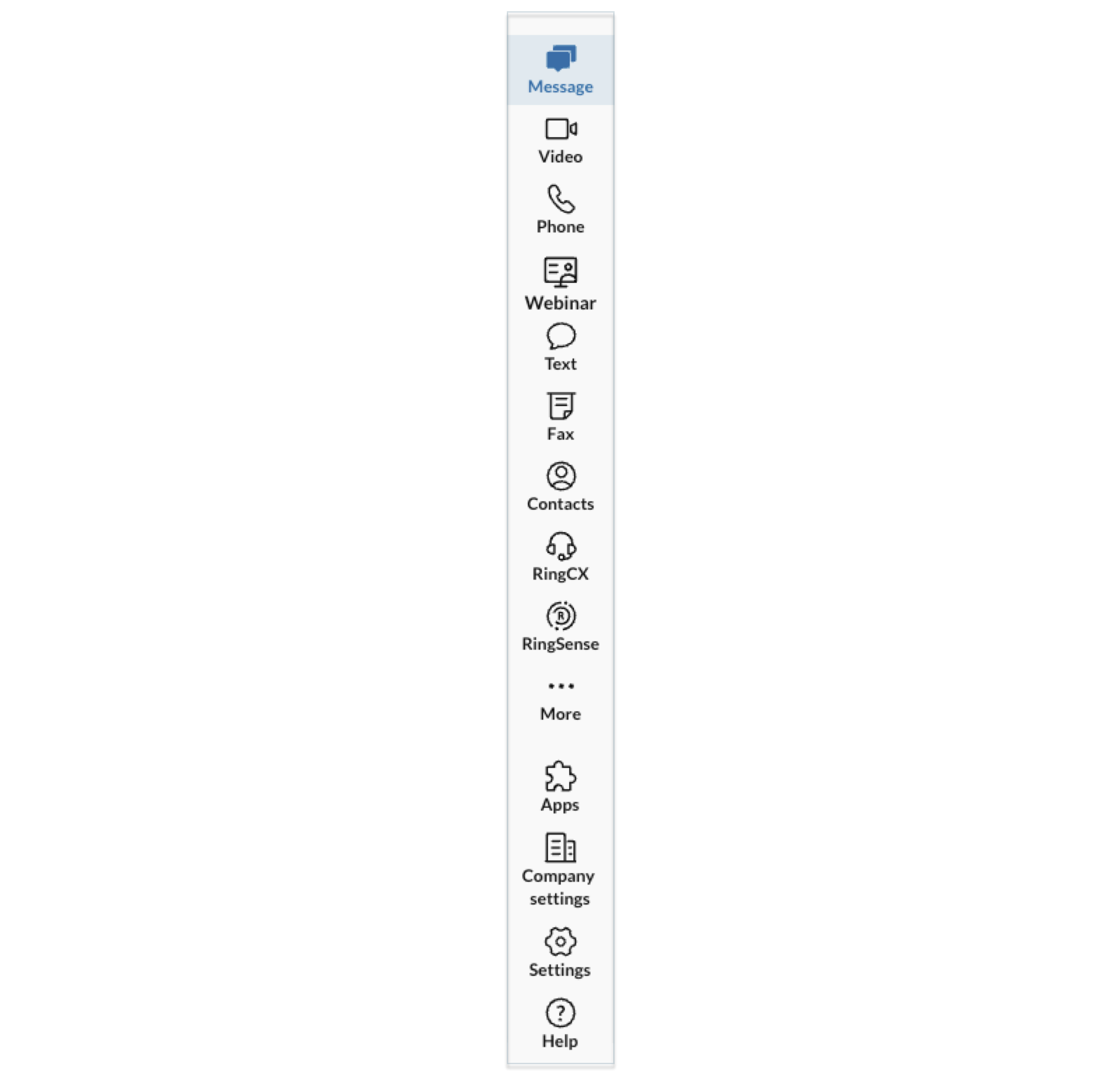
The navigation bar is where you'll find the features that are available to you. These could include:
* **[
Message
](#topic_5_message "")**: Send and view one-on-one, group, and team messages.
* **[
Video
](#topic_6_video "")**: Start, schedule, and join meetings, and view your past meetings.
* **[Phone](#topic_7_phone "")** : View and manage your [Heads-up display (HUD)](https://support.ringcentral.com/article-v2/Turning-on-and-accessing-the-Heads-up-display-in-the-RingCentral-app.html?brand=RingCentral&product=RingEX&language=en_US ""), call history, voicemails, and recordings.
* **[Webinar](/content/rc-support/en_US/RingCentral/RingEX/Navigating-the-RingCentral-app/Pills/Desktop-web.html "")**: Schedule, manage, and review webinar metrics.
* **[Text](#topic_10_text "")**: Send and view text messages.
* **[Fax](#topic_11_fax "")**: Send and view faxes.
* **[Contacts](#topic_12_contacts "")**: View, add, and manage your contacts.
* **RingCX**: Access the RingCX feature.
* **AI Conversation Expert**: Access the RingSense feature.
* **More** : View hidden tabs:
* **[Workspace](/content/rc-support/en_US/RingCentral/RingEX/Navigating-the-RingCentral-app/Pills/Desktop-web.html#GUID-b6fc02ef-de9a-4b81-be94-493476ba709f_Workspace "")**: Manage individual or shared tasks, events, files, and notes.
* **Analytics**: Link to the company's Admin Portal (admins only).
* [**Customize**](https://support.ringcentral.com/article-v2/Customizing-tabs-in-the-RingCentral-app.html?brand=RingCentral&product=RingEX&language=en_US ""): Customize the arrangement of your tabs.
* **[Apps](https://support.ringcentral.com/article-v2/Managing-notification-apps-in-the-RingCentral-app.html?brand=RingCentral&product=RingEX&language=en_US "")**: Use external applications and services.
* **Company Settings**: Manage your company settings (admins only).
* **[Settings](#settings_Settings "")** : Customize and manage all available
RingCentral
app settings.
* **[Help](https://support.ringcentral.com/article-v2/Using-the-Help-center-in-the-RingCentral-app.html?brand=RingCentral&product=RingEX&language=en_US "")**: Watch how-to videos, learn about new features, search for help content, and provide feedback.
Note: When you're using the desktop app, the navigation bar will be located at the left or bottom, depending on the size of the app window.
Navigating the feature tabs
---------------------------
Each feature in the
RingCentral
app has its own layout. There are different panels for navigating, and they may vary slightly from one feature to another.
The left panel provides additional options, functions, or links related to the selected tab. It serves as a way for you to access related tools, settings, or related content while still viewing the main panel.
The main panel is the central area where you'll find and use specific tools for the selected feature.
### Message
The left panel in the Message tab is where you'll [start and manage your conversations](https://support.ringcentral.com/article-v2/Intro-to-Message-in-the-RingCentral-app.html?brand=RingCentral&product=RingEX&language=en_US "").
* **Folders** : Click the folder icon to **Show folders** or **Hide folders**. Hiding your folders will list all conversations with the most recent on top.
* **New Message**: Click to start a conversation.
* **Reminders**: Click to schedule reminders for messages you want to return to later.
* Three-dot **More** icon: Click to access these options:
* **Bookmarks**: Messages you've bookmarked for later reference.
* **[@mentions](https://support.ringcentral.com/article-v2/Using--mentions-in-the-RingCentral-app.html?brand=RingCentral&product=RingEX&language=en_US "")**: Click to view a page that lists all of your @mentions.
* **New folder**: Click to add a new folder.
* **Show message preview**: Click the toggle on to see previews of messages in your conversation list.
* **Sort favorites** : Choose how your favorited conversations are sorted. Select *Manually* or *Most* recent on top.
* **Sort folders** : Choose how your folders are sorted. Select *Manually* or *Most* recent on top.
* **Message settings** : Click to open the message settings panel.

* **Unread** : Click to show only unread messages. Click the dropdown icon for additional filters:
* Unread
* Unread @mentions
* Draft
* Failed
* Muted
* **[Favorites](https://support.ringcentral.com/article-v2/Organizing-your-conversations-in-the-RingCentral-app.html?brand=RingCentral&product=RingEX&language=en_US "")**: View the conversations you read most often in one section.
* **Direct messages**: View one-on-one and group conversations.
* **Teams**: View your active team conversations.
* Click the **New message** or **Create team** plus icon to begin a conversation.
* Click the dropdown arrow to expand all conversations in a folder.

The main panel displays the conversation thread, where you can [view and respond to messages](https://support.ringcentral.com/article-v2/Sending-a-message-in-the-RingCentral-app.html?brand=RingCentral&product=RingEX&language=en_US "").
At the top of the main panel, you'll find shortcuts to start a video meeting or initiate a phone call. Under the three-dot **More** icon, additional tools for messaging are available, including:
* [Pop out conversation](https://support.ringcentral.com/article-v2/Organizing-your-conversations-in-the-RingCentral-app.html?brand=RingCentral&product=RingEX&language=en_US "")
* View profile, view team profile
* Mute conversation
* Notification preferences
* Start conference call (only for teams)
* Copy conversation URL, copy team URL
* Post message via URL, post message via email
* Add apps
* Leave team

Clicking the **Show details** arrow icon opens the conversation details panel on the right, displaying who is in the conversation along with tabs for pinned messages, files, tasks, notes, links, or events posted in the conversation.

### Video
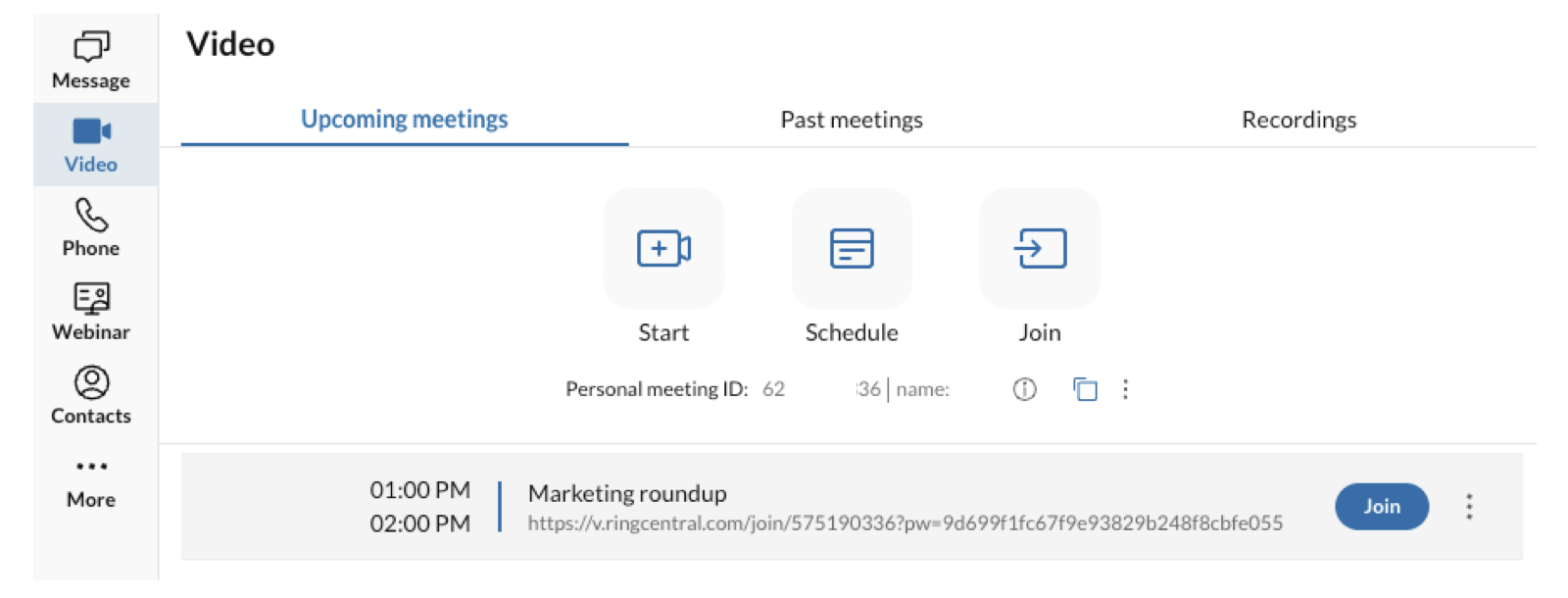
All functions of the [Video feature](https://support.ringcentral.com/article-v2/Intro-to-RingCentral-Video.html?brand=RingCentral&product=RingEX&language=en_US "") are in a single panel, with tabs located at the top for:
* Upcoming meetings: View, **[Start](https://support.ringcentral.com/article-v2/Starting-RingCentral-Video-meetings-instantly.html?brand=RingCentral&product=RingEX&language=en_US "")** , **[Schedule](https://support.ringcentral.com/article-v2/Scheduling-a-RingCentral-Video-meeting.html?brand=RingCentral&product=RingEX&language=en_US "")** , or **[Join a meeting](https://support.ringcentral.com/article-v2/Joining-a-RingCentral-Video-meeting.html?brand=RingCentral&product=RingEX&language=en_US "")** . Your **[Personal meeting ID](https://support.ringcentral.com/article-v2/Using-your-Personal-Meeting-ID-in-the-RingCentral-app.html?brand=RingCentral&product=RingEX&language=en_US "")** details are underneath the buttons.
* Past meetings: Access and manage your previous meetings.
* Recordings: Access and manage meeting recordings and summaries.
If you have [connected your calendar](https://support.ringcentral.com/article-v2/Managing-connected-accounts-in-the-RingCentral-app.html?brand=RingCentral&product=RingEX&language=en_US "") with the
RingCentral
app, you will see a list of your meetings and webinars with the details, a **Join** button, and the three-dot **More** icon providing access to:
* Dial in: Your dial pad will open to call into the meeting.
* **[Connect team](https://support.ringcentral.com/article-v2/Connect-a-team-with-a-RingCentral-Video-meeting.html?brand=RingCentral&product=RingEX&language=en_US "")**
* Copy meeting link
* Copy meeting info
* View meeting/webinar details
### Phone
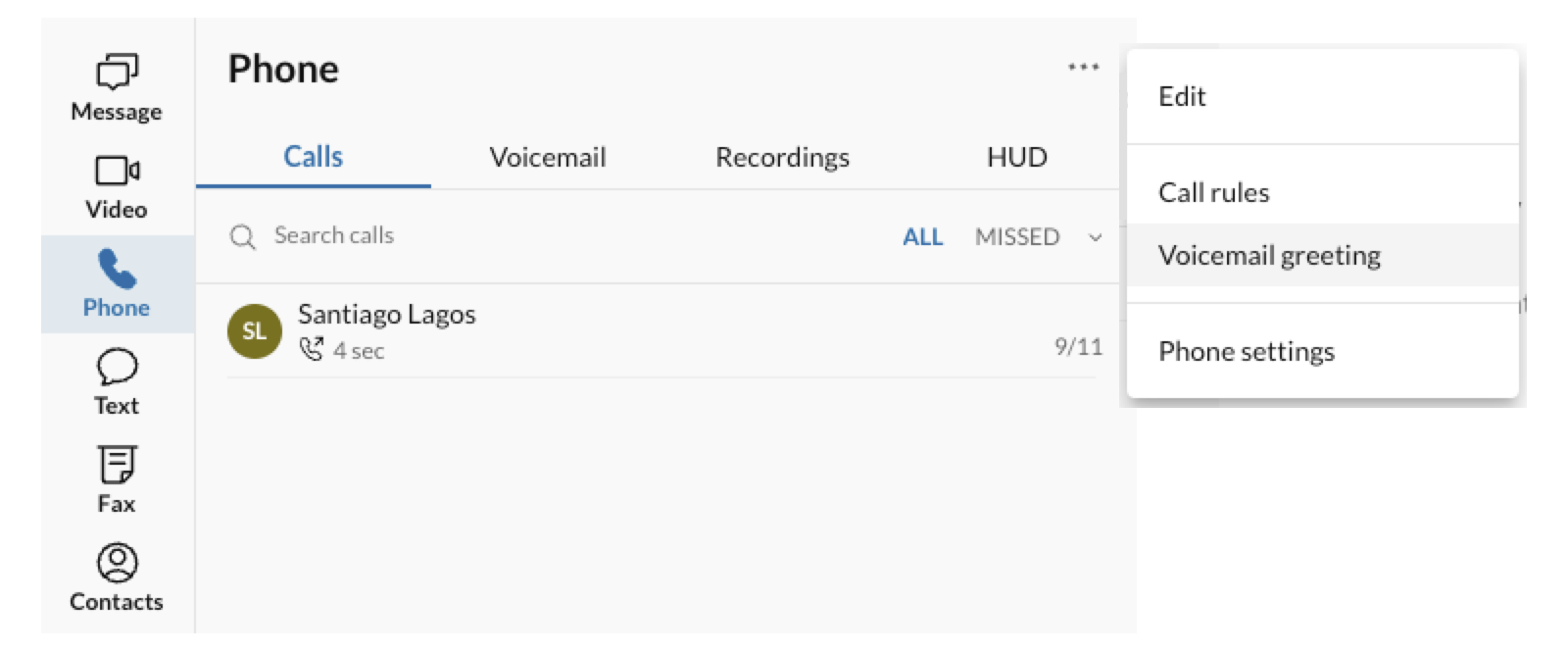
In the left panel of the [Phone](https://support.ringcentral.com/article-v2/Managing-phone-settings.html?brand=RingCentral&product=RingEX&language=en_US "") tab you can click the tabs to manage:
* **[Calls](https://support.ringcentral.com/article-v2/Viewing-and-managing-your-call-history-in-the-RingCentral-app-and-Admin-Portal.html?brand=RingCentral&product=RingEX&language=en_US "")**: View a list of all your incoming, outgoing, and missed calls.
* **[Voicemail](https://support.ringcentral.com/article-v2/Accessing-and-managing-your-voicemail.html?brand=RingCentral&product=RingEX&language=en_US "")**: Listen to and manage voicemail messages.
* **[Recordings](https://support.ringcentral.com/article-v2/Accessing-and-downloading-RingCentral-call-recordings.html?brand=RingCentral&product=RingEX&language=en_US "")**: Access and download your call recordings.
* **Heads-up display (HUD)**: View and monitor extensions.
* **More** : Access more options and settings:
* Edit in bulk
* Call rules
* [Voicemail greeting](https://support.ringcentral.com/article-v2/Accessing-and-managing-your-voicemail.html?brand=RingCentral&product=RingEX&language=en_US "")
* Phone settings
* Pop out HUD
* HUD settings
The main panel is where you'll access your dialpad and call controls.
Click the three-dot **More** icon to find:
* Pop out dialpad
* Emergency address confirmation
* RingOut
[Call rules](https://support.ringcentral.com/article-v2/Setting-up-how-incoming-calls-are-handled.html?brand=RingCentral&product=RingEX&language=en_US "")
* Voicemail greeting
* Phone settings

### Webinar
All functions of the Webinar feature are displayed within one panel. The **[Create webinar](https://support.ringcentral.com/article-v2/Scheduling-a-webinar.html?brand=RingCentral&product=Webinar&language=en_US "")** button is at the top right.
The search bar is located under the tabs:
* **[Upcoming](https://support.ringcentral.com/article-v2/Configuring-your-scheduled-webinar-settings.html?brand=RingCentral&product=Webinar&language=en_US "")**: Lists future webinars with controls to edit, start, duplicate, or delete the event.
* **Past** : Lists completed webinars with access to the [Webinar Dashboard](https://support.ringcentral.com/article-v2/Viewing-post-webinar-insights-and-details.html?brand=RingCentral&product=Webinar&language=en_US "").

### Text
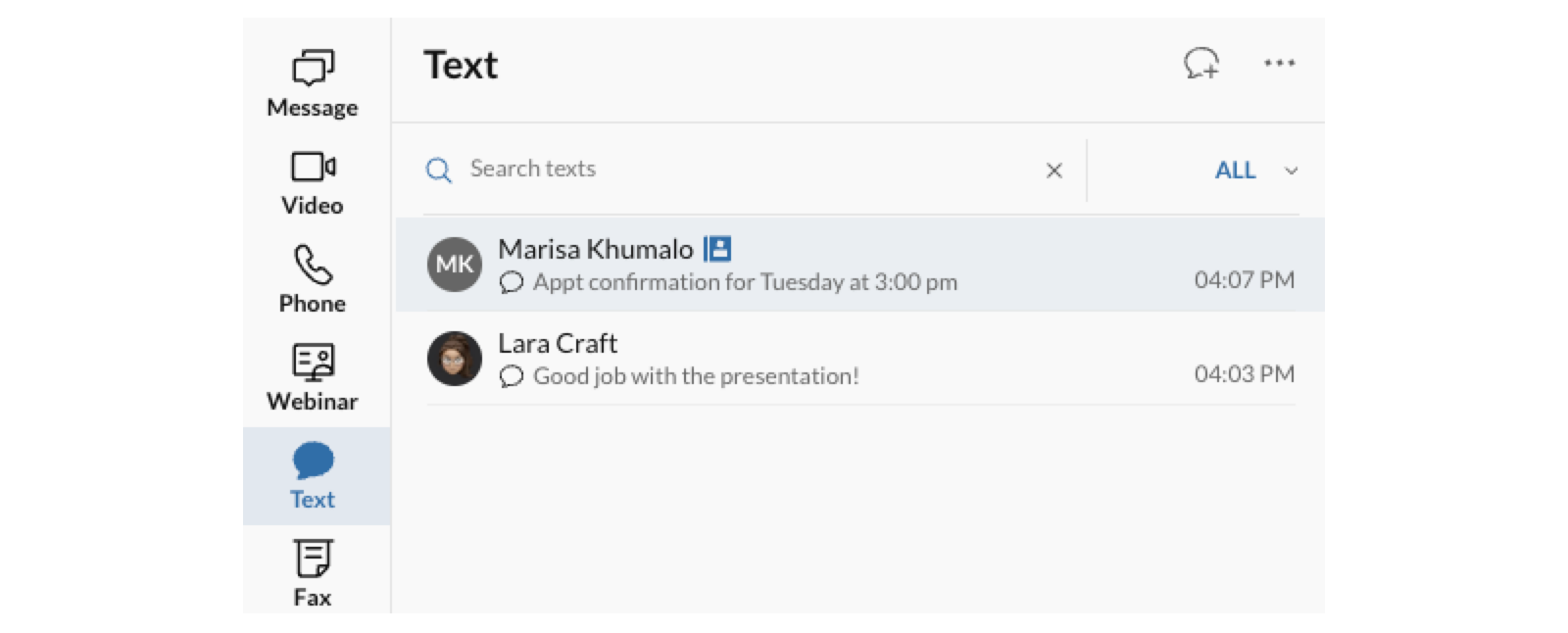
The left panel in the Text feature is where you can [send and manage your texts](https://support.ringcentral.com/article-v2/sending-viewing-text-messages-desktop-web-app.html?brand=RingCentral&product=RingEX&language=en_US "").
* **New Message**: Click to start a conversation
* Click the three-dot **More** icon to view:
* Edit: to bulk delete texts
* Call Rules
* Voicemail greeting
* Phone settings
* Search field
* Sort by **All** or **Unread**
The main panel has the selected text conversation and the tools to manage them, including forwarding and deleting.
### Fax
In the Fax tab, use the left panel to [send and manage your faxes](https://support.ringcentral.com/article-v2/Sending-a-fax.html?brand=RingCentral&product=RingEX&language=en_US "").
* **Send new fax**: Click to compose a fax
* Click the three-dot **More** icon to view:
* Edit: to bulk delete faxes
* Call Rules
* Voicemail greeting
* Phone settings
* Search field
* Sort by **All** or **Unread**
The main panel displays the selected fax details in a card format.

### Contacts
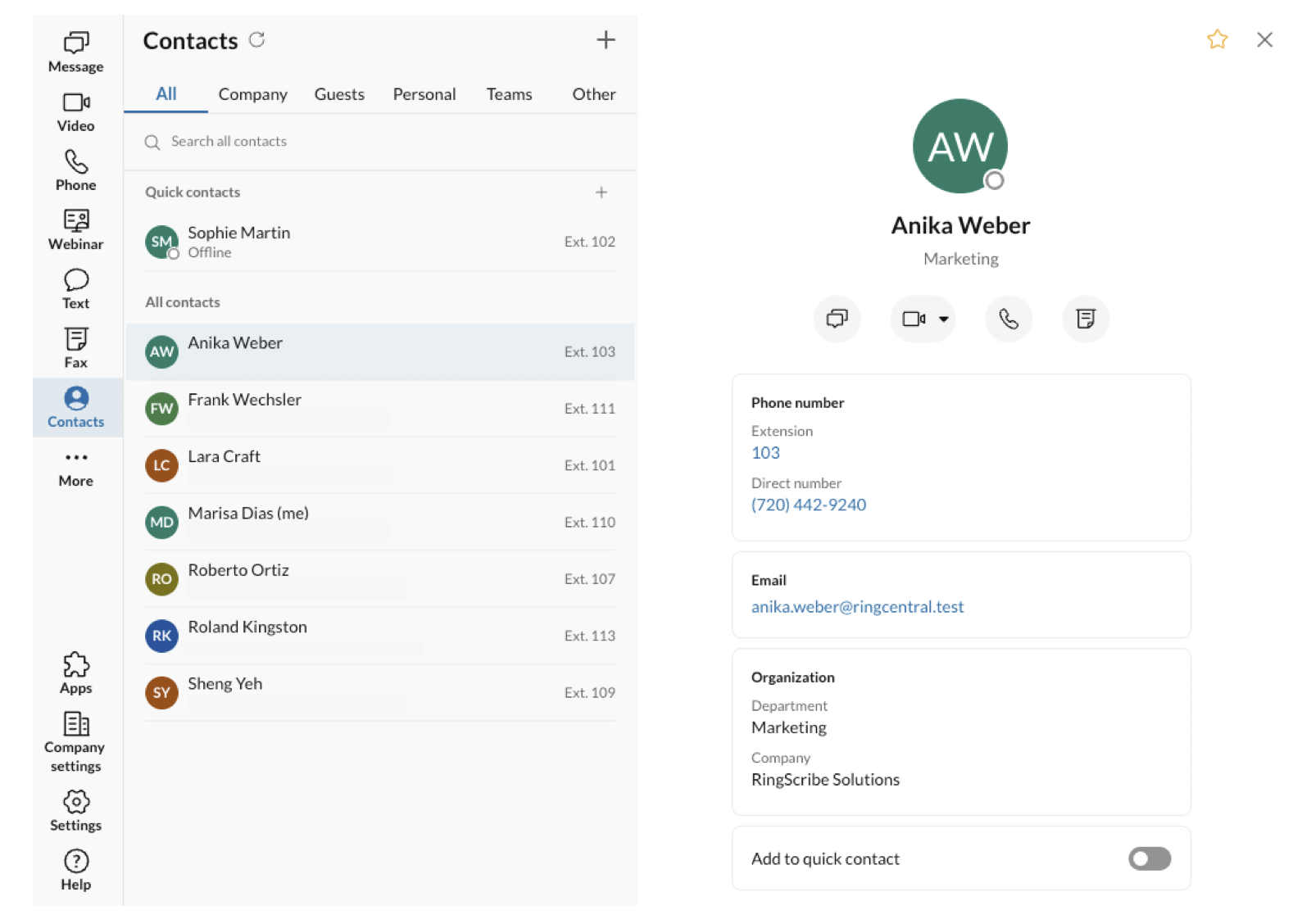
In the Contact tab, use the left panel to search for and [manage your contacts](https://support.ringcentral.com/article-v2/Managing-your-contacts-in-the-RingCentral-app.html?brand=RingCentral&product=RingEX&language=en_US ""). Use the quick contact options such as message, video call, phone, text, and fax, and view contacts based on their categorization. The tabs at the top include:
* All: Includes your [Quick contacts](https://support.ringcentral.com/article-v2/Adding-quick-contacts-in-the-RingCentral-app-desktop-and-web.html?brand=RingCentral&product=RingEX&language=en_US "")
* Company
* Guests
* Personal
* Teams
* Other
Once you click on a contact, their full details will display in the main panel.
### Workspace
The [Workspace feature](https://support.cloudwork.bt.com/article-v2/Intro-RingCentral-App-Workspace.html?brand=BT&product=Cloud_Work&language=en_US "") is found under the three-dot **More** tab in the Navigation bar. In this menu, you can see, edit, and complete tasks, manage events, access attached files, and review notes from all your conversations in one place. It eliminates the need to switch between conversations to find what you want to manage.
The left panel is broken up into:
* **Calendar**: Calendar view of tasks and events
* **[Tasks](https://support.ringcentral.com/article-v2/Managing-tasks-in-the-RingCentral-app.html?brand=RingCentral&product=RingEX&language=en_US "")**
* **[Events](https://support.ringcentral.com/article-v2/Managing-events-in-the-RingCentral-app.html?brand=RingCentral&product=RingEX&language=en_US "")**
* **Files**: All files you've posted or shared with you
* **Notes**: All notes you've written or shared with you
The main panel has the associated details and tools to manage the feature that you've selected from the left panel.

### Settings
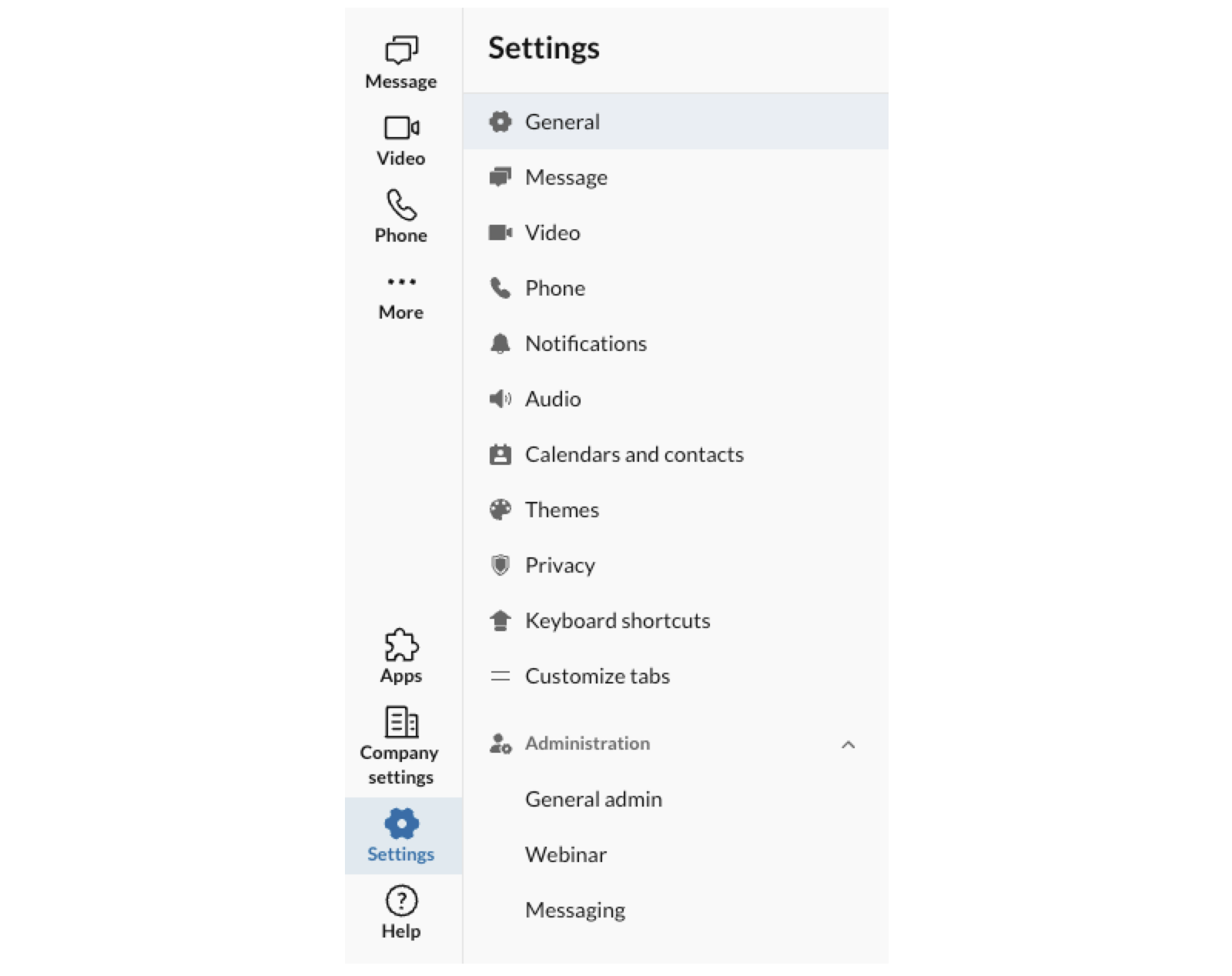
The left panel is your starting point to access and manage all of the settings available for you in the
RingCentral
app. They include:
* **General**
* **[
Message
](https://support.ringcentral.com/article-v2/Managing-message-settings-in-the-RingCentral-app.html?brand=RingCentral&product=RingEX&language=en_US "")**
* **[
Video
](https://support.ringcentral.com/article-v2/Managing-RingCentral-Video-settings-in-the-RingCentral-app.html?brand=RingCentral&product=RingEX&language=en_US "")**
* **[Phone](https://support.ringcentral.com/article-v2/Managing-phone-settings.html?brand=RingCentral&product=RingEX&language=en_US "")**
* **[Notifications](https://support.ringcentral.com/article-v2/Managing-notifications-and-sounds-in-the-RingCentral-app.html?brand=RingCentral&product=RingEX&language=en_US "")**
* **[Audio](https://support.ringcentral.com/article-v2/Setting-up-your-microphone-and-speakers-for-RingEX-calls.html?brand=RingCentral&product=RingEX&language=en_US "")**
* **[Calendar and contacts](https://support.ringcentral.com/article-v2/Managing-connected-accounts-in-the-RingCentral-app.html?brand=RingCentral&product=RingEX&language=en_US "")**
* **Themes**
* **Privacy**
* **[Keyboard shortcuts](https://support.ringcentral.com/article-v2/Using-keyboard-shortcuts-in-the-RingCentral-app.html?brand=RingCentral&product=RingEX&language=en_US "")**
* **[Customize tabs](https://support.ringcentral.com/article-v2/Customizing-tabs-in-the-RingCentral-app.html?brand=RingCentral&product=RingEX&language=en_US "")**
* **Administration** , where you can find these options in the dropdown:
* General admin
* [Webinar](https://support.ringcentral.com/article-v2/Selecting-language-options-in-RingCentral-Webinar.html?brand=RingCentral&product=Webinar&language=en_US "")
* Messaging
* Public teams (only Team admins)
* Private teams (only Team admins)
## Mobile
Top bar
-------
The top bar in the
RingCentral
mobile app will always contain your profile and the name of the feature you are currently using.
Depending on the feature you are using in the app, the top bar may also have **Search** , **New actions** , or three-dot **More** icons that will lead to additional tools and settings for that feature.
For example, when you're in **
Message
**, the top bar contains, from left to right:
* Your profile menu.
* The **Search** icon, which you can use to search your messages or contacts.

* The **New actions** button lets you create a new message.
* Android users: The New actions button is at the bottom right.
* iOS users: The **New actions** button is at the top right corner.

Profile menu
------------
You can access the profile menu from anywhere in the mobile app.
* iOS users: Tap your profile picture at the top left.
* Android users: Tap the menu icon at the top left.
You'll see the following options in the profile menu:
* **[Profile](https://support.ringcentral.com/article-v2/Editing-your-profile-in-the-RingCentral-app.html?brand=RingCentral&product=RingEX&language=en_US "")**: Tap your name to open and edit your profile. Your profile includes your picture, name, email address, and contact information.
* **[Presence](https://support.ringcentral.com/article-v2/Setting-your-presence-in-the-RingCentral-app.html?brand=RingCentral&product=RingEX&language=en_US "")** : Under your name and phone number, you can tap your presence indicator to select an option in the dropdown: *Available* , *Do not disturb* , or *Invisible*.
* **[Set a status message](https://support.ringcentral.com/article-v2/Sharing-your-status-in-the-RingCentral-app.html?brand=RingCentral&product=RingEX&language=en_US "")**: Select a status or create a custom status to share with others.
* **[Call rules](https://support.ringcentral.com/article-v2/Setting-up-how-incoming-calls-are-handled.html?brand=RingCentral&product=RingEX&language=en_US "")**: Manage incoming calls.
* **[Switch accounts](https://support.ringcentral.com/article-v2/Switching-between-RingCentral-accounts.html?brand=RingCentral&product=RingEX&language=en_US "")** : Log in using another
RingCentral
profile.
* **[Accept queue calls](https://support.ringcentral.com/article-v2/Setting-up-your-RingCentral-app-to-receive-queue-calls.html?brand=RingCentral&product=RingEX&language=en_US "")**: Tap the toggle to turn this option on or off (Available only to admins and users who are part of a call queue).
* **Analytics**: Go to the Analytics Portal (Available only to admins and users with analytics permissions).
* **Admin tools**: View your company call logs, billing, phone system, and call queue management (Available only to admins).
* **Settings** : Set and manage:
* **General**
* **[
Message
](https://support.ringcentral.com/article-v2/Managing-message-settings-in-the-RingCentral-app.html?brand=RingCentral&product=RingEX&language=en_US "")**
* **[
Video
](https://support.ringcentral.com/article-v2/Managing-RingCentral-Video-settings-in-the-RingCentral-app.html?brand=RingCentral&product=RingEX&language=en_US "")**
* **[Phone](https://support.ringcentral.com/article-v2/Managing-phone-settings.html?brand=RingCentral&product=RingEX&language=en_US "")**
* **[Notifications](https://support.ringcentral.com/article-v2/Managing-notifications-and-sounds-in-the-RingCentral-app.html?brand=RingCentral&product=RingEX&language=en_US "")**
* **[Calendar and contacts](https://support.ringcentral.com/article-v2/Managing-connected-accounts-in-the-RingCentral-app.html?brand=RingCentral&product=RingEX&language=en_US "")**
* **Labs**
* **[Themes](https://support.ringcentral.com/article-v2/Configuring-themes-in-the-RingCentral-app.html?brand=RingCentral&product=RingEX&language=en_US "")**
* **Privacy and storage**
* **Help:**
* Help center: Access resources like Get started, What's new, Help, and Feedback.
* Report an issue
* Suggest a feature
* Rate this app
* About this app
* **Sign out**: Sign out of the mobile app.
Bottom menu bar
---------------
The bottom menu bar contains your main navigation for the mobile app.
* To see all of the options you can select, tap **More**, or swipe up.
* To customize the appearance of this menu bar, tap **[Customize tabs](https://support.ringcentral.com/article-v2/Customizing-tabs-in-the-RingCentral-app.html?brand=RingCentral&product=RingEX&language=en_US "")**.

You can navigate between the following parts of the app in the bottom menu bar, depending on your permissions:
* **[
Message
](https://support.ringcentral.com/article-v2/Intro-to-Message-in-the-RingCentral-app.html?brand=RingCentral&product=RingEX&language=en_US "")**: Send and receive messages, create and view teams, share files, and manage tasks.
* **[
Video
](https://support.ringcentral.com/article-v2/Intro-to-RingCentral-Video.html?brand=RingCentral&product=RingEX&language=en_US "")**: Start, schedule, and join meetings; manage recordings; and view recent meetings.
* **Phone**: Make and receive phone calls, manage your call history, and listen to your voicemails.
* **[Text](https://support.ringcentral.com/article-v2/Managing-text-messages-in-the-RingCentral-app.html?brand=RingCentral&product=RingEX&language=en_US "")**: View and send text messages.
* **[Contacts](https://support.ringcentral.com/article-v2/Managing-your-contacts-in-the-RingCentral-app.html?brand=RingCentral&product=RingEX&language=en_US "")**: Add, view, and manage all your company contacts, including administrators, company users, and guest users. You can also create, view, and manage teams here.
* **[Fax](https://support.ringcentral.com/article-v2/Sending-a-fax.html?brand=RingCentral&product=RingEX&language=en_US "")**: View and send fax messages.
* **[Tasks](https://support.ringcentral.com/article-v2/Managing-tasks-in-the-RingCentral-app.html?brand=RingCentral&product=RingEX&language=en_US "")**: Create, view, and manage your tasks.
* **[Events](https://support.ringcentral.com/article-v2/Creating-an-event-in-the-RingCentral-app.html?brand=RingCentral&product=RingEX&language=en_US "")**: View a calendar of team events and tasks.
* **Admin**: Access the admin features.
* **AI Conversation Expert**: Access the RingSense feature.
* **Help**: Watch how-to videos, learn about new features, search for help content, and provide feedback.
Using the
RingCentral
app on large iOS devices
----------------------------------------------------------------------------------------------------------------
On supported iPads and large iPhones, you can turn your device on its side and use the
RingCentral
app in landscape mode to see more of the app at once. Tap any entry on the left to view more details on the right.
While in landscape mode, you can also use the [iOS split view function](https://support.apple.com/en-hk/guide/ipad/ipad08c9970c/ipados "") for multitasking with another app.
For example, tap the Video tab to view your upcoming meetings on the left side of your screen. Then tap a meeting to open the details on the right.

Or, tap the **
Message
** tab to view your messages list on the left. Then tap any conversation to view it on the right.

Note: If you're using a supported iPhone but you're not able to see this view in the app, make sure your iOS device display is set to Default (**Settings \> Display \& Brightness \> Display Zoom \> Default**).