Customizing tabs in the
RingCentral
app
=========================================================================================================
Customizing your tabs in the
RingCentral
app gives you quick access to your most used pages. You can reorder tabs and change display options in the navigation bar of the desktop app and in the bottom menu bar of the mobile app.
Note: The tabs available in your app will depend on your account and user type. Some tabs may only be available with certain permissions. Contact your company admin with questions.
Where do you want to customize your tabs?
## Desktop & web
Reordering tabs from the navigation bar
---------------------------------------
You can rearrange your tabs in the navigation bar by clicking on the tab and dragging and dropping it to your preferred placement.
Customizing tabs from your settings
-----------------------------------
You have a few options for customizing your tabs, like changing the order, labels, and which tabs are displayed in the navigation bar. You can also customize which tabs will be included in your Inbox, Phone, and More tabs. If you don't want to use the Inbox, you can move all of your features outside of the Inbox when you customize your navigation menu.
* Click **Settings** in the navigation bar.
* Click **Customize tabs** .
Note: You can also go to **More** in the navigation bar, then click **Customize**.
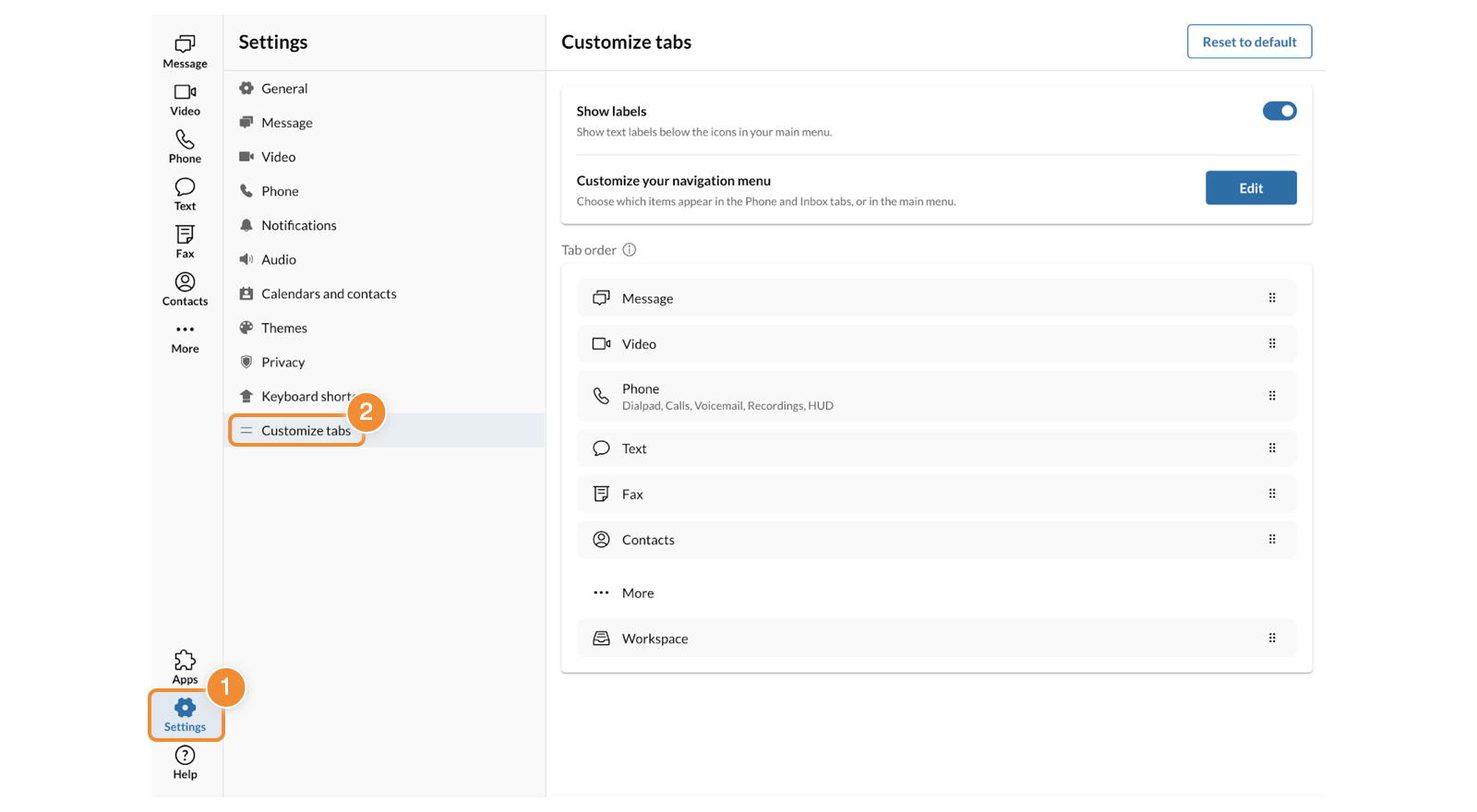
From the **Customize** tabs page, you can:
* **Show labels**: Show or hide the text labels for your tabs in the navigation bar. Labels are shown by default.
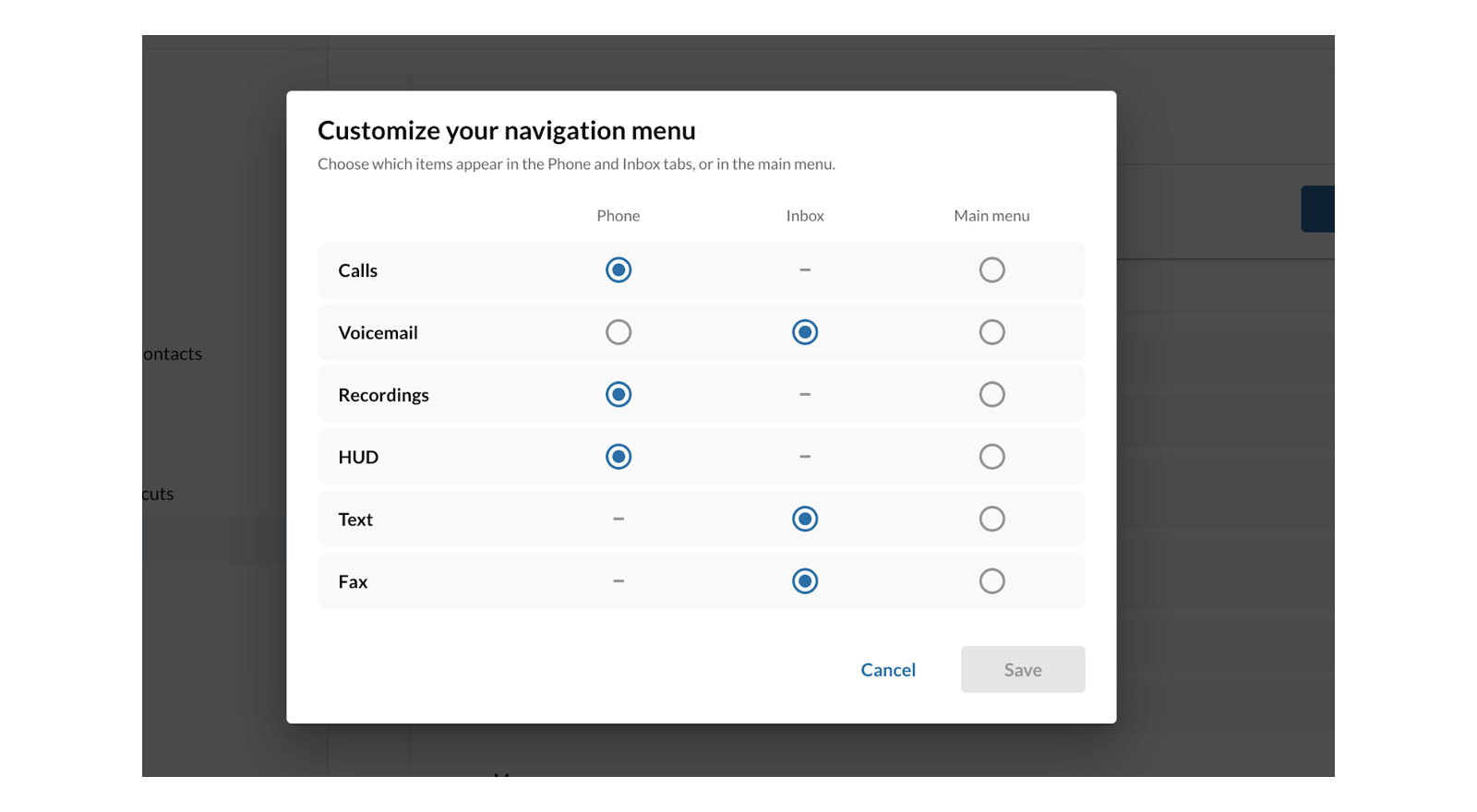
* **Customize your navigation menu** : Click **Edit** to choose which items appear in the Phone and Inbox tabs or the main menu.
* Use the radio buttons to move your features like calls, voicemail, recordings, or texts from the Phone and Inbox tabs to your main navigation menu.
* When a feature is listed under Phone or Inbox, it will appear within that tab.
When you move a feature to the Main menu, it will appear in your navigation bar as its own tab.
* Click **Save** when you're done.
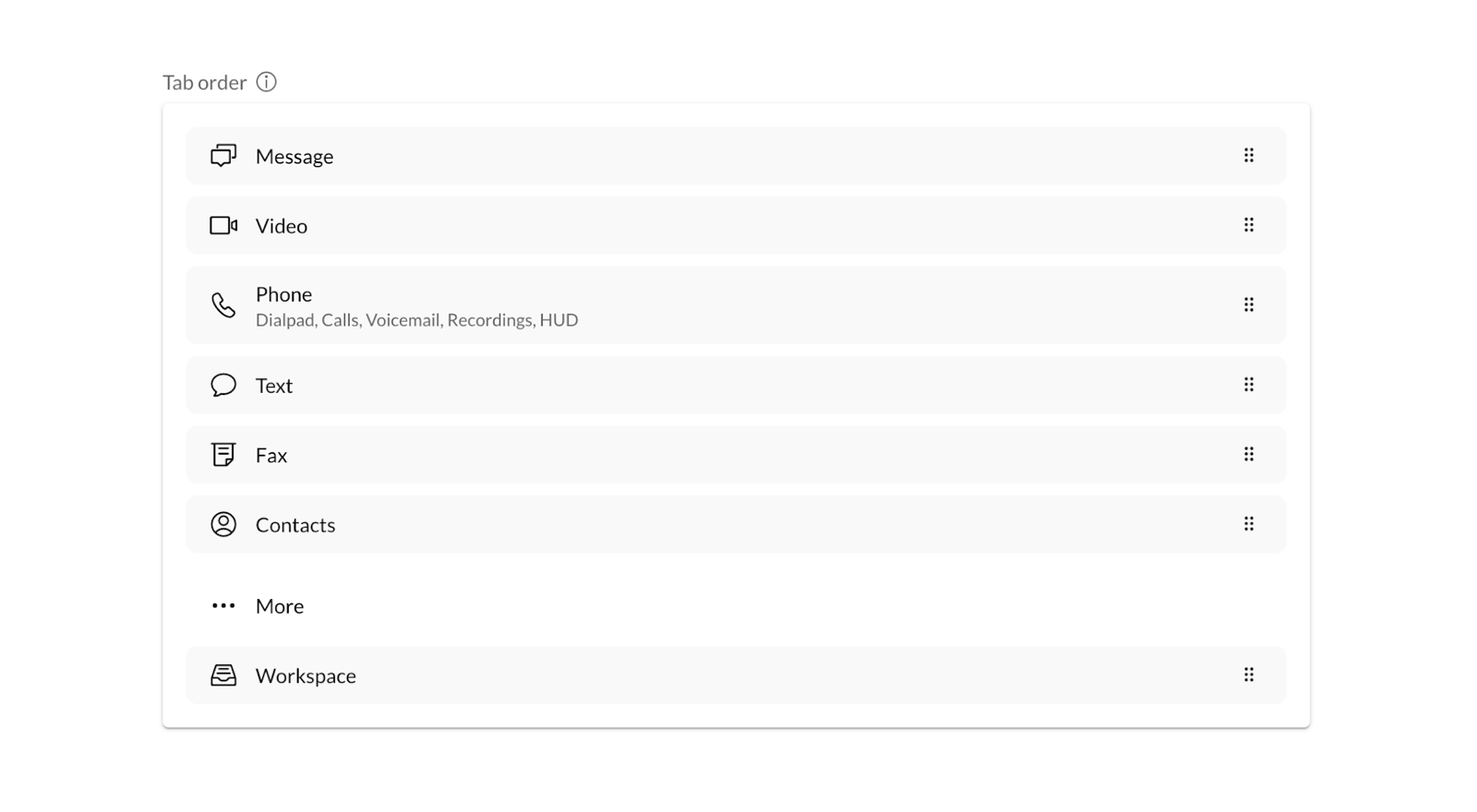
Under **Tab** order, you can drag and drop the tabs to your preferred order. Drop tabs below **More** to remove them from the navigation bar and access through the **More** tab.
Click **Reset** to default at any time to reset your tabs.
Note: Apps, Settings, and Help are not customizable.
## Mobile
Customizing tabs in the mobile app
----------------------------------
To customize your tabs, swipe up on the bottom navigation menu and tap **Customize** tabs. From here, you can:
**Customize your navigation menu**: Tap to choose which items appear in the Phone and Inbox tabs or the main menu.
* Use the radio buttons to move features like calls, voicemail, recordings, or texts from the Phone and Inbox tabs to your Main menu.
* When a feature is listed under Phone or Inbox, it will appear within that tab. When you move a feature to the Main menu, it will appear in your navigation bar as its own tab.
* Tap **Save** when you're done.

**Show the More tab**: Turn on to include the More tab in the bottom menu. When this setting is off, the More tab is hidden, and your bottom menu shows a handle you can drag up to show more tabs. This setting is on by default.
**Main screen** : Choose which tabs display on your main screen. Tap one of the three-line drag handles and drag and drop to reorder. Drop tabs under the **More menu** to move to the second level of the menu and hide from the main screen.

When you're done customizing your tabs, tap **Done** in the upper right corner. Tap **Reset to default** at any time to reset your tabs.