Using the Citrix VDI integration in the
RingCentral
apps
==========================================================================================================================
Citrix media redirection integrates with the desktop and web versions of the
RingCentral
app and
RingCX
in the
RingCentral
app to improve the quality of your phone calls when using a Citrix Virtual Desktop Infrastructure (VDI).
Important
To optimize media for the best call quality in the Citrix VDI environment, avoid running multiple RingCentral apps at the same time.
Don't use these apps simultaneously:
*
RingCentral
app (desktop or web)
*
RingCX
in the
RingCentral
app (desktop or web)
*
RingCentral
for Teams desktop plugin (desktop or web)
Running more than one app can reduce call quality. For the best experience, make sure only one instance of any app is active per user on your Citrix Virtual Machine (VM).
Using the
RingCentral
desktop app and
RingCX
in the
RingCentral
app
-------------------------------------------------------------------------------------------------------------------------------------------------------------------------------------------------------------------------------------------------------------------------
To use the
RingCentral
desktop app inside the Citrix Virtual Machine (VM), install the RingCentral.exe app and run this [Windows batch (BAT)](https://downloads.ringcentral.com/app/vdi/citrix-vda-policy.zip "") file as an admin on the same Citrix VM. For the .msi version of the
RingCentral
desktop app, you don't need to run the BAT file.
Using the
RingCentral
web app and
RingCX
in the
RingCentral
app
---------------------------------------------------------------------------------------------------------------------------------------------------------------------------------------------------------------------------------------------------------------------
To set up media optimization for calls using the web version of the RingCentral app, you need to manually add the browser application's executable name to the Citrix whitelist.
* Create a Multi-String Value (REG_MULTI_SZ) named **ProcessWhitelist** at this path:
```
HKEY_LOCAL_MACHINE\SOFTWARE\WOW6432Node\Citrix\WebSocketService
```
* Add your browser executable file name, such as **chrome.exe** , **msedge.exe** , **firefox.exe** , or **opera.exe**.
* You can also run this [Windows batch (BAT)](https://downloads.ringcentral.com/app/vdi/citrix-vda-policy.zip "") file as an administrator. After running the file, manually add the required browser name to the **ProcessWhitelist** value.
If you use Google Chrome version 142 or higher, or another Chromium-based browser, a one-time permission prompt will appear during a call. Click **Allow** to turn on media optimization. Otherwise, media optimization won't work.
Note
* To set up Citrix VDI for
RingCX
in the
RingCentral
app, follow the
RingCentral
app instructions.
* To use Citrix media redirection, confirm that your system meets the [system requirements](#system-requirements "").
* The Citrix VDI integration works only when connecting to the Citrix virtual machine using the [Citrix Workspace app](https://www.citrix.com/downloads/workspace-app/ "").
* To use Citrix media redirection in Remote Desktop Services (RDS) Server or in Windows OS with multi-session support, confirm that each Windows user meets the [RingCentral app system requirements](https://support.ringcentral.com/article-v2/System-requirements-for-the-RingCentral-app.html?brand=RingCentral&product=RingEX&language=en_US "").
Optimizing calls with Citrix
----------------------------
After checking system requirements and downloading and running the necessary file, make sure Citrix is optimizing your calls:
* Open the
RingCentral
app on your virtual machine.
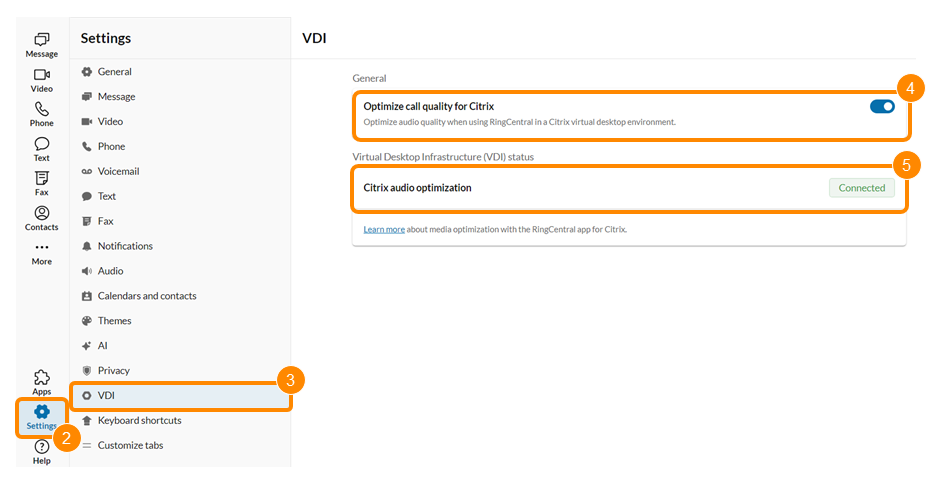
* In the navigation bar, click **Settings**.
* Click **VDI**.
* Confirm the **Optimize call quality for Citrix** toggle is on. This feature is turned on by default when using the
RingCentral
app with Citrix VDI.
* Make sure the **Citrix audio optimization** shows as *Connected* in the **VDI Status** section.
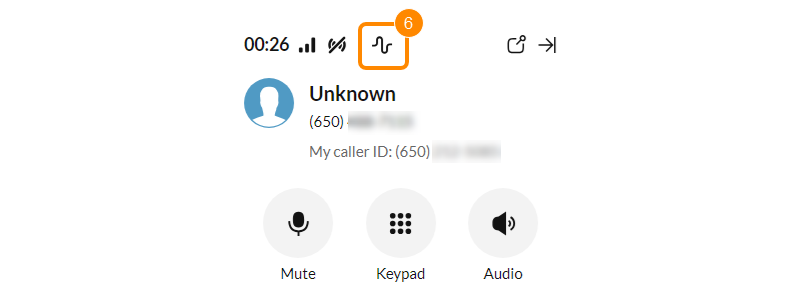
* When you make a call, you'll know Citrix is optimizing your audio by the **Media optimized for Citrix** indicator.
System requirements
-------------------
To use Citrix, you must meet the system requirements. The Citrix VDI integration with the
RingCentral
app for desktop and web is available on Windows, Windows IoT, macOS, Linux, Dell ThinOS, IGEL, and HP ThinPro OS.
|--------------------|---------------------------------------------------------------------------------------------------------------------------------------------------------------------------------------------------------------------------------------------------------------------------------------------------------------------------------------------|
| **Components** | **Requirements** |
| RingCentral Client | RingCentral
app RingCX
in the RingCentral
app RingCentral
for Teams |
| Citrix Client | Citrix Workspace App 2409 or higher |
| Client OS | Any supported platforms for the Citrix Workspace App (Windows, Windows IoT, Linux, Dell ThinOS, IGEL, HP ThinPro OS, macOS, etc.) |
| Server | Citrix Virtual Apps and Desktops (CVAD) 1912 LTSR or higher |
| VM OS | Windows 10x64 or 11x64 Windows Server 2016 or higher |
| Browser | Google Chrome 70 or higher Microsoft Edge 80 or higher |
Note
For more detailed information, review the [Citrix Unified Communications SDK](https://community.citrix.com/tech-zone/learn/tech-briefs/ucssdk/#wiki-header-1 "") tech brief.
Citrix VDI troubleshooting
--------------------------
If **Citrix audio optimization** shows as *Not connected*, check the following settings on your virtual machine:
* The [**Redirection policy**](https://docs.citrix.com/en-us/citrix-virtual-apps-desktops/policies/reference/ica-policy-settings/multimedia-policy-settings#microsoft-teams-redirection "") is turned on, and the registry key is set to 1.
* The **ProcessWhitelist** key includes RingCentral.exe (if you're using
RingCentral
for Teams, RingCentralForTeams.exe) under this path in the Windows Registry:
```
Computer\HKEY_LOCAL_MACHINE\SOFTWARE\WOW6432Node\Citrix\WebSocketService
```
* Citrix services in **Windows Services** are in the *Running* state.
VDI integration FAQ
-------------------
### Does headset integration work with VDI calls?
Yes. The Headset Interface Device (HID) protocol is supported for VDI calls and can be set up in the app settings.
### Is VDI media optimization supported in Remote Desktop Services (RDS) environments?
Yes. The
RingCentral
VDI solution supports multi-session RDS environments for all
RingCentral
apps listed in this article.
### Why am I prompted to sign in every day on a non-persistent virtual machine?
If you're using a non-persistent VM, ask your IT admin to add the following folder to the exclusion list to preserve your cache and session data:
```
%AppData%\RingCentral
```
**Additional resources**
[Using the Omnissa (VMware) VDI integration in the RingCentral app](https://support.ringcentral.com/article-v2/Using-VMware-VDI-integration-in-the-RingCentral-app.html?brand=RingCentral&product=RingEX&language=en_US "")
[Using the Microsoft Azure VDI integration in the RingCentral app](https://support.ringcentral.com/article-v2/Using-Microsoft-Azure-VDI-integration-in-RingCentral-app.html?brand=RingCentral&product=RingEX&language=en_US "")