Viewing and managing faxes with
RingCentral
=============================================================================================================
RingCentral lets you [send](https://support.ringcentral.com/article-v2/Sending-a-fax.html?brand=RingCentral&product=RingEX&language=en_US "") and receive faxes without a fax machine. You can also download, forward, print, or delete your faxes from the RingCentral desktop, web, and mobile apps, the Admin Portal, or your email account
Note
Admins can contact [Support](https://support.ringcentral.com/new-case.html "") to turn on an additional header in the left margin that shows when incoming faxes were received.
Where would you like to manage your faxes?
## Desktop & web
Viewing and managing faxes in the desktop and web app
-----------------------------------------------------
To access your faxes:
* In the navigation bar, click **Fax**.
* In the left panel, click on a fax to open the details window. All faxes are marked as either *Sending* , *Sent* , *Received* , or *Failed*.
* You can also hover over a fax entry to access these quick tools. You may need to click the three-dot **More** icon to access:
* **View**: Open your fax in a popup window.
* **Add contact** : Select *Create new contact* or *Add to existing*.
* **Mark as read/unread**: Mark a fax as read or unread without opening it.
* **Retry**: Resend a fax that didn't go through.
* **Download**: Save the fax to your device.
* **Forward**: Forward your fax to another recipient.
* **Copy number**: Copy the sender's fax number to your clipboard.
* **Delete** : Delete the fax. Click **Delete** in the popup to confirm.
* **Block number** : Block the contact who sent you the fax. Click **Block Only** or **Block \& report spam** in the popup to confirm.

Printing received faxes
-----------------------
From the desktop and web apps, you can print your received faxes manually or automatically.
### Printing one fax at a time
* In the navigation bar, click **Fax**.
* Hover over the fax you want to print, then click the **View** icon.
* The fax will open in a popup window or your default PDF/TIFF viewing app. Click the **Print** icon to print out the fax.
### Automatically printing incoming faxes
* In the navigation bar, click **Settings**.
* Click **Fax**.
* Scroll down and click the toggle on next to **Automatically print incoming faxes** .
Note
The toggle is off by default. You won't be able to turn it on if you haven't connected any printers to your computer.
* Select your printer from the dropdown. This will become your default fax printer.

Managing faxes in bulk
----------------------
To manage more than one fax at a time:
* In the navigation bar, click **Fax**.
* Click **Edit** at the top right of the fax list.
* Check the boxes next to the faxes you want to manage, or click the top checkbox to **Select all** viewable faxes. You may need to scroll down for all the faxes to load in the panel view.
* Click the **Flag** icon to mark them all as read or unread.
* Click the **Download** icon to save TIFF (if available) or PDF files to your computer.
* Click the trash can **Delete** icon to permanently delete them all. Click **Delete** in the popup box to confirm.

**Additional resources**
[Sending a fax with RingCentral](https://support.ringcentral.com/article-v2/Sending-a-fax.html?brand=RingCentral&product=RingEX&language=en_US "")
[Setting up Email-to-Fax in RingCentral](https://support.ringcentral.com/article-v2/Enabling-Email-to-Fax-in-the-Admin-Portal.html?brand=RingCentral&product=RingEX&language=en_US "")
[Troubleshooting issues with sending or receiving faxes](https://support.ringcentral.com/article-v2/Troubleshooting-fax-via-email-send-issues.html?brand=RingCentral&product=RingEX&language=en_US&pills-nav=desktop_%26_web "")
## Mobile
Viewing and managing faxes in the mobile app
--------------------------------------------
To access your faxes:
* Tap **Fax** in the bottom toolbar. You may need to tap the three-dot **More** icon, depending on your tab customization.
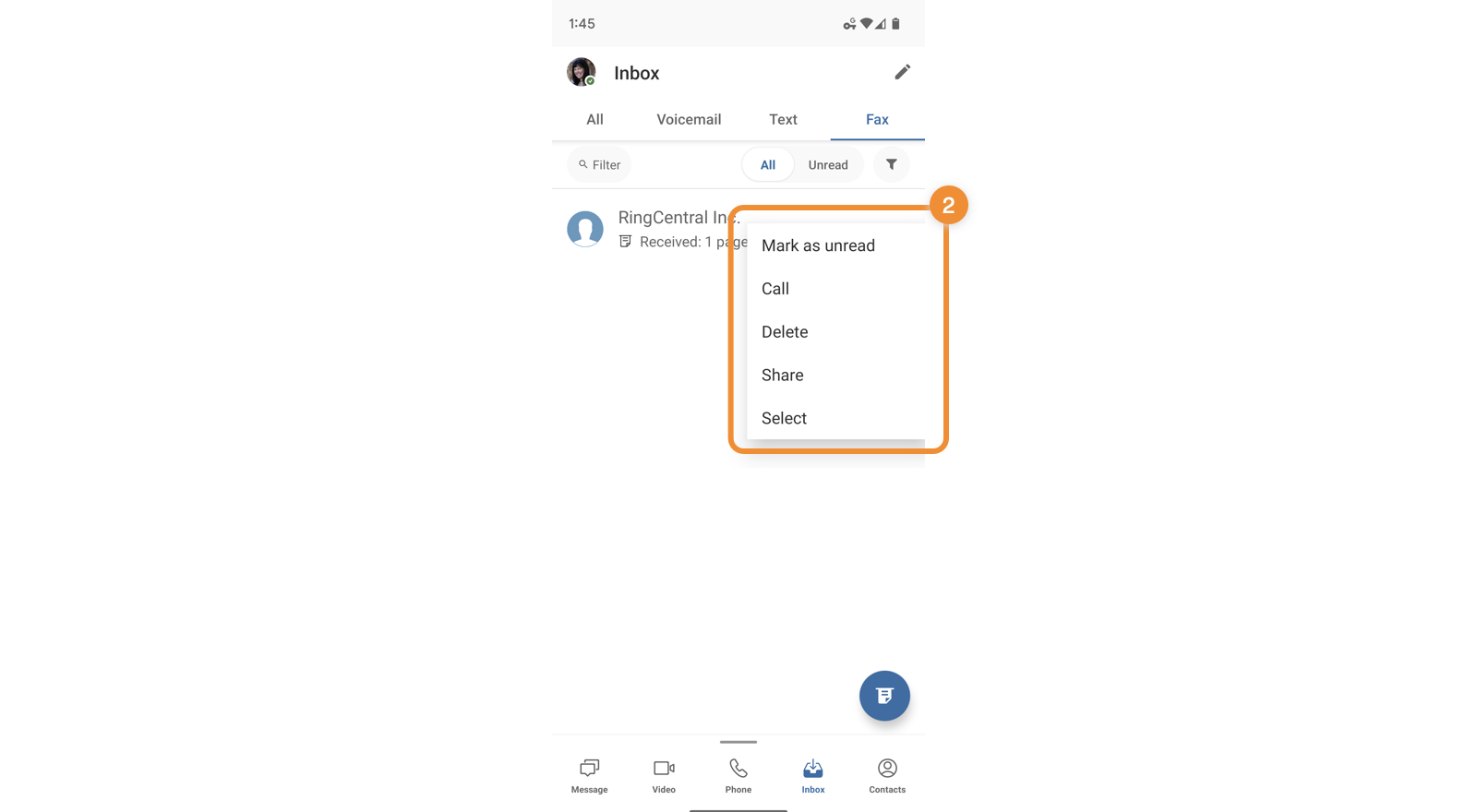
* Tap and hold (Android) or swipe left or right (iOS) any fax to access:
* **Mark as read/unread**: Mark a fax as read or unread without opening it.
* **Call**: Call the person who sent you a fax.
* **Delete** : Delete the fax. Tap **Delete** in the popup to confirm.
* **Share**: Share a copy of the fax.
**Note** :
* Faxes are marked *Sending* , *Sent* , *Received* , or *Failed*.
* Unread faxes in the **Received** list appear in blue.
Sharing faxes
-------------
* Tap **Fax** in the bottom toolbar. You may need to tap the three-dot **More** icon, depending on your tab customization.
* Tap the **Fax** tab.
* To share a fax:
* Android users: Tap and hold the fax, then tap **Share**.
* iOS users: Swipe left on the fax, then tap **More \> Share** . If there's no **Call** option, swipe left on the fax, then tap **Share**.
Printing received faxes
-----------------------
* Tap **Fax** in the bottom toolbar. You may need to tap the three-dot **More** icon, depending on your tab customization.
* Tap an entry to view its fax.
* To open the fax:
* Android users: In the top menu bar, tap the three-dot **More** icon at the top right.
* iOS users: Tap the **Share** icon at the top right, then tap **Open in**.
* Tap **Print**.
**Additional resources**
[Sending a fax with RingCentral](https://support.ringcentral.com/article-v2/Sending-a-fax.html?brand=RingCentral&product=RingEX&language=en_US&pills-nav=mobile "")
[Setting up Email-to-Fax in RingCentral](https://support.ringcentral.com/article-v2/Enabling-Email-to-Fax-in-the-Admin-Portal.html?brand=RingCentral&product=RingEX&language=en_US "")
[Troubleshooting issues with sending or receiving faxes](https://support.ringcentral.com/article-v2/Troubleshooting-fax-via-email-send-issues.html?brand=RingCentral&product=RingEX&language=en_US&pills-nav=mobile "")
## Admin Portal
Viewing faxes in the Admin Portal
---------------------------------
* Sign in to the [
Admin Portal
](https://service.ringcentral.com ""). If you're signed in as an admin, click **My Extension** at the top right.
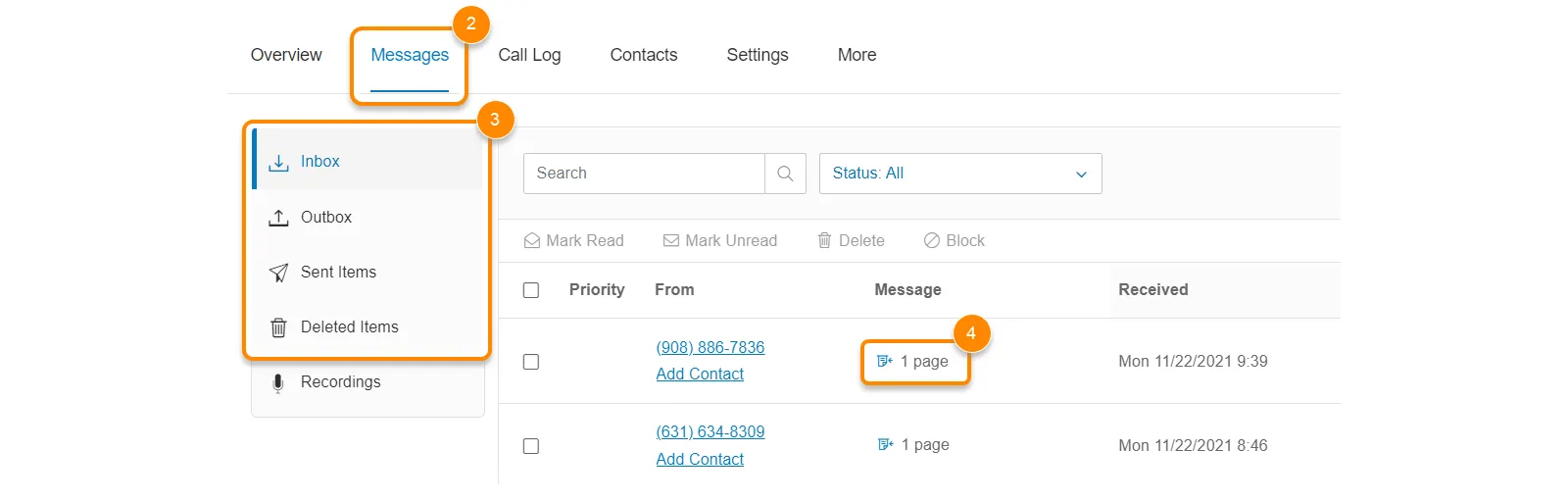
* Click the **Messages** tab.
* In the left panel, choose the faxes you want to view:
* **Inbox**: Received voicemail messages and faxes.
* **Outbox**: Outgoing faxes, including faxes you're sending or ones that failed to send.
* **Sent Items**: Faxes you've sent.
* **Deleted Items**: Voicemail messages and faxes you've deleted.
* Click the **Fax** icon under the *Message* column to view the fax.
Managing faxes in the Admin Portal
----------------------------------
* Sign in to the [
Admin Portal
](https://service.ringcentral.com ""). If you're signed in as an admin, click **My Extension** at the top right.
* Click the **Messages** tab.
* In the left panel, choose the folder where you want to view your faxes:
* *Inbox*
* *Outbox*
* *Sent Items*
* *Deleted Items*
* To label a fax, check the box to the left of its entry (a), then select *Mark Read* , *Mark Unread* , *Delete* , or *Block* from the menu bar (b).

* In the **Actions** column, click the three-dot **More** icon, then select *Download* or *Forward* . If a fax fails to send, you can select *Resend*.

### Restoring a deleted fax
* Sign in to the [
Admin Portal
](https://service.ringcentral.com ""). If you're signed in as an admin, click **My Extension** at the top right.
* Click the **Messages** tab.
* In the left panel, go to **Deleted Items**.
* Check the box next to the fax you want to move from the trash (a), then click **Restore** (b).

**Additional resources**
[Sending a fax with RingCentral](https://support.ringcentral.com/article-v2/Sending-a-fax.html?brand=RingCentral&product=RingEX&language=en_US&pills-nav=admin_portal "")
[Setting up Email-to-Fax in RingCentral](https://support.ringcentral.com/article-v2/Enabling-Email-to-Fax-in-the-Admin-Portal.html?brand=RingCentral&product=RingEX&language=en_US "")
[Troubleshooting issues with sending or receiving faxes](https://support.ringcentral.com/article-v2/Troubleshooting-fax-via-email-send-issues.html?brand=RingCentral&product=RingEX&language=en_US&pills-nav=admin_portal "")
## Email
Managing faxes in your email
----------------------------
Before viewing faxes by email, make sure [you've set up your email address for faxing](https://support.ringcentral.com/article-v2/Enabling-Email-to-Fax-in-the-Admin-Portal.html?brand=RingCentral&product=RingEX&language=en_US "").
* Sign in to an email account that's set up to view faxes.
* Open an email that has **New Fax Message from** in its subject line.
* Open the attached document.
Note
The fax body will include such details as the fax's sender, recipient, timestamp, and number of pages.
**Additional resources**
[Sending a fax with RingCentral](https://support.ringcentral.com/article-v2/Sending-a-fax.html?brand=RingCentral&product=RingEX&language=en_US&pills-nav=email "")
[Setting up Email-to-Fax in RingCentral](https://support.ringcentral.com/article-v2/Enabling-Email-to-Fax-in-the-Admin-Portal.html?brand=RingCentral&product=RingEX&language=en_US "")
[Troubleshooting issues with sending or receiving faxes](https://support.ringcentral.com/article-v2/Troubleshooting-fax-via-email-send-issues.html?brand=RingCentral&product=RingEX&language=en_US&pills-nav=email "")