Sending a group text message in the
RingCentral
app
=====================================================================================================================
Group text messaging allows you to communicate efficiently with multiple participants in a single conversation thread. If your business has [successfully registered outgoing text usage](https://support.ringcentral.com/article-v2/Setting-up-TCR-registration-assigning-numbers-to-SMS-campaigns.html?brand=RingCentral&product=RingEX&language=en_US ""), you can use your work phone number to send group text messages using the
RingCentral
app.
Where do you want to send a group text message?
## Desktop & web
To initiate a group text message using the desktop and web app:
* Open the
RingCentral
app on your desktop or web browser.
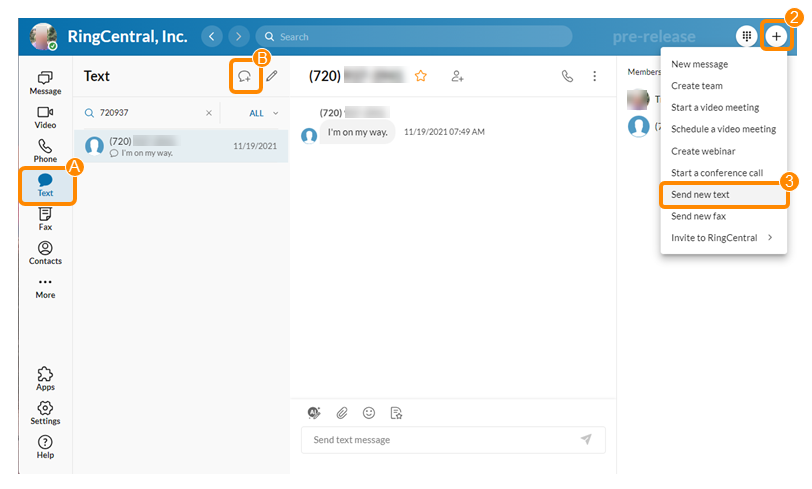
* Click the **New actions** icon in the top right.
* Select **Send new text** .
Note: You can also click **Text** (A) in the navigation bar, then click the **Send new text** (B) icon to initiate a text message.
* If you've been assigned more than one caller ID, click the **Text from** field to select which caller ID you'd like to use to send your message.
* Type the names or phone numbers of the recipients in the **To** field.
* Select **Create group text**. If you unselect this box, you'll send the text message to everyone individually, and only you will know who received it.
* Add a group name (Optional).
Note: The limit for named groups is 30.
* Click **Next** to open the conversation.

* Type your message at the bottom. You can use AI writing tools, add attachments and emojis, and use text templates to compose your message.
To rename a group text message conversation:
* Click **Text** in the navigation bar.
* Hover over the group text and click the three-dot **More** icon.
* Click **Rename group** .

* Type a new group name.
* Click **Rename**.
**Additional resources**
[Managing text messages in the RingCentral app](https://support.ringcentral.com/article-v2/Managing-text-messages-in-the-RingCentral-app.html?brand=RingCentral&product=RingEX&language=en_US "")
## Mobile
Sending a group text message using an Android device
----------------------------------------------------
To initiate a group text message using the mobile app on an Android device:
* Open the
RingCentral
mobile app.
* Tap **Text** in the bottom menu bar.
* Tap the chat icon in the blue circle.

* Enter the names or numbers of your recipients in the **To** field.
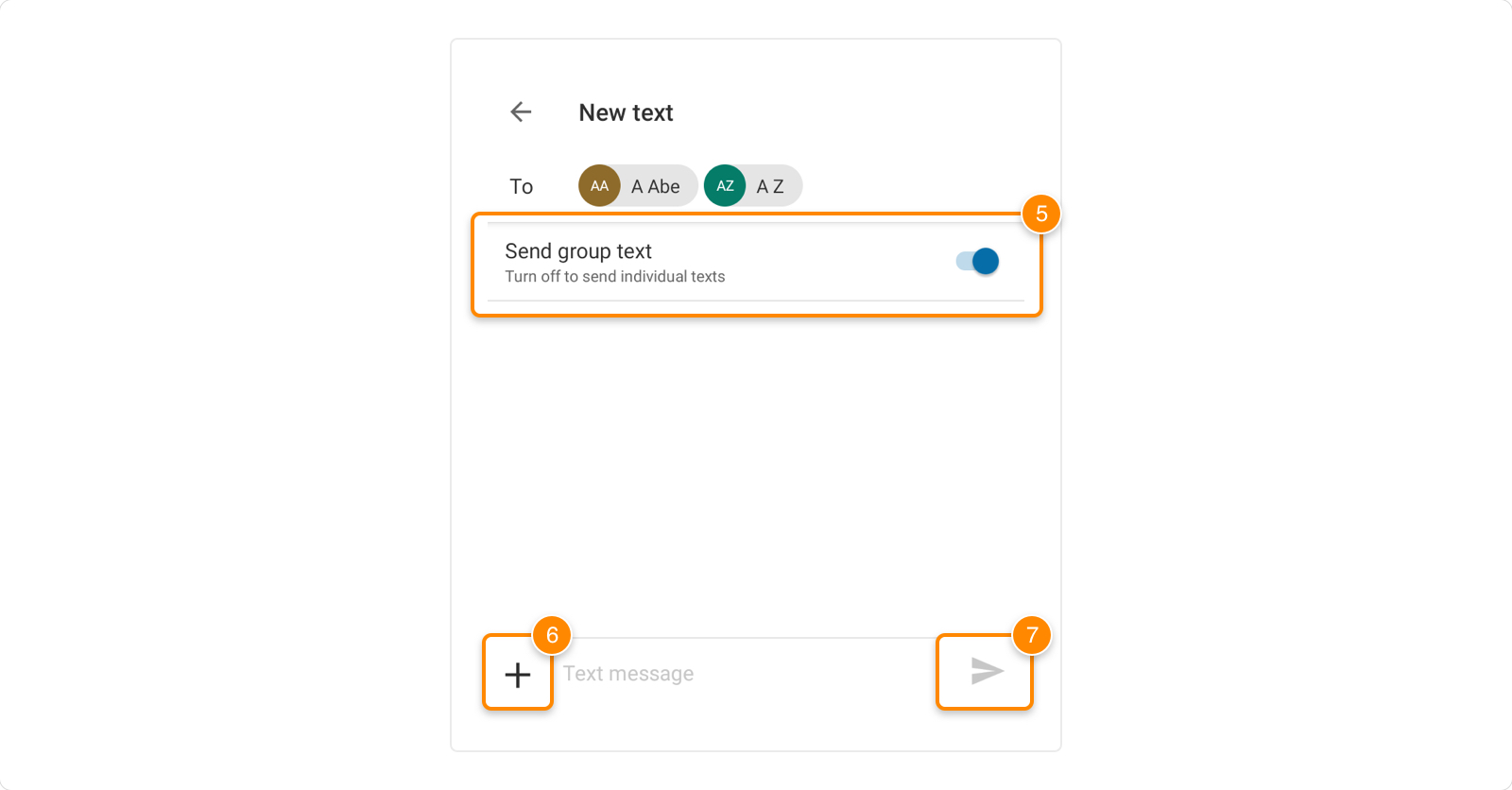
* Make sure the **Send group text** toggle is on. You can turn it off to send individual text messages.
* Enter your message at the bottom.
* If you want to send files and photos with your message, tap the **Plus** icon to select an image from your photo library or to take a photo using your phone's camera.
* Tap the **Send** icon.
To add a name to or rename a group text message conversation:
* Tap **Text** in the bottom menu bar.
* Tap and hold the group text, then tap **Rename group** .

* Type a new group name.
* Tap **Rename**.
Sending a group text message using an iOS device
------------------------------------------------
To initiate a group text message using the mobile app on an iOS device:
* Open the
RingCentral
mobile app.
* Tap **Text** in the bottom menu bar.
* Tap the **Plus** icon at the top right.

* Enter the names or numbers of your recipients in the **To** field.
* Make sure the **Send group text** toggle is on. You can turn it off to send individual text messages.
* Enter your message at the bottom.
* If you want to send files and photos with your message, tap the **Plus** icon to select an image from your photo library or to take a photo using your phone's camera.
* Tap the **Send** icon.

To add a name to or rename a group text message conversation:
* Tap **Text** in the bottom menu bar.
* Swipe left on the group text, then tap **More**.
* Tap **Rename group** .

* Type a new group name.
* Tap **Rename**.
**Additional resources**
[Managing text messages in the RingCentral app](https://support.ringcentral.com/article-v2/Managing-text-messages-in-the-RingCentral-app.html?brand=RingCentral&product=RingEX&language=en_US "")