Accepting call queue calls in the
RingCentral
app
===================================================================================================================
If you're a member of a call queue, you can turn the **Accept queue calls** feature on and off in the desktop, web, and mobile apps to update your availability to answer queue calls.
This user setting is available by default, but admins can remove it in the Admin Portal by [creating a custom role](https://support.ringcentral.com/article-v2/10641-user-roles-permissions-edit-permission-custom-role.html?brand=RC_US&product=RingEX&language=en_US "").
Note
If an admin or call queue manager has turned the [Allow members to change their queue status](https://support.ringcentral.com/article-v2/Remote-Member-Management-for-Call-Queues.html?brand=RC_US&product=RingEX&language=en_US "") setting on, but restricted access to the **Accept queue calls** feature in the app, members assigned to multiple queues can still manage their queue status. These features are independent of each other.
## Desktop & web
Turning queue calls on or off in the desktop and web app
--------------------------------------------------------
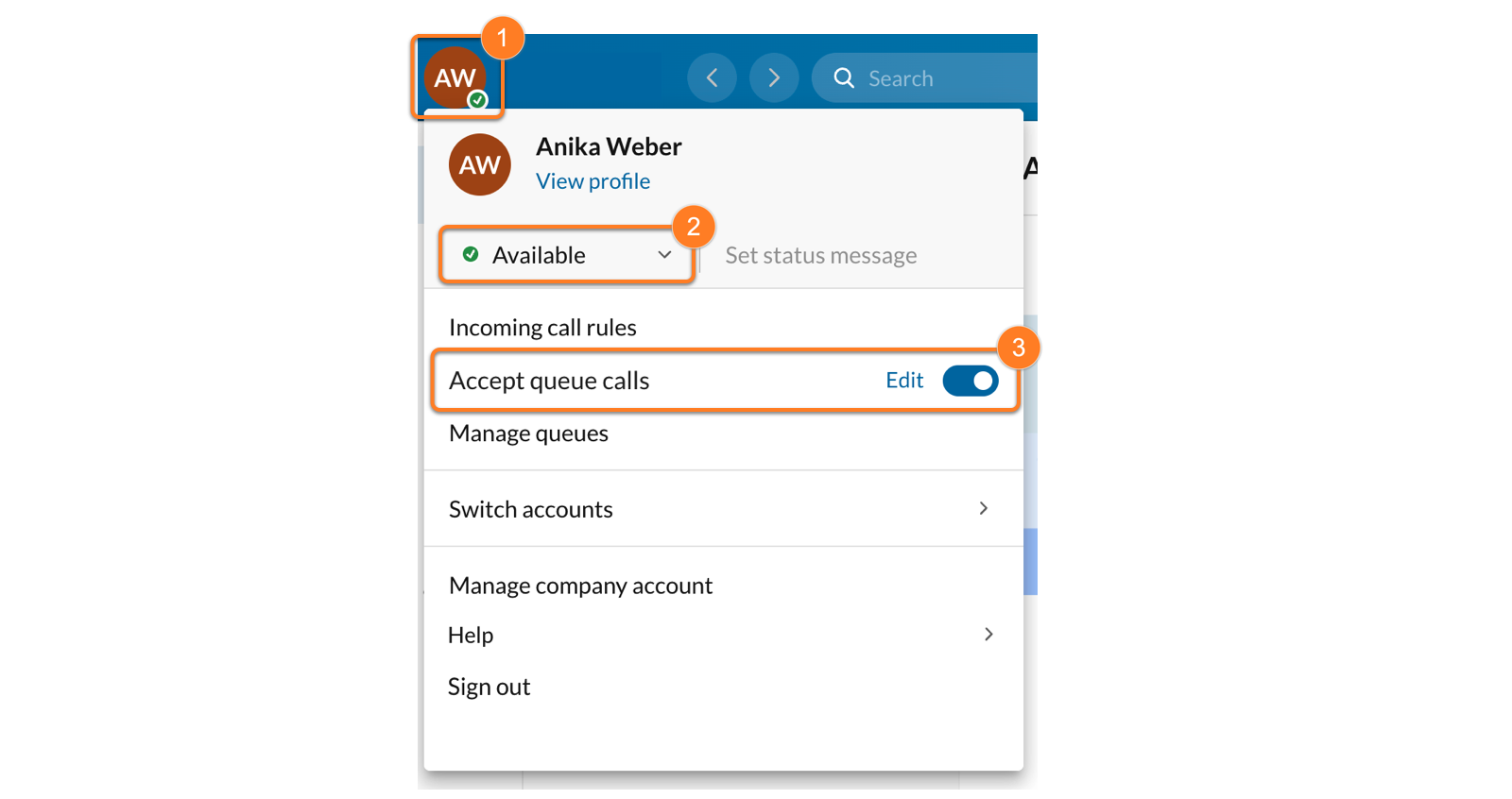
* Click your profile picture in the top bar.
* Set your status to *Available* .
* If you set your status to **Do not disturb** , you won't receive queue calls. To learn more, go to [Managing the Do Not Disturb feature in the
RingCentral
app](https://support.ringcentral.com/article-v2/3770.html?brand=RingCentral&product=RingEX&language=en_US "").
* Click the **Accept queue calls** toggle on or off.
* If you're part of multiple call queues, and you've turned on **Accept queue calls** , you can choose which ones you want to receive calls from by clicking **Manage queues** and toggling each queue on or off as needed.
* If your admin has turned on status codes, you'll be prompted to select one. The code tells your call queue manager why you're unavailable.

Managing call handling settings for queue calls
-----------------------------------------------
After your [incoming call handling settings](https://support.ringcentral.com/article-v2/Setting-up-how-incoming-calls-are-handled.html?brand=RingCentral&product=RingEX&language=en_US "") are created, your queue calls will follow the same work schedule and ring settings. To customize when and how you receive queue calls, you can create a special rule.
* In the navigation bar, click **Settings**.
* Click **Phone** in the left panel.
* Click **Incoming call rules** .
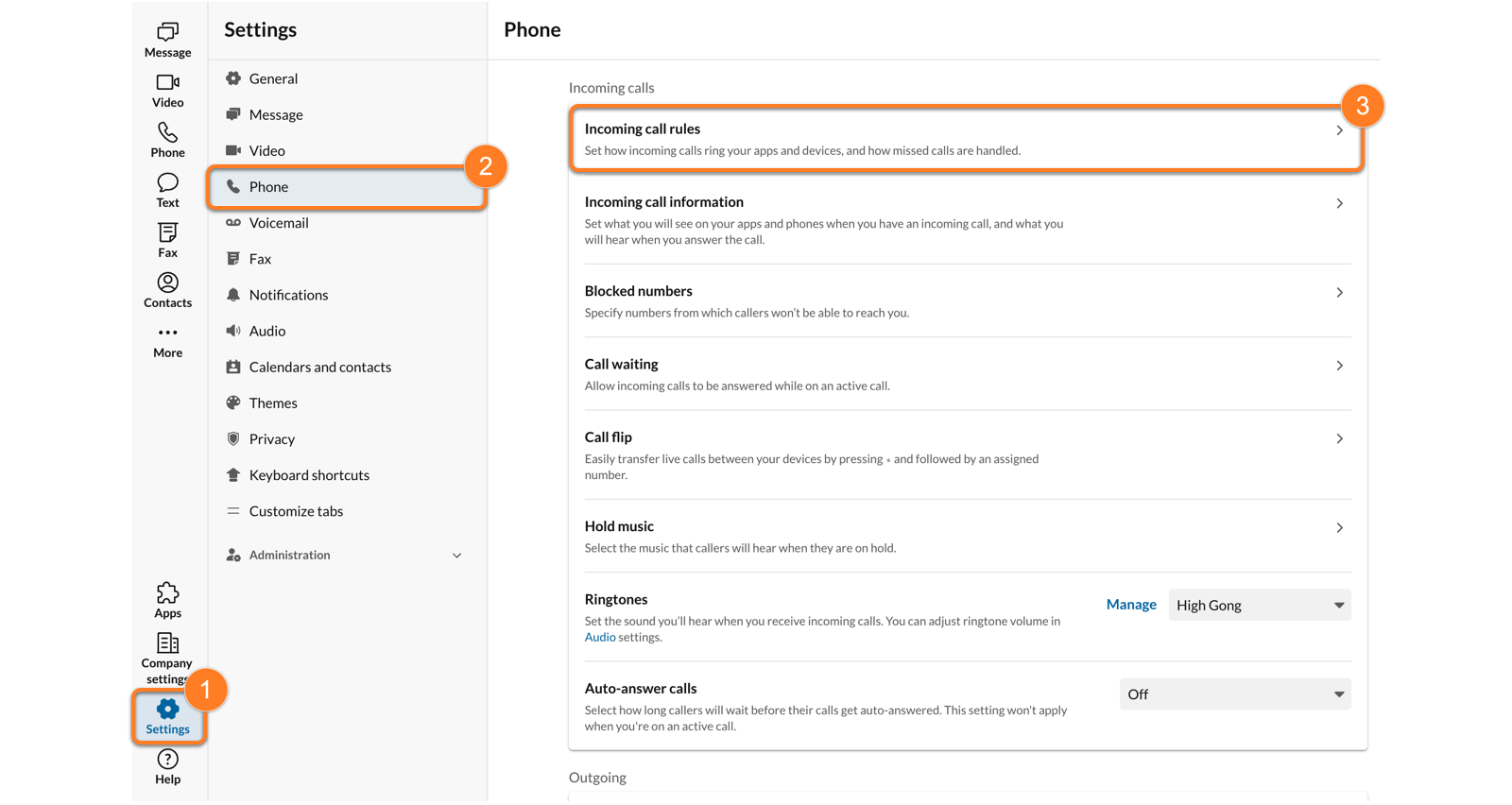
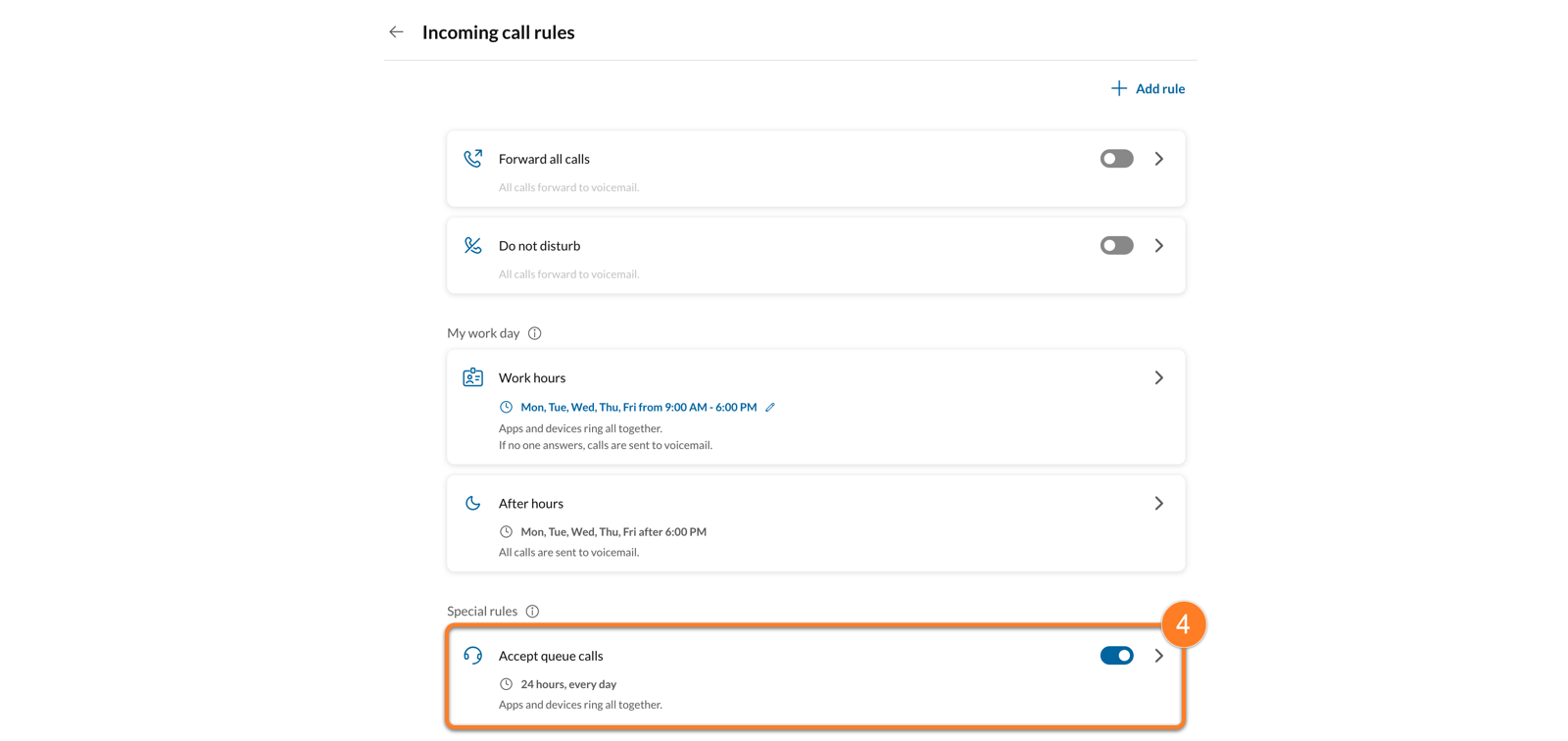
* Under Special rules, click **Accept queue calls** . You can also turn the feature on or off here by clicking the toggle.
### Changing the schedule to accept queue calls
To change the schedule as to when you'll accept queue calls:
* Click the **Use work hours schedule/ring settings** toggle off.
* Click your current work hours schedule.
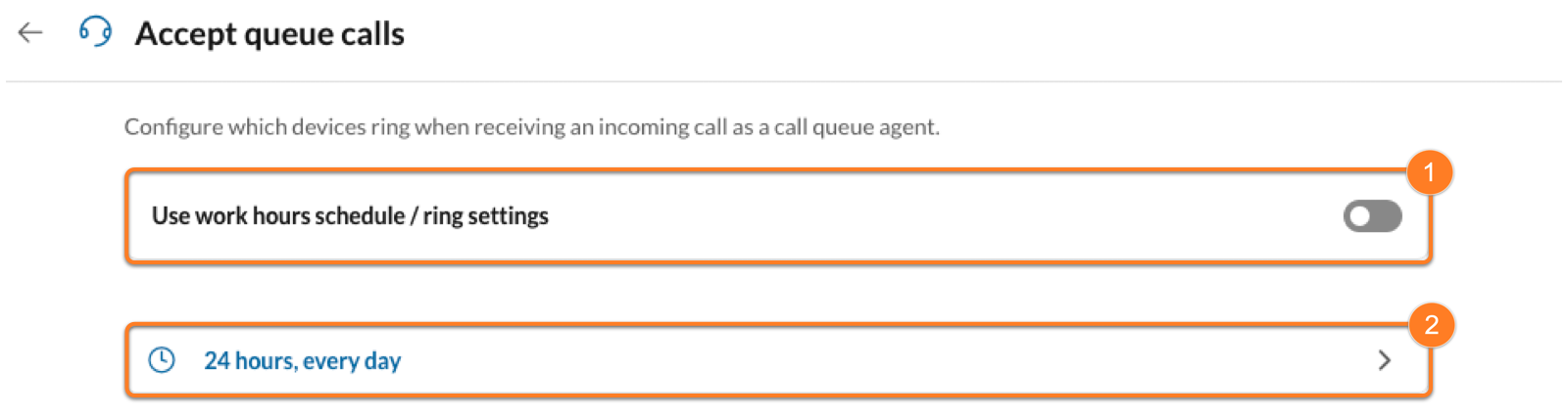
* Click **Add schedule**.
* Select the days and times, then click **Set**.
* Click **Save**.
### Adding additional numbers or extensions to accept queue calls
To route your incoming queue calls to ring additional numbers or extensions:
* In the **Ring settings** section, click **Add number or coworker**.
* Enter a name or number into the search bar or click a tab to filter by:
* **Number**: Enter in any number, then click the number to add it.
* **Company**: Select a coworker from your company directory.
* **Personal**: Select a personal contact.
Note
As soon as you've selected an extension or external number, it'll appear in your Ring settings list. To delete the contact, click the name to open the popup box, then click **Delete**.
* Click **Save** .

### Changing the ring settings for queue calls
To change how your apps and devices will notify you of an incoming call:
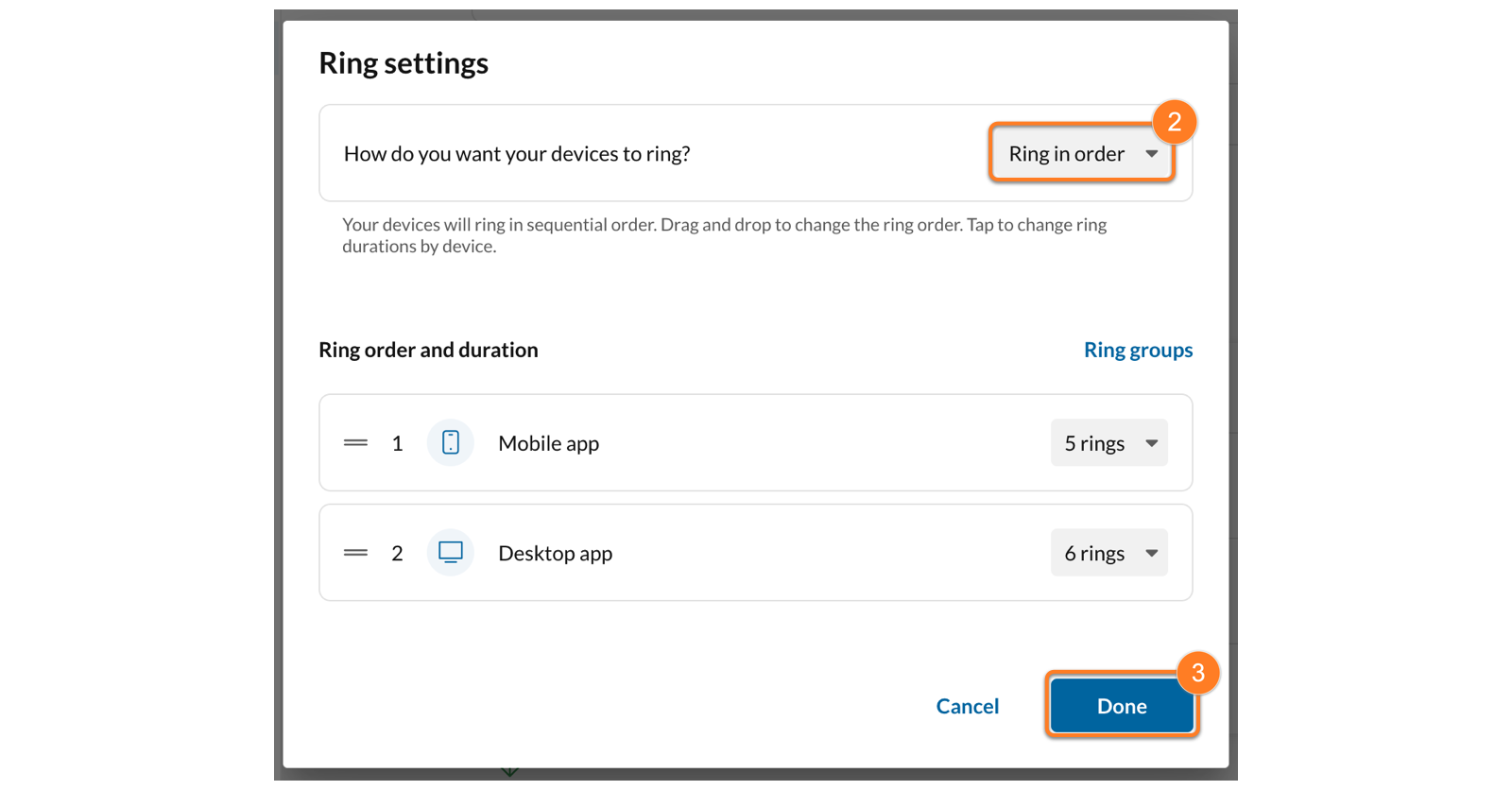
* Click **Ring settings** .

* In the dropdown select:
* **Ring all together**: Calls on all apps and devices will ring simultaneously.
* **Ring in order** : Calls will ring apps and devices in the order in which they're listed. You can rearrange the ring order by dragging and dropping.
* Click the ring duration dropdown to choose how long you want each device to ring before it becomes a missed call and goes to the next call queue member.
* Select any number of rings from *2 (10 seconds)* to *15 (75 seconds)*.
* Select *Always Ring* to have that specific device or number ring at the same time as the others on the list.
* Click **Done** .
* Click the toggle to turn on or off any devices or numbers for the queue calls to ring.
* Click **Save** .

**Additional resources**
[Handling multiple calls in the RingCentral app](https://support.ringcentral.com/article-v2/handling-multiple-calls-same-time-desktop-web-app.html?brand=RingCentral&product=RingEX&language=en_US "")
[Creating call queues in the RingCentral Admin Portal](https://support.ringcentral.com/article-v2/Create-Call-Queue.html?brand=RC_US&product=RingEX&language=en_US "")
[Managing a call queue in the RingCentral Admin Portal and mobile app](https://support.ringcentral.com/article-v2/Remote-Member-Management-for-Call-Queues.html?brand=RingCentral&product=RingEX&language=en_US "")
## Mobile
Turning queue calls on or off in the mobile app
-----------------------------------------------
* Tap your profile picture at the top left.
* Set your status to *Available* .
* If you set your status to **Do not disturb** , you won't receive queue calls. To learn more, go to [Managing the Do Not Disturb feature in the
RingCentral
app](https://support.ringcentral.com/article-v2/3770.html?brand=RingCentral&product=RingEX&language=en_US "").
* Tap the **Accept queue calls** toggle on or off.
* If you're part of multiple call queues, you can choose which ones you want to receive calls from by tapping **Manage queues** and toggling each queue on or off as needed.
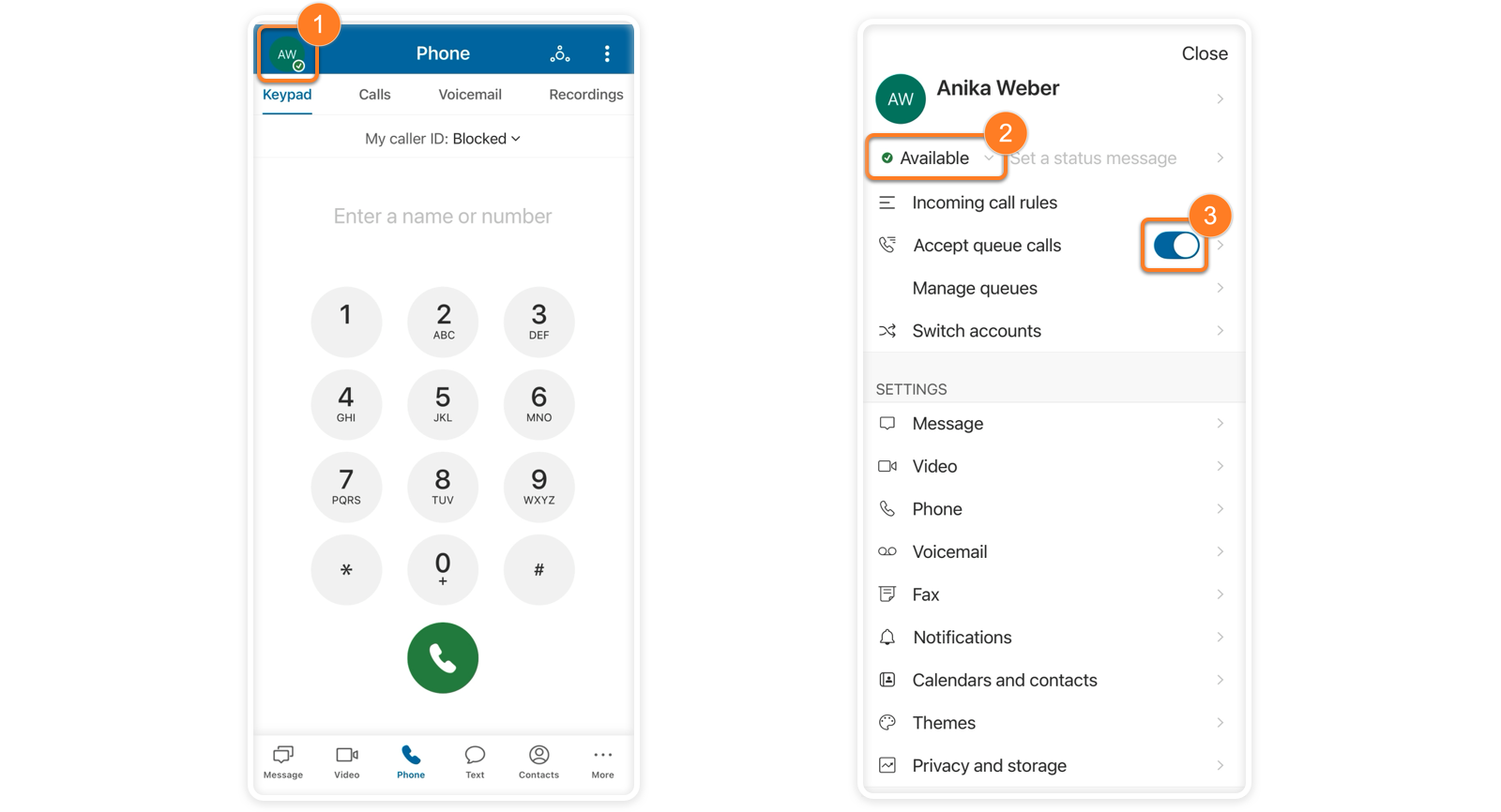
* If you turned the toggle off and Status codes are turned on for you, select a Status code or enter a custom reason when prompted.

Managing call handling settings for queue calls
-----------------------------------------------
After your [incoming call handling settings](https://support.ringcentral.com/article-v2/Setting-up-how-incoming-calls-are-handled.html?brand=RingCentral&product=RingEX&language=en_US&pills-nav=mobile "") are created, your queue calls will follow the same work schedule and ring settings. To customize when and how you receive queue calls, you can create a special rule.
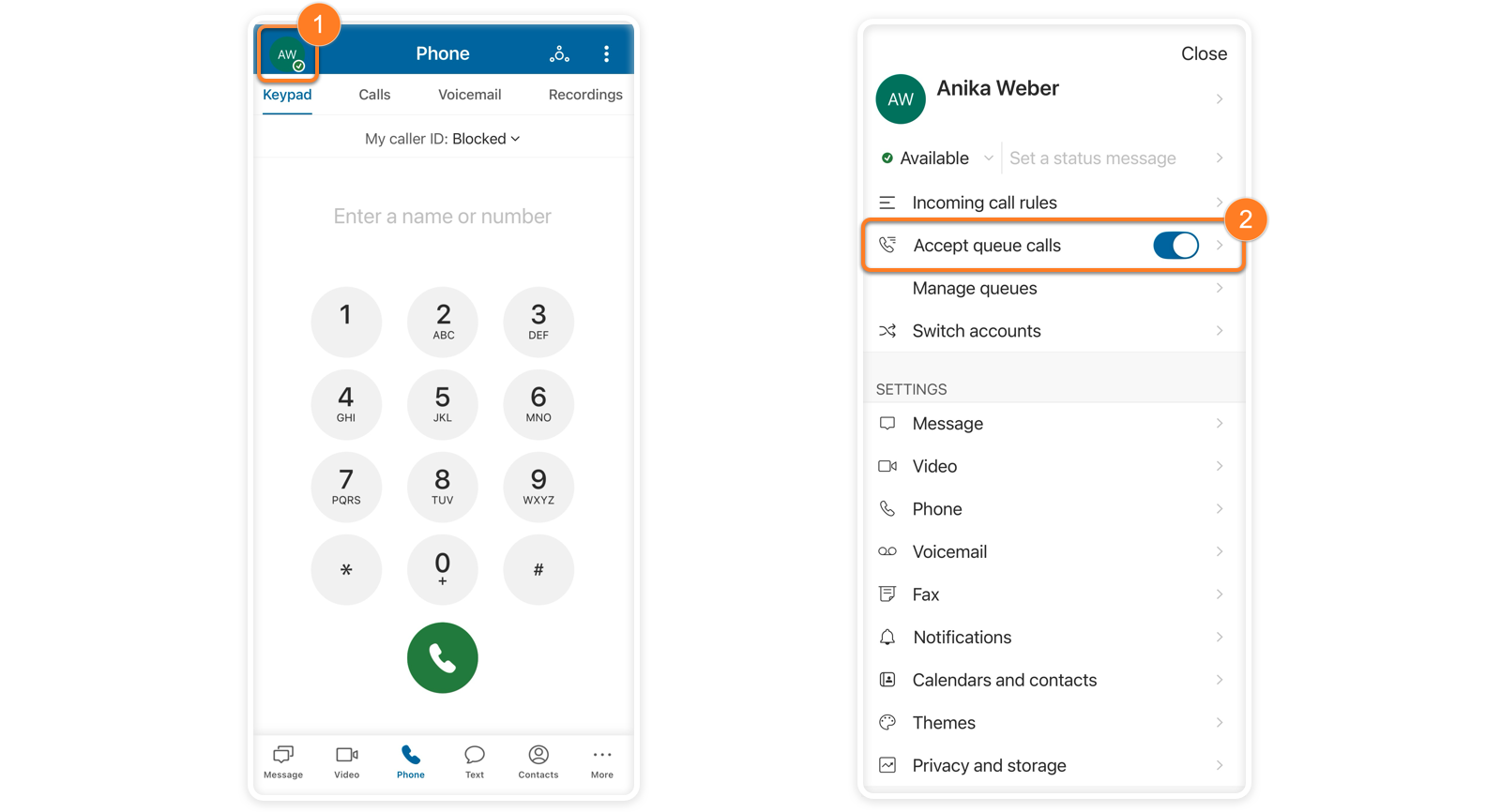
* Tap your profile picture at the top left.
* Tap **Accept queue calls** .
### Changing the schedule to accept queue calls
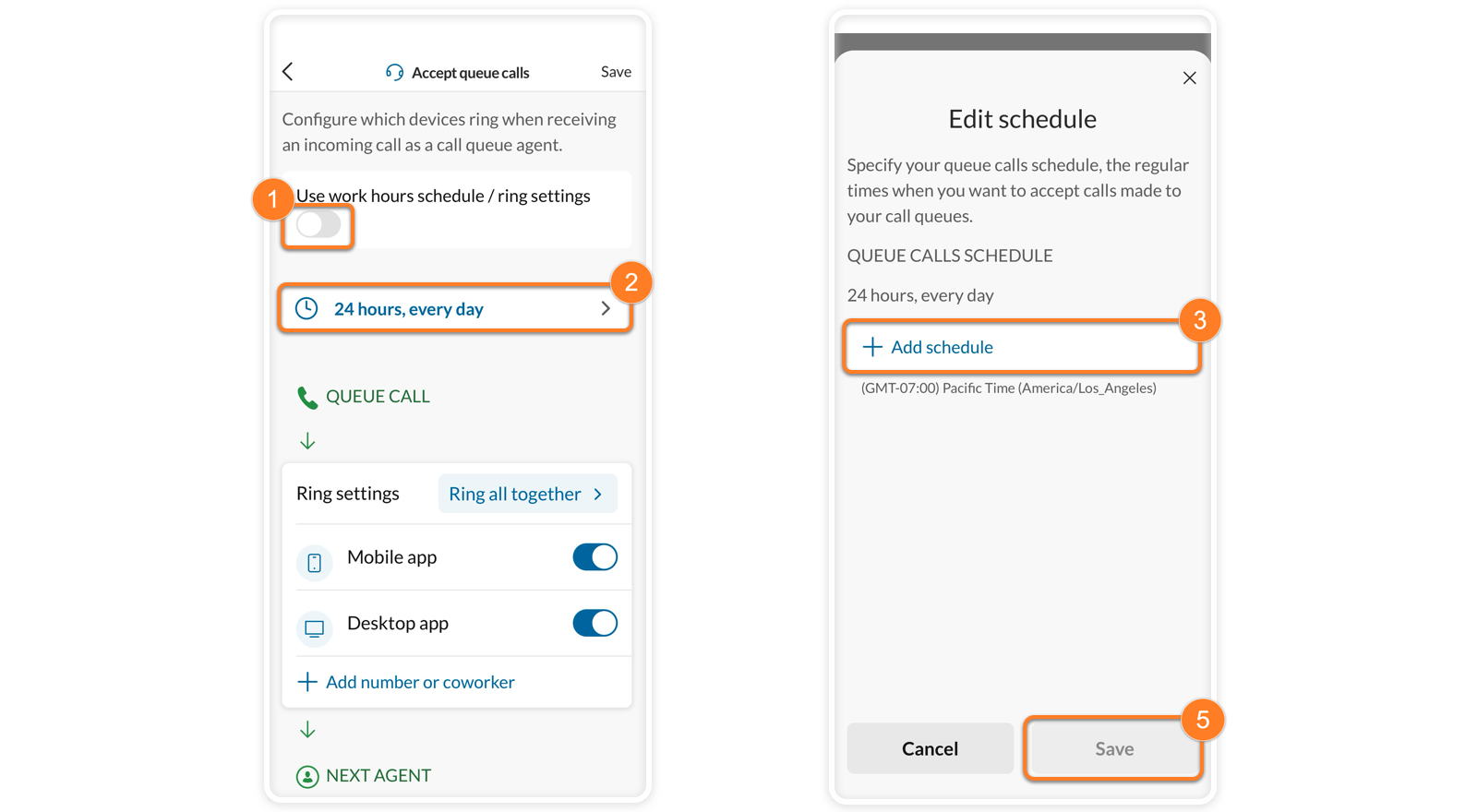
To change the schedule as to when you'll accept queue calls:
* Tap the **Use work hours schedule/ring settings** toggle off.
* Tap your current work hours schedule.
* Tap **Add schedule**.
* Select the days and times, then tap **Set**.
* Tap **Save** .
### Adding additional numbers or extensions to accept queue calls
To route your incoming queue calls to ring additional numbers or extensions:
* In the **Ring settings** section, tap **Add number or coworker**.
* Enter a name or number into the search bar or tap a tab to filter by:
* **Number**: Enter any number, then tap the number to add it.
* **Company**: Select a coworker from your company directory.
* **Personal**: Select a personal contact.
Note
As soon as you've selected an extension or external number, it'll appear in your Ring settings list. To delete the contact, tap the name, tap **Delete** , then select: *This rule only* or *Yes, all rules*.
* Tap **Save** .

### Changing the ring settings for queue calls
To change how your apps and phones will notify you of an incoming call:
* Tap **Ring settings**.
* Tap under **How do you want your devices to ring** and select:
* **Ring all together**: Calls on all apps and devices will ring simultaneously.
* **Ring in order** : Calls will ring apps and devices in the order in which they're listed. You can rearrange the ring order by dragging and dropping.
* Tap the ring duration dropdown to choose how long you want each device to ring before it becomes a missed call and goes to the next call queue member.
* Select any number of rings from *2 (10 seconds)* to *15 (75 seconds)*.
* Select *Always Ring* to have that specific device or number ring at the same time as the others on the list.
* Tap the **Close** icon at the top right.
* Tap the toggle to turn on or off any devices or numbers for the queue calls to ring.
* Tap **Save** at the top right.

**Additional resources**
[Handling multiple calls in the RingCentral app](https://support.ringcentral.com/article-v2/handling-multiple-calls-same-time-desktop-web-app.html?brand=RingCentral&product=RingEX&language=en_US&pills-nav=mobile "")
[Creating call queues in the RingCentral Admin Portal](https://support.ringcentral.com/article-v2/Create-Call-Queue.html?brand=RC_US&product=RingEX&language=en_US "")
[Managing a call queue in the RingCentral Admin Portal and mobile app](https://support.ringcentral.com/article-v2/Remote-Member-Management-for-Call-Queues.html?brand=RingCentral&product=RingEX&language=en_US&pills-nav=mobile "")