Viewing and managing your call history in the
RingCentral
app and Admin Portal
================================================================================================================================================
Your call history in the
RingCentral
app and Admin Portal lets you view, manage, and delete records of incoming, outgoing, and missed calls.
Where do you want to view and manage your call history?
## Desktop & web
Viewing your call history in the desktop and web app
----------------------------------------------------
Your call history displays your most recent call at the top. To access your call history:
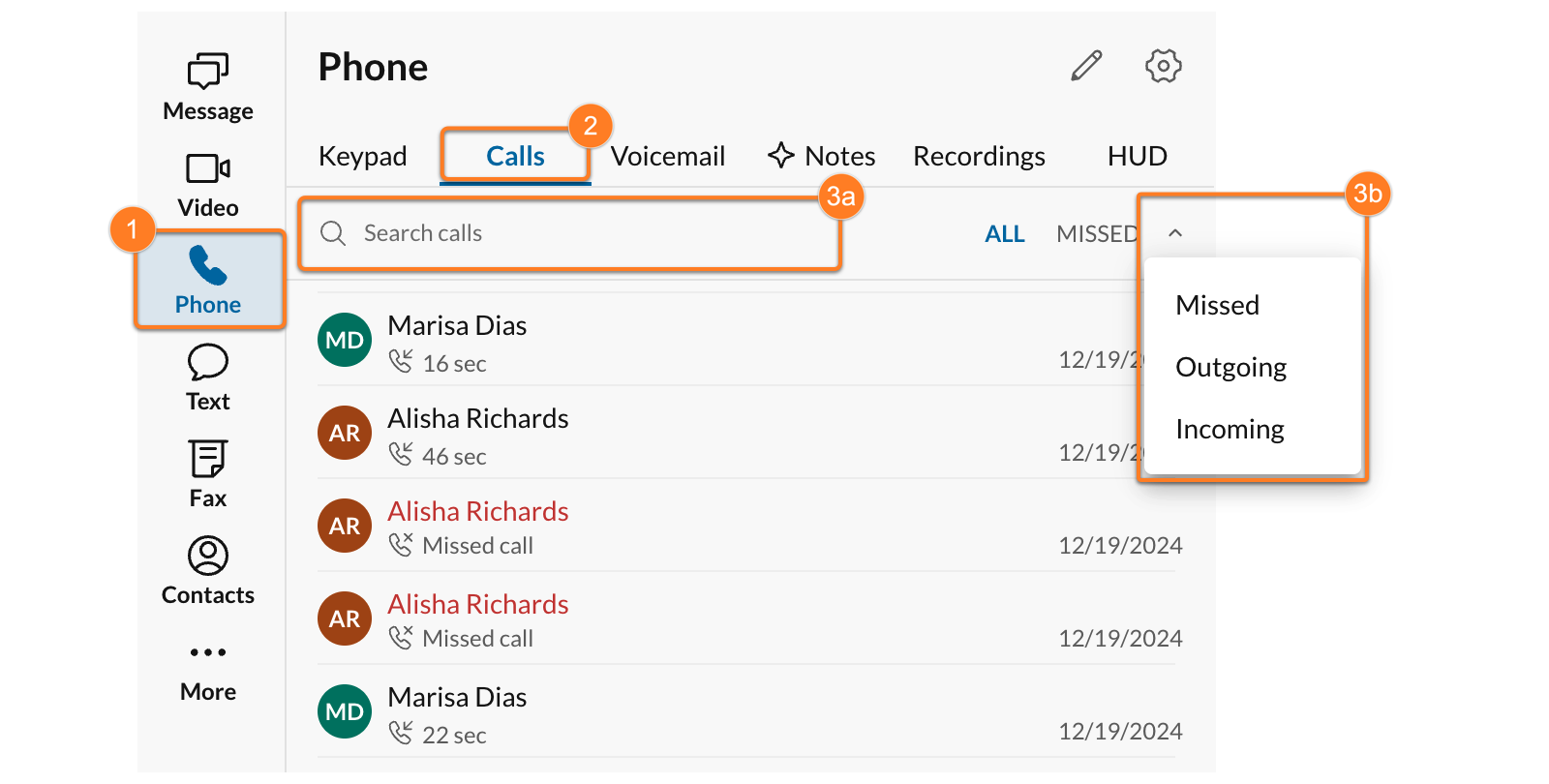
* In the navigation bar, click **Phone**.
* Click the **Calls** tab to view **All** calls.
* Use the **Search calls** field (a) to find a specific person or number or you can filter results by clicking the dropdown arrow (b) to filter by **Missed** , **Outgoing** , or **Incoming** calls.
Managing your call history
--------------------------
Once you've accessed your call history in the **Calls** tab, you can manage each of the entries. When you hover over a call record, some or all of the following options will appear to the right. If a call record has a three-dot **More** icon (A), click the icon to access some of the options.
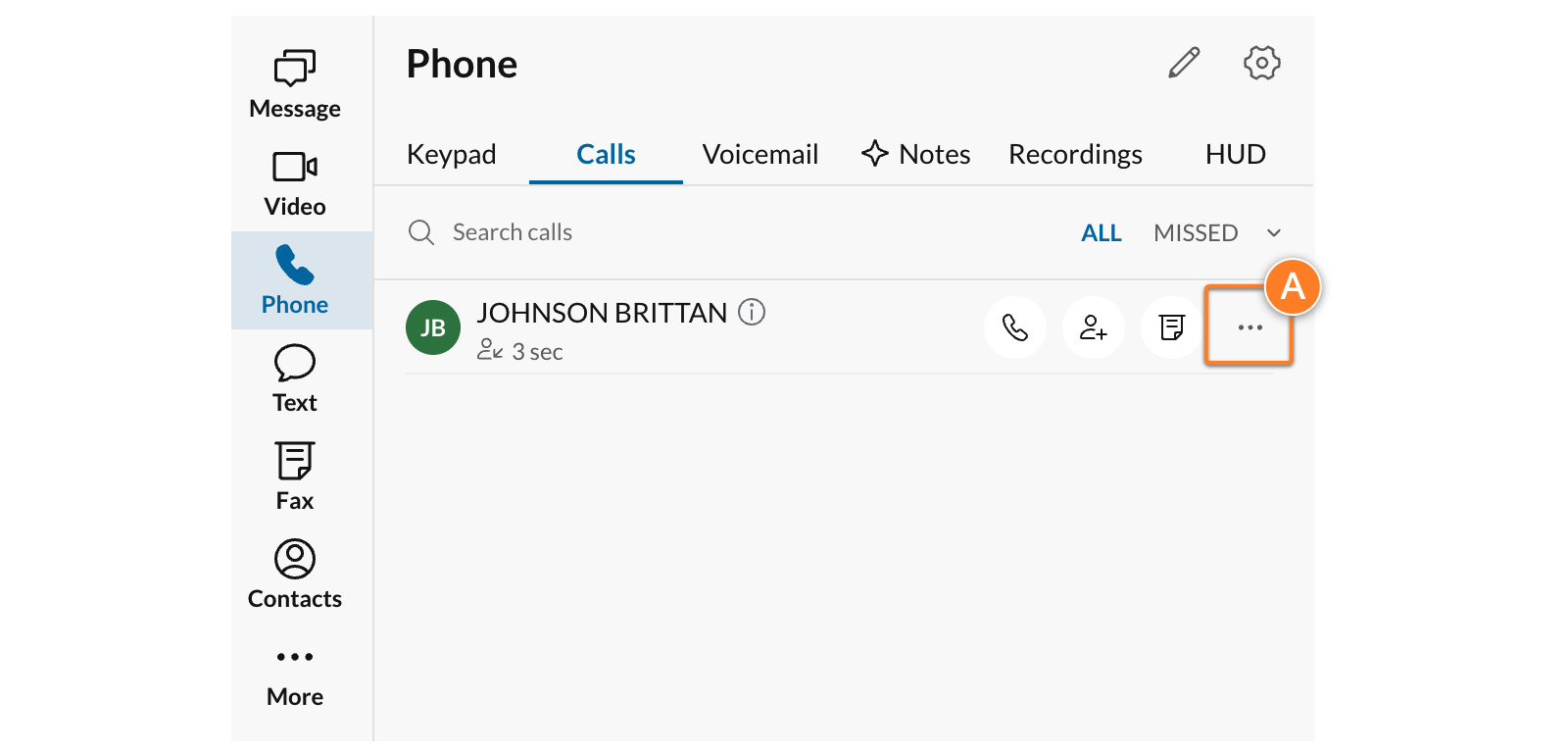
* **Phone**: Call the person.
* **Text**: Send a text message to the person.
* **Fax**: Send a fax to the phone number.
* **Add contact**: Add the person to your contacts list.
* **Message** : Send a
RingCentral
message.
* **Start video call** : Start a video call. Click the arrow next to the icon for the following options:
* **Start screen share**: Share your screen with the person.
* **Schedule video meeting**: Open a popup window to schedule a video meeting.
* **Copy number**: Click to copy the phone number to your clipboard.
* **Delete** : Permanently delete the call record from your call history. Confirm by clicking **Delete** in the popup window.
* To bulk delete, click **Edit** and check multiple entries or click the **Selected** box to mark all call entries, then click the **Delete** trash can icon.

* [**Block and report**](https://support.ringcentral.com/article-v2/7251.html?brand=RC_US&product=RingEX&language=en_US&pills-nav=desktop_%26_web ""): Click **Block only** or **Block \& Report spam** .
* **Block only**: Blocks all calls, faxes, and texts from that number.
* **Block \& report spam**: Blocks the number and reports it as spam.
Note
If you click on the call record and open it in the details pane, you can access all the same controls in a larger format, which includes additional caller ID information.
**Additional resources**
[Managing blocked numbers](https://support.ringcentral.com/article-v2/7251.html?brand=RC_US&product=RingEX&language=en_US&pills-nav=desktop_%26_web "")
[Adding and updating personal contacts](https://support.ringcentral.com/article-v2/Adding-and-updating-personal-contacts-in-the-RingCentral-app.html?brand=RingCentral&product=RingEX&language=en_US&pills-nav=desktop_%26_web "")
## Mobile
Viewing your call history in the mobile app
-------------------------------------------
Your call history displays the most recent call at the top. To access your call history:
* In the bottom toolbar, tap **Phone**.
* In the **Calls** tab (a), you can use **Search** (b) to search for a specific person or number, or use the filter to view **All** your calls or only your **Missed** calls. Tap the filter icon to view only your *Incoming* or *Outgoing calls* (c).

Managing your call history
--------------------------
Once you've accessed your call history in the **Calls** tab, you can manage each of the entries. When you tap on a call record, some or all of the following options will appear:
* **Phone**: Call the person.
* **Text**: Send a text message to the person.
* **Message** : Send a
RingCentral
message to the person.
* **Copy**: Copy the phone number to your clipboard.
* **Video**: Start a video call with the person.
* **Delete** : Permanently delete call records in one of three ways:
* Tap the **Delete** trash icon after tapping on a record.
* Swipe left and tap **Delete**.
* To bulk delete, swipe left and tap **Select** . Tap additional call records, then tap **Delete** in the bottom right corner.
* Tap the **Information** icon next to any call record to open the call details page, where you [add the caller as a contact](https://support.ringcentral.com/article-v2/Adding-and-updating-personal-contacts-in-the-RingCentral-app.html?brand=RingCentral&product=RingEX&language=en_US&pills-nav=mobile "") or [block their number](https://support.ringcentral.com/article-v2/7251.html?brand=RC_US&product=RingEX&language=en_US&pills-nav=mobile "").
**Additional resources**
[Managing blocked numbers](https://support.ringcentral.com/article-v2/7251.html?brand=RC_US&product=RingEX&language=en_US&pills-nav=mobile "")
[Adding and updating personal contacts](https://support.ringcentral.com/article-v2/Adding-and-updating-personal-contacts-in-the-RingCentral-app.html?brand=RingCentral&product=RingEX&language=en_US&pills-nav=mobile "")
## Admin Portal
Viewing your call history in the Admin Portal
---------------------------------------------
As a user, you can view your call history in the Admin Portal using the My Extension view. Admins can [view and manage their company's call log](https://support.ringcentral.com/article-v2/Viewing-and-managing-your-call-log-in-the-Admin-Portal.html?brand=RingCentral&product=RingEX&language=en_US "") using the Admin Portal view.
* Sign in to the [
Admin Portal
](https://service.ringcentral.com "").
* At the top right, click the dropdown and select **My Extension**.
* Click the **Call Log** tab. By default, the page will show all inbound and outbound calls to and from your phone numbers over the past seven days.
* At the top left, click **Simple** to see the default information and layout, or click **Detailed** to see more information about each call record. Information may include:
* **From**: The number that placed the call.
* **To**: The number that received the call.
* **Ext**: The extension, if any, associated with the call.
* **Forwarded To**: The number, if any, where the call was forwarded.
* **Name**: The name of the contact.
* **Date / Time**: When the call took place.
* **Recording**: Access to the call recording, if applicable.
* **Action** : To view all available actions, visit [
RingCentral
call log definitions](https://support.ringcentral.com/article-v2/RingCentral-company-call-log-definitions.html?brand=RingCentral&product=RingEX&language=en_US "").
* **Result**: If the call was connected, accepted, or missed.
* **Length**: The duration of the call.
* **Included**: Call charges billed to an existing calling credit package.
* **Purchased**: Call charges not included in a calling credit package.
* **Down arrow icon**: Click the icon at the far right to view an expanded version of the call record that shows all segments of the call in separate rows.

### Customizing your view
* To customize the information and layout, click the three-dot **More** icon to the right of **Delivery Settings** , then select *Customize Columns* .

* Check or uncheck the boxes for columns you'd like to include or exclude in your call records.
* Click the eight-dot icon to the left of any item you'd like to move, then drag it to rearrange it in your preferred order.
* Click **Save** once you've made your changes. You can also click **Reset to Default** at any time.
Filtering the call log view
---------------------------
You can search and filter the log based on specific fields.
* Click the **Phone number** dropdown, then select *Phone number* or *Extension* . Select a **Country** code from the next dropdown, then enter the first few digits or the full number to search.
* Phone search includes numbers in the To and From fields.
* Extension search includes numbers in the To, From, and Extension fields.
* If a phone number in the To or From field matches a saved contact, the contact name is displayed.
* Click the person icon to the right of the **Search** field to select a specific contact from a list.
* Click the **Calendar** field to select a search range: *Today* , *Yesterday* , *Last 7 days* , *Last 30 days* , or *Last 60 days*. You can also use the calendar to select custom start and end dates for your search range.
* Click the **Saved searches** dropdown and select any [previously saved search](#using-saved-searches "").
* Click the **Filter** icon to bring up additional search fields:
* **Call Direction** : Select *Inbound* or *Outbound*.
* **Types of Call** : Select *Voice* , *Fax* , *VoIP* , *Audio Conferencing Calls Only* , or *Recorded Calls Only*.
* Click **Apply** to view the results or click **Save** to create a saved search.

Using saved searches
--------------------
Once you've filtered and customized your view, you can save that search and use it again later. Saved searches can also be applied when downloading or scheduling the delivery of call log records.
### Saving a call log search
* Select your desired call filters, then click **Save**.
* In the popup, type a name for the saved search and click **Save** . If you've made changes to the search, you can click **Update existing search**.
### Applying a call log search
Click the **Saved searches** dropdown to apply the customized search. Select the saved search name and the results are automatically displayed.
### Deleting a saved call log search
Click the three-dot **More** icon next to Apply, then click **Delete Saved Searches**.
Managing your call history
--------------------------
As a user, you can manage, download, and email your call history in the Admin Portal using the My Extension view. Admins can [view and manage their company's call log](https://support.ringcentral.com/article-v2/Viewing-and-managing-your-call-log-in-the-Admin-Portal.html?brand=RingCentral&product=RingEX&language=en_US "") using the Admin Portal view.
To manage the call log entries:
* Check the box to the left of one or more call records, then:
* Click **Delete** at the top of the list to delete all checked. Click **Yes** in the popup window to confirm.
* Click **Block** to block calls, text, and faxes from these numbers.
* Click any phone number to use RingOut to call that number. [Learn more about RingOut](https://support.ringcentral.com/article-v2/Intro-to-RingOut.html?brand=RingCentral&product=RingEX&language=en_US "").
* In the **Name** column, click any name, or the **Add** icon next to it, to add the number as a contact. In the popup window, you can enter the person's profile information in the *Personal Info* , *Phone Numbers* , and *Addresses* tabs. Click **Save** when you're done.
* Click the three-dot **More** icon to select the bulk options to Delete All, Expand All, Collapse All, or Customize Columns.
To download your call log:
* Click **Download** at the top right. Select the items you want to download:
* *Call Log*: Download your call history in CSV format.
* *Recorded Calls*: Download your call recordings in MP3 format.
* *Consolidated Incoming Fax Report* : Download incoming faxes (received or failed) in CSV format.
Note
When the outgoing caller ID (shown as the **From** phone number) is hidden, the call log download file and its file name will show the **To** phone number instead.
To email your call log:
* Click **Delivery Settings** at the top right to set up a schedule for delivering call logs to one or more email addresses.
* Select *Daily* , *Weekly* , or *Monthly* emails of the *Simple view* or *Detailed view* of your call logs.
* Enter the email addresses in the **Email to** field, then click **Save**.
**Additional resources**
[Viewing and managing your company call log in the Admin Portal](https://support.ringcentral.com/article-v2/Viewing-and-managing-your-call-log-in-the-Admin-Portal.html?brand=RingCentral&product=RingEX&language=en_US "")
[Managing blocked numbers](https://support.ringcentral.com/article-v2/7251.html?brand=RC_US&product=RingEX&language=en_US&pills-nav=admin_portal "")
[Adding and updating personal contacts](https://support.ringcentral.com/article-v2/Adding-and-updating-personal-contacts-in-the-RingCentral-app.html?brand=RingCentral&product=RingEX&language=en_US&pills-nav=admin_portal "")