Flipping a call in the
RingCentral
app
========================================================================================================
Call flip lets you continue an active call on a different phone number, such as your home phone, deskphone, or mobile phone. When you flip a call, the caller is placed on hold until the flip is complete.
You'll need to [set up call flip](https://support.ringcentral.com/article-v2/9748.html?brand=RingCentral&product=RingEX&language=en_US "") in the
RingCentral
app or [
Admin Portal
](https://service.ringcentral.com "") before using the feature.
Note
Flipping a call is different from [switching a call](https://support.ringcentral.com/article-v2/Switching-a-call-or-meeting-between-desktop-and-mobile-in-the-RingCentral-app.html?brand=RingCentral&product=RingEX&language=en_US "") or [transferring a call](https://support.ringcentral.com/article-v2/Transferring-a-call-in-the-RingCentral-app.html?brand=RingCentral&product=RingEX&language=en_US "").
Where do you want to flip a call?
## Desktop & web
Flipping a call in the desktop and web app
------------------------------------------
* While on an active call, click the three-dot **More** icon in the call window.
* Click **Flip** to open a list of available numbers.
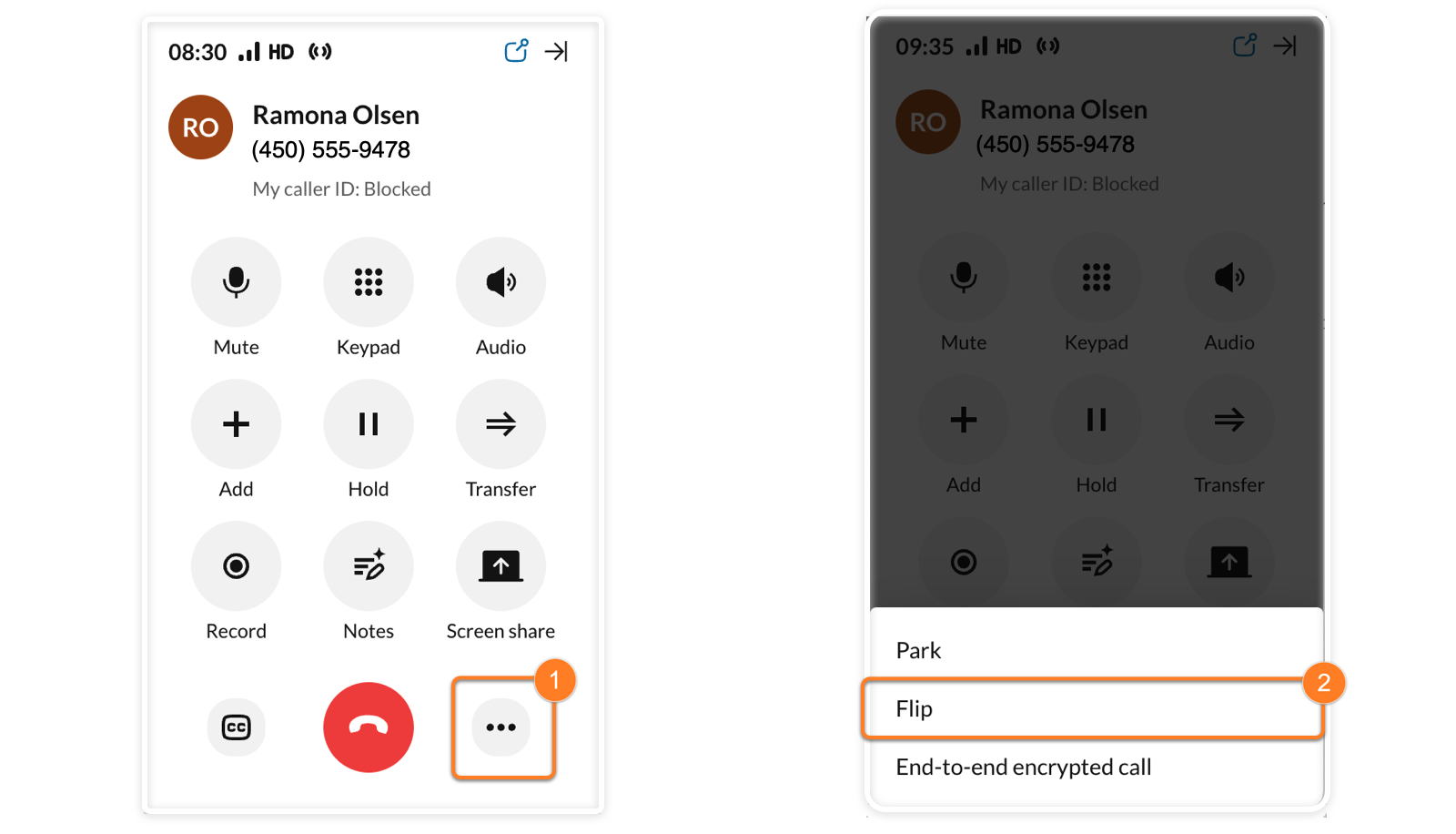
* Select the phone number where you'd like to continue the call.
* Answer the call at the other number.
* To complete the flip, click **End call** in the original call window.
**Additional resources**
[Setting up call flip in the
RingCentral
app](https://support.ringcentral.com/article-v2/9748.html?brand=RingCentral&product=RingEX&language=en_US "")
## Mobile
Flipping a call in the mobile app
---------------------------------
* While on an active call, tap the three-dot **More** icon in the call window.
* Tap **Flip** to open a list of available numbers.
* Select the phone number where you'd like to continue the call. Tap **Flip** again to confirm.
* Answer the call at the other number.
* To complete the flip, tap the checkmark in the original call window.

**Additional resources**
[Setting up call flip in the
RingCentral
app](https://support.ringcentral.com/article-v2/9748.html?brand=RingCentral&product=RingEX&language=en_US&pills-nav=mobile "")