Inviting a new user in the
RingCentral
app
============================================================================================================
If you're an admin or a user with the necessary permissions, you can add as many users as you'd like to the
RingCentral
desktop, web, or mobile app anytime.
Note: If you can't invite a new user, you may not have this permission. Contact your company admin for assistance.
Where do you want to invite a new user?
## Desktop & web
How to invite a new user from the New actions button
----------------------------------------------------
* Click the **+ New actions** button in the top right corner.
* Hover over **Invite to
RingCentral
**.
* Select *By email* , *From contacts* , *By text* , or *By sharing a link* .

### Inviting new users by email
* Enter up to 20 email addresses, separated by commas or semicolons.
* Click **Invite** to send an individual invite to each email address.

### Inviting new users from contacts
If you [connect your Microsoft or Google contacts to the
RingCentral
app](https://support.ringcentral.com/article-v2/Managing-connected-accounts-in-the-RingCentral-app.html?brand=RingCentral&product=RingEX&language=en_US ""), or add personal contacts, you can select which contacts you'd like to invite:

You can search for a contact, see if a contact has already been invited to
RingCentral
, or click **Invite** to send an invite to the selected contact's email address.
### Inviting new users by text
* Enter a name or phone number in the **To** field. In the message field, you can review and edit what will be seen in the text message.
* Click **Next** to send.

Note: Inviting users by text is only available if your company admin has turned on texting for the account.
### Inviting new users by sharing a link
* There are two ways to share an invite link:
* Click **Share invite link via email** (a) to open your default email app. Enter the email addresses and send the email.
* Click the **Copy** (b) icon to copy the link to your clipboard, then share the link.

How to invite a new user from Message
-------------------------------------
* Click **Message** in the navigation bar.
* Click the **+ New message** button next to **Direct messages** .

* Enter up to 20 names or email addresses, separated by semicolons or commas.
* Click **Send** to send an individual invite to each email address.

How to invite a new user from Contacts
--------------------------------------
### Inviting a new contact
* Click **Contacts** in the navigation bar.
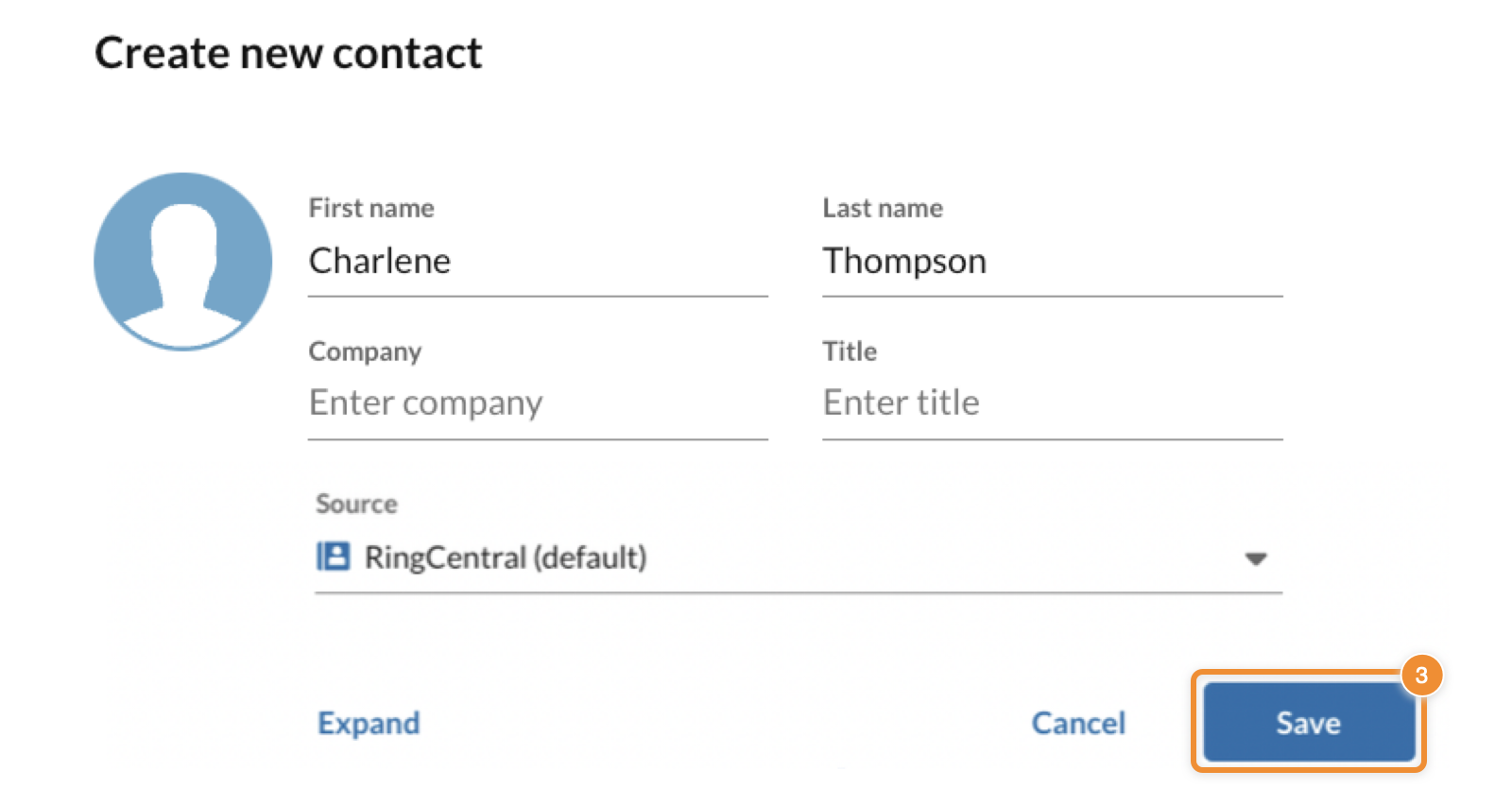
* Click the **+ New action button** (a), then **Create new contact** (b).

* Enter the contact's information, then click **Save** .
* Click **Invite** in the contact's profile card to email them an invite.

### Inviting an existing contact
* Click **Contacts** in the navigation bar.
* Scroll to search for your contact, or use the **Search contacts** field to search for a name, email address, or phone number, then open their profile.

* Click **Invite to
RingCentral
** on the contact profile to send an invitation to the contact's email address.
Note: If you don't see **Invite**, make sure the profile includes an email address. If it does, the contact may have already received an invitation.

### Inviting from the Invite guests icon
* Click **Contacts** in the navigation bar.
* Click the **+ New actions** button.
* Hover over **Invite guests**.
* Select *Invite by email* , *Invite by text* , or *Share invite link* .

### Inviting new users by email
* Enter up to 20 email addresses, separated by commas or semicolons.
* Click **Invite** to send an individual invite to each email address.

### Inviting new users by text
* Enter a name or phone number in the **To** field. In the message field, you can review and edit what will be seen in the text message.
* Click **Next** to send.

Note: Inviting users by text is only available if your company admin has turned on texting for the account.
### Inviting new users by sharing a link
* There are two ways to share an invite link:
* Click **Share invite link via email** (a) to open your default email app. Enter the email addresses and send the email.
* Click the **Copy** (b) icon to copy the link to your clipboard, then share the link.

## Mobile
How to invite a new user from the New actions button on the mobile app
----------------------------------------------------------------------
* Open the
RingCentral
mobile app, and tap the **+ New actions** button.
* On iOS devices, **+ New actions** (a) is at the top right.
* On Android devices, **+ New actions** (b) is at the bottom right.

* Tap **Invite** . Then, you can:
* Send an invite to an email address using the **To** (a) field.
* **Invite from contacts** (b).
* **Invite via link** (c).

### Inviting new users by email
* Enter an email address in the **To** field. To send multiple invites, separate email addresses with spaces.
* On the top right, tap **Next** for Android or **Invite** for iOS.
### Inviting new users from your mobile device contacts
* Tap **Invite from contacts**.
* Scroll to search your contacts, then tap a contact to select it. You can also enter a name, phone number, or email address in the To field to filter the list.
* Tap **Send** at the top right.
### Inviting new users by sharing a link
* Tap **Invite via link**.
* Select a messaging or email app on your device, then send the link to your contact.