Adding and updating personal contacts in the
RingCentral
app
==============================================================================================================================
Adding personal contacts in the
RingCentral
app allows you to easily communicate with people outside your organization. Unlike guest users, personal contacts won't receive an invite to join the
RingCentral
app when they're added.
You can add personal contacts directly in the
RingCentral
app, or by [connecting your Microsoft, Google, or device contacts](https://support.ringcentral.com/article-v2/Managing-connected-accounts-in-the-RingCentral-app.html?brand=RingCentral&product=RingEX&language=en_US "") to the app. By connecting your contacts, you can [manage](https://support.ringcentral.com/article-v2/Managing-your-contacts-in-the-RingCentral-app.html?brand=RingCentral&product=RingEX&language=en_US "") them directly within the
RingCentral
app.
If you have a large list of contacts, you can import a [CSV file into the Admin Portal](https://support.ringcentral.com/article-v2/Adding-and-updating-personal-contacts-in-the-RingCentral-app.html?brand=RingCentral&product=RingEX&language=en_US&pills-nav=3 ""). You can bulk import up to 10,000 contacts using this method.
Where do you want to add or update personal contacts?
## Desktop & web
Adding personal contacts in the desktop and web app
---------------------------------------------------
Personal contacts can be added in multiple ways within the desktop and web app. They can be added from the **Contacts** tab, [from the keypad](#keypad ""), and by clicking **Add contact** wherever it appears in the app, like next to a voicemail, text, fax, or call history entry from an unknown sender.
### Adding a personal contact from the Contacts tab
* Click **Contacts** in the navigation bar.
* Click the **New actions** plus icon, then select **Create new contact** .

* In the **Create new contact** window, fill in the contact's personal information:
* **First name**
* **Last name**
* **Company**: Name of the contact's organization
* **Title**: Job title of the contact
* **Email** : You can add more email addresses by clicking the **Add** icon to the right.
* **Phone number** : You can add more phone numbers by clicking the **Add** icon to the right.
* **Label** : Select the type of phone number from the dropdown. Depending on the contact source selected below, options may include *Mobile* , *Business* , *Home* , *Work* , *Custom* , *Company* , *Fax* , *Assistant* , *Car* , and *Other*.
* **Source** : Select where you want to save your new contact from the dropdown. If you've connected your Microsoft or Google account, you'll be able to choose from those accounts and the
RingCentral
app. After switching the contact source, you can set the new source as the default.
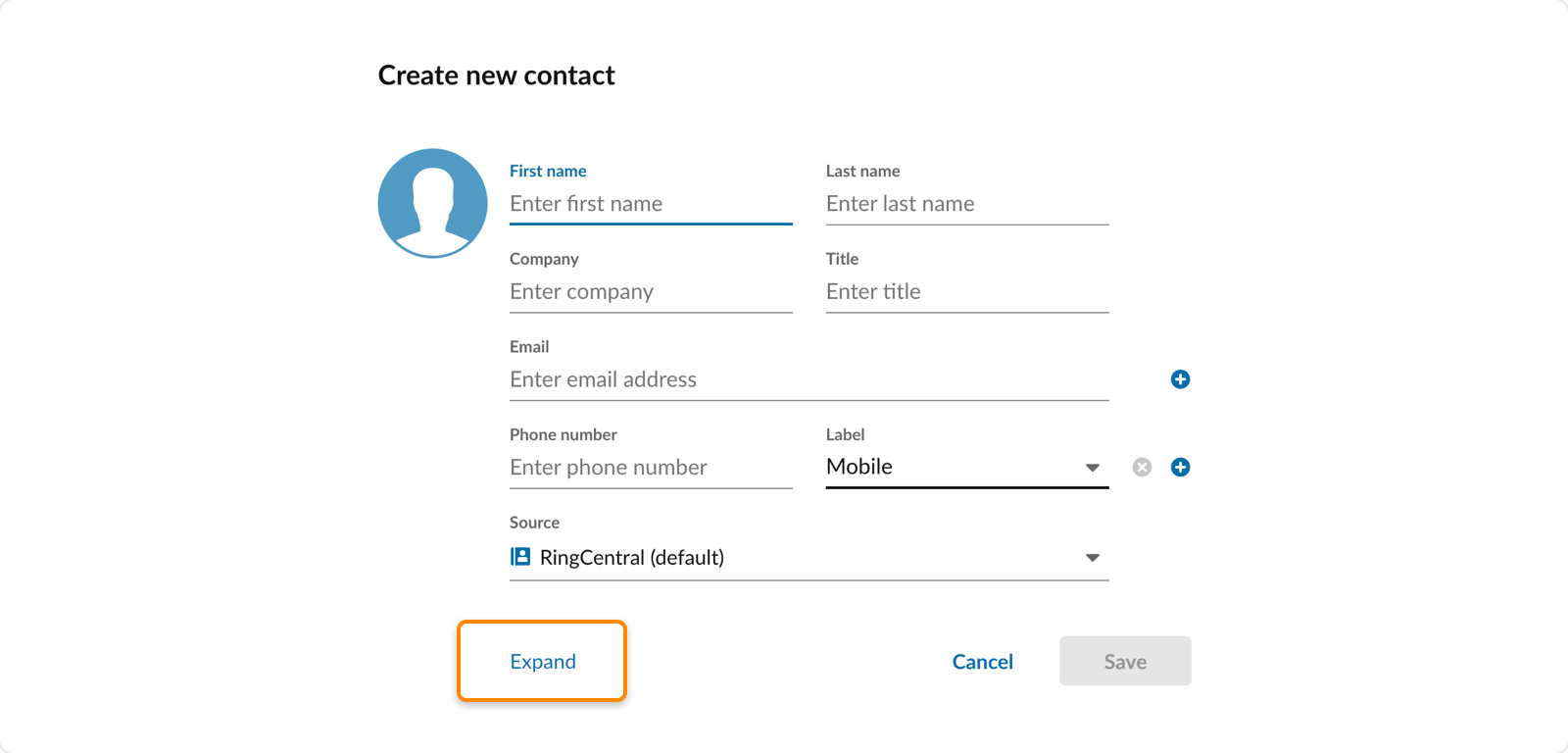
* Click **Expand** for these additional fields:
* **Address** : You can add the street address, city, state, and zip code. Label the type of address by selecting a label from the dropdown. Options include *Home* , *Work* , and *Other*.
* **Birthday**
* **URL/webpage**: Personal or company website of the contact
* **Notes**: Any additional information about the contact
* Click **Save** .

### Adding a personal contact from the keypad
In the keypad:
* Type or enter a phone number at the top.
* Click **Add number**.
* Click **Create new contact** or **Add to existing** to add the phone number to an existing personal contact. You can't add a number to an existing company or guest contact from the keypad.
Note
You can't add a number to an existing company or guest contact from the keypad.

Updating personal contacts in their profile
-------------------------------------------
To update your personal contact's information:
* Click **Contacts** in the navigation bar.
* Click the **Personal** tab.
* Click the contact you'd like to update to open their profile.
* Click the **Edit** icon in the upper right.

* Make the necessary updates in the **Edit contact** window.
* Click **Save**.
**Additional resources**
[Managing your contacts in the
RingCentral
app](https://support.ringcentral.com/article-v2/Managing-your-contacts-in-the-RingCentral-app.html?brand=RingCentral&product=RingEX&language=en_US "")
[Managing your favorite contacts in the
RingCentral
app](https://support.ringcentral.com/article-v2/Adding-quick-contacts-in-the-RingCentral-app-desktop-and-web.html?brand=RingCentral&product=RingEX&language=en_US "")
## Mobile
Adding personal contacts in the mobile app
------------------------------------------
Personal contacts can be added in multiple ways within the mobile app. They can be added from the **Contacts** tab or by tapping **Create new contact** from any voicemail, text, fax, or call history entry from an unknown sender.
### Adding a personal contact from the Contacts tab
* Tap **Contacts** in the bottom toolbar.
* Tap the **New actions** plus icon in the upper right in iOS, or lower right in Android.
* Tap **New contact**.
* Select your contact **Source** . This determines where your contact will be saved. Options can include *
RingCentral
* , *Microsoft* , *Google* , *Device contacts (Android)* , and *iPhone (iOS)* .

* In the **New contact** window, fill in the details as needed.
Additional fields may be available depending on the contact source selected.
* **First name**
* **Last name**
* **Company name**: Name of the contact's organization
* **Phone number** : You can label the type of phone number by selecting a label from the dropdown. Options include *Mobile* , *Business* , *Home* , *Company* , *Fax* , *Assistant* , *Car* , and *Other*. When you add a phone number, another phone number field is automatically generated for additional numbers if needed.
* **Email**: When you add an email address, another email field is automatically generated for additional email addresses as needed.
* **URL/webpage**: Personal or company website of the contact
* **Address** : You can add the street address, city, state, and zip code. Label the type of address by selecting a label from the dropdown. Options include *Home* , *Work* , and *Other*.
* **Birthday**
* **Notes**: Any additional information about the contact
* Tap **Save** or **Done** in the upper right for iOS or at the bottom for Android.
Note
You can create a contact with a source that hasn't been connected to the
RingCentral
app, but you won't be able to view the new contact in the
RingCentral
app until you [connect the source account](https://support.ringcentral.com/article-v2/Managing-connected-accounts-in-the-RingCentral-app.html?brand=RingCentral&product=RingEX&language=en_US&pills-nav=mobile "").
### Adding a personal contact from the keypad
In the keypad:
* Tap **Phone** in the bottom toolbar.
* Tap the **Keypad** tab if it's not already open.
* Using the keypad, tap each number for the new contact, then tap **Add number**.
* Tap **Create new contact** or **Add to existing** to add the phone number to an existing personal contact. You can't add a number to an existing company or guest contact from the keypad.
* Select your contact **Source** . Options can include *
RingCentral
* , *Microsoft* , *Google* , *Device contacts (Android)* , and *iPhone (iOS)*. The source can't be changed in the mobile app after the contact has been created.
* In the **New contact** window, fill in the details as needed.
* Tap **Save** or **Done** in the upper right for iOS or at the bottom for Android.

### Adding personal contacts from a text
* Tap **Text** in the bottom toolbar, then tap a conversation to open it.
* Tap the contact number at the top.
* Tap **Create new contact**.
* Select your contact **Source** . Options can include *RingCentral* , *Microsoft* , *Google* , *Device contacts (Android)* , and *iPhone (iOS)*. The source can't be changed in the mobile app after the contact has been created.
* In the **New contact** window, fill in the details as needed.
* Tap **Save** or **Done** in the upper right for iOS or at the bottom for Android.

### Adding personal contacts from a call or voicemail
* Tap **Phone** in the bottom toolbar.
* Tap the **Calls** or **Voicemail** tab at the top.
* Tap the **View details** icon at the far right of an entry.
* Tap **Create new contact** .

* Select your contact **Source** . Options can include *
RingCentral
* , *Microsoft* , *Google* , *Device contacts (Android)* , and *iPhone (iOS)*. The source can't be changed in the mobile app after the contact has been created.
* In the **New contact** window, fill in the details as needed. Additional fields may be available depending on the contact source selected.
* Tap **Save** or **Done** in the upper right for iOS or at the bottom for Android.
Updating personal contacts in their profile
-------------------------------------------
To update your personal contact's information:
* Tap **Contacts** in the bottom toolbar.
* Tap the **Personal** tab.
* Browse through your personal contacts or use the search bar in the upper right, then tap the contact to open their profile.
* Tap the **Edit** icon in the upper right.

* Update the contact in the **Edit contact** page. The contact source can only be edited in the desktop app.
* Tap **Save** in the upper right.
**Additional resources**
[Managing your contacts in the
RingCentral
app](https://support.ringcentral.com/article-v2/Managing-your-contacts-in-the-RingCentral-app.html?brand=RingCentral&product=RingEX&language=en_US&pills-nav=mobile "")
[Managing your favorite contacts in the
RingCentral
app](https://support.ringcentral.com/article-v2/Adding-quick-contacts-in-the-RingCentral-app-desktop-and-web.html?brand=RingCentral&product=RingEX&language=en_US&pills-nav=mobile "")
## Admin Portal
Adding personal contacts in bulk in the Admin Portal
----------------------------------------------------
You can upload up to 10,000 personal contacts at once using a CSV file. To prepare the CSV file, you'll first need to export your extension's personal contacts list from the Admin Portal. This file will serve as a template.
### Exporting your personal contacts
* Sign in to the [
Admin Portal
](https://service.ringcentral.com "").
* If you're signed in as an admin, click the dropdown next to your profile and select *My Extension*.
* Click the **Contacts** tab.
* In the left column, click **Personal**.
* Click **Export** .

* In the popup, click **Start Export** , choose a location to save the file, then click **Save** .

### Adding contacts to the CSV file
After exporting the file of your personal contacts, copy and paste your new list of contacts into it.
Important
When adding new contacts into the file, keep the same format and tabs. Don't change, add, or delete any columns from the file. After adding the contacts, save the CSV using a new file name.
If your personal contacts are coming from your Microsoft Outlook or 365 account, you can compile the list of contacts by [exporting them directly from Outlook](https://support.microsoft.com/en-us/office/import-or-export-contacts-in-outlook-using-a-csv-file-bb796340-b58a-46c1-90c7-b549b8f3c5f8#bkmk_exportclassic "").
### Uploading contacts to your
RingCentral
account
After you've compiled your personal contacts into the CSV file:
* Sign in to the [
Admin Portal
](https://service.ringcentral.com "").
* If you're signed in as an admin, click the dropdown next to your profile and select *My Extension*.
* Click the **Contacts** tab.
* In the left column, click **Personal**.
* Click **Import**.
* In the popup, select what to do with any duplicate records:
* Overwrite the existing record.
* Keep the current record and add the new one.
* Keep the current record and ignore the new one.
* Click **Upload**.
* Locate and select the CSV file.
* Click **Start Import** .

If you have any issues uploading your personal contacts, visit [Troubleshooting errors when importing a personal contacts list](https://support.ringcentral.com/article-v2/10760-Fix-Errors-when-Importing-your-Personal-Contacts-List.html?brand=RC_US&product=RingEX&language=en_US "").
**Additional resources**
[Troubleshooting errors when importing a personal contacts list](https://support.ringcentral.com/article-v2/10760-Fix-Errors-when-Importing-your-Personal-Contacts-List.html?brand=RC_US&product=RingEX&language=en_US "")
[Managing your contacts in the
RingCentral
app](https://support.ringcentral.com/article-v2/Managing-your-contacts-in-the-RingCentral-app.html?brand=RingCentral&product=RingEX&language=en_US "")
[Managing your favorite contacts in the
RingCentral
app](https://support.ringcentral.com/article-v2/Adding-quick-contacts-in-the-RingCentral-app-desktop-and-web.html?brand=RingCentral&product=RingEX&language=en_US "")