Setting up your voicemail greeting
==================================
You can set up your voicemail greeting in the
RingCentral
apps, Admin Portal, or over the phone. Callers will hear either the default greeting or you can record a custom greeting.
Where do you want to set up your voicemail greeting?
## Desktop & web
Setting up your voicemail greeting in the desktop \& web app
------------------------------------------------------------
To set up your voicemail greeting in the desktop and web app:
* Click **Settings** in the navigation bar.
* Click **Voicemail**.
* Click**Voicemail greeting** .
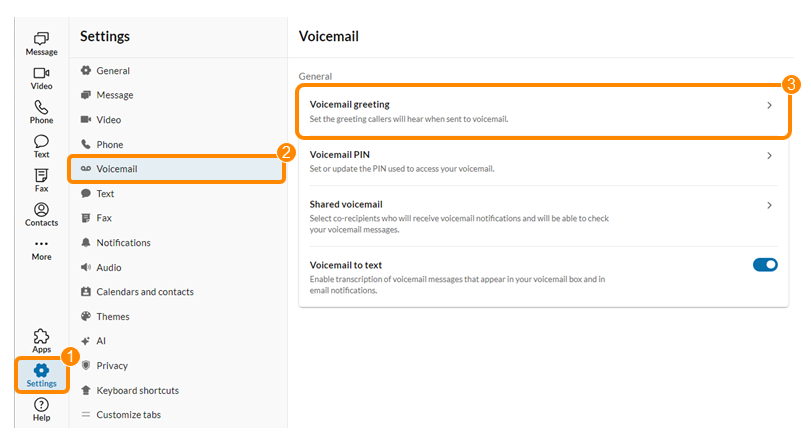
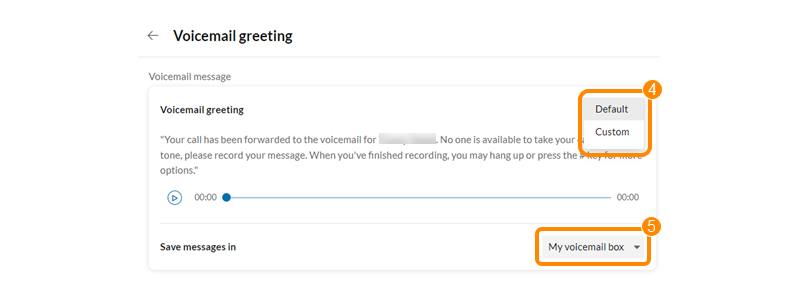
* Click the **Voicemail greeting** dropdown, then select either:
* **Default**: Incoming callers will hear the message "Your call has been forwarded to the voicemail for \[your name\]. No one is available to take your call. At the tone, please record your message. When you've finished recording, you may hang up or press the pound key for more options."
* **Custom** : Click any of these three tabs:
* **Computer Microphone** : Click the red **Record** button for a custom voicemail greeting. The recording can be up to five minutes. Click the button again when you're finished recording.
* **Phone** : Enter a phone number, and click **Call now** to record a custom greeting over the phone.
* **Importing**: Upload a WAV or MP3 file of your custom greeting. The file size can't exceed 20 MB.
* Click the **Save messages** in dropdown, then select either:
* **My voicemail box**: Your voicemail messages will appear in your app's inbox.
* **Another extension**: Your voicemail messages will appear in a different extension's inbox. For example, a manager may want to route their voicemail to an assistant's extension. Pick an extension in the popup window.
* Click **Save**.
**Additional resources**
[Accessing and managing your voicemail messages](https://support.ringcentral.com/article-v2/Accessing-and-managing-your-voicemail.html?brand=RingCentral&product=RingEX&language=en_US "")
## Mobile
Setting up your voicemail greeting in the mobile app
----------------------------------------------------
To set up your voicemail greeting in the mobile app:
* Tap your profile picture.
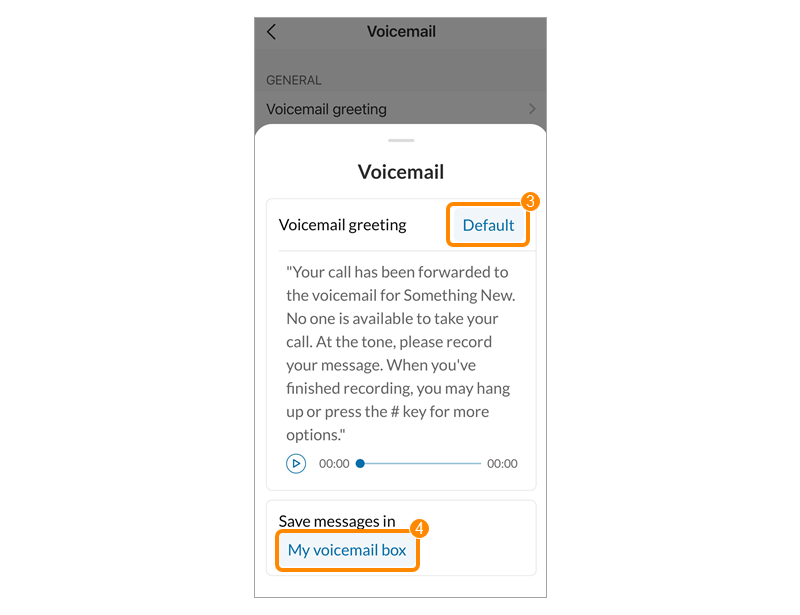
* Tap **Voicemail** , then tap **Voicemail greeting** (b).

* Tap the dropdown in the popup, then select either:
* **Default**: Incoming callers will hear the message "Your call has been forwarded to the voicemail for \[your name\]. No one is available to take your call. At the tone, please record your message. When you've finished recording, you may hang up or press the pound key for more options."
* **Custom** : Tap the red **Record** button for a custom voicemail greeting. The recording can be up to five minutes. Tap the button again when you're finished recording. Then tap **Save**.
* Tap the **Save messages** in dropdown, then select either:
* **My voicemail box**: Your voicemail messages will appear in your app's inbox.
* **Another extension**: Your voicemail messages will appear in a different extension's inbox. For example, a manager may want to route their voicemail to an assistant's extension. Pick an extension in the popup.
**Additional resources**
[Accessing and managing your voicemail messages](https://support.ringcentral.com/article-v2/Accessing-and-managing-your-voicemail.html?brand=RingCentral&product=RingEX&language=en_US&pills-nav=mobile "")
## Admin Portal
Setting up your voicemail greeting in the Admin Portal
------------------------------------------------------
To set up your voicemail greeting in the Admin Portal:
* Sign in to the [
Admin Portal
](https://service.ringcentral.com "").
* Click the **Settings** tab.
Note: If you're an admin, click**Admin Portal** in the top right, then select **My Extension**.
* Click **Phone**.
* Scroll down to **Voicemail settings** , then click **Voicemail greeting** .

* Click the **Voicemail greeting** dropdown, then select either:
* **Default**: Incoming callers will hear the message "Your call has been forwarded to the voicemail for \[your name\]. No one is available to take your call. At the tone, please record your message. When you've finished recording, you may hang up or press the pound key for more options."
* **Custom** : Click any of these three tabs:
*
**Computer Microphone** : Click the red **Record** button to make a custom voicemail greeting. Click the button again when you're finished recording.
Note: The recording can be up to five minutes.
* **Phone** : Enter a phone number and click**Call now** to record a custom greeting over the phone.
* **Importing**: Upload a WAV or MP3 file of your custom greeting. The file size can't exceed 20 MB.
* In the **Save messages** in dropdown, select either:
* **My voicemail box**: Your voicemail messages will appear in your app's inbox.
* **Another extension**: Your voicemail messages will appear in a different extension's inbox. For example, a manager may want to route their voicemail to an assistant's extension. Pick an extension in the popup window.
* Click **Save** .

Setting up another user's voicemail greeting in the Admin Portal
----------------------------------------------------------------
To set up another user's voicemail greeting in the Admin Portal:
* Sign in to the [
Admin Portal
](https://service.ringcentral.com "").
* Click the **Users** tab.
* Under **Users with Extensions**, click the name of the user.
* Click **Phone**.
* Scroll down to **Voicemail settings** , then click **Voicemail greeting**.
* In the **Voicemail greeting** dropdown, select either:
* **Default**: Incoming callers will hear, "Your call has been forwarded to the voicemail for \[your name\]. No one is available to take your call. At the tone, please record your message. When you've finished recording, you may hang up or press the pound key for more options."
* **Custom** : Click any of these three tabs:
* **Computer Microphone** : Click the red **Record** button to make a custom voicemail greeting. The recording can be up to five minutes. Click the button again when you're finished recording. Then click **Save**.
* **Phone** : Enter a phone number and click **Call now** to record a custom greeting over the phone.
* **Importing**: Upload a WAV or MP3 file of your custom greeting. The file size can't exceed 20 MB.
* In the **Save messages** in dropdown, select either:
* **My voicemail box**: Your voicemail messages will appear in your app's inbox.
* **Another extension**: Your voicemail messages will appear in a different extension's inbox. For example, a manager may want to route their voicemail to an assistant's extension. Pick an extension in the popup window.
* Click **Save**.
**Additional resources**
[Accessing and managing your voicemail messages](https://support.ringcentral.com/article-v2/Accessing-and-managing-your-voicemail.html?brand=RingCentral&product=RingEX&language=en_US&pills-nav=admin_portal "")
## Over the phone
Setting up your voicemail greeting over the phone
-------------------------------------------------
To set up your voicemail greeting with key presses over the phone:
* Press the **Voicemail** button on your device or dial **\*86** to access your voicemail box. If you're using a separate mobile or landline phone:
* Call your direct number or main number.
* Once you hear the system prompt start to play, press **\***.
* Enter your PIN, then press **#**. Once you're logged in, the system announces the number of messages in your extension's mailbox. You can then listen to your messages, manage your account, place a call, or change your queue status (if your extension is part of a call queue).
* Press **2** to record your voicemail greeting.
* Record your greeting after the beep. Press **#** after you finish recording.
* Press **1** to save your greeting. You will then have the option to:
* Press **2** to listen to the greeting you have recorded.
* Press **3** to re-record the greeting.
* Press **4** to revert to the system's default greeting.
Note
You can press **\*** at any time to return to the previous menu.
**Additional resources**
[Accessing and managing your voicemail messages](https://support.ringcentral.com/article-v2/Accessing-and-managing-your-voicemail.html?brand=RingCentral&product=RingEX&language=en_US&pills-nav=over_the_phone "")