Assigning and managing participants in breakout rooms in
RingCentral
Video desktop and web
============================================================================================================================================================
\\\Your browser does not support the iframe element.\
When hosting a
RingCentral
Video meeting on desktop or web, you can use breakout rooms to split participants into smaller groups. You can assign users to breakout rooms manually or automatically, and grant or revoke moderator permissions.
Assigning participants to breakout rooms manually
-------------------------------------------------
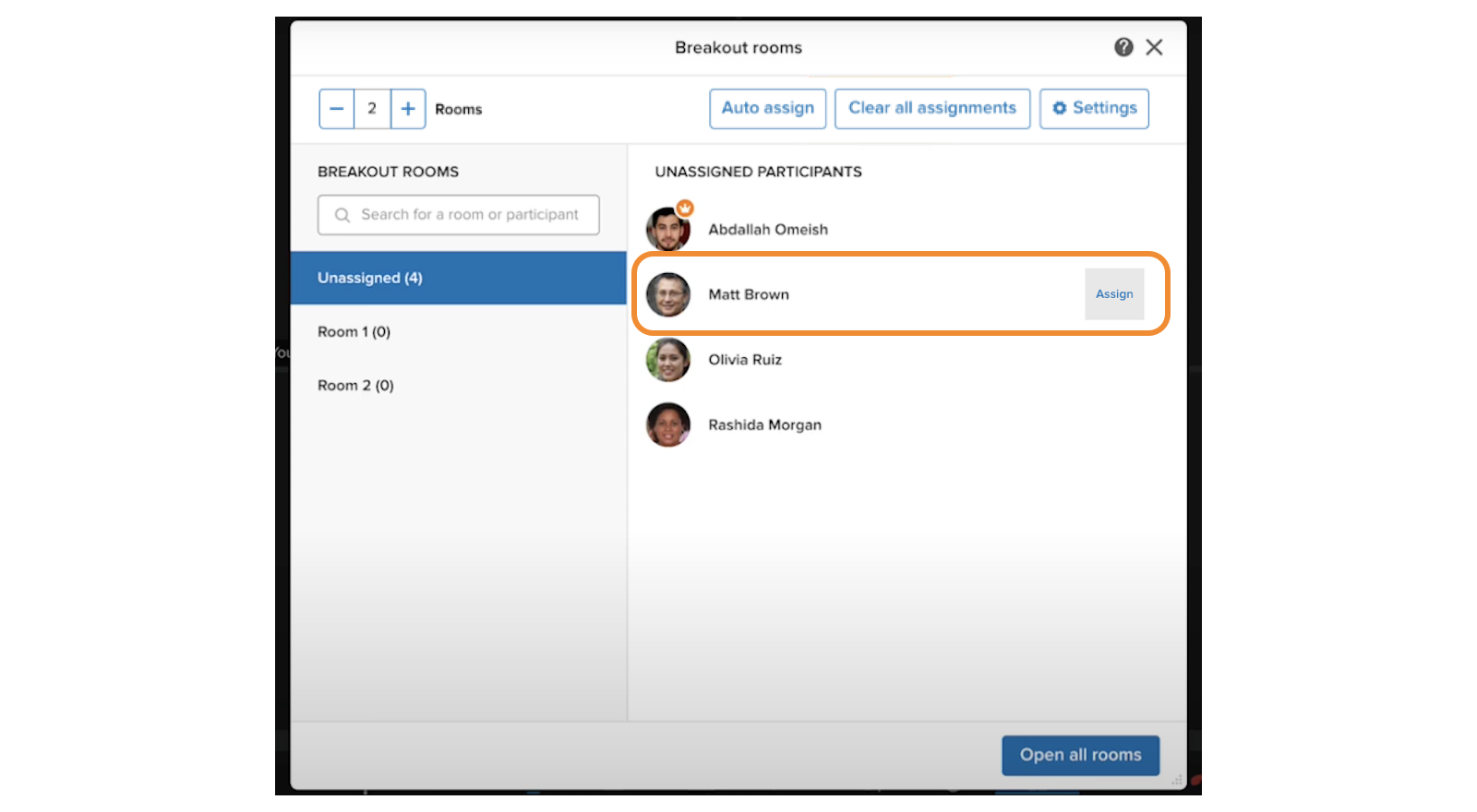
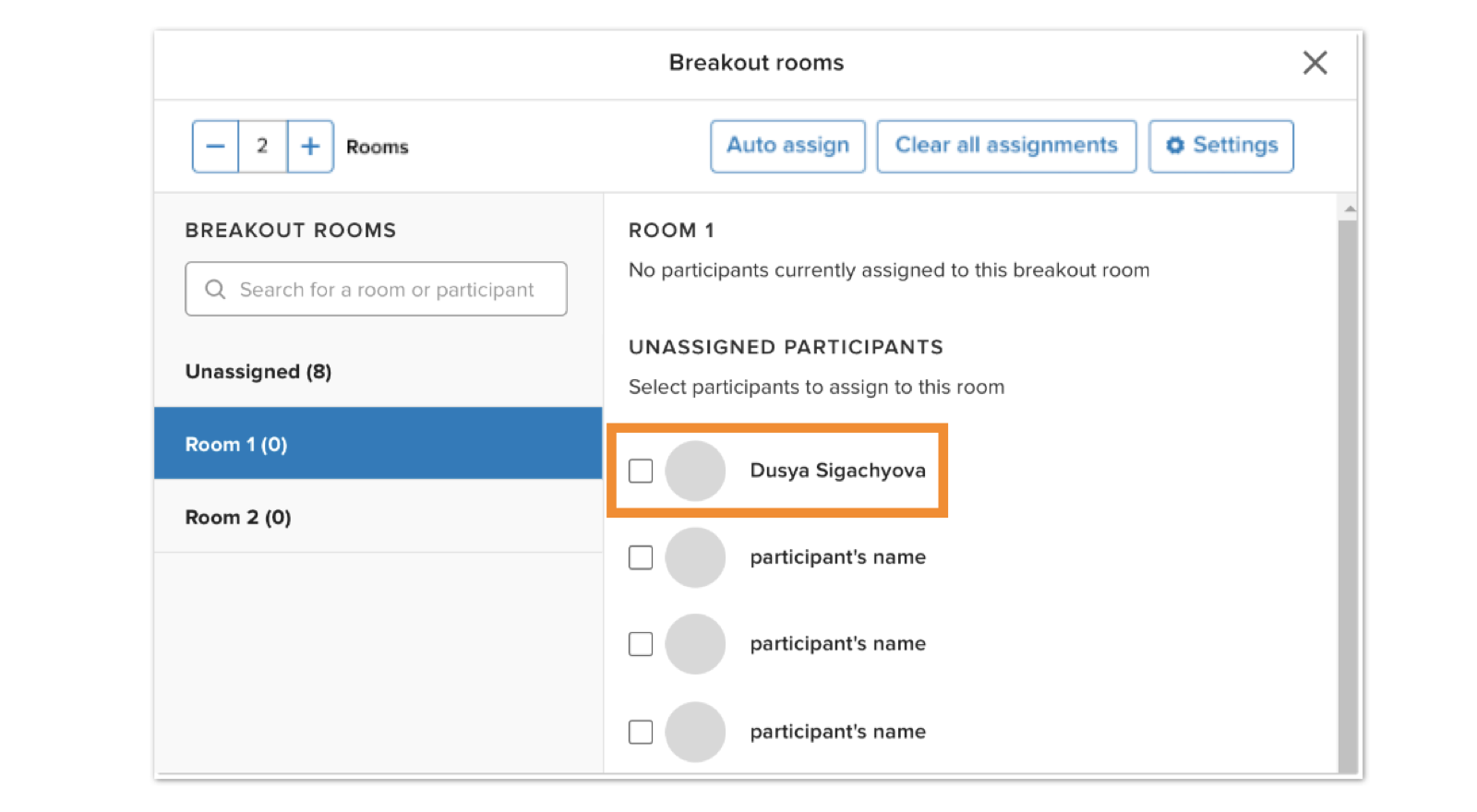
You can assign participants to rooms manually from the Unassigned tab, or from the Room tab.
### Assigning participants to breakout rooms from the Unassigned tab
* Click the **Unassigned tab** on the left pane.
* Hover over the participant you want to assign to a room.
* Click **Assign**.
* Select the breakout room you want to assign them to.
### Assigning participants to breakout rooms from the Room tab
* Click the name of the breakout room in the left pane.
* Under **Unassigned Participants** , click the check box next to each user you want to add to the breakout room.
Assigning participants to breakout rooms automatically
------------------------------------------------------
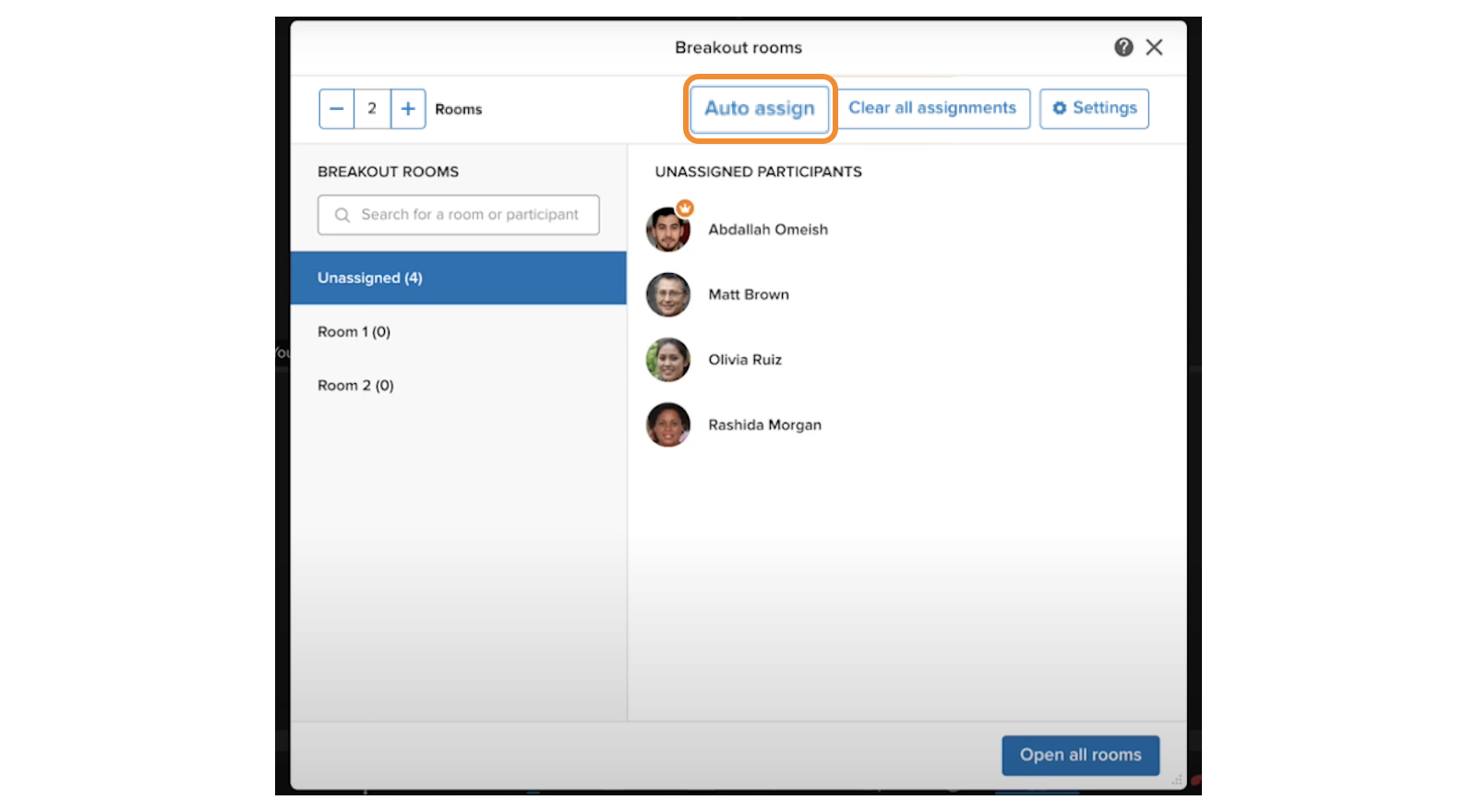
* Ensure you have created the desired number of breakout rooms.
* Click **Auto assign** . This will automatically evenly distribute all unassigned participants into breakout rooms.
Making a participant a moderator
--------------------------------
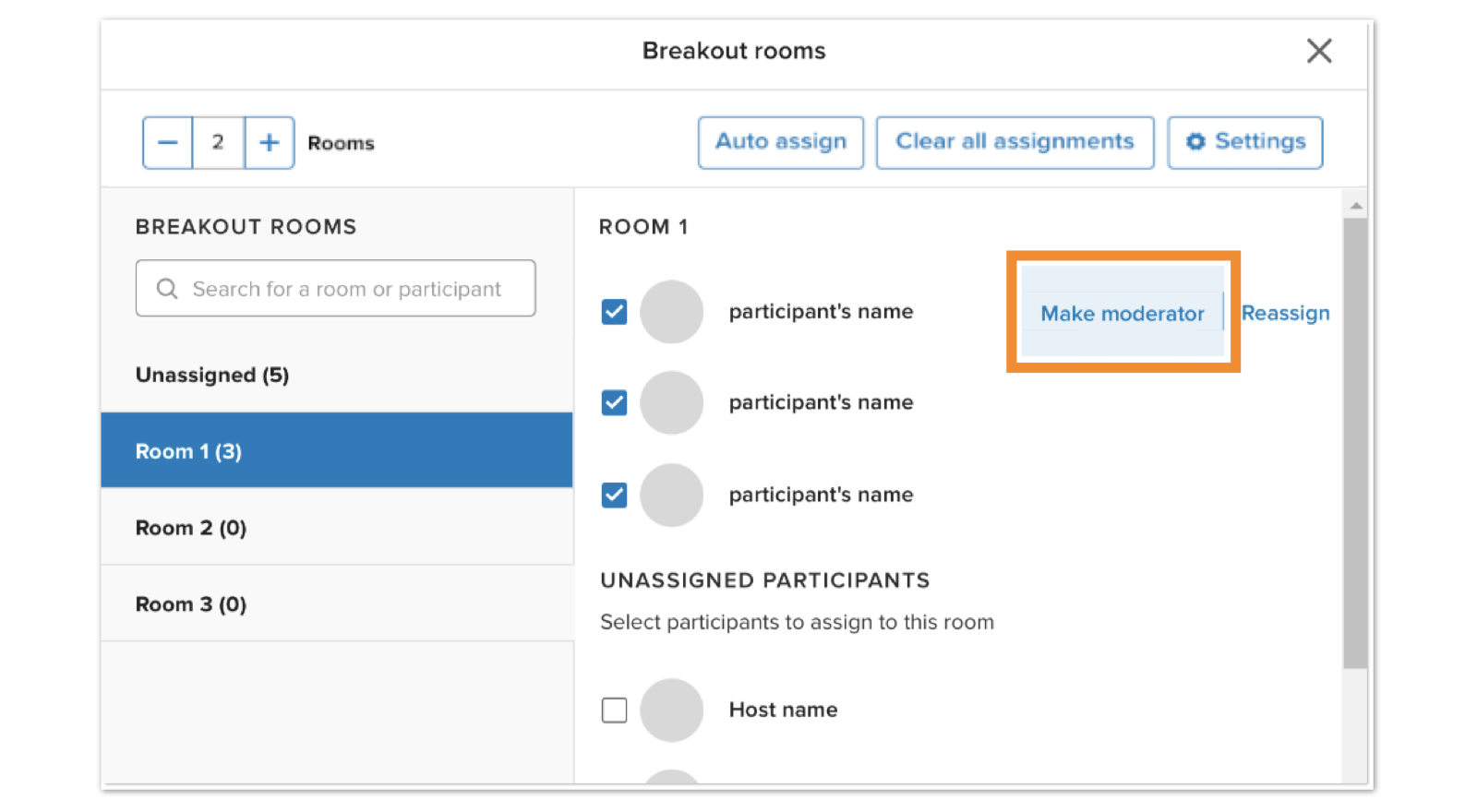
When you make a participant a moderator, they'll have permissions to add and remove breakout rooms, reassign participants, open and close rooms, broadcast messages to all rooms, and update breakout room settings.
* Click on a breakout room on the left pane.
* Hover over the desired participant.
* Click **Make moderator** at the right.
### Revoking a participant's moderator permissions
* Click on a breakout room on the left pane.
* Hover over the desired participant.
* Click **Revoke moderator** at the right.