Managing your video settings in the
RingCentral
app
=====================================================================================================================
You can manage all video settings from the
RingCentral
app when you're not in a meeting.
You can also manage some video settings while in a meeting, including general meeting settings, your Personal meeting ID, do not disturb, and entry and exit tones.
If you're an admin and you want to update settings company-wide, visit [Configuring your company
RingCentral
Video meeting settings](https://support.ringcentral.com/article-v2/Configuring-your-company-RingCentral-Video-meeting-settings.html?brand=RingCentral&product=RingEX&language=en_US "").
Where would you like to manage your video settings?
## Desktop & web
Managing video settings from the desktop and web app
----------------------------------------------------
You can manage your video settings from the desktop and web app during or outside a meeting.
* [Manage settings outside of a meeting](#outside-meeting "")
* [Manage settings during a meeting](#during-meeting "")
### Managing video settings outside of a meeting
#### General settings
* In the navigation bar, click **Settings**.
* Click **Video**.
* Click **Edit** next to Video meeting settings.

Click any tab to edit the settings.
* **Audio** : Manage your microphone and speaker settings.
* Select your preferred audio sources under **Microphone** and **Speakers**. If the audio source for your mic differs from your speaker, you may experience audio issues. You'll see a prompt when your audio sources differ.
* **Automatically adjust my microphone volume**: Check the box to have your volume automatically adjusted to match others in the meeting.
* **Meeting audio preferences** :
* **Remove background noise**: Check the box to filter out background noises during your video meeting. Note that this may increase CPU utilization. On older computers, this may affect how your voice sounds.
* **Automatically mute audio when joining meetings**: Check the box to join meetings with your audio muted.
* **Automatically join audio with computer**: Check to connect your audio automatically through your computer when you join a meeting. If this box is unchecked, you will be asked each time you join a meeting how you'd like to connect your audio.
* **Use advanced echo cancellation**: Check to automatically minimize echo from your microphone and surroundings during a video meeting.

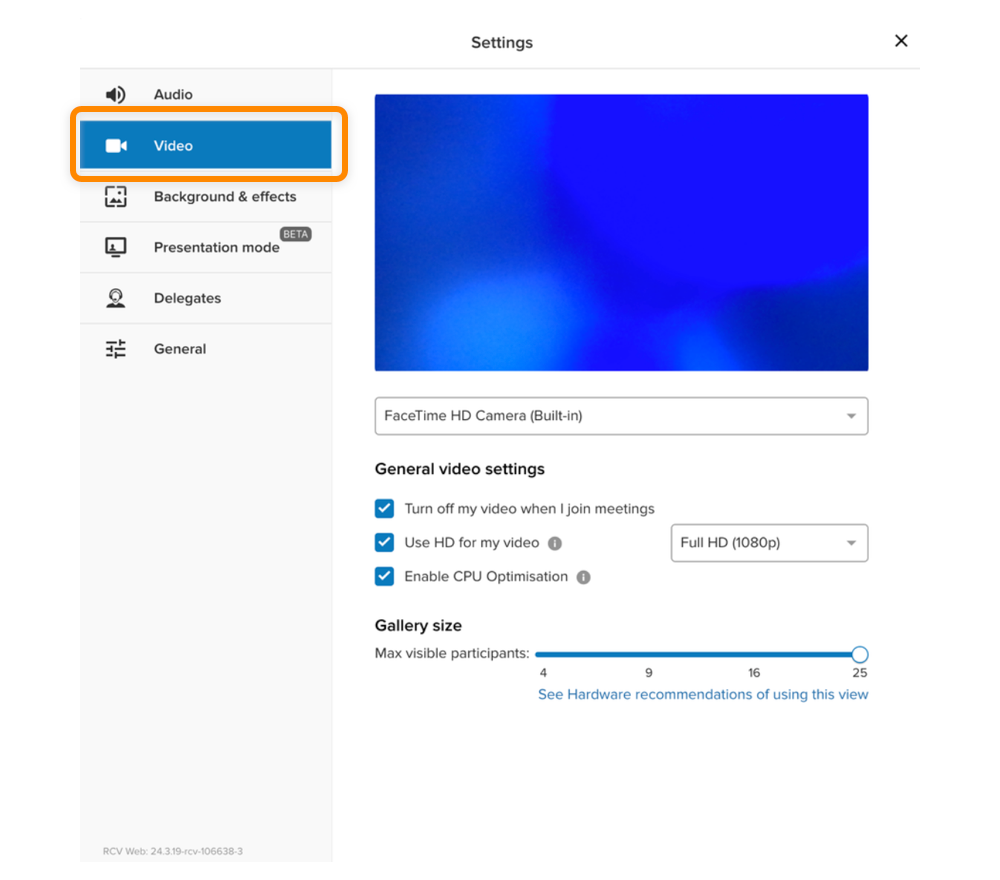
* **Video** : Manage your preferred camera and video settings.
* Use the dropdown to select your camera source. Options will include cameras detected on your computer.
* **Turn off my video when I join meetings**: Check to join meetings with your camera off.
* **Use HD for my video** : Choose between Standard HD (720p) and Full HD (1080) from the dropdown.
* Full HD, which is selected by default, will increase the processor load on your computer.
* **Enable CPU Optimization**: Check to automatically decrease the quality of incoming video to avoid high processor load.
* **Gallery size**: Use the slider to choose how many participants will be visible on a single gallery page in your meetings.
* **Background \& effects**: Set up your virtual background.
* **Presentation mode**: Use presentation mode to arrange your video and screen share to help keep your meeting participants engaged.
* **Delegates** : [Allow others to schedule meetings on your behalf](https://support.ringcentral.com/article-v2/Assigning-delegates-to-schedule-your-RingCentral-Video-meetings-in-the-RingCentral-desktop-and-web-app.html?brand=RingCentral&product=RingEX&language=en_US "") by assigning delegates.
* **General** : Manage your meeting notifications and advanced video settings.
* **Display Options** :
* **Show desktop notifications** : Check to show [desktop notifications](https://support.ringcentral.com/article-v2/Managing-notifications-and-sounds-in-the-RingCentral-app.html?brand=RingCentral&product=RingEX&language=en_US "") when you're in a meeting.
* **Auto hide meeting toolbar**: When you don't move your cursor for more than five seconds while sharing, the meeting toolbar automatically hides. It reappears when you move your cursor or receive a new notification.
* **Optimize presenter experience for multiple monitors**: If you have multiple monitors, selecting this option automatically separates your shared content from the meeting window. If you have a single monitor, the meeting window minimizes automatically when you start sharing.
* **Show my video on every screen in the video gallery**: Check to display your video on each screen in your gallery, regardless of the number of participants.
* **Show video gallery when viewing screen sharing**: Check to show the video gallery on the side panel while viewing a screen share.
* **Entry \& exit tones**: Click the toggle on to hear a tone when participants join and leave your meeting.
* **Send email notification**: Check to receive email notifications when your recordings are ready, deleted, shared, or your meeting has ended.
* **Advanced** :
* **Play tones when connection is broken/restored**: Hear a tone when a participant's connection is disconnected or restored.
* **Disable DSCP marking**: Check to turn off media and signaling packet prioritization to avoid specific audio and video quality issues.
* **Use end-to-end encryption for instant meetings**: Use end-to-end encryption for maximum security and privacy in video calls and instant meetings. This will turn off features like recording and dialing in to meetings.
* **Use H.264 for screen sharing**: Check to share text with participants at a better resolution.
#### Personal meeting
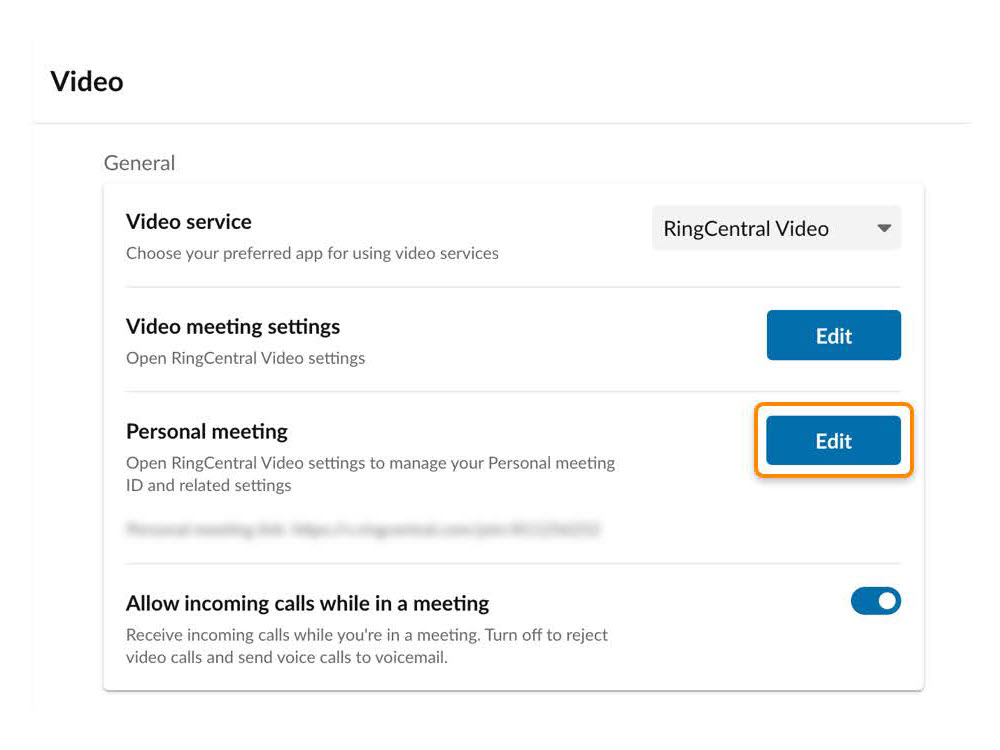
Customizing your personal meeting settings allows you to quickly create and start new video meetings with the same settings and dial-in details each time.
* In the navigation bar, click **Settings**.
* Click **Video**.
* Under General, click **Edit** next to Personal meeting.
* **Personal meeting ID** : Every
RingCentral
user has a Personal meeting ID (PMI). This can help attendees associate the meeting with your name and is ideal to use when meeting with people regularly. You can customize your PMI as long as the new number is available and has the correct number of digits.
* **Personal meeting name**: Enter a memorable name for your meetings, which will display instead of your meeting ID.
* **Use Personal meeting ID or name for instant meetings**: A random ID is created whenever you start or schedule a meeting. Check to use your Personal meeting ID or name for instant meetings instead.
* **Require password** : Check to require a password for your meeting. Once you check the box, you can customize your password.
Note: You can only use alphanumeric characters in your password.
* **Participants can only join after host**: Check to keep participants in a waiting room until you join.
* **Enable waiting room** :
* **Enable waiting room for** : Choose who's placed in a waiting room: *Everyone* , *Anyone outside my company* , or *Anyone not signed in*.
* **Advanced Settings** :
* **Only authenticated users can join** : Click the dropdown to only allow signed-in users to join your meeting. Choose from *Off* , *Signed in co-workers* , or *Signed in users*.
* **Turn off camera for participants**: Check to turn off camera use for participants in all meetings using your personal meeting room.
* **Mute audio for participants/Mute participants on entry**: Check to automatically mute all participants when entering your personal meetings.
* **Only host \& moderators can share screen**: Check to automatically remove the screen share option for all participants during your meetings.
* **Allow to start and stop recording** : Click the dropdown to select *Everyone* or *Only host and moderators*.
* **Allow to start and stop transcription** : Click the dropdown to select *Everyone* or *Only host and moderators*.

#### Rooms
You can allow or disallow screen sharing in meeting rooms with compatible Rooms systems.
* In the navigation bar, click **Settings**.
* Click **Video**.
* Click the **Allow direct sharing in Rooms** toggle on or off.

#### Screen sharing
You can set your presence status to **Do Not Disturb (DND) while screen sharing**. This will block all notifications and incoming video calls on all devices when you're sharing your screen. When you stop sharing or presenting, your status returns to its previous state.
* In the navigation bar, click **Settings**.
* Click **Video**.
* Click the toggle to turn **Do Not Disturb (DND) while screen sharing** on or off.

### Managing video settings during a meeting
You can manage many video settings while in a video meeting.
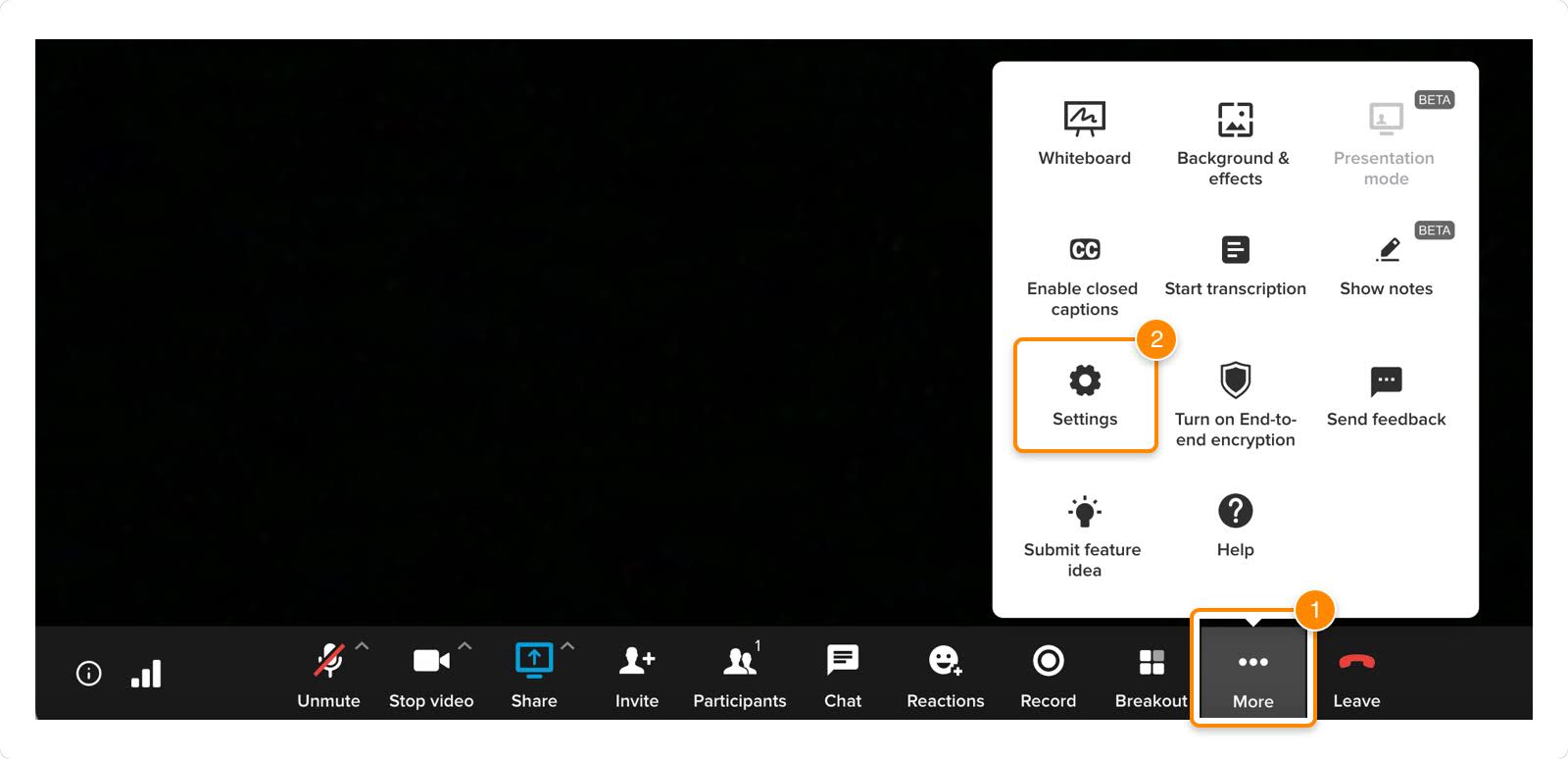
* In the bottom menu, click the three-dot **More** icon.
* Click **Settings** .
Click any tab to edit the settings.
* **Audio** : Manage your microphone and speaker settings.
* Select your preferred audio sources from the dropdowns under **Microphone** and **Speakers** .
Note: If the audio source for your mic is different from your speaker, you may experience audio issues. You'll see a prompt when your audio sources are not in sync.
* **Automatically adjust my microphone volume**: Check the box to have your volume automatically adjusted to match others in the meeting.
* **Remove background noise**: Check the box to filter out background noises during your video meeting. Note that this may increase CPU utilization. On older computers, this may affect how your voice sounds.
* **Automatically mute audio when joining meetings**: Check the box to join meetings with your audio muted.
* **Automatically join audio with computer**: Check the box to automatically have your audio connected over your computer when you join a meeting. If this box is unchecked, you will be asked each time you join a meeting how you'd like to connect your audio.
* **Use advanced echo cancellation**: Check the box to automatically minimize echo from your microphone and surroundings during a video meeting.
* **Video** : Manage your preferred camera and video settings.
* Use the dropdown to select your camera source. Options will include cameras detected on your computer.
* **Turn off my video when I join meetings**: Check the box to join meetings with your camera off.
* **Use HD for my video** : Choose between Standard HD (720p) and Full HD (1080p) from the dropdown.
* Full HD, which is the default, will increase the processor load on your computer.
* **Enable CPU Optimization**: Check the box to automatically decrease the quality of incoming video to avoid high processor load.
* **Gallery size**: Use the slider to choose how many participants will be visible on a single gallery page in your meetings.
* **Background \& effects**: Set up your virtual background.
* **Presentation Mode** : [Use presentation mode to arrange your video and screen share](https://support.ringcentral.com/article-v2/Using-Presentation-modes-in-RingCentral-Video.html?brand=RingCentral&product=RingEX&language=en_US "") to help keep your meeting participants engaged.
* **Delegates** : [Allow others to schedule meetings on your behalf](https://support.ringcentral.com/article-v2/Assigning-delegates-to-schedule-your-RingCentral-Video-meetings-in-the-RingCentral-desktop-and-web-app.html?brand=RingCentral&product=RingEX&language=en_US "") by assigning delegates.
* **General** : Manage your meeting notifications and advanced video settings.
* **Display Options** :
* **Show desktop notifications** : Check to show
RingCentral
[desktop notifications](https://support.ringcentral.com/article-v2/Managing-notifications-and-sounds-in-the-RingCentral-app.html?brand=RingCentral&product=RingEX&language=en_US "") when you're in a meeting.
* **Auto hide meeting toolbar**: When you don't move your cursor for more than five seconds while sharing, the meeting toolbar automatically hides. It reappears when you move your cursor or receive a new notification.
* **Optimize presenter experience for multiple monitors**: If you have multiple monitors, selecting this option automatically separates your shared content from the meeting window. If you have a single monitor, the meeting window minimizes automatically when you start sharing.
* **Show my video on every screen in the gallery**: Check to display your video on each screen in your gallery, regardless of the number of participants.
* **Show video gallery when viewing screen sharing**: Check to show the video gallery on the side panel while viewing a screen share.
* **Entry \& exit tones**: Click the toggle on to hear a tone when participants join and leave your meeting.
* **Send email notification**: Check to receive email notifications when your recordings are ready, deleted, shared, or your meeting has ended.
* **Advanced** :
* **Play tones when connection is broken/restored**: Hear a tone when a participant's connection is disconnected or restored.
* **Disable DSCP marking**: Check to turn off media and signaling packet prioritization to avoid specific audio and video quality issues.
* **Use end-to-end encryption for instant meetings**: Use end-to-end encryption for maximum security and privacy in video calls and instant meetings. This will turn off features like recording and dialing in to meetings.
* **Use H.264 for screen sharing**: Check to share text with participants at a better resolution.
**Additional resources**
[Managing your company's
RingCentral
Video meeting settings](https://support.ringcentral.com/article-v2/Configuring-your-company-RingCentral-Video-meeting-settings.html?brand=RingCentral&product=RingEX&language=en_US "")
[Scheduling a
RingCentral
Video meeting](https://support.ringcentral.com/article-v2/Scheduling-a-RingCentral-Video-meeting.html?brand=RingCentral&product=RingEX&language=en_US "")
## Mobile
Managing video settings from the mobile app
-------------------------------------------
You can manage your video settings from the mobile app in two ways:
* [Manage settings outside of a meeting](#outside-meeting "")
* [Manage settings during a meeting](#during-meeting "")
### Managing video settings outside of a meeting
* In the upper left, tap your profile picture.
* To open your settings, tap **
Video
**.
* In the video settings window, adjust each option as needed.

* **Personal meeting** : Tap to open the options window.
* **Personal meeting options** :
* **Personal meeting ID**: Tap to customize your personal meeting ID. Every user has a Personal meeting ID. This helps attendees associate the meeting with your name and is ideal to use when meeting with people regularly.
* **Personal meeting name**: Tap to enter a memorable name for your personal meetings, which will display instead of your meeting ID.
* **Use for instant meetings**: A random ID is created whenever you start an instant meeting or schedule a meeting. Turn on to use your personal meeting ID or name for instant meetings instead.
* **Mute audio for participants**: Turn on to automatically mute all participants when entering meetings using your personal meeting room.
* **Turn off camera for participants**: Turn on to automatically turn off participant's cameras when entering your personal meeting room.
* **Recording and transcription options** :
* **Allow to start and stop recording** : Tap and then select *Everyone* or *Only host and moderators*.
* **Allow to start and stop transcription** : Click the dropdown to select *Everyone* or *Only host and moderators*.
* **Security options** :
* **Password required** : Turn on to require a password for your meeting, then customize your password. Note: You can only use alphanumeric characters in your password.
* **Participants can only join after me**: Turn on to keep participants in a waiting room until you join.
* **Enable waiting room** : Tap to turn on to choose who will be placed in a waiting room: *Anyone outside my company* , *Anyone not signed in* , or *Everyone*.
* **Only signed in users can join**: Turn on to only allow signed-in users to join your meeting.
* **Only signed in co-workers can join**: Turn on to allow only signed-in coworkers to join your meeting.
* **Allow only hosts can share screen**: Turn on to automatically remove the screen share option for all participants during your meetings.
* **Meeting details** :
* **Meeting link**: Tap this link to copy your meeting link to your clipboard for easy sharing.
* **Dial-in number**: The dial-in number assigned to your meeting room.
* **Participant access**: The access code your participants will enter to join your meeting.
* **Host access**: The access code you will enter to host your meeting.
* **Manage delegates** : Tap to open, then tap **Add delegates** to [allow others to schedule meetings on your behalf](https://support.ringcentral.com/article-v2/Assigning-delegates-to-schedule-your-RingCentral-Video-meetings-in-the-RingCentral-desktop-and-web-app.html?brand=RingCentral&product=RingEX&language=en_US "").
* **Email settings** : Tap to open your email settings. Turn on to receive an email when:
* *Meeting has ended*
* *Recording is ready*
* *Recording is shared*
* *Recording is deleted*
* **End-to-end encryption**: Tap to turn on end-to-end encryption for instant meetings, video calls, and huddles.
* **Display share in Room option**: Tap to allow screen sharing in meeting rooms with compatible Rooms systems.
* **In-meeting settings** :
* **Audio and video** : Tap to manage these settings:
* **Auto connect audio**: Turn on to automatically connect to internet audio when joining a meeting. If this is off, you will be asked each time you join a meeting how you'd like to connect your audio.
* **Zoom and crop participant video**: Turn on this option to zoom and crop a meeting participant's video.
* **Crop self camera view**: Turn on this option to crop your self camera view.
* **Virtual background**: Tap to set up your virtual background
* **Entry and exit tones** : Turn [entry and exit tones](https://support.ringcentral.com/article-v2/Turning-on-entry-and-exit-tones-in-RingCentral-Video-on-the-RingCentral-app.html?brand=RingCentral&product=RingEX&language=en_US "") on to hear a tone in your meeting each time a participant joins or leaves.
* **Hide toolbar controls** : Tap to choose how long the toolbar will be visible during a meeting before hiding. Choose a duration from *5 seconds* to *Never automatically hide*.
* **Closed captions size**: Tap to choose the size for your closed captions. Choose from small, medium, or large.
### Managing video settings during a meeting
* While in a meeting, tap the three-dot **More** icon in the bottom menu bar.
* Tap **Settings** .

#### Interface preferences
* **Hide toolbar controls**: Tap to choose how long the toolbar will be visible during a meeting before hiding. Choose a duration from 5 seconds to Never automatically hide.
* **Closed captions size**: Tap to choose the size for your closed captions. Choose from small, medium, or large (iOS only).
#### Audio
* [**Remove background noise**](https://support.ringcentral.com/article-v2/Removing-background-noise-during-a-RingCentral-Video-meeting.html?brand=RingCentral&product=RingEX&language=en_US ""): Tap the toggle to turn **Remove background noise** on or off. This will filter out background noises during your video meeting. This may increase your device's data usage. On older devices, this may affect how your voice sounds.

After managing your settings, tap the arrow at the top left to return to the meeting screen.
**Additional resources**
[Managing your company's
RingCentral
Video meeting settings](https://support.ringcentral.com/article-v2/Configuring-your-company-RingCentral-Video-meeting-settings.html?brand=RingCentral&product=RingEX&language=en_US "")
[Scheduling a RingCentral Video meeting](https://support.ringcentral.com/article-v2/Scheduling-a-RingCentral-Video-meeting.html?brand=RingCentral&product=RingEX&language=en_US&pills-nav=mobile "")
## Admin
Managing video settings from the Admin Portal
---------------------------------------------
You can use the Admin Portal to update the following settings for your personal video meetings:
* Sign in to the [
Admin Portal
](https://service.ringcentral.com "").
* Select **My Extension** at the top right.
* Click **Settings**.
* Go to **Meetings** to turn the following settings on and off.

Basic
-----
* Use Personal meeting ID or name for instant meetings
* Turn off my video when I join meetings
* Automatically join audio with computer
* Automatically mute audio when joining meetings
* Show video gallery when viewing screen sharing
* Entry \& exit tones
* On entry \& exit
* On entry only
* For new participants only
* Suppress tones after 10 participants
Security
--------
* Use end-to-end encryption for scheduled meetings
* Require password for scheduled meetings
* Only authenticated users can join
* Select*Signed in users* or *Only co-workers in my company*.
* Enable waiting room for
* Select *Anyone outside my company* , *Everyone* , or *Anyone not signed in*.
* Participants can only join after the host
* Only hosts \& moderators can share screen
* Allow remote control during screen sharing
Recordings
----------
* Automatically start recording when hosts or moderators join meetings
Email Notifications
-------------------
* Send when meeting recording is ready
* Send when meeting recording is deleted
* Send when meeting recording is shared
* Send when meeting has ended
**Additional resources**
[Managing your company's
RingCentral
Video meeting settings](https://support.ringcentral.com/article-v2/Configuring-your-company-RingCentral-Video-meeting-settings.html?brand=RingCentral&product=RingEX&language=en_US "")
[Scheduling a
RingCentral
Video meeting](https://support.ringcentral.com/article-v2/Scheduling-a-RingCentral-Video-meeting.html?brand=RingCentral&product=RingEX&language=en_US "")