Installing or deploying
RingCentral
Scheduler in Outlook
==========================================================================================================================
RingCentral
Scheduler is an Outlook add-in that lets you schedule
RingCentral
Video
meetings within Outlook. You can install the add-in for yourself, and deploy
RingCentral
Scheduler to groups of users in your organization.
Go to [
RingCentral
Scheduler system requirements](https://support.ringcentral.com/article-v2/RingCentral-Scheduler-system-requirements.html?brand=RingCentral&product=RingEX&language=en_US "") for supported versions of Outlook.
Are you installing
RingCentral
Scheduler for yourself or deploying it to other users?
## Installing for myself
* Go to [Microsoft AppSource](https://appsource.microsoft.com/en-US/ "").
* In the search bar, enter **
RingCentral
Scheduler** .
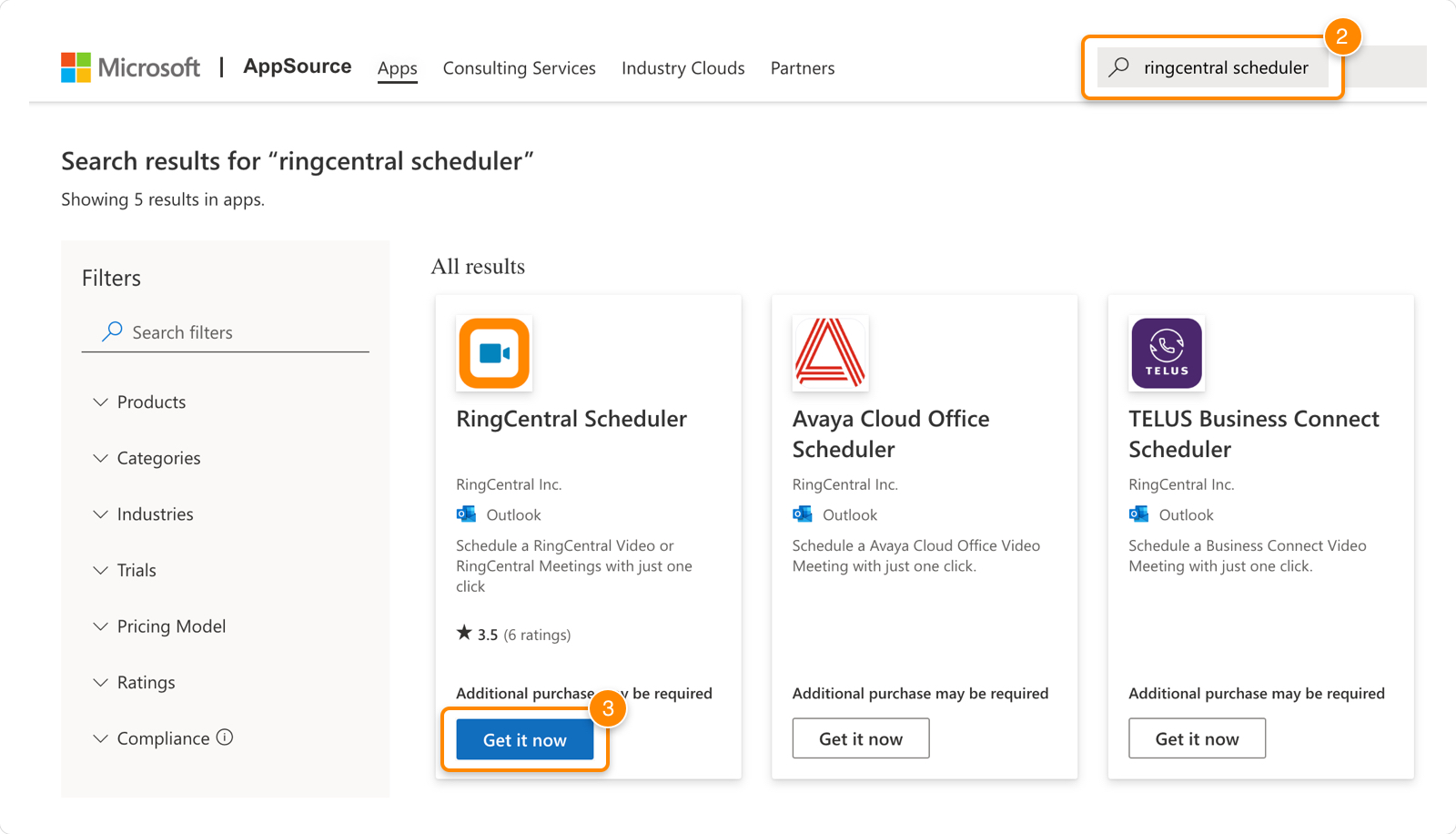
* Click **Get it now**. You may have to sign in to your account before you can download the add-in.
* Complete the profile information, check the box to agree to the terms of use, and click **Continue** .

* Make sure you see the message *Successfully added to your account*.
Once you've added
RingCentral
Scheduler, you can [schedule your
RingCentral
Video meetings within Outlook](https://support.ringcentral.com/article-v2/Scheduling-a-RingCentral-Video-meeting.html?brand=RingCentral&product=RingEX&language=en_US "").
**Additional resources**
[RingCentral Scheduler FAQ](https://support.ringcentral.com/article-v2/RingCentral-Scheduler-FAQ.html?brand=RingCentral&product=RingEX&language=en_US "")
[Scheduling a RingCentral Video meeting in Outlook](https://support.ringcentral.com/article-v2/Scheduling-a-RingCentral-Video-meeting.html?brand=RingCentral&product=RingEX&language=en_US&pills-nav=outlook "")
[RingCentral Scheduler system requirements](https://support.ringcentral.com/article-v2/RingCentral-Scheduler-system-requirements.html?brand=RingCentral&product=RingEX&language=en_US "")
## Deploying to others
Deploying
RingCentral
Scheduler in Microsoft 365
------------------------------------------------------------------------------------------------------------------
As a Microsoft 365 admin, you can deploy add-ins to users in your organization with the Centralized Deployment feature. To add
RingCentral
Scheduler to your company team accounts:
* Go to the [Microsoft 365 admin center](https://go.microsoft.com/fwlink/p/?linkid=2024339 ""), and sign in using your company credentials. Click **Settings \> Integrated apps** in the left navigation bar.

* Click **Get apps** .

* Select **Other apps \> All apps** . This will open a new tab in your web browser.

* Search and click **
RingCentral
Scheduler** from the search bar in the top right.
* Click **Get it now** .

* In the pop-up menu, enter your company email address. Click **Get it now**.
* Under **Confirm your details** , click **Get it now**.
* You'll be redirected to the Microsoft 365 sign-in page. Enter your credentials. The Integrated Apps page will appear, along with
RingCentral
Scheduler details on the right.
* Click **Deploy** .

* Confirm there's a checkmark next to
RingCentral
Scheduler in the **Apps to be deployed** dropdown.
* Click **Deploy** .

* Wait for a confirmation to appear, then click the **X** to close.
**Additional resources**
[RingCentral Scheduler FAQ](https://support.ringcentral.com/article-v2/RingCentral-Scheduler-FAQ.html?brand=RingCentral&product=RingEX&language=en_US "")
[Scheduling a RingCentral Video meeting in Outlook](https://support.ringcentral.com/article-v2/Scheduling-a-RingCentral-Video-meeting.html?brand=RingCentral&product=RingEX&language=en_US&pills-nav=outlook "")
[RingCentral Scheduler system requirements](https://support.ringcentral.com/article-v2/RingCentral-Scheduler-system-requirements.html?brand=RingCentral&product=RingEX&language=en_US "")