desktop and mobile apps
=============================================================================================================================================
You can seamlessly transfer a live call between the
RingCentral
desktop and mobile apps, and from your deskphone to the app. You can also switch a meeting between apps with no interruption. This is useful for taking your work on the go.
What are you switching?
## Call
Switching a call from desktop to mobile
---------------------------------------
* While you're on a call on your computer, open the
RingCentral
mobile app on your phone.
* Tap **Switch call to this device** at the top of your mobile app screen.
* Tap **Switch** to confirm the call switch.
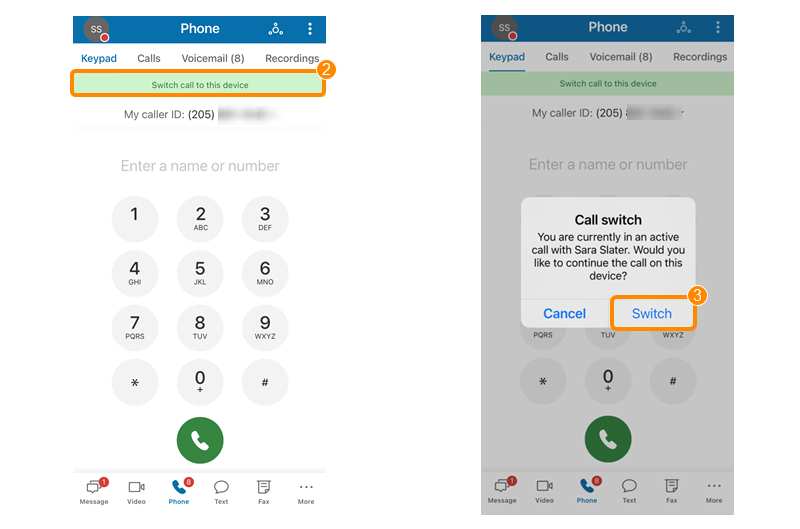
Note: This will move the call to your mobile phone and end it on your computer. You can also use these instructions to switch an active call from your deskphone to your mobile app. If you'd like to move a call from the app to another phone number, such as your home phone, deskphone, or personal mobile phone, you can [flip the call](https://support.ringcentral.com/article-v2/Flipping-a-call-in-the-RingCentral-app.html?brand=RingCentral&product=RingEX&language=en_US "").
Switching a call from mobile to desktop
---------------------------------------
* While you're on a call on the mobile app, open the
RingCentral
desktop app on your computer.
* Click **Switch call to this device** in the top bar of the desktop app.

* Click **Switch** to confirm the call switch.

Note: This will move the call to your desktop app and end it on your mobile phone. You can also use these instructions to switch an active call from your deskphone to your desktop app. If you'd like to move a call from the app to another phone number, such as your home phone, deskphone, or personal mobile phone, you can [flip the call](https://support.cloudwork.bt.com/article-v2/Flipping-a-call-in-the-RingCentral-app.html?brand=BT&product=Cloud_Work&language=en_US "").
**Additional resources**
[Difference Between Call Switch and Call Flip](https://support.ringcentral.com/article-v2/9792.html?brand=RC_US&product=RingCentral_Phone&language=en_US "")
[Setting up call flip](https://support.ringcentral.com/article-v2/9748.html?brand=RC_US&product=RingEX&language=en_US "")
## Video
\\\Your browser does not support the iframe element.\
Switching a
RingCentral
Video meeting from desktop to mobile
------------------------------------------------------------------------------------------------------------------------------
* While you're in a meeting on your computer, open the
RingCentral
mobile app on your phone.
* Tap **Switch meeting to this device** at the top of your screen.

* Tap **Switch** to confirm the meeting switch.

Note: This will open the meeting on your mobile phone and close it on your computer.
Switching a
RingCentral
Video meeting from mobile to desktop
------------------------------------------------------------------------------------------------------------------------------
* While you're in a meeting on the mobile app, open the
RingCentral
desktop app on your computer.
* Click **Switch meeting to this device** in the top bar of the app.

* Check the box next to **Keep me connected on my other device** if you want to attend the meeting from both the mobile and desktop apps.
Note: If you choose this option, you'll need to leave the meeting from both apps when the meeting is over.
* Click **Switch** to confirm the meeting switch.
