Intro to the original
RingCentral
Video
===========================================================================================================================================================================
Some
RingCentral
Video
features and meeting controls may appear differently depending on your account. Learn more about [the new
RingCentral
Video
experience](https://support.ringcentral.com/article-v2/using-the-new-ringcentral-video-meetings.html?brand=RingCentral&product=RingEX&language=en_US "").
RingCentral
Video
lets you start, schedule, or join meetings from anywhere, including the web browser, the desktop app, and the mobile app.
Where do you want to use
RingCentral
Video
?
## Desktop & web
Navigating the
Video
tab in the desktop and web app
---------------------------------------------------------------------------------------------------------------------
You can view and manage your video meetings in the
RingCentral
app in the **
Video
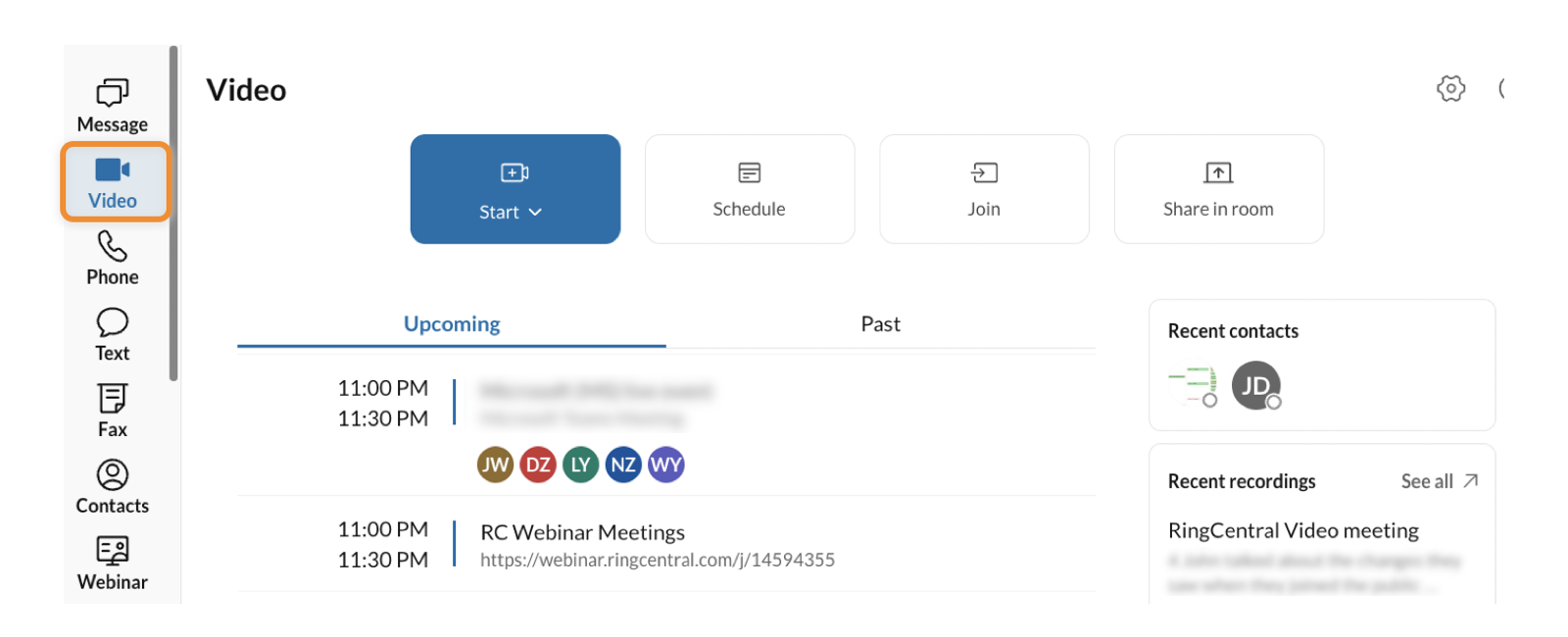
** tab. Start or join a meeting, hop on a video call with a recent contact, view recent recordings, or sync your calendar to see a list of upcoming meetings -- all in one place.
### Starting, scheduling, and joining video meetings
From the top menu, you have four options: Start, Schedule, Join, and Share in Room.
* **Start** : Click the **Start** button to start an instant meeting, or click the dropdown to view and copy your Personal Meeting ID.
* **Schedule** : Schedule meetings for yourself or others directly in the
RingCentral
app.
* You can also schedule a meeting with your Google or Outlook calendar using
RingCentral
calendar add-ins. .
* **Join**: Join a meeting from your desktop app or web browser. .
* **Share in room** : Share your screen in a Rooms conference room.

### Viewing upcoming and past meetings
In the center panel, you can view upcoming and past meetings at a glance.
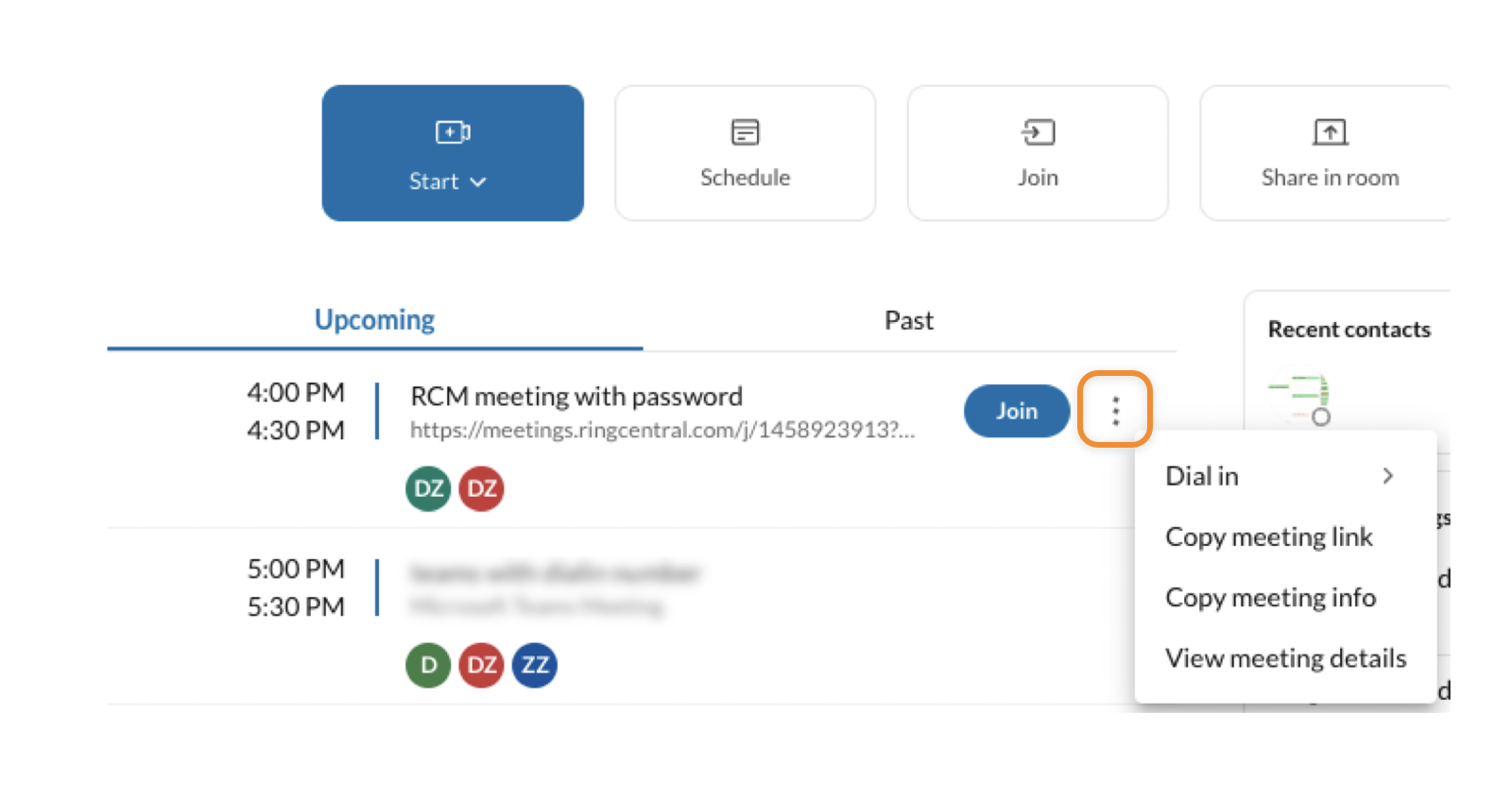
When you hover over a meeting in your calendar, you can:
* Click **Join** to join a meeting.
* Click the three-dot **More** icon to:
* Dial in
* Copy the meeting link
* Copy the meeting info
* View meeting details
### Viewing recent contacts
In the right-hand panel, you can view your contacts you've recently had a video meeting with.
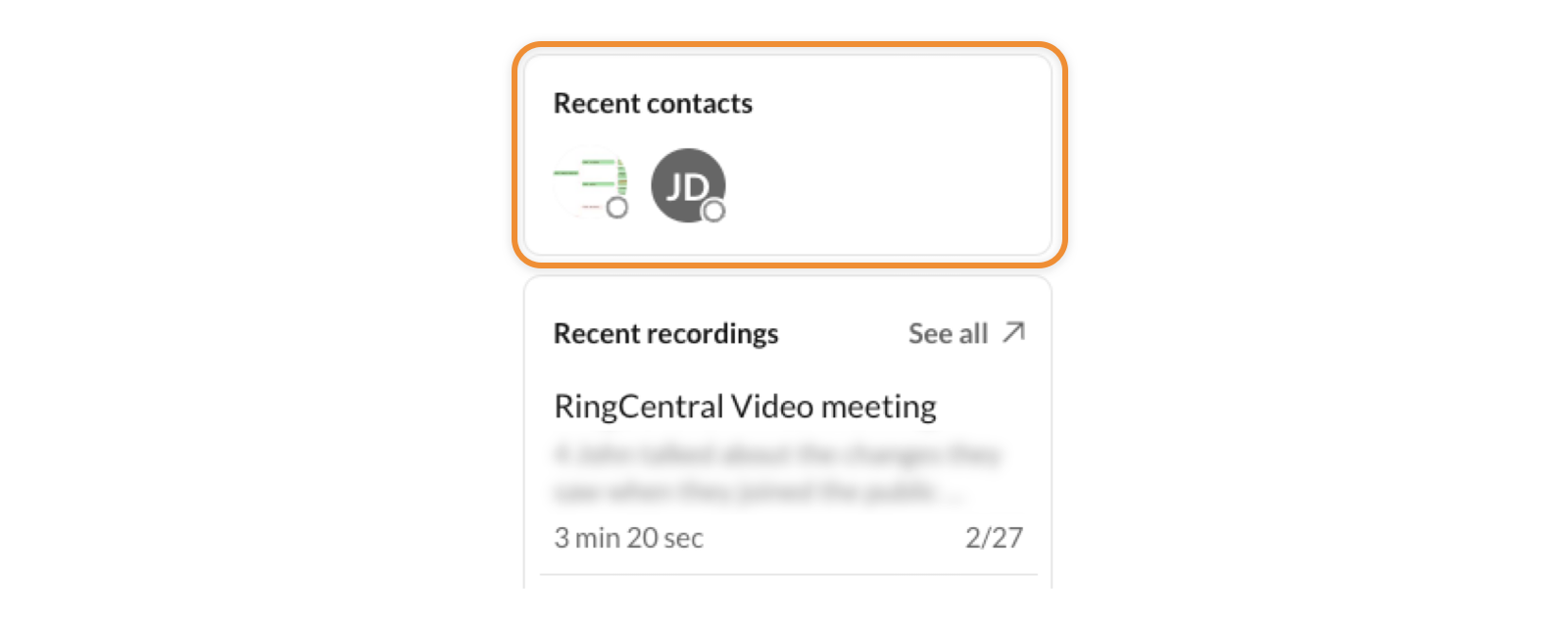
To reach a recent contact, click their profile picture. In the popup, you can view your contact's profile, send a message, start or schedule a video call, call them using the keypad, or send a fax.

The video button provides three options:
* *Start an instant meeting* : Click the **
Video
** icon.
* *Start screen share* : Click the triangle icon to select *Start screen share* from the dropdown.
* *Schedule a video meeting* : Click the triangle icon to select *Schedule video meeting* from the dropdown.
### Viewing recent recordings
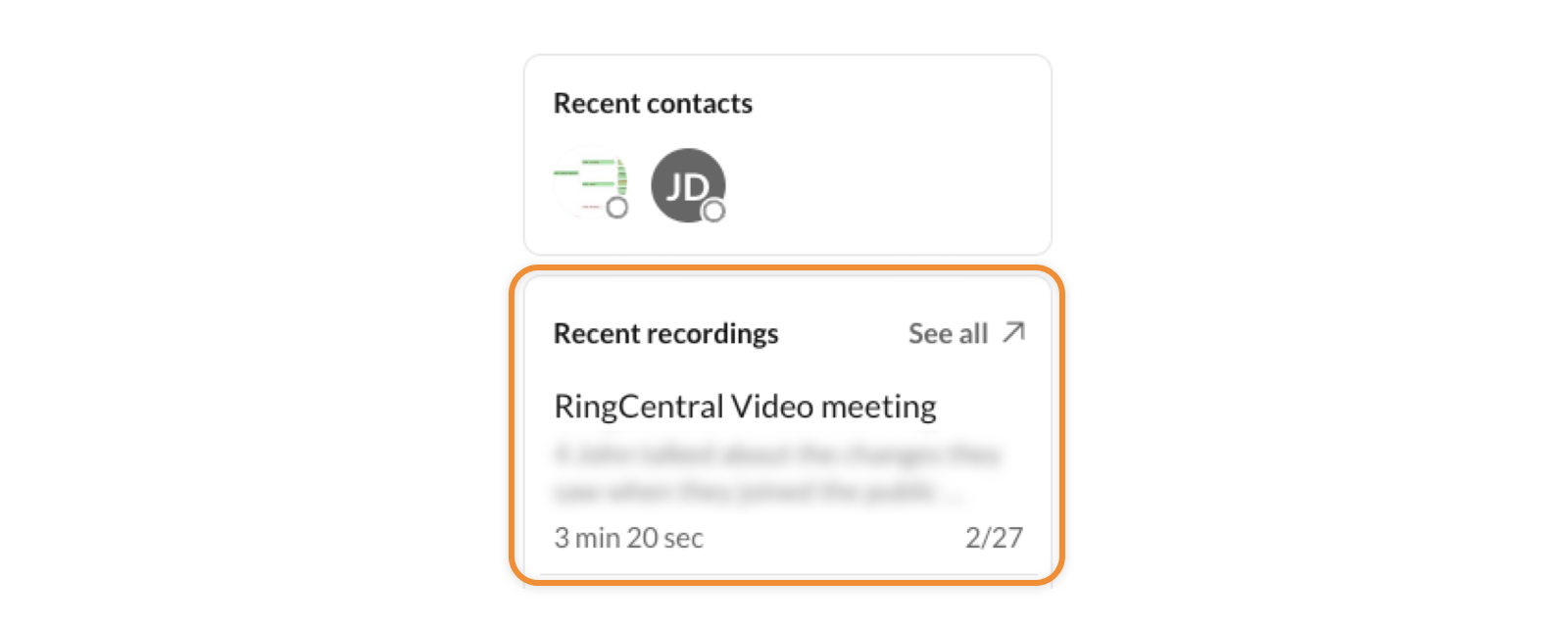
Click **Recent recordings** to view a list of recent recordings. Click **See all** to see all of your recordings.
Using
RingCentral
Video
advanced features
-----------------------------------------------------------------------------------------------------------------------------------------------------------------------------
Take advantage of advanced features to enhance your video meeting, and transition easily between devices.
* [Switch between desktop and mobile devices](https://support.ringcentral.com/article-v2/Switching-a-call-or-meeting-between-desktop-and-mobile-in-the-RingCentral-app.html?brand=RingCentral&product=RingEX&language=en_US "") during a live meeting.
* Switch from a phone call to a meeting and share your screen with a click of a button.
* Use Virtual Backgrounds in your meetings.
* Chat with other participants publicly or privately.
* Set your status, or share an emoji with [participant reactions](https://support.ringcentral.com/article-v2/Using-reactions-during-a-RingCentral-Video-meeting.html?brand=RingCentral&product=RingEX&language=en_US "").
* Collaborate in real-time with [screen sharing](https://support.ringcentral.com/article-v2/Sharing-your-screen-in-RingCentral-Video-meetings.html?brand=RingCentral&product=RingEX&language=en_US "") and [whiteboards](https://support.ringcentral.com/article-v2/Using-a-whiteboard-during-a-RingCentral-Video-meeting.html?brand=RingCentral&product=RingEX&language=en_US "").
* [Create and manage breakout rooms](https://support.ringcentral.com/article-v2/Creating-and-managing-breakout-rooms-in-RingCentral-Video-for-desktop-and-web.html?brand=RingCentral&product=RingEX&language=en_US "") to provide opportunities for smaller group sessions.
* Turn on closed captions for your meetings.
* Protect your meetings with security settings such as password-protected meetings, waiting rooms , End-to-end encryption, and more.
* Use
RingCentral
Rooms to transform any meeting space into a video conference room.
* Get a live transcription of your video meeting.
Connecting your calendar to join meetings from other platforms
--------------------------------------------------------------
[Connect your Outlook or Google calendar with the
RingCentral
app](https://support.ringcentral.com/article-v2/Managing-connected-accounts-in-the-RingCentral-app.html?brand=RingCentral&product=RingEX&language=en_US "") to join meetings from the following video conferencing platforms:
* Zoom
* Microsoft Teams
* Webex
* JoinMe
* UberConference
* GoToWebinar
* GoToMeeting
* BlueJeans
## Mobile
Navigating the
Video
tab in the mobile app
------------------------------------------------------------------------------------------------------------
You can view and manage your
RingCentral
Video
meetings in the
RingCentral
app in the **
Video
** tab.
### Starting, scheduling, and joining video meetings
From the top menu, you have five options: Start, Schedule, Join, Personal meeting, and Share in Room.
* **Start** : Click the **Start** button to start an instant meeting.
* **Schedule** : Schedule meetings for yourself or others directly in the
RingCentral
app.
* You can also schedule a meeting with your Google or Outlook calendar using
RingCentral
calendar add-ins. .
* **Join**: Join a meeting from the mobile app. .
* **Personal meeting** : Your personal meeting ID will appear the top of the screen. You can select the following options:
* Start meeting
* Share meeting link
* Dial in
* **Share in room**: Share your screen in a Rooms conference room.

### Viewing upcoming meetings and accessing recordings
At the top of your screen, you can view upcoming or past meetings and access meeting recordings.

Customizing your
RingCentral
Video
experience
---------------------------------------------------------------------------------------------------------------------------------------------------------------------------------
Take advantage of advanced features to enhance your video meeting, and transition easily between devices.
* [Switch between desktop and mobile devices](https://support.ringcentral.com/article-v2/Switching-a-call-or-meeting-between-desktop-and-mobile-in-the-RingCentral-app.html?brand=RingCentral&product=RingEX&language=en_US "") during a live meeting.
* Switch from a phone call to a meeting and share your screen with a click of a button.
* Use Virtual Backgrounds in your meetings including static and animated backgrounds, as well as your own custom backgrounds.
* Start and share [Record your meeting](https://support.ringcentral.com/article-v2/Recording-RingCentral-Video-meetings.html?brand=RingCentral&product=RingEX&language=en_US "").
* Set your status or share an emoji with [participant reactions](https://support.ringcentral.com/article-v2/Using-reactions-during-a-RingCentral-Video-meeting.html?brand=RingCentral&product=RingEX&language=en_US "").
* Chat with other participants publicly or privately .
* Collaborate in real-time with [screen sharing](https://support.ringcentral.com/article-v2/Sharing-your-screen-in-RingCentral-Video-meetings.html?brand=RingCentral&product=RingEX&language=en_US "") and [whiteboards](https://support.ringcentral.com/article-v2/Using-a-whiteboard-during-a-RingCentral-Video-meeting.html?brand=RingCentral&product=RingEX&language=en_US "").
* Turn on closed captions for your meetings.
* Protect your meetings with security settings such as password-protected meetings, waiting rooms , End-to-end encryption, and more.
* Use
RingCentral
Rooms to transform any meeting space into a video conference room.
* Get a live transcription of your video meeting.
Connecting your calendar to join meetings from other platforms
--------------------------------------------------------------
[Connect your Outlook or Google calendar with the
RingCentral
app](https://support.ringcentral.com/article-v2/Managing-connected-accounts-in-the-RingCentral-app.html?brand=RingCentral&product=RingEX&language=en_US "") to join meetings from the following video conferencing platforms:
* Zoom
* Microsoft Teams
* Webex
* JoinMe
* UberConference
* GoToWebinar
* GoToMeeting
* BlueJeans