Assigning delegates to schedule your
RingCentral
Video meetings
=================================================================================================================================
There may be times when you want someone else to schedule a
RingCentral
Video meeting for you. To allow someone else to create and manage your video meetings, you need to make them a delegate.
When a delegate [schedules a video meeting](https://support.ringcentral.com/article-v2/Scheduling-a-RingCentral-Video-meeting.html?brand=RingCentral&product=RingEX&language=en_US ""), you'll still be the host of that meeting.
Important
Make sure to share your [Outlook](http://support.microsoft.com/en-us/office/share-and-access-a-calendar-with-edit-or-delegate-permissions-in-outlook-532e6410-ee80-42b5-9b1b-a09345ccef1b "") or [Google](https://support.google.com/a/users/answer/168126?hl=en "") calendar with the delegate so they can manage your meeting details, and get the RingCentral Scheduler for [Outlook](https://marketplace.microsoft.com/en-us/product/office/wa200001471?tab=overview "") or [Google](https://workspace.google.com/marketplace/app/ringcentral_for_google_workspace/252157745625 "") to simplify the scheduling process.
Where would you like to assign a delegate?
## Desktop & web
Assigning delegates in the desktop and web app
----------------------------------------------
To add new delegates to schedule meetings on your behalf:
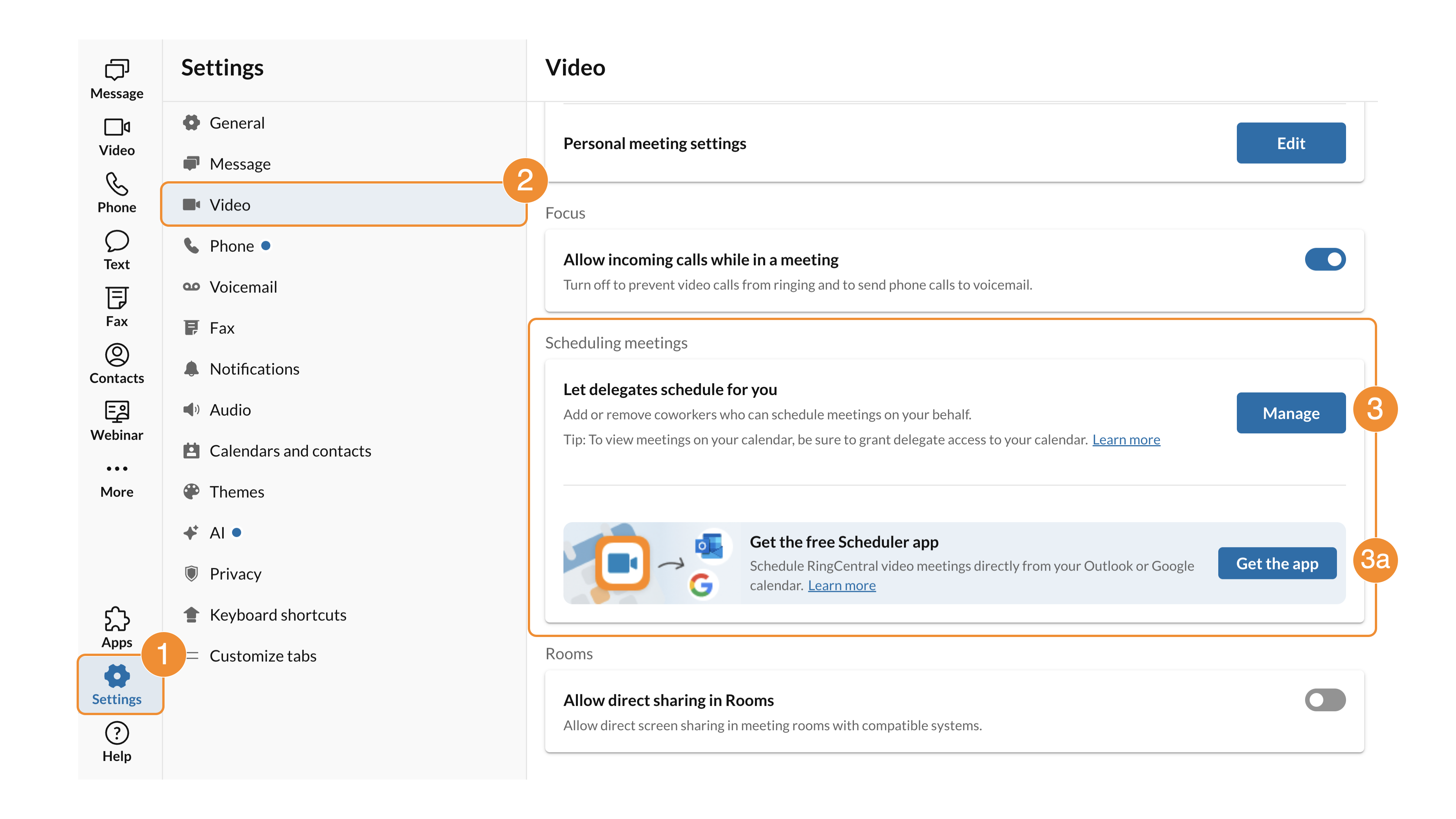
* In the navigation bar, click **Settings**.
* Click **
Video
**.
* Click **Manage** to the right of **Let delegates schedule for you** .
* You can also click **Get the app** (a) to get the RingCentral Scheduler for [Outlook](https://marketplace.microsoft.com/en-us/product/office/wa200001471?tab=overview "") or [Google](https://workspace.google.com/marketplace/app/ringcentral_for_google_workspace/252157745625 "").
* In the Manage delegates popup, type the name or email address of the person who will schedule meetings on your behalf.
* Click their name from the search results, then click **Add**.
* Share your [Outlook](http://support.microsoft.com/en-us/office/share-and-access-a-calendar-with-edit-or-delegate-permissions-in-outlook-532e6410-ee80-42b5-9b1b-a09345ccef1b "") or [Google](https://support.google.com/a/users/answer/168126?hl=en "") calendar with the delegate. Once added, the delegate can [schedule video meetings](https://support.ringcentral.com/article-v2/Scheduling-a-RingCentral-Video-meeting.html?brand=RingCentral&product=RingEX&language=en_US "") on your behalf.

Removing delegates in the desktop app
-------------------------------------
To remove a delegate's ability to schedule RingCentral Video meetings on your behalf:
* In the navigation bar, click **Settings**.
* Click **
Video
**.
* Click **Manage** to the right of **Let delegates schedule for you**.
* In the Manage delegates popup, click the **Remove delegate** trash can icon next to the delegate you want to remove.

**Additional resources**
[Scheduling a RingCentral Video meeting](https://support.ringcentral.com/article-v2/Scheduling-a-RingCentral-Video-meeting.html?brand=RingCentral&product=RingEX&language=en_US "")
[Managing video settings](https://support.ringcentral.com/article-v2/Managing-RingCentral-Video-settings-in-the-RingCentral-app.html?brand=RingCentral&product=RingEX&language=en_US "")
## Mobile
Assigning delegates in the mobile app
-------------------------------------
To add new delegates to schedule meetings on your behalf:
* Tap your **Profile** at the upper left.
* Under **Settings** , tap **
Video
**.
* Under **General settings** , tap **Manage delegates**.
* Scroll to or type the name of the person who can schedule meetings on your behalf, then tap their name. Repeat to add more delegates. .
* Tap **Add** at the upper right.
* Share your [Outlook](http://support.microsoft.com/en-us/office/share-and-access-a-calendar-with-edit-or-delegate-permissions-in-outlook-532e6410-ee80-42b5-9b1b-a09345ccef1b "") or [Google](https://support.google.com/a/users/answer/168126?hl=en "") calendar with the delegate. Once added, the delegate can [schedule video meetings](https://support.ringcentral.com/article-v2/Scheduling-a-RingCentral-Video-meeting.html?brand=RingCentral&product=RingEX&language=en_US&pills-nav=mobile "") on your behalf.

Removing delegates in the mobile app
------------------------------------
* Tap your **Profile** at the upper left.
* Under **Settings** , tap **
Video
**.
* Under **General settings** , tap **Manage delegates**.
* To remove a delegate, slide their name to the left and tap **Remove** .

**Additional resources**
[Scheduling a RingCentral Video meeting](https://support.ringcentral.com/article-v2/Scheduling-a-RingCentral-Video-meeting.html?brand=RingCentral&product=RingEX&language=en_US&pills-nav=mobile "")
[Managing video settings](https://support.ringcentral.com/article-v2/Managing-RingCentral-Video-settings-in-the-RingCentral-app.html?brand=RingCentral&product=RingEX&language=en_US&pills-nav=mobile "")