Connecting to
RingCentral
Archiver
====================================================================================================
RingCentral
Archiver lets you to back up
RingCentral
data using Dropbox, Google Drive, Box accounts, or an SFTP server. It provides an automatic backup solution and a convenient way of storing and retrieving phone data. Once you've connected your accounts, you can [back up your data to your cloud storage](#syncing-RC-data-backup ""), and [set up email alerts](#email-notifs "") to be notified of issues with your data connection.
Connecting your
RingCentral
account to a cloud storage account
--------------------------------------------------------------------------------------------------------------------------------
RingCentral
Archiver can be [set up in the Admin Portal](https://support.ringcentral.com/article-v2/Enabling-Archiver-settings-and-permissions.html?brand=RC_US&product=RingEX&language=en_US "") to allow admins or all users to archive data. Once the setting is turned on, you can connect to an SFTP server or a cloud storage account. Only one cloud storage account can be connected at a time.
To connect to a cloud storage account:
* Sign in to the [
Admin Portal
](https://service.ringcentral.com "").
* Click the **More** tab.
* Go to**Apps and Resources** (a), then click **Archiver** (b).
* Click **Connect** next to the cloud storage platform to link to your account.

### Connecting to a Dropbox account
To connect Archiver to Dropbox:
* Click **Connect** next to Dropbox.
* Sign in to your Dropbox account.

* Complete the authentication steps.
* Allow access to a
RingCentral
app folder in Dropbox.
* Click **[Go to Sync Options](#syncing-RC-data-backup "")**.
### Connecting to a Google Drive account
To connect Archiver to Google Drive:
* Click **Connect** next to Google Drive.
* Sign in to your Google account.
* Select **See, edit, create, and delete only the specific Google Drive files you use with this app** , then click **Continue** .

* Click **[Go to Sync Options](#syncing-RC-data-backup "")**.
### Connecting to a Box account
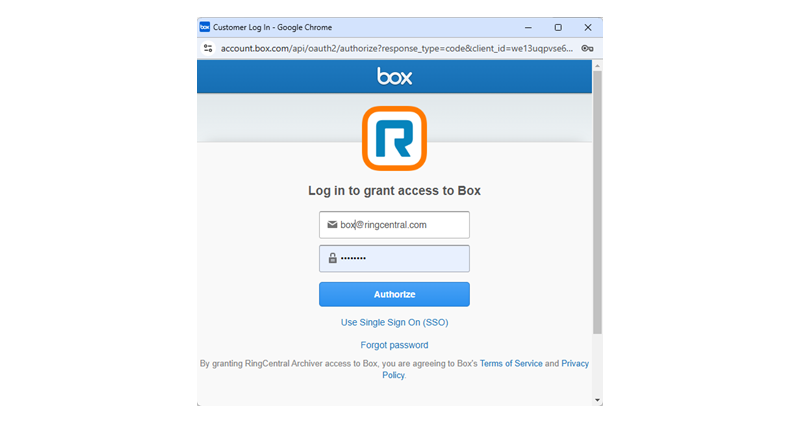
To connect Archiver to Box:
* Click **Connect** next to Box.
* Authorize your Box account.
* Click **[Go to Sync Options](#syncing-RC-data-backup "")**.
Connecting to an SFTP server
----------------------------
RingCentral
Archiver offers an automatic backup solution for securely storing and retrieving
RingCentral
data using an SFTP server. Before connecting to an SFTP server, check that your firewall is set up to allow the Archiver application to work properly. You'll need to add
RingCentral
IP addresses and destination ports to your allow list.
To add the
RingCentral
IP addresses to your allowlist:
* Check the
RingCentral
Archiver section for the IP addresses and destination ports in the [network requirements document](https://support.ringcentral.com/article-v2/Network-requirements.html?brand=RingCentral&product=RingEX&language=en_US "").
* Follow the steps for your FTP server solution to add the IP addresses to your allowlist or contact your IT admin for assistance with firewall policy updates.
To connect Archiver to an SFTP server:
* Follow the steps to [connect your
RingCentral
account to a cloud storage account](#connecting-RC-acct-to-cloud-storage "").
* Click **Connect** next to SFTP.
* Type your Host, Port, User Name, Password, and Root Folder (optional) information.
* Click **Connect** .

Syncing
RingCentral
data backup to cloud storage
------------------------------------------------------------------------------------------------------------------
Once you connect your
RingCentral
account to a cloud storage account, you'll be redirected to **Sync Options** (A), where the**Turn On Backup** (B) box is checked by default. You can uncheck the box if you want to disable cloud backup.
Select the data you want to back up (C), then click **Save** (D). Archiver will automatically back up new data based on your selections. The backup data will appear in the
RingCentral
folder of your cloud storage account within 24 hours.

Note
Archiver won't back up the data generated before it was connected to the account.
Once the setup is complete, the
RingCentral
Archiver creates the following folder structure in the connected account or server:

Using the retry options
-----------------------
If a backup fails, Archiver automatically retries the upload up to five times.
### Automatic retries
The retry schedule follows these intervals:
* **First retry**: Five minutes after the initial failure
* **Second retry**: 20 minutes after the previous retry
* **Third retry**: One hour after the previous retry
* **Fourth retry**: Three hours after the previous retry
* **Fifth retry**: 24 hours after the previous retry
For example, if a job fails at 8:00 AM on day one, Archiver retries the upload at 8:05 AM for the first retry and 8:25 AM for the second. The system continues trying until the fifth attempt. If the upload still fails after the fifth retry, Archiver sends an email notification and turns on manual retry. You can then retry failed uploads up to three additional times.
### Manual retry options
You can manually retry failed uploads:
* Click **Retry** next to an individual log entry.
* Select multiple failed records, then click **Retry** in the top-left corner.

Setting up email notifications
------------------------------
You can set up email notifications in Archiver to alert users in your organization about connection issues.
* Sign in to the [
Admin Portal
](https://service.ringcentral.com "").
* Click the **More** tab.
* Go to**Apps and Resources** , then click **Archiver**.
* Click the **Notification Preferences** tab.
* Add up to five recipients to be notified when:
* Your data failed to be archived.
* Your Cloud Drive or SFTP certification has expired.
* Your cloud storage space is less than a selected size.
* Click **Save** .

Archiver disclaimer and tips for successful archiving
-----------------------------------------------------
Archiver helps you copy designated records from RingCentral to a storage location you select and control. RingCentral does not guarantee the delivery, completeness, or retrievability of any archive, and has no responsibility or liability for non-storage or loss of records. You remain responsible for your own compliance obligations. See your Master Services Agreement for further detail.
Most non-storage results from factors you or third-parties control. To reduce the risk:
* **Storage destination**: Confirm it is correctly configured, reachable, and has capacity when Archiver runs.
* **Retention timing**: Make sure records aren't purged under your RingCentral retention settings before Archiver runs.
* **Authentication**: Keep storage tokens, credentials, and API scopes valid and current.
* **Monitoring**: Respond to failed-archive and token-refresh alerts, confirm records arrive, and keep your own copies of critical records.
**Additional resources**
[Intro to RingCentral Archiver](https://support.ringcentral.com/article-v2/8913.html?brand=RC_US&product=RingEX&language=en_US "")
[Managing Archiver settings and permissions](https://support.ringcentral.com/article-v2/Enabling-Archiver-settings-and-permissions.html?brand=RC_US&product=RingEX&language=en_US "")