Adding phone numbers to your account in the Admin Portal
========================================================
Admins can add new local, toll-free, and vanity phone numbers, then assign them to different extensions in the Admin Portal.
If you want to add phone numbers to your account without assigning them, you can [reserve direct numbers](https://support.ringcentral.com/article-v2/Reserve-a-Phone-Number-in-the-RingCentral-Online-Account.html?brand=RingCentral&product=RingEX&language=en_US "") and add them to your number inventory.
You can also [add a direct number to an existing extension](https://support.ringcentral.com/article-v2/10648-admin-add-direct-number-user-local.html?brand=RingCentral&product=RingEX&language=en_US&pills-nav=local_number "") in the user's details or within phone system groups.
What type of number would you like to add?
## Local number
Adding a local number
---------------------
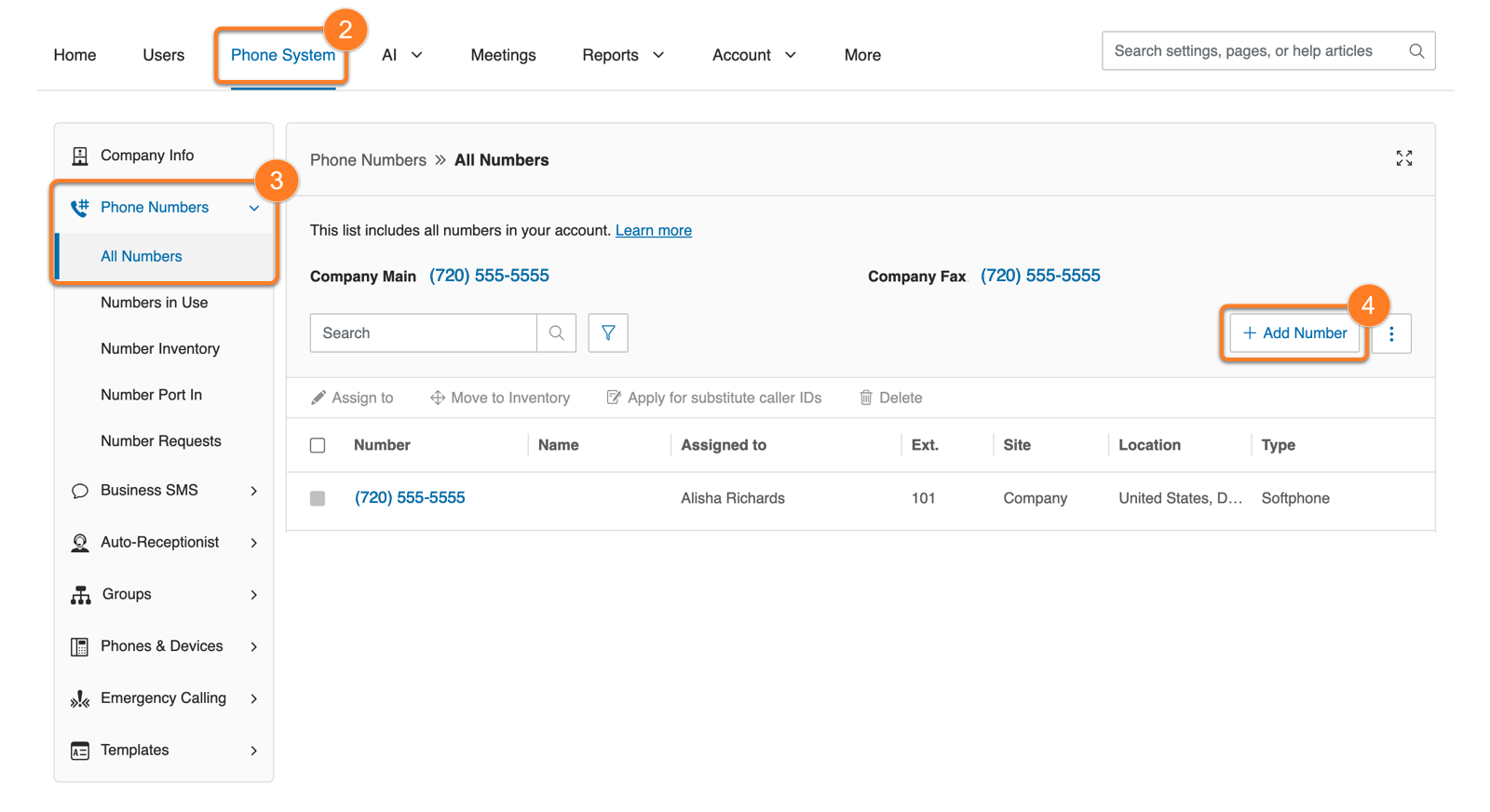
* Sign in to the [Admin Portal](https://service.ringcentral.com/ "").
* Click the **Phone System** tab.
* Click **Phone Numbers** , then **All Numbers**.
* Click **Add Number** .
* Under **Select Numbers** , click the dropdowns to select:
* **Location**: Country where the number will be used
* **Number Type** : *Local Number*
* **Cost Center**: Cost center where the number will be charged, if applicable.

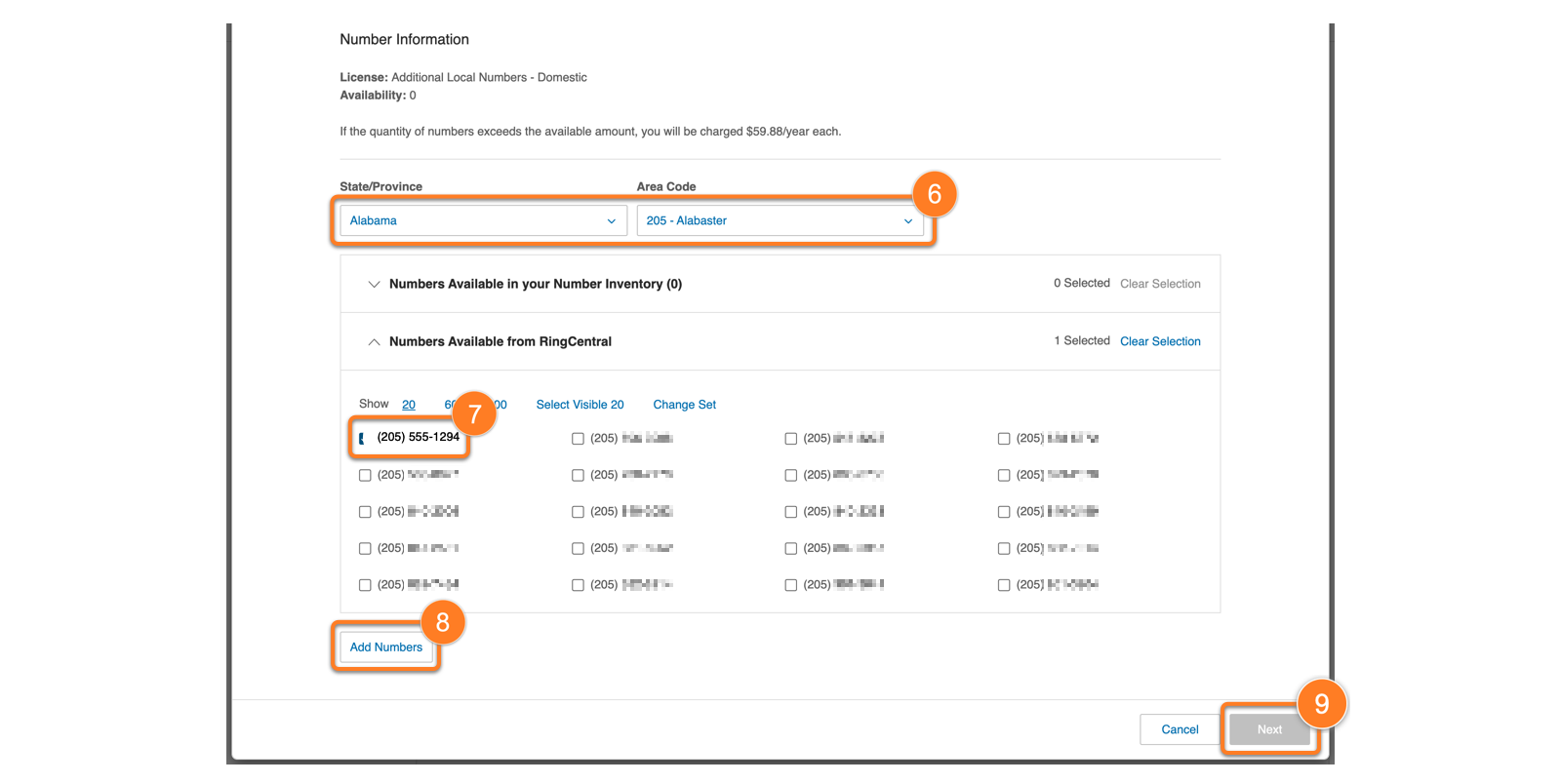
* Under **Number Information** , click the dropdowns to select:
* **State/Province**
* **Area Code**
Important
You'll get a notification if no numbers are available for the area code you selected. To find available phone numbers in your region, select a different area code from the dropdown.
* Select from the available numbers listed in the **Numbers Available in your Number Inventory** or the **Numbers Available from
RingCentral
** dropdowns.
* Click **Add Numbers** and review the details.
* Click **Next** .
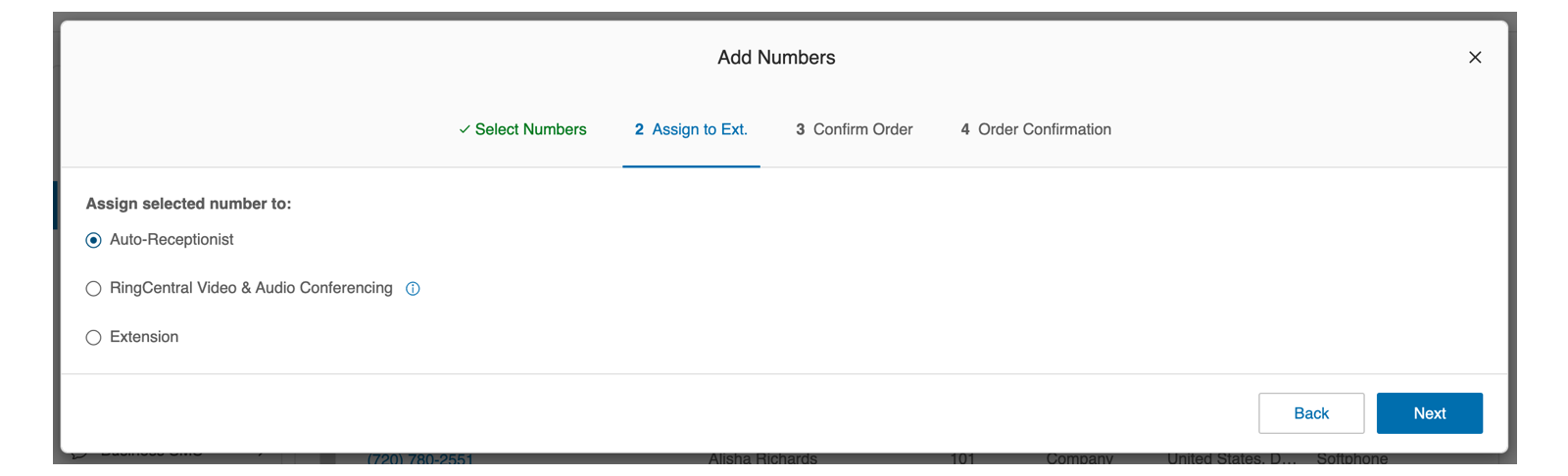
* Select which extension the number will be assigned to:
* **Auto-Receptionist**: Automated IVR system for your company
* **Video \& Audio Conferencing** : Numbers used for
RingCentral
video and audio conferencing, shown on the dial-in screen and meeting/conference invitations
* **Extension**: User, IVR menu, sites, groups, or other company extensions
Note
If you selected multiple numbers, you'll need to click **Assign to Ext.** and repeat this step for each number.
* Click **Next** .
* Review your phone order details, then check the box next to the acknowledgment statement and click **Next**.
* Click **Done**.
**Additional resources**
[Changing the number assigned to a phone in the Admin Portal](https://support.ringcentral.com/article-v2/How-to-change-an-existing-phone-number.html?brand=RingCentral&product=RingEX&language=en_US "")
[Reserving a RingCentral phone number in the Admin Portal](https://support.ringcentral.com/article-v2/Reserve-a-Phone-Number-in-the-RingCentral-Online-Account.html?brand=RingCentral&product=RingEX&language=en_US "")
[Adding a direct number to an existing extension in the Admin Portal](https://support.ringcentral.com/article-v2/10648-admin-add-direct-number-user-local.html?brand=RingCentral&product=RingEX&language=en_US&pills-nav=local_number "")
[Unassigning and keeping a direct phone number in the Admin Portal](https://support.ringcentral.com/article-v2/Unassign-Phone-Numbers-Currently-In-Use-and-Move-to-Number-Inventory.html?brand=RingCentral&product=RingEX&language=en_US "")
[Deleting a direct number in the Admin Portal](https://support.ringcentral.com/article-v2/Delete-Direct-Number-RingCentral-Online-Account.html?brand=RingCentral&product=RingEX&language=en_US "")
## Toll-free number
Adding a toll-free number
-------------------------
* Sign in to the [Admin Portal](https://service.ringcentral.com/ "").
* Click the **Phone System** tab.
* Click **Phone Numbers** , then **All Numbers**.
* Click **Add Number** .

* Under **Select Numbers** , click the dropdowns to select:
* **Location**: Country where the number will be used
* **Number Type** : *Toll-Free Number*
* **Cost Center**: Cost center where the number will be charged, if applicable.

* Under **Number Information** , select a Toll-Free prefix.
Important
You'll get a notification if no numbers are available for the prefix you selected. To find available phone numbers, select a different prefix.
* Select from the available numbers listed in the **Numbers Available in your Number Inventory** or the **Numbers Available from
RingCentral
** dropdowns.
* Click **Add Numbers** and review the details.

* Click **Next**.
* Select which extension the number will be assigned to:
* **Auto-Receptionist**: Automated IVR system for your company
* **
RingCentral
Video \& Audio Conferencing** : Numbers used for
RingCentral
video and audio conferencing, shown on the dial-in screen and meeting/conference invitations
* **Extension**: User, IVR menu, sites, groups, or other company extensions
Note
If you selected multiple numbers, you'll need to click **Assign to Ext.**and repeat this step for each number.
* Click **Next** .

* Review your phone order details, then check the box next to the acknowledgment statement and click **Next**.
* Click **Done**.
**Additional resources**
[Changing the number assigned to a phone in the Admin Portal](https://support.ringcentral.com/article-v2/How-to-change-an-existing-phone-number.html?brand=RingCentral&product=RingEX&language=en_US "")
[Reserving a RingCentral phone number in the Admin Portal](https://support.ringcentral.com/article-v2/Reserve-a-Phone-Number-in-the-RingCentral-Online-Account.html?brand=RingCentral&product=RingEX&language=en_US "")
[Adding a direct number to an existing extension in the Admin Portal](https://support.ringcentral.com/article-v2/10648-admin-add-direct-number-user-local.html?brand=RingCentral&product=RingEX&language=en_US&pills-nav=local_number "")
[Unassigning and keeping a direct phone number in the Admin Portal](https://support.ringcentral.com/article-v2/Unassign-Phone-Numbers-Currently-In-Use-and-Move-to-Number-Inventory.html?brand=RingCentral&product=RingEX&language=en_US "")
[Deleting a direct number in the Admin Portal](https://support.ringcentral.com/article-v2/Delete-Direct-Number-RingCentral-Online-Account.html?brand=RingCentral&product=RingEX&language=en_US "")
## Vanity number
Adding a vanity number
----------------------
A vanity number is a personalized phone number that corresponds to a distinctive combination of letters on the telephone keypad, such as 1-888-MTRGAGE or 1-888-GARDENS, that's easy to remember.
* Vanity numbers are subject to availability.
* You can only create toll-free vanity phone numbers.
* Orders may take up to 5 business days to complete.
* A one-time setup fee of $30 will be charged to your account, and a monthly recurring fee of $4.99 will be applied.
* It's possible that a number(s) might show up as available but have been previously reserved by someone else. The setup fee won't be charged if your chosen number is already taken.
To add a vanity number:
* Sign in to the [Admin Portal](https://service.ringcentral.com/ "").
* Click the **Phone System** tab.
* Click **Phone Numbers** , then **All Numbers**.
* Click **Add Number** .

* Under **Select Numbers** , click the dropdowns to select:
* **Location**: Country where the number will be used
* **Number Type** : *Vanity*
* **Cost Center**: Cost center where the number will be charged, if applicable.
* Under **Number Information** , choose a toll-free number prefix from the drop-down box and enter any combination of letters, numbers, or wildcards.
* When searching for available numbers, you can use the \* (asterisk) as a wildcard. For example, if you want to find a phone number that ends with SALE, enter \*\*\* - SALE.
* Click **Search** .

* Enter the security code, then click **Submit**.
* Select from the available numbers listed in the **Numbers Available in your Number Inventory** or the **Numbers Available from
RingCentral
** dropdowns.
* Click **Add Numbers** and review the details.
* Review your phone order details, then check the box next to the acknowledgment statement and click **Next**.
* Select which extension the number will be assigned to:
* **Auto-Receptionist**: Automated IVR system for your company
* **
RingCentral
Video \& Audio Conferencing** : Numbers used for
RingCentral
video and audio conferencing, shown on the dial-in screen and meeting/conference invitations
* **Extension**: User, IVR menu, sites, groups, or other company extensions
Note
If you selected multiple numbers, you'll need to click **Assign to Ext.**and repeat this step for each number.
* Click **Next** .

* Review your phone order details, then check the box next to the acknowledgment statement and click **Next**.
* Click **Done**.
Viewing your pending vanity number request
------------------------------------------
Vanity number requests can take up to five business days to process. To review your requests:
* Click the **Phone System** tab.
* Click **Phone Numbers** (a), then **Number Requests** (b).
* Click the **Pending vanity numbers** dropdown.

**Additional resources**
[Changing the number assigned to a phone in the Admin Portal](https://support.ringcentral.com/article-v2/How-to-change-an-existing-phone-number.html?brand=RingCentral&product=RingEX&language=en_US "")
[Reserving a RingCentral phone number in the Admin Portal](https://support.ringcentral.com/article-v2/Reserve-a-Phone-Number-in-the-RingCentral-Online-Account.html?brand=RingCentral&product=RingEX&language=en_US "")
[Adding a direct number to an existing extension in the Admin Portal](https://support.ringcentral.com/article-v2/10648-admin-add-direct-number-user-local.html?brand=RingCentral&product=RingEX&language=en_US&pills-nav=local_number "")
[Unassigning and keeping a direct phone number in the Admin Portal](https://support.ringcentral.com/article-v2/Unassign-Phone-Numbers-Currently-In-Use-and-Move-to-Number-Inventory.html?brand=RingCentral&product=RingEX&language=en_US "")
[Deleting a direct number in the Admin Portal](https://support.ringcentral.com/article-v2/Delete-Direct-Number-RingCentral-Online-Account.html?brand=RingCentral&product=RingEX&language=en_US "")