Troubleshooting
RingCentral
app issues
========================================================================================================
If you're experiencing issues with the
RingCentral
app, review this article for information on how to identify and resolve common issues.
App performance and connectivity issues
---------------------------------------
Try these troubleshooting steps if you experience performance or connectivity issues when using the
RingCentral
app.
### Uninstall and reinstall the app
Many connectivity and performance issues are resolved by uninstalling and reinstalling the app. Make sure you're using the [latest version of the
RingCentral
desktop and mobile apps](https://support.ringcentral.com/download.html "").
Common issues that can be resolved by uninstalling and reinstalling the app:
* You receive a **Connecting** or **Connection** error.
* The app freezes or crashes while you're performing a task.
### Reset the app
Sometimes cached data on your computer can become corrupted, which can cause some issues with functionality in the
RingCentral
desktop app. Caching related issues may include:
* A persistent white screen when the app is launched.
* The app doesn't load or close correctly.
* The app crashes.
* The keypad is grayed out or missing.
* The screen is pixelated.
* You see only a blue, spinning circle.
* Your app status isn't updating correctly.
* Your outbound caller ID defaults to your main company number rather than your direct number.
Resetting the app clears the cache, signs you out, and restores the app to its original state. After signing back in, you should notice improved performance.
**Resetting the app on a Mac**
* Click **
RingCentral
** at the top left of your screen, go to **Help** , then **Troubleshooting** , and click **Reset App Data** .

* Click **Reset** in the popup to continue.
**Resetting the app on Windows**
* In the menu bar, go to **Help** , then **Troubleshooting** , and click **Reset App Data** .

* Click **Reset** in the popup to continue.
### Capture debug and HAR logs
If you're still experiencing issues with the app after attempting suggested troubleshooting steps, capture and attach logs when you [report the issue](https://support.ringcentral.com/article-v2/Reporting-an-issue-in-the-RingCentral-app.html?brand=RingCentral&product=RingEX&language=en_US ""). To capture debug log files:
* Type */debug-save* into a conversation and click **Send**.
* The log file will automatically download to your computer when it's created (RC_LOG_RC-XXX.zip).
Note
The log file generation does not appear immediately and may take up to 5-7 minutes. Once it is downloaded, the file will show up at the bottom of the app.
HTTP Archive (HAR) files record interactions with websites or apps. These files can help troubleshoot technical issues. To extract HAR log files:
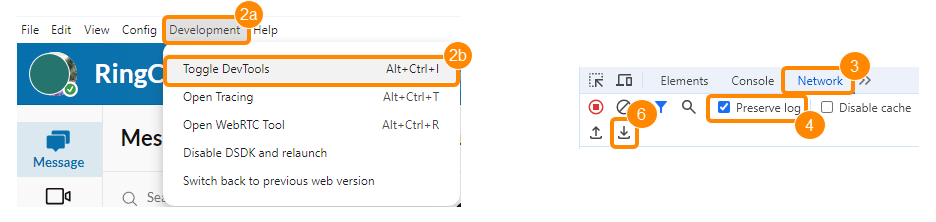
* Press **Ctrl** or **Cmd + Shift + D**.
* Click **Development** (a), then **Toggle Dev Tools** (b).
* In the side panel that opens at the right, go to the **Network** tab.
* Make sure the **Preserve log** checkbox is selected.
* Recreate the issue you experienced.
* In the **Network** tab, click and hold the **Download** icon.
* Click **Export HAR (with sensitive data)** .
### Disable email security services
When a meeting invitee clicks a link to join a
RingCentral
Video meeting, the
RingCentral
app may not launch correctly. If the user has an email security service like Mimecast running, the
RingCentral
Video meeting invite link may be filtered by the email security service.
To address this issue, temporarily disable any email security services or similar applications to launch the meeting in the
RingCentral
app from the invite link.
Microsoft sound settings issues
-------------------------------
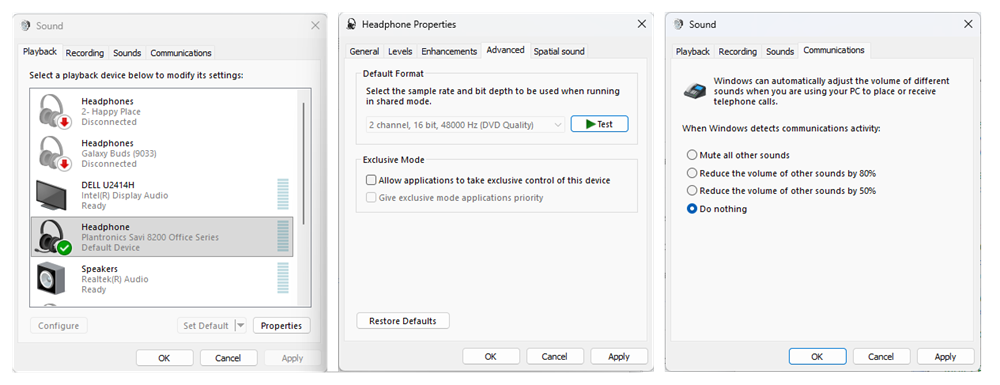
If you're using the RingCentral app and Microsoft Teams on a PC using Windows, you may encounter issues sending and receiving audio. Access your sound settings in the **Control Panel** , then click the **Playback** tab to make sure the correct speakers or headphones are selected. If you're still having audio issues:
* Select your device, then click **Properties**.
* Click the **Advanced** tab.
* Uncheck the **Allow applications to take exclusive control of this device** , then click **OK**.
* In the sound settings window, click the **Communications** tab.
* Select **Do nothing** to make sure there are no conflicts with other communications activities.
* Click **OK** .
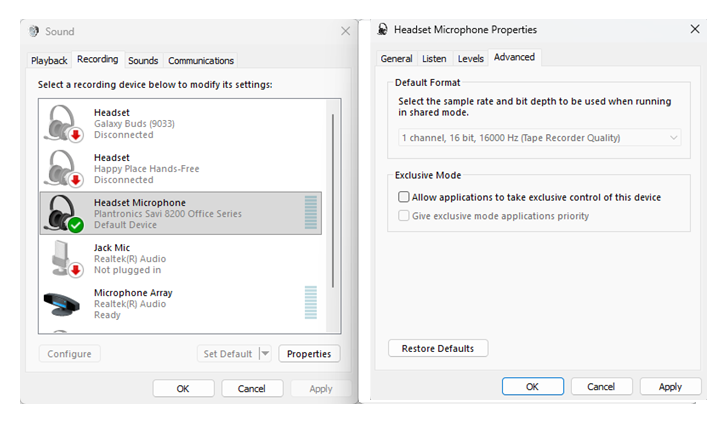
To check your selected microphone, click the **Recording** tab in your sound settings.
* Select your device, then click **Properties**.
* Click the **Advanced** tab.
* Uncheck the **Allow applications to take exclusive control of this device** , then click **OK** .
Issues making and receiving calls in the app
--------------------------------------------
If you encounter audio issues with your call quality, visit [Troubleshooting call quality issues](https://support.ringcentral.com/article-v2/10505-Call-Quality-Resolve-Choppy-Dropped-Delayed-Garbled-Calls-RingCentral.html?brand=RC_US&product=RingEX&language=en_US ""). Try these other troubleshooting steps for calling issues.
### Check your microphone access
When using the
RingCentral
app on your desktop or web browser, you may see an error message that access to your microphone is blocked.
One or more of the following steps can help resolve this problem:
* [Select your audio source in the
RingCentral
app](https://support.ringcentral.com/article-v2/Setting-up-your-microphone-and-speakers-for-RingEX-calls.html?brand=RingCentral&product=RingEX&language=en_US "") on your desktop or web browser.
* [Adjust Windows app permissions](https://support.microsoft.com/en-us/windows/turn-on-app-permissions-for-your-microphone-in-windows-10-94991183-f69d-b4cf-4679-c98ca45f577a "") to allow access to the microphone in the
RingCentral
app.
* If your microphone uses a docking station, turn the microphone off, wait 30 seconds, then turn it back on before connecting your microphone.
* Go to the website of your microphone's manufacturer and search for drivers for your device. You may need to download and install new drivers.
### Check your antivirus software
Antivirus software may set up a firewall that blocks certain ports for incoming and outgoing traffic as part of the default install. The
RingCentral
app uses TCP/IP ports for incoming and outgoing call traffic. Review [the
RingCentral
network requirements](https://support.ringcentral.com/article-v2/Network-requirements.html?brand=RingCentral&product=RingEX&language=en_US "") to identify the ports that should be whitelisted for call traffic.
If you experience issues with outbound calls from the
RingCentral
app, try the following:
* Uninstall both the
RingCentral
app and your antivirus software.
* Restart your computer.
* Reinstall the
RingCentral
app.
* Reinstall the antivirus software and do either of the following:
* Use a custom install and remove the firewall feature.
* Install the custom firewall and whitelist the ports listed in the
RingCentral
network requirements.
### Check your phone settings
You can check the phone settings in the
RingCentral
app to make sure your incoming and outgoing calls are set up correctly.
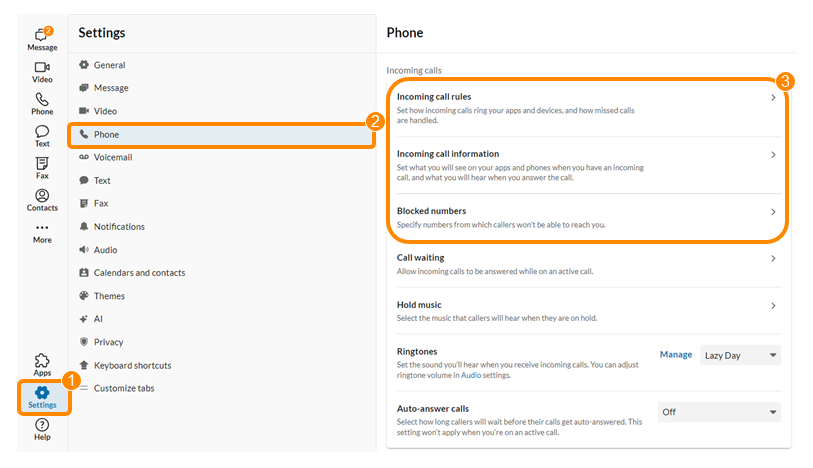
* Click **Settings**.
* Click **Phone**.
* Under Incoming calls, verify your:
* **Incoming call rules**
* **Incoming call information**
* **Blocked numbers**
* Under Outgoing, check your **Default caller ID**.
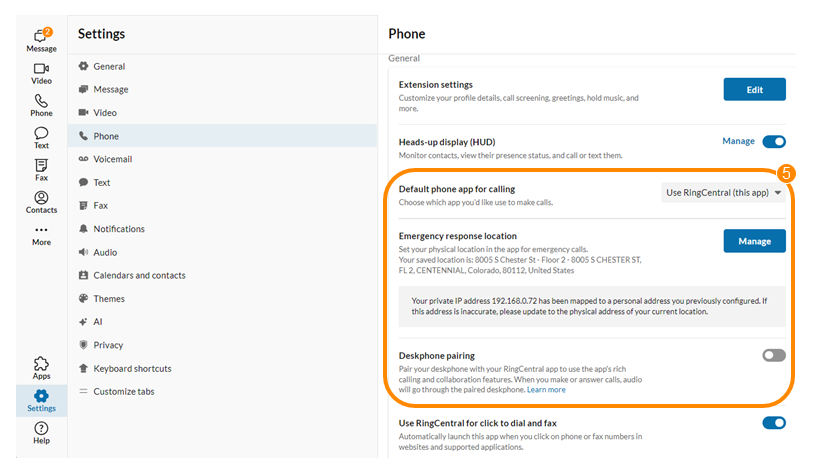
* Under General, verify your:
* **Default phone app for calling**
* **Emergency response location**
* **Deskphone pairing**
Messaging issues
----------------
Try these troubleshooting steps if you experience issues with the messaging features of the app.
### Check your calendar presence
If your presence in the
RingCentral
App isn't reflecting your current status correctly, check the following:
* Click **Settings**.
* Click **Calendars and contacts**.
* If you only want your presence to show as busy when you're actively in a meeting or on a call in the
RingCentral
app, turn the **Calendar presence** toggle off or [disconnect your presence sync](https://support.ringcentral.com/article-v2/Setting-your-presence-in-the-RingCentral-app.html?brand=RingCentral&product=RingEX&language=en_US "") from your Microsoft 365 and Google calendars.
### Verify admin settings
Admins can control the messaging settings for users on the account. The following settings may be restricted by your admin:
* **Types of teams** : Controls if users can create *Public and private* , *Only private* , or *No teams*.
* **Posting messages via email**: Controls which emails sent to a conversation's email address will get posted in the chat.
* **Giphy sharing**: Restricts if GIFs can be shared and what types.
* **Data retention policy** : Determines the [duration of time before messages get deleted](https://support.ringcentral.com/article-v2/company-data-backup-options.html?brand=RC_US&product=RingEX&language=en_US "").
* **File sharing** : Determine which [file sharing sources](https://support.ringcentral.com/article-v2/Managing-file-sharing-sources.html?brand=RingCentral&product=RingEX&language=en_US "") employees can use.
* **External guest communications**: Controls if guests external to your account can be added to conversations.
* **Domain allow/block list**: Manages which external company domains and personal email addresses have permission to initiate conversations when guest communication is allowed.
Installation issues
-------------------
### Update the Windows Apps settings
If you're running the Windows S mode on your PC, it will only allow the installation of apps through the Windows Store. Microsoft strongly suggests that users download apps using the bundled Windows Store to help prevent malware infections and phishing attacks.
If you're unable to install the
RingCentral
app, you can [switch out of S Mode](https://support.microsoft.com/en-us/help/4456067/windows-10-switch-out-of-s-mode "") or turn off app recommendations in the Windows settings.
**On Windows 11**
* Click the **Start Menu** and go to **Settings**.
* Click **Apps** , then **Advanced app settings**.
* Update the **Choose where to get apps** dropdown selection to allow the download of apps outside of the Microsoft Store.
**On Windows 10**
* Click the **Start Menu** and go to **Settings**.
* Click **Apps** , then **Apps \& features**.
* Update the **Installing apps** dropdown selection to **Turn off app recommendations**.
**Additional resources**
[Troubleshooting audio issues in the RingCentral app](https://support.ringcentral.com/article-v2/10505-Call-Quality-Resolve-Choppy-Dropped-Delayed-Garbled-Calls-RingCentral.html?brand=RC_US&product=RingEX&language=en_US "")
[Navigating the
RingCentral
app](https://support.ringcentral.com/article-v2/Navigating-the-RingCentral-app.html?brand=RingCentral&product=RingEX&language=en_US "")
[
RingCentral
app FAQs](https://support.ringcentral.com/article-v2/RingCentral-app-FAQs.html?brand=RingCentral&product=RingEX&language=en_US "")