Registering your business to send text messages
===============================================
Mobile carriers require all business SMS users to register with The Campaign Registry (TCR) to comply with industry requirements. These requirements apply to all businesses sending SMS text messages.
Important
You must complete each step and provide all required details in this SMS registration process, or your submission will get rejected and your outbound texting will be blocked. Please submit your registration as soon as possible to allow time for third-party approvals.
Before completing your registration, review:
* [SMS registration checklist](https://support.ringcentral.com/sms-registration.html "")
* [SMS consent requirements and examples](https://support.ringcentral.com/article-v2/SMS-consent-requirements-and-examples.html?brand=RingCentral&product=RingEX&language=en_US "")
* [Customizing SMS registration for your business](https://support.ringcentral.com/article-v2/Choosing-the-right-SMS-campaign-for-your-local-phone-numbers.html?brand=RingCentral&product=RingEX&language=en_US "")
* [TCR registration fees (US)](https://support.ringcentral.com/article-v2/TCR_registration_fees.html?brand=RingCentral&product=RingEX&language=en_US "") / [TCR registration fees (Canada)](https://support.ringcentral.com/article-v2/TCR-registration-fees-in-Canada.html?brand=RingCentral&product=RingEX&language=en_US "")
If you are setting up an AI Receptionist to send and receive text messages, visit the [RingCentral
AI Receptionist
(
AIR
) SMS Registration Guide](https://assets.ringcentral.com/us/guide/air-sms-registration-guide.pdf "").
Step 1: Register your business
------------------------------
To begin the TCR SMS registration process:
* Sign in to the [
Admin Portal
](https://service.ringcentral.com ""). You must have Super Admin or Phone System Admin permission to complete this registration.
* Click the **Phone System** tab.
* Click **Business SMS** , then **Set up SMS**.
* Click**Get started** . If you've previously registered, click **New SMS Registration** .

* Enter an **Application name**. Name your application based on location, department, or region to track your SMS registration.
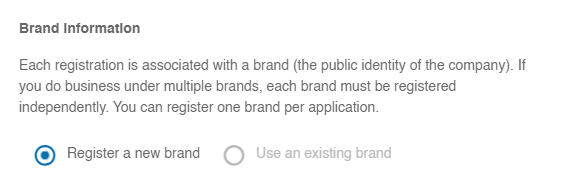
* Under Brand information, select **Register a new brand** , or if you previously registered a brand, select **Use an existing brand** to register a new SMS campaign.
* Enter your company information.
* **Name**: The person completing the registration.
* **Contact email and phone number**: Contact information for the person completing the registration.
* **Legal business name**: The business name as it appears on your company IRS SS4 form submitted to the government (names must match exactly).
* **Brand name (Doing Business As)**: This is your business's public identity. For most companies, it will be similar to your legal business name.
* **Work industry**: The industry most applicable to your business.
* **Legal business classification** : The official categorization of your business. Publicly traded companies must [complete two-factor email verification](https://support.ringcentral.com/article-v2/verifying-sms-registration-with-two-factor-authentication.html?brand=RingCentral&product=RingEX&language=en_US "") after submitting the application.
Note: If two-factor verification isn't completed within five days, a warning icon will be displayed on the TCR registration page. Complete the email verification to avoid registration processing delays.
* **Tax issuing country**: The country where your business is registered.
* **Employer identification number (EIN)**: The 9-digit tax identification number on your company IRS SS4 form (United States).
* **Business Number (BN)**: The first 9 digits of your Business Number (Canada). Your registration may be delayed if letters or additional numbers are entered in this field.
* **Business address, City, State, Postal code, Country**: Physical address for your company. Enter the address exactly as it appears on your company IRS SS4 form.
* **Stock exchange and Stock symbol (for publicly traded companies only)**: Publicly traded companies must enter their stock information.
* **Website URL**: A working website address for your business. All customers must have a web presence or the registration will be rejected.
Step 2: Add SMS message details
-------------------------------
Under SMS message details, complete the following sections:
* **What service does your company or business provide to your customers**: Describe in detail what services your business provides.
* **What types of text messages will you send** : [Review the use case options](https://support.ringcentral.com/article-v2/Choosing-the-right-SMS-campaign-for-your-local-phone-numbers.html?brand=RingCentral&product=RingEX&language=en_US ""), and select up to five use cases. For each selection, complete the prompt in the popup. Make sure you include the estimated messaging frequency for each use case. For example, "Messaging frequency may vary" or "Messaging frequency will not exceed 5 SMS per day."
Tip
You must select the proper use cases for your business and be as thorough and accurate as possible in the descriptions.

* **Provide 3-5 examples of messages your employees typically send for the use cases selected above** : In each text box, enter a unique sample message your company or employees have sent customers, including the opt-out language "Reply STOP to Opt-out." Examples of sample text messages will appear in the text boxes based on the use cases you select.
Tip
Make sure your sample messages match up directly with the use cases you selected, or your registration will be rejected.
* **Do your messages include phone numbers** : Choose *Yes* or *No* . If you choose *Yes*, one of your example messages must include the phone number you send from, otherwise your registration will be rejected.
* **Do your messages include URLs, web links, or email addresses** : Choose *Yes* or *No* . If you choose *Yes*, provide a sample embedded link that will be sent to subscribers. One of your example messages must include the same embedded link or your registration will be rejected.
* **Privacy Policy link** : For all methods of obtaining consent, you must provide a link to your privacy policy that includes:
* A clear statement indicating the information obtained as part of the SMS consent process won't be shared with third parties.
* How your consumer information is used, collected, and shared.
* **Terms \& Conditions link** : Include a link to your online SMS Terms \& Conditions, or this information can be included in your privacy policy. The terms of service section within the privacy policy or the standalone page must include:
* Information on the types of messages the recipient can expect to receive. For example:
* Customers and Guests: Updates regarding your orders, deliveries, or other relevant information.
* Job Applicants: Information about your application status, onboarding materials, or other employment-related updates.
* Standard messaging disclosures:
* Messaging frequency may vary.
* Message and data rates may apply.
* You can opt out at any time by texting STOP.
* For assistance, text HELP or visit our \[Privacy Policy URL\] and \[Terms of Service URL\].
* **How do you obtain consent to send text messages** : Carriers require consent from message recipients. Choose [how you obtain consent](https://support.ringcentral.com/article-v2/SMS-consent-requirements-and-examples.html?brand=RingCentral&product=RingEX&language=en_US ""). Then, complete the prompt in the popup and click **Save**. You can select more than one consent option.
* **Subscriber Opt-in and Opt-out messaging** : Mobile carriers require businesses to support opt-in, opt-out, and help keywords based on their use cases and must include the following:
* The opt-in message must include your **brand name, message frequency, and SMS fee disclosures**. The opt-in message must inform the recipient how to opt out of receiving messages and how to receive help.
* The Help message must include your **brand name and the website, email address, or phone number to contact for support**.
* The opt-out message must include your brand name and **confirmation that no additional text messages will be sent** to the recipient.
If these messages aren't included, the registration will be rejected.
Tip
Use the example language provided within the form for each option to make sure all relevant information is included.
* **Do your messages include age restricted content** : Choose *Yes* or *No*.
* **Do you send text messages about direct lending or loan agreements** : Choose *Yes* or *No*.
* **Prohibited message types/categories** : Check the box next to the acknowledgment statement for prohibited message types and categories. Review the [prohibited message categories](https://www.ringcentral.com/legal/sms-mms-content-policies.html "") for SMS usage.
Step 3: Link your numbers
-------------------------
Under SMS enabled numbers, choose the numbers you want to use for SMS. You can select up to 49 numbers for each registration request. If your account has more than 40 phone numbers, a checkbox appears in the registration flow. Select the checkbox to [submit a number pool request](https://support.ringcentral.com/article-v2/Registering-large-lists-of-numbers-for-SMS-usage-with-TCR.html?brand=RingCentral&product=RingEX&language=en_US "") if you need to link 50 or more numbers to the registration.

Step 4: Review your AI validation results
-----------------------------------------
RingCentral
uses AI to review your registration. The review checks the content of your website, privacy policy, and terms and conditions pages against your registration details. It also checks your consent form, sample messages, and opt-in and opt-out messaging.
Note
For the AI review to access your website and linked pages, the links must open without requiring a sign-in.
* If issues are found during AI validation, click **Review issues** to view the guidance. To proceed without addressing the issues, click **Ignore and continue** .

* Update your registration as needed in the **Review before submitting** sidebar.

* When all the issues have been addressed, a popup confirms that the check is complete. Continue to [Step 5](#confirm-submit "").

Note
The AI review may not identify every issue and doesn't guarantee approval. Final approval is determined by third parties. If your registration is declined, you may need to pay another fee to resubmit.
Step 5: Confirm and submit your SMS Registration
------------------------------------------------
In addition to one-time registration fees, you'll be charged a monthly recurring fee based on the use cases and message volume selected. These fees are set by the mobile carriers and their registrars. Each SMS registration requires a three-month minimum commitment. SMS registration requests can't be deleted until after the three-month requirement is met. If you need to change the volume of messages on an application, you must submit a new SMS registration.
* Under SMS registration fees, select an option based on the number of messages you plan to send monthly.
* Click **Finish** . If you want to edit the form later before submitting it, click **Save as draft** .

What to expect after submitting your registration
-------------------------------------------------
After your registration has been submitted, allow time for third-party approvals. During this time, you'll see the following status messages:
* **Draft**: Application not submitted.
* **Pending review**: We received your application, but wireless carriers haven't started their review.
* **Review in progress**: Your application is being reviewed by wireless carriers.
* **Update required**: Add the requested information to your application.
* **Setup in progress** :
RingCentral
is setting up your phone numbers to send and receive SMS messages.
* **Completed**: Your phone numbers are ready to send and receive SMS messages.
Once your submission is approved, you'll receive a confirmation email and the assigned phone numbers will be set up for business text messaging. If your application isn't approved, you'll receive an email indicating why and outlining any changes you'll need to make before resubmitting your application.
**Use these resources if you need to resubmit your SMS registration:**
* [Extended SMS Registration Guide (PDF)](https://assets.ringcentral.com/us/guide/registering-10DLC-sms.pdf "")
* [Troubleshooting SMS registration rejections](https://support.ringcentral.com/article-v2/Troubleshooting-TCR-rejection-codes.html?brand=RingCentral&product=RingEX&language=en_US "")
* [Modifying or deleting SMS registration](https://support.ringcentral.com/article-v2/Modifying-or-deleting-TCR-registration.html?brand=RingCentral&product=RingEX&language=en_US "")
* [Verifying SMS registration with two-factor authentication](https://support.ringcentral.com/article-v2/verifying-sms-registration-with-two-factor-authentication.html?brand=RingCentral&product=RingEX&language=en_US "")