Troubleshooting issues with sending or receiving faxes
======================================================
If you're having problems with sending or receiving faxes, here are some solutions for the most common issues.
Note
* Make sure your [admin has turned on faxing for your account](https://support.ringcentral.com/article-v2/Enabling-fax-features.html?brand=RingCentral&product=RingEX&language=en_US "").
* Make sure your [outbound fax caller ID](https://support.ringcentral.com/article-v2/Setting-up-outbound-fax-settings.html?brand=RingCentral&product=RingEX&language=en_US "") is set up correctly.
If you need additional assistance, reach out to [
Support
](https://support.ringcentral.com/contact-support.html "").
Where would you like to troubleshoot your faxes?
Check the status of your fax in the Admin Portal
------------------------------------------------
You can check the status of a sent fax to confirm delivery and determine if a fax needs to be resent.
* Sign in to the [
Admin Portal
](https://service.ringcentral.com "").
* Click the dropdown at the top right, then select **My Extension**.
* Click the **Messages** tab.
* Click **Outbox** .
* Wait five minutes per page to determine if sending has failed. Graphics-heavy faxes can take five minutes or more per page to send.
* If the recipient is unreachable, the fax is marked as *Sent* until three automatic retry attempts are made. After the third attempt, it moves to the *Failed* list.
* Click the **Filter** icon next to the search field.
* Click the **Scheduled dropdown** , then select *Failed* .

* If you find the fax in the **Failed** list, check the following:
* Confirm the recipient's fax number or email address.
* Check your fax number (if sending in the app) or email address (if using email).
* Confirm the fax size and that any attachments meet [fax size and that any attachments meet
RingCentral
's requirements](https://support.ringcentral.com/article-v2/Fax-Supported-File-Attachments.html?brand=RingCentral&product=RingEX&language=en_US "").
* Remove any special characters (for example, \&, $, #) from filenames.
When your fax message has been sent successfully, the fax will move from the Outbox folder and into the Sent Items folder.
You can also check the status of a sent fax message under Call Log.
* Click the **Call Log** tab.
* Click the **Calendar** icon to display records for *Today* , *Yesterday* , *Last 7* , *30* or *60 days*.
* Click the **Filter** icon.
* Click the **Call Direction** dropdown if you want to view just *Inbound* or *Outbound* faxes.
* Click the **Types of Call** dropdown, the select *Fax*.
* Click **Apply**.
When filtered, the list displays the recipient's fax number, any additional send attempts, and the final status of the fax.
Check your network and firewall settings
----------------------------------------
A fax may fail to send due to your company's network or firewall settings. Troubleshooting steps differ depending on how your computer or network is set up. Contact your IT department to manage your [Network Requirements](https://support.ringcentral.com/article-v2/Network-requirements.html?brand=RingCentral&product=RingEX&language=en_US "").
Check your notification settings in the Admin Portal
----------------------------------------------------
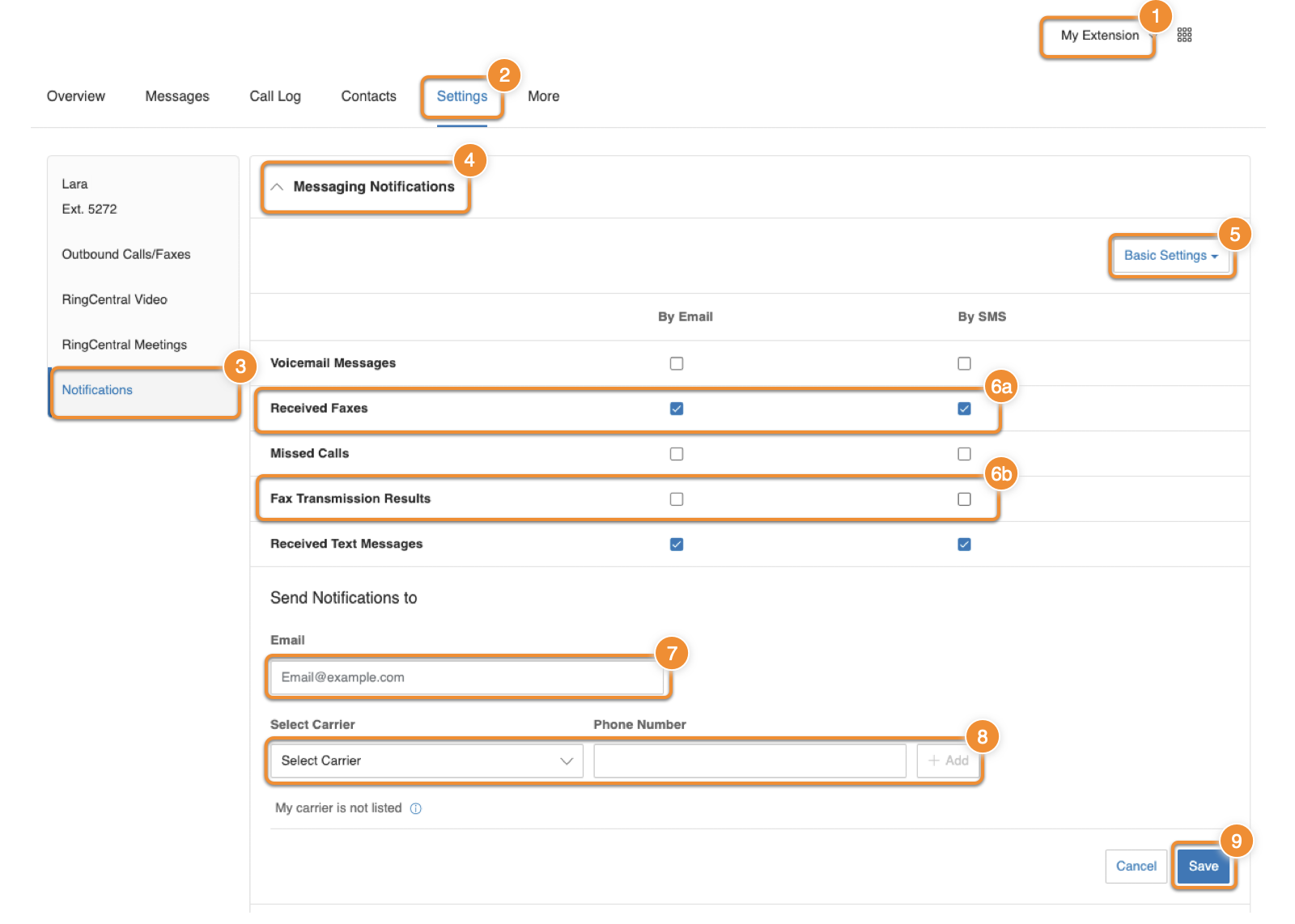
If you're not getting notifications when faxes are sent to you:
* Sign in to the [
Admin Portal
](https://service.ringcentral.com ""). If you're an admin, click the **Admin Portal** dropdown, then click **My Extension** at the top right.
* Click the **Settings** tab.
* In the left panel, click **Notifications**.
* Click the **Messaging Notifications** dropdown.
* Make sure that **Basic Settings** is selected in the dropdown at the right.
* Check the **By Email** and **By SMS** boxes next to **Received Faxes** (a) and **Fax Transmission Results** (b).
* Enter your email address in the **Send Notifications to** field.
* To receive text message notifications (this option is only available in the US), select your carrier from the **Select Carrier** dropdown menu, enter your phone number, then click **Add** .
* If your carrier isn't listed, contact them to get the email address where you can receive texts. Enter that email address into the **Phone Number** field.
* Click **Save** .
Resolving partially received faxes in the Admin Portal
------------------------------------------------------
You might receive partial faxes that contain incomplete or cut-off pages, distorted or partially rendered text and images, or an error message in the copy. Faxing has known limitations when implemented as an IP service. These limitations are technology-based and industry-wide. The steps below help RingCentral Support isolate the issue
* Sign in to the [
Admin Portal
](https://service.ringcentral.com ""). If you're an admin, click the **Admin Portal** dropdown, then click **My Extension** at the top right.
* Click the **Settings** tab.
* Scan the log to check if a particular number is associated with incomplete faxes. Then follow one or more of these steps:
* If you have access to the fax machine where you received the partial fax:
* Lower the baud rate to 9600.
* Turn off **Error Correction Mode** or **Overseas Mode** .
Note
These settings are model-specific.
* If the faxes were forwarded to your
RingCentral
number from a different carrier, have the sender send a fax message directly to your
RingCentral
number.
* If the issue is happening with multiple numbers, gather samples from within the last 24 hours for possible carrier escalation, then contact [
Support
](https://support.ringcentral.com/contact-support.html "") for assistance.
**Additional resources**
[Viewing and managing faxes](https://support.ringcentral.com/article-v2/Viewing-and-managing-a-fax.html?brand=RingCentral&product=RingEX&language=en_US&pills-nav=admin_portal "")
[Sending a fax](https://support.ringcentral.com/article-v2/Sending-a-fax.html?brand=RingCentral&product=RingEX&language=en_US&pills-nav=admin_portal "")
[Turning on fax features](https://support.ringcentral.com/article-v2/Enabling-fax-features.html?brand=RingCentral&product=RingEX&language=en_US "")
[Setting your fax notifications](https://support.ringcentral.com/article-v2/configuring-notifications-sounds-admin-portal.html?brand=RC_US&product=RingEX&language=en_US "")
[Setting up outbound fax caller ID](https://support.ringcentral.com/article-v2/Setting-up-outbound-fax-settings.html?brand=RingCentral&product=RingEX&language=en_US "")