Signing in to
RingCX
and setting up your agent session
========================================================================================================================
When you sign in to
RingCX
, choose the voice queues, digital queues, skill profiles, and your preferred phone connection so you're ready to take calls and digital interactions (such as chats, messages, and emails).
Where are you accessing RingCX?
## RingCX in the RingCentral app
Signing in to
RingCX
in the
RingCentral
app
-------------------------------------------------------------------------------------------------------------------------------------------------------------------------------
When you sign in to
RingCX
in the
RingCentral
app, update your session settings to select the voice queues, digital queues, or outbound dial group you handle. If you have permissions for multiple options, you can join them all at once.
* Sign in to
RingCX
in the [
RingCentral
app](https://app.ringcentral.com/ "").
* Click the **Start working** button.

You'll join the queues and dial groups set by your admin and can start handling calls and digital interactions.
Updating your
RingCX
session information in the
RingCentral
app
---------------------------------------------------------------------------------------------------------------------------------------------------------------------------------------------------
The settings for your RingCX agent session will be automatically saved from your previous session.
Note
You need to update your session to apply any changes made to the agent settings.
If you need to update the settings for your queues or dial groups:
* Click the **Session info** (information) icon at the top right.
* Select **Update settings** .

* Depending on your permissions, you may be able to update these session settings:
* **Voice queues** : Click the **Voice queues** field, select which voice queues to join, then click **Update selection**.
* **Digital Queues** : Click the **Digital queues** field, select the digital queue you want to update, then click **Update selection**.
* **Dial groups** : Click the **Dial groups** dropdown, and select the outbound queue group you're going to make calls for.
* **Auto-answer calls** : Click to automatically accept all incoming
RingCX
calls when you're available as an agent.
* Click **Update settings** .

**Additional resources**
[Intro to the
RingCX
agent interface](https://support.ringcentral.com/article-v2/Intro-to-the-RingCX-agent-interface.html?brand=RingCentral&product=RingCX&language=en_US "")
[Taking an incoming call in
RingCX
](https://support.ringcentral.com/article-v2/Taking-an-incoming-call-in-RingCX.html?brand=RingCentral&product=RingCX&language=en_US "")
[Intro to outbound dialing for agents in
RingCX
](https://support.ringcentral.com/article-v2/Intro-to-outbound-dialing-for-agents.html?brand=RingCentral&product=RingCX&language=en_US "")
## RingCX standalone
Signing in to the
RingCX
standalone app
---------------------------------------------------------------------------------------------------------
When you sign in, pick an inbound queue to receive calls or an outbound dial group to make calls. If you have permissions for both, you can join both at the same time.
Note: If you don't see these options, you'll join the default queues and dial groups set by your admin.
* Sign in to [
RingCX
](https://ringcx.ringcentral.com/ "").
* Click the **Agent** tile.
* You may be able to select the following, depending on your permissions:
* **Voice queues** : Click the **Voice queues** field, select which voice queues to join, then click **Update selection**.
* **Digital queues** : Click the **Digital queues** field, select the digital queue you want to update, then click **Update selection**.
* **Skill profiles**: Select your skill profiles from the dropdown.
* **Dial groups**: Click the Dial groups dropdown, and select the outbound queue group you're going to make calls for.
* Click the **Voice connection** dropdown to select a phone to use for your session.
* **Integrated softphone** : Use the
RingCX
app to make voice calls as an alternative to desktop softphones or hard phones.
* **External phone**: Use an external phone line linked to a softphone or deskphone. Type your phone number or SIP in the field provided.
* **
RingCentral
Office phone** : Use your
RingCentral
office phone to make and receive calls for this session.
* Check **Start persistent voice connection** to immediately make yourself available to receive calls upon signing in. This is required for agents making outbound calls.
* If available, check the box next to **Auto-answer calls** to have calls automatically pop up on your screen instead of having to accept or reject each incoming call.
* Click **Continue** .

Updating your session information in the
RingCX
standalone app
--------------------------------------------------------------------------------------------------------------------------------
After signing in, you may have the option to update your voice queues, digital queues, skill profiles, and voice connection, if your admin has enabled this on your account.
Note
You need to update your session to apply any changes made to the agent settings.
To update your session:
* Click your profile icon in the top right.
* Click **Session info** (A), then click **Update session** (B).
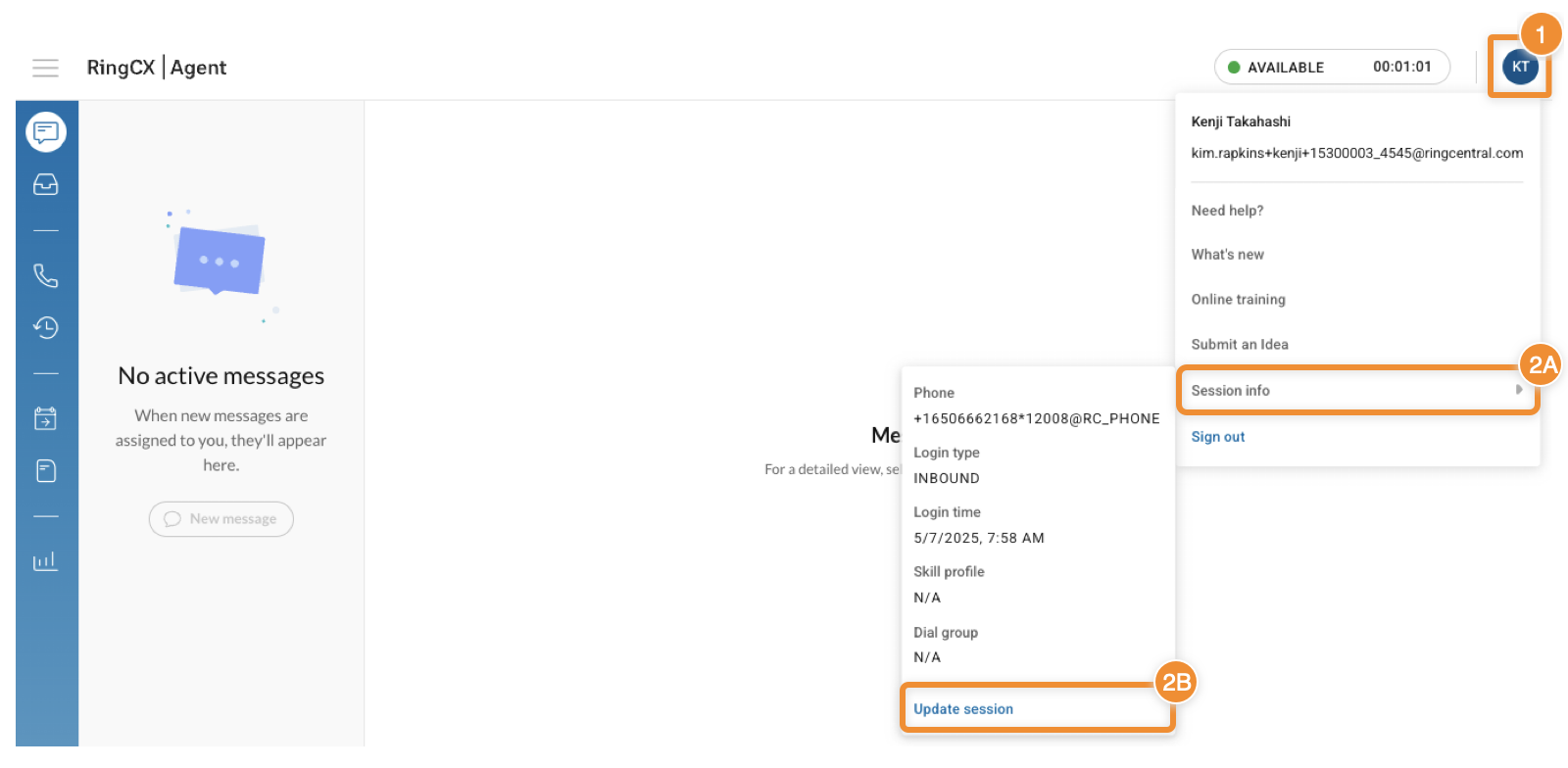
* Update the session information as needed, then click **Update session**.
**Additional resources**
[Intro to the
RingCX
agent interface](https://support.ringcentral.com/article-v2/Intro-to-the-RingCX-agent-interface.html?brand=RingCentral&product=RingCX&language=en_US "")
[Taking an incoming call in
RingCX
](https://support.ringcentral.com/article-v2/Taking-an-incoming-call-in-RingCX.html?brand=RingCentral&product=RingCX&language=en_US "")
[Intro to outbound dialing for agents in
RingCX
](https://support.ringcentral.com/article-v2/Intro-to-outbound-dialing-for-agents.html?brand=RingCentral&product=RingCX&language=en_US "")