Setting up Single Sign-On (SSO) in the Admin Portal
===================================================
Single Sign-On (SSO) allows employees to access multiple applications with one set of credentials. You can set up SSO in the Admin Portal or contact Support for assistance.
Setting up SSO in the Admin Portal
----------------------------------
* Sign in to the [
Admin Portal
](https://service.ringcentral.com "").
* Click the **More** tab.
* Go to **Security and Compliance** , then click **Single Sign-on**.
* In the Set up SSO by yourself section, click **Set Up** . If you have previously set up SSO, click **Edit** to update.

* In the popup, click the **Upload Metadata by** dropdown and select either *Upload with file* or *URL* .
* *Upload with a file* : Click **Browse** , select a file, and click **Open**.
* *URL* : Paste the URL and click **Import**.
* Select email attributes from the **Map Email Attribute to** dropdown. If the email attribute isn't recognized, click *Custom* to enter the name.
* In the Certificate Management section, click **Upload** .

* Select the certificate document, then click **Open** .
Note
If you have more than one certificate, set the new one as primary.
* Click **Save**.
Turning on SSO
--------------
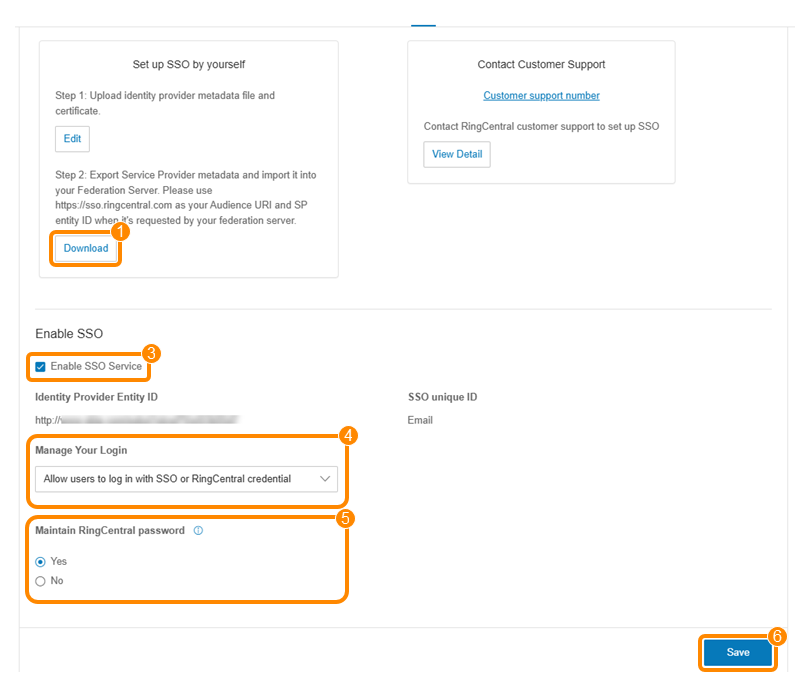
After you've uploaded your identity provider metadata and certificate, you'll need to export the Service Provider metadata and import it into your Federation Server. You can then finish the setup and turn on SSO for your company.
* Click **Download**.
* Import the downloaded metadata into your federation server.
Note
If your federation server doesn't allow you to automatically add the metadata or you encounter an error, then you'll need to follow steps specific to your identity provider:
* [Using Microsoft Entra ID for single sign-on](https://support.ringcentral.com/article-v2/Single-Sign-On-Integrate-RingCentral-Azure-Active-Directory.html?brand=RC_US&product=RingEX&language=en_US "")
* [Setting up single sign-on (SSO) for Google Workspace](https://support.ringcentral.com/article-v2/9461.html?brand=RC_US&product=RingEX&language=en_US "")
* [Configuring Okta for single sign-on (SSO)](https://support.ringcentral.com/article-v2/8349.html?brand=RC_US&product=RingEX&language=en_US "")
* [Integrating
RingCentral
with Synology SSO server](https://support.ringcentral.com/article-v2/Integrating-RingCentral-with-Synology-SSO-server.html?brand=RingCentral&product=RingEX&language=en_US "")
* Select the **Enable SSO Service** checkbox.
* In the **Manage Your Login** dropdown, select *Allow users to log in with SSO or*
RingCentral
*credential* or *Enforce SSO login only* .
Note
If you select *Enforce SSO only* , users won't be able to sign in with their
RingCentral
phone number and password.
* If you select *Allow users to log in with SSO or* *
RingCentral
* *credential* , indicate if you want users to maintain their password:
* If you choose **Yes**, users can create a new password or change the password for their extension.
* If you choose **No**, users can't create a new password or change the password for their extension, but they can still sign in with their existing password.
* Click **Save** .
Contacting Support to set up SSO
--------------------------------
Before contacting Support to set up SSO, click **View Detail** in the Contact Customer Support section.

RingCentral
will need your SAML 2.0 metadata details from an Identity Provider (IDP). Support will then email you the SAML 2.0 SP metadata to import into your federation server and complete the SSO setup.