Summarizing phone calls with AI notes
=====================================
In the
RingCentral
app for desktop, web, and mobile, you can use AI-powered notes to summarize your phone calls automatically. When you turn on notes, your call will also be transcribed. After the call ends, you can [translate the call notes and transcript](https://support.ringcentral.com/article-v2/using-live-transcription-and-notes-from-deskphones.html?brand=RingCentral&product=RingEX&language=en_US&pills-nav=desktop_%26_web#viewing-call-summary-notes "") to your preferred language, and [email the notes](https://support.ringcentral.com/article-v2/using-live-transcription-and-notes-from-deskphones.html?brand=RingCentral&product=RingEX&language=en_US&pills-nav=admin_portal#setting-up-email-notifications "").
This feature is part of the [
RingCentral
AI Assistant](https://support.ringcentral.com/article-v2/Intro-to-the-RingCentral-AI-Assistant.html?brand=RingCentral&product=RingEX&language=en_US ""), availability will depend on your plan.
Where do you want to manage your call notes?
## Desktop & web
Turning on notes in the desktop and web app
-------------------------------------------
You can turn on notes for your phone calls at any time in the desktop and web app.
* [Make a phone call in the
RingCentral
app](https://support.ringcentral.com/article-v2/Making-and-receiving-calls-in-the-RingCentral-app.html?brand=RingCentral&product=RingEX&language=en_US "").
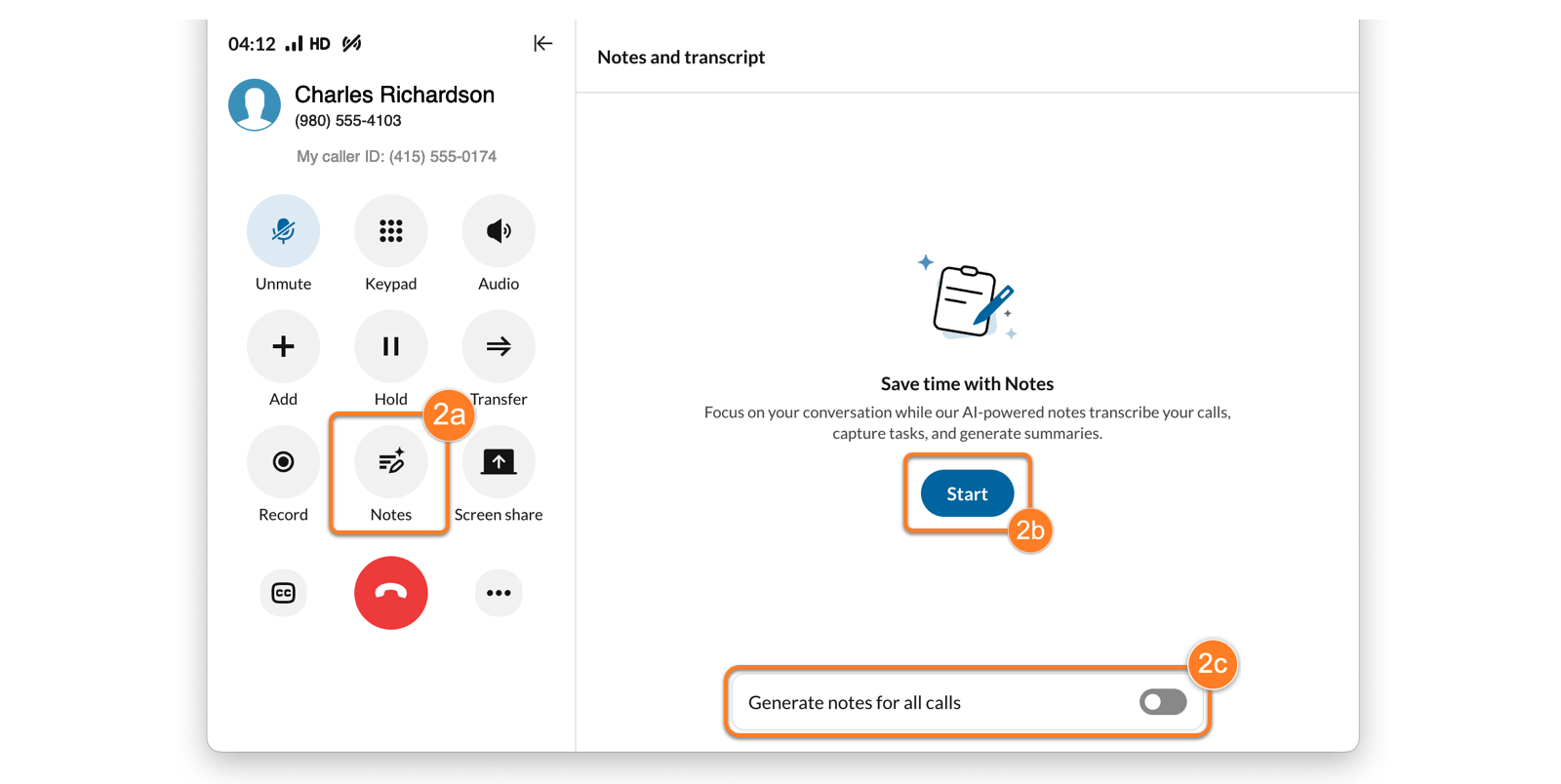
* The Notes and transcript panel will open to the right of the keypad. Click **Notes** on the keypad (a) or **Start** in the right panel (b).
* To turn on notes for all future calls, click the toggle next to **Generate notes for all calls** (c).
Note: If you collapse or expand the Notes panel, the window will stay that way for future calls until it's changed.
If you're not on an active call, you can turn on notes for all future calls.
* Click **Phone** in the navigation bar.
* In the **Keypad** tab, click **Notes off** . The icon will then change to **Notes on** , indicating that notes will be taken on all calls.

Once notes have been turned on, a legally required announcement will play to all call participants, indicating that AI is taking notes. The AI Assistant will then begin transcribing the call and taking notes. The notes will be available right after the call ends.
To change your spoken language and translate the call details to a different language, click the globe **Language** icon.
You can select from the following languages:
* Deutsch
* English (Australia)
* English (UK)
* English (US)
* Español
* Español (Estados Unidos)
* Español (Latinoamérica)
* Français
* Français (Canada)
* Italiano
* Nederlands
* Português
* Português (Brasil)
* Русский
* suomi
* українська
* हिंदी
* 日本語
* 한국어
Stopping and resuming notes
---------------------------
You can stop taking notes at any time by clicking **Stop notes** on the keypad. When you stop taking notes, the transcription will also be stopped. Anything said on the call while notes are stopped won't be transcribed or included in the notes.

To resume notes and transcription, click **Notes** on the keypad or click **Start** in the Notes and transcript panel. When you resume notes, transcription will also resume.
Viewing your call summary and notes
-----------------------------------
The call recap will be available immediately after the call ends and includes the following:
* **Settings** : Click to access the **[AI settings](#managing-notes-settings "")**.
* **Copy**: Click to copy the call notes content.
* **Share**: Click to share the call notes through message, text, or email.
* **Call info** : The name and phone number of the call participant. Click **View call details** for more call information.
* **Notes**: Notes include a one-line summary of the call, an itemized recap, and any tasks or follow-up items.
* **Show notes immediately after the call**: Click the toggle to display the post-call summary as soon as you disconnect the call.
You can click the text field in the call recap to add or update the notes. Use the formatting toolbar to format any existing or added text, then click **Save** at the bottom right.

You can also find your call notes and transcript in your call history and the **Notes** tab.
* Click **Phone** in the navigation bar.
* Click the **Notes** tab.
* Click the call to open the call details and **Notes** (a) in the right panel.
* Use the buttons at the right (b) to report an issue, or edit, copy, or share the notes.
* Click **Translate** (c) to convert the notes to your default language. This option only appears if the spoken language during the call is different from the language selected in your [AI settings](#managing-notes-settings ""). Click **Show original** to switch back to the spoken language.
* You can also rate the accuracy of the notes by clicking the thumbs-up or thumbs-down icons (d).

* Click the **Transcript** tab to access the call transcript.
* Click the **Download** icon to export the transcript.
* Click **Translate** to convert the transcript into your default language. Click **Show original** to switch back to the spoken language.
Managing notes settings
-----------------------
You can manage your notes settings in the RingCentral app.
* Click **Settings** in the navigation bar.
* In the left panel, click **AI** to manage:
* **Automatic notes** (a): Turn the toggle on to automatically transcribe and generate notes for all calls.
* **Post-call summary** (b): Turn the toggle on to show notes immediately after the call.
* **AI translation language** (c): Choose the default language for translating transcripts, chat and text messages, and call notes.
* **Show Translate button** (d): Turn the toggle on to show the **Translate** button in your conversations.

* Click **Notifications** to manage **Notes availability** . Click the toggle on (a) to receive desktop notifications when call notes are posted.

Exporting notes to a CRM
------------------------
To export call notes to a CRM, you'll need to [purchase AI Conversation Expert](https://www.ringcentral.com/products/ai-conversation-expert.html "") (ACE, formerly RingSense) and [assign licenses](https://support.ringcentral.com/article-v2/Managing-licenses-in-RingCentral-account.html?brand=RingCentral&product=RingEX&language=en_US#Addon-licenses "") to your users. This gives you CRM export capabilities for your call notes.
Once your ACE account is created, it will automatically be integrated with your
RingEX
account. You can then set up an integration that sends ACE information (including call notes) to your CRM.
You can also use the ACE API to export notes. Learn more at the [RingCentral Developers](https://developers.ringcentral.com/guide/ai/ringsense#ringsense-api "") portal.
* Make sure you're signed in to ACE [as an admin](https://support.ringcentral.com/article-v2/switching-roles-in-ai-conversation-expert.html?brand=RingCentral&product=RingEX&language=en_US "").
* Go to the [Integrations](https://support.ringcentral.com/article-v2/setting-up-integrations-in-ai-conversation-expert.html?brand=RingCentral&product=RingEX&language=en_US "") page and open the **Catalog** tab or click **+ Add integration**.
* Click **Connect** next to your CRM.
* Enter the required account details in the integration window.
* In the **Export to** dropdown, make sure **Advanced call logging** is turned on (a) and the **Call notes** box (b) is checked.
* Click **Sign in and connect** . Once complete, the integration will appear on the **Connected** tab, and your call notes will be sent to the integrated platform.

**Additional resources**
[Intro to the
RingCentral
AI Assistant](https://support.ringcentral.com/article-v2/Intro-to-the-RingCentral-AI-Assistant.html?brand=RingCentral&product=RingEX&language=en_US "")
[Making and receiving calls in the
RingCentral
app](https://support.ringcentral.com/article-v2/Making-and-receiving-calls-in-the-RingCentral-app.html?brand=RingCentral&product=RingEX&language=en_US "")
[Using closed captions and live transcription during phone calls in the
RingCentral
app](https://support.ringcentral.com/article-v2/Using-closed-captions-and-live-transcription-for-RingCentral-phone-calls.html?brand=RingCentral&product=RingEX&language=en_US "")
## Mobile
Turning on notes in the mobile app
----------------------------------
You can turn on notes for your phone calls at any time in the mobile app.
* Tap **Phone** in the bottom toolbar.
* Tap the **Keypad** tab at the top.
* Tap **Notes** off (a) to turn notes on. The icon will then change to **Notes on** indicating that notes will be taken on all calls. You can also turn on notes just for your current call by tapping **Notes** (b) in the keypad.

Once notes have been turned on, a legally required announcement will play to all call participants, indicating that AI is taking notes. The AI Assistant will then begin transcribing the call and taking notes.
To view the transcription window while on a call, tap the **Arrow** icon (A) at the top right, the **Notes and transcript** icon (B) at the bottom, or swipe left.
The notes will be available right after the call ends.

To change your spoken language, tap the globe **Language** icon at the top right of the Notes and transcript window.
You can select from the following spoken languages:
* Deutsch
* English (Australia)
* English (UK)
* English (US)
* Español Español (Estados Unidos)
* Español (Latinoamérica)
* Français
* Français (Canada)
* Italiano
* Nederlands
* Português
* Português (Brasil)
* Русский
* suomi
* українська
* हिंदी
* 日本語
* 한국어
Stopping and resuming notes
---------------------------
You can stop taking notes at any time by tapping **Stop notes** on the keypad (A), or by tapping the **Pause** button in the Notes and transcript window (B).

When you stop taking notes, the transcription will also be stopped. Anything said on the call while notes are stopped will not be transcribed or included in the notes.
To resume notes and transcription, tap **Notes** on the keypad again, or tap the **Play** icon in the Notes and transcript panel. When you resume notes, transcription will also resume.
Viewing your call summary and notes
-----------------------------------
The call recap will be available immediately after the call ends and includes the following.
* **Settings** : Tap to access the **AI settings**.
* **Copy**: Tap to copy the call content.
* **Share**: Tap to share the call notes through message, text, or email.
* **X**: Tap to close the call recap.
* **Call info** : The name and phone number of the call participant. Tap **View call details** for more call information.
* **Notes**: Notes include a one-line summary of the call, an itemized recap, and any tasks or follow-up items.
* **Show notes immediately after the call** : Tap the toggle to display the post-call summary as soon as you disconnect the call.

You can also find your call notes and transcript in your call history and **Notes** tab.
* Tap **Phone** in the bottom toolbar.
* Tap the **Notes** tab.
* Tap the call to view and manage the call notes:
* Tap the pencil **Edit** icon to add to or update the notes.
* Tap the **Share** icon to share the call notes through message, text, or email.
* Tap the **Report** icon to report an issue to our support team.
* Tap **Translate** to convert the notes to your default language. This option only appears if the spoken language during the call is different from the language selected in your [AI settings](#managing-notes-settings ""). Tap **Show original**to switch back to the spoken language.
* You can also rate the accuracy of the notes feature by tapping the thumbs-up or thumbs-down icons.

* Tap the **Transcript** tab to access the call transcript.
* Tap **Translate** to convert the notes to your default language. This option only appears if the spoken language during the call is different from the language selected in your [AI settings](#managing-notes-settings ""). Tap**Show original** to switch back to the spoken language.
Managing notes settings
-----------------------
You can manage your notes settings in the mobile app.
* Tap your profile photo at the top left.
* Under Settings, tap **AI** to manage:
* **Automatic notes** (a): Turn the toggle on to automatically transcribe and generate notes for all calls.
* **Post-call summary** (b): Turn the toggle on to show the notes immediately after the call.
* **AI translation language** (c): Choose the default language for translating transcripts, chat and text messages, and call notes.
* **Show Translate button** (d): Turn the toggle on to show the **Translate** button in your conversations.
* Tap the back arrow at the top left to save your selection and return to the settings page.

* Under **Settings** , tap **Notifications** to manage:
* **Notes availability** (a): Turn the toggle on to receive app notifications when call notes are posted.
* **Email Notifications** (b): Turn the toggle on to receive email notifications when call notes are posted.

**Additional resources**
[Intro to the
RingCentral
AI Assistant](https://support.ringcentral.com/article-v2/Intro-to-the-RingCentral-AI-Assistant.html?brand=RingCentral&product=RingEX&language=en_US "")
[Making and receiving calls in the
RingCentral
app](https://support.ringcentral.com/article-v2/Making-and-receiving-calls-in-the-RingCentral-app.html?brand=RingCentral&product=RingEX&language=en_US "")
[Using closed captions and live transcription during phone calls in the
RingCentral
app](https://support.ringcentral.com/article-v2/Using-closed-captions-and-live-transcription-for-RingCentral-phone-calls.html?brand=RingCentral&product=RingEX&language=en_US "")
## Admin Portal
Turning on notes in the Admin Portal
------------------------------------
You can turn on automatic call notes for all of your phone calls in the Admin Portal.
* Sign in to the [
Admin Portal
](https://service.ringcentral.com "").
* Click the **Settings** tab. If you don't see **Settings** , select **My Extension** from the **Admin Portal** dropdown at the top right.
* In the left panel, click **AI**.
* Click the toggle to turn on **Automatic call notes**.

Admins can also turn on automatic call notes for users:
* Sign in to the [
Admin Portal
](https://service.ringcentral.com "").
* Click the **Users** tab.
* Select a user under **Users with Extensions**.
* Click **AI**.
* Click **AI Assistant** :
* Click the toggle to turn on **AI Assistant**. The AI Assistant must be on to turn on Automatic call notes.
* Click the toggle to turn on **Automatic call notes**.
To update this setting for multiple users, [create a user setting template](https://support.ringcentral.com/article-v2/10588-user-templates-create-template.html?brand=RingCentral&product=RingEX&language=en_US "").

Setting up email notifications for AI notes
-------------------------------------------
You need to set up email notifications to receive the call notes generated from your deskphone conversations.
* Sign in to the [
Admin Portal
](https://service.ringcentral.com "").
* Click the **Settings** tab. If you don't see **Settings** , select **My Extension** from the **Admin Portal** dropdown at the top right.
* In the left panel, click **Notifications**.
* Click **Messaging Notifications**.
* Click the **Call notes** checkbox.
* Type your email address into the **Specified Emails** textbox.
* Click **Save**.

Admins can also set up email notifications for users:
* Sign in to the [
Admin Portal
](https://service.ringcentral.com "").
* Click the **Users** tab.
* Select a user under **Users with Extensions**.
* Click the **Notifications** tab.
* Click **Messaging Notifications**.
* Click the **Call notes** checkbox.
* Type the user's email address into the **Specified Emails** textbox.
* Click **Save**.

**Additional resources**
[Intro to the
RingCentral
AI Assistant](https://support.ringcentral.com/article-v2/Intro-to-the-RingCentral-AI-Assistant.html?brand=RingCentral&product=RingEX&language=en_US "")
[Making and receiving calls in the
RingCentral
app](https://support.ringcentral.com/article-v2/Making-and-receiving-calls-in-the-RingCentral-app.html?brand=RingCentral&product=RingEX&language=en_US "")