Using the HTTP Request node in the RingCX Workflow Studio
=========================================================
The HTTP Request node in Workflow Studio lets you make HTTP requests to external web services during an interaction, allowing the IVR to send or retrieve data in real time.
For example, you can use this node to access account information, provide order statuses, or update records based on caller input. The HTTP Request node lets you connect your IVR with web-based services to create flexible and interactive call experiences.
Note
* The HTTP Request node can retrieve, send, create, or update information by sending HTTP requests to external web services using REST protocols. For some integrations, you may need to provide additional details.
* Using the HTTP Request node requires a working knowledge of API integrations.
Adding an HTTP Request node
---------------------------
* In the [
Admin Portal
](https://service.ringcentral.com ""), click **Contact Center** , then select *Admin*. Sign in to [
RingCX
](https://ringcx.ringcentral.com/ "") and click the **Admin** tile.
* In the left panel, click the **Categorization** , then click **Workflows**.
* Expand the workflow group, then click the **Workflow** you want to build..
* In the left navigation, click **Workflow Studio**.
* Drag and drop the **HTTP Request** node from the palette onto the background.
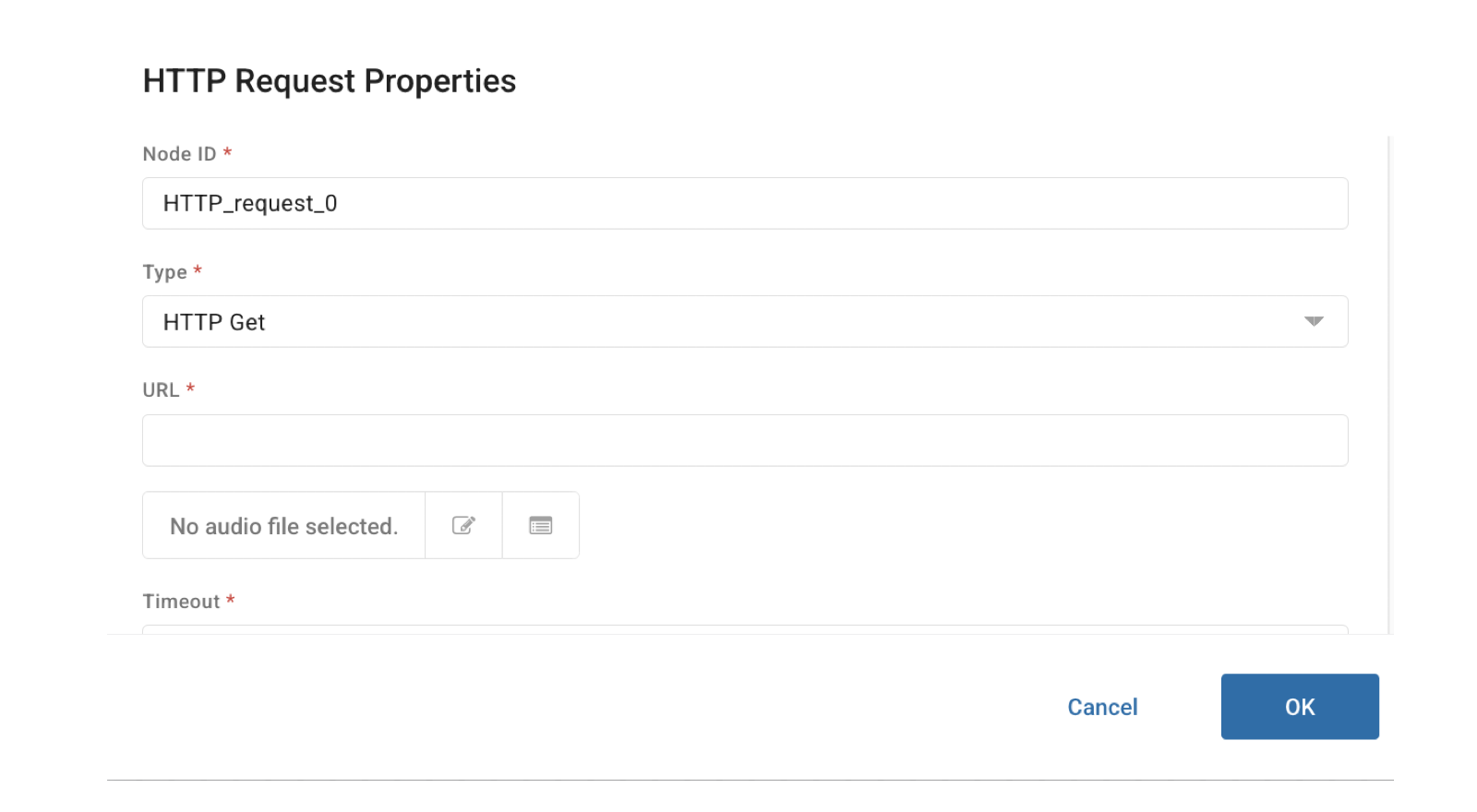
* Hover over the **HTTP Request** node, then click **Edit** .
Interaction context data can be used in multiple areas when configuring nodes in RingCX. For details on using interaction context for the HTTP Request node, visit [Managing data with interaction context support](https://support.ringcentral.com/article-v2/managing-data-with-interaction-context-support.html?brand=RingCentral&product=RingCX&language=en_US "").

* Type a **Node ID** for the node.
* Select the type of web integration from the **Type** dropdown. You have the following options:
* *HTTP Get*: Retrieves information about a REST API resource.
* *HTTP Post*: Creates a REST API resource.
* *HTTP Put*: Updates or replaces a REST API resource.
* *HTTP Patch*: Updates a REST API resource.
* Type the **URL** the workflow will use for the web integration.
* Select an**Audio File** to play while the workflow communicates with the external resource. You have the following options:
* Click the **Manual Entry** pencil and paper icon and provide the exact audio file name in the field that appears.
* Click the **Open Audio Library** table icon, select an audio file from a list of global or account-level audio files, then click **OK**.
* Enter a **Timeout** in seconds that determines how long the workflow waits for communication with the external resource before timing out.
* Complete the additional fields as needed depending on the type you selected.
* Click **OK**.
### Additional node properties
Additional HTTP type-specific properties appear depending on the web integration you select from the **Type** field. Most of these settings depend on the specific system you are communicating with. Some familiarity with web services and APIs may be necessary to configure this section.
* **Format** (*HTTP Post and HTTP Put only*): Determines the HTTP content to be included in a request. You can include URL values, XML, JSON, or Plain Text.
* **Name**: The customer-defined name of the variable. This is generally set by the system receiving the data.
* **Type** : Specifies the options for the *Mapping* field.
* *Call Data*: Values that pertain to the current workflow.
* *Workflow Variable*: The name of a variable defined in Workflow Studio (prefixed by the '$').
* *Fixed Value*: A constant alphanumeric string.
* **Mapping**: The data value to send for the current variable or header.
* **Variables** : Click **Add New** to add new variables used for an *HTTP Get request*.
* **Custom HTTP Headers** : Click **Add New** to add new headers used for an *HTTP Get request*.
* **Authentication** : Select external credentials from the dropdown or click **New credential**to add credentials for the external web service.
Configuring authentication
--------------------------
If your external system requires authentication, you can either select existing external credentials from the dropdown (A) or create a new credential by clicking the **New Credential** button (B).
For more information, visit [Setting up external credentials for authentication with RingCX Web Services](https://support.ringcentral.com/article-v2/Setting-up-external-credentials-for-authentication-with-RingCX-Web-Services.html?brand=RingCentral&product=RingCX&language=en_US "").

Accessing HTTP Request node results
-----------------------------------
After the HTTP Request node runs, its response, including the response body, headers, and status code, can be accessed using the JavaScript node. There are two ways to do this:
**workflow.nodes\['Node_ID'\].result (recommended)**: Works universally for all interactions and all triggers, including voice workflows on the Start trigger (IVR engine). The result is an already-parsed object, so no JSON.parse() is needed.
**ivr.getData("Node_ID") (legacy)**: Primarily used for existing voice workflows using the Start trigger. It returns the HTTP result in a single JSON string that requires two levels of parsing (see below).
Both approaches work on the Start trigger; they differ only in the format of the value they return for the HTTP Request node.
|---------------------------------------------|---------------------------------------------|------------------------------------------|------------------------------------------------------|
| **How to access results** | **Availability** | **Result format** | **Example** |
| workflow.nodes\['Node_ID'\].result.property | All interactions and triggers (recommended) | Already-parsed object, no parsing needed | workflow.nodes\['MyHTTPNode'\].result.body |
| ivr.getData("Node_ID" | Voice, Start trigger (legacy) | Single JSON string, requires parsing | var respObj = JSON.parse(ivr.getData("MyHTTPNode")); |
### Using workflow.nodes
For any interaction type and any trigger, including voice workflows on the Start trigger, the HTTP Request node result is available on the workflow.nodes object, keyed by the node's ID.
You can use workflow.nodes to access the response directly, and do not need to parse to a JSON object before accessing its fields.
* **Access Syntax**: workflow.nodes\['Node_ID'\].result.property
* **Response Body**: workflow.nodes\['Node_ID'\].result.body (JSON object, no parsing needed)
* **Status Code**: workflow.nodes\['Node_ID'\].result.statusCode
* **Headers**: workflow.nodes\['Node_ID'\].result.headers (an array of objects)
#### Response Example
After an HTTP request node runs GetCustomerInfo, the workflow.nodes\['GetCustomerInfo'\].result object would look like the following. Notice the body is already parsed into a JSON object.
```
{
"body": {
"user": {
"id": "u-12345",
"name": "Jane Doe",
"accountStatus": "Active",
"ticketCount": 5
},
"lastLogin": "2025-10-29T10:30:00Z"
},
"statusCode": 200,
"headers": [
{ "name": "Content-Type", "value": "application/json" },
{ "name": "Date", "value": "Wed, 29 Oct 2025 11:45:00 GMT" },
{ "name": "X-Request-ID", "value": "abc-123-xyz" }
]
}
```
#### Error handling
The following is an example of the code you may use in the JavaScript node following your HTTP request node (for example, GetCustomerInfo).
```
try {
// First, check if the response object exists. A timeout or network error could prevent it from being created.
if (workflow.nodes['GetCustomerInfo'].result && workflow.nodes['GetCustomerInfo'].result.statusCode) {
// --- Success Path (Status Code 200) ---
if (workflow.nodes['GetCustomerInfo'].result.statusCode === 200) {
// The response body is already a parsed object.
var responseBody = workflow.nodes['GetCustomerInfo'].result.body;
// Extract and store data
// We can access properties directly without JSON.parse()
interaction.userData.customerName = responseBody.user.name;
interaction.userData.accountStatus = responseBody.user.accountStatus;
workflow.debug("Successfully retrieved data for: Screen-reader: " + interaction.userData.customerName);
}
// --- Error Path (Status Code is not 200) ---
else {
var statusCode = workflow.nodes['GetCustomerInfo'].result.statusCode;
workflow.error("API request failed with status code: " + statusCode);
interaction.userData.apiCallFailed = true;
// Handle different HTTP error codes with specific user-facing messages
switch (statusCode) {
case 404:
interaction.userData.errorMessage = "Sorry, we could not find your record.";
break;
case 503:
interaction.userData.errorMessage = "The service is temporarily unavailable. Please try again later.";
break;
default:
interaction.userData.errorMessage = "We're sorry, an unexpected system error occurred.";
break;
}
}
} else {
// Handle cases where the HTTP node timed out or failed to execute, so no response was stored.
workflow.error("HTTP node did not return a response. It may have timed out.");
interaction.userData.apiCallFailed = true;
interaction.userData.errorMessage = "We're sorry, our system is experiencing delays. Please call back later.";
}
} catch (scriptError) {
// Catch any other unexpected script errors
workflow.error("An unexpected error occurred in the script: " + scriptError.message);
interaction.userData.apiCallFailed = true;
interaction.userData.errorMessage = "We're sorry, a critical system error occurred.";
}
```
### Using ivr.getData
The workflow.nodes approach above also works on the Start trigger and is recommended. However, voice workflows on the Start trigger can also retrieve results with the legacy ivr.getData() function, which many existing IVR workflows already use. This function returns the HTTP Request node result as a single JSON string, which requires two levels of parsing---the first for the response wrapper, the second for the response body itself.
The response structure includes the following:
|------------------|-----------------------------------------------------------------------------------------------------------------------------------------------------------------|
| **Property** | **Description** |
| response_body | The main content of the response (usually JSON or text) |
| response_headers | An array of response headers in plain string. Each header includes a name and value field, for example: { "name": "Content-Type", "value": "application/json" } |
| status_code | The HTTP status code (for example, 200 for success, 404 for not found) |
#### Response example
The function ivr.getData ("GetCustomerInfo") returns a single string in this format. Notice the response_body is an escaped string.
```
{
"status_code": 200,
"reason_phrase": "OK",
"response_body": "{\n \"user\": {\n \"id\": \"u-12345\",\n \"name\": \"Jane Doe\",\n \"accountStatus\": \"Active\",\n \"ticketCount\": 5\n },\n \"lastLogin\": \"2025-10-29T10:30:00Z\"\n}",
"response_headers": [
{ "name": "Content-Type", "value": "application/json" },
{ "name": "Date", "value": "Wed, 29 Oct 2025 11:45:00 GMT" },
{ "name": "X-Request-ID", "value": "abc-123-xyz" }
]
}
```
#### Error handling
The following is an example of the code you may use in the JavaScript node following your HTTP request node (for example, GetCustomerInfo).
```
try {
// 1. Get the raw response string from the IVR context
var rawResponse = ivr.getData("GetCustomerInfo");
if (rawResponse) {
// 2. Parse the outer response wrapper
var respObj = JSON.parse(rawResponse);
// --- Success Path (Status Code 200) ---
if (respObj.status_code === 200) {
// Use a try...catch block for parsing the *inner* response body
try {
// 3. Parse the inner response_body string to get the actual data
var responseBody = JSON.parse(respObj.response_body);
// Extract and store data
interaction.userData.customerName = responseBody.user.name;
interaction.userData.accountStatus = responseBody.user.accountStatus;
workflow.debug("Successfully retrieved data for: " + interaction.userData.customerName);
} catch (parseError) {
// Handle JSON parsing errors for the response_body
workflow.error("Failed to parse JSON response body: " + parseError.message);
interaction.userData.apiCallFailed = true;
interaction.userData.errorMessage = "Sorry, we encountered a data format error.";
}
}
// --- Error Path (Status Code is not 200) ---
else {
var statusCode = respObj.status_code;
workflow.error("API request failed with status code: " + statusCode);
interaction.userData.apiCallFailed = true;
// Handle different HTTP error codes with specific user-facing messages
switch (statusCode) {
case 404:
interaction.userData.errorMessage = "Sorry, we could not find your record.";
break;
case 503:
interaction.userData.errorMessage = "The service is temporarily unavailable. Please try again later.";
break;
default:
interaction.userData.errorMessage = "We're sorry, an unexpected system error occurred.";
break;
}
}
} else {
// Handle cases where the HTTP node timed out or failed to execute.
workflow.error("HTTP node did not return a response. It may have timed out.");
interaction.userData.apiCallFailed = true;
interaction.userData.errorMessage = "We're sorry, our system is experiencing delays. Please call back later.";
}
} catch (scriptError) {
// Catch any other unexpected script errors (e.g., the first JSON.parse)
workflow.error("An unexpected error occurred in the script: " + scriptError.message);
interaction.userData.apiCallFailed = true;
interaction.userData.errorMessage = "We're sorry, a critical system error occurred.";
}
```
Using the response data in your workflow
----------------------------------------
Once you have processed the HTTP response data, and stored the values in sessionData, you can use these variables to route the interaction in your workflow.
### Branching based on the results
Use a [**Branch** node](https://support.ringcentral.com/article-v2/What-nodes-can-do-in-RingCX-IVR-Studio-.html?brand=RingCentral&product=RingCX&language=en_US "") to create different paths for success and failure scenarios.
* In Workflow Studio, drag and drop a **Branch** node after your **JavaScript** node.
* Hover over the **Branch** node, then click **Edit** . Define your conditions as follows:
* **Success Condition** : interaction.userData.apiCallFailed !== true \&\& interaction.userData.accountStatus === 'Active'
* **Path**: Connect this to your standard flow for active customers.
* **Failure Condition** : interaction.userData.apiCallFailed === true
* **Path** : Connect this to an error-handling flow. For example, you could use a [**Say Variable**](https://support.ringcentral.com/article-v2/Using-the-Say-Var-node-in-the-RingCX-IVR-Studio.html?brand=RingCentral&product=RingCX&language=en_US "") node to play the interaction.userData.errorMessage and then transfer the interaction to an agent queue.
* **Else**: Create a default path for any other outcomes (for example, an inactive account).
### Playing data back
In your success path, you can provide personalized information to play the response back to the customer.
* In Workflow Studio, drag and drop a [**Say Variable**](https://support.ringcentral.com/article-v2/Using-the-Say-Var-node-in-the-RingCX-IVR-Studio.html?brand=RingCentral&product=RingCX&language=en_US "") node onto the background.
* Hover over the **Say Variable** node, then click **Edit**.
* From the **Type** dropdown, select **Text-to-Speech**.
* Enter the text to say in the **Say Value** field. For example, enter Hello, ${sessionData.customerName}. I see your account is active. How can I help you today?
In your failure path, you can provide a helpful error message.
* In Workflow Studio, drag and drop a [**Say Variable**](https://support.ringcentral.com/article-v2/Using-the-Say-Var-node-in-the-RingCX-IVR-Studio.html?brand=RingCentral&product=RingCX&language=en_US "") node onto the background.
* Hover over the **Say Variable** node, then click **Edit**.
* From the **Type** dropdown, select **Text-to-Speech**.
* Enter the text to say in the **Say Value** field. For example, enter ${interaction.userData.errorMessage}
This approach ensures your workflow handles both successful and failed API calls gracefully, regardless of the workflow type.
**Additional resources**
[Using Workflow Studio in RingCX](https://support.ringcentral.com/article-v2/Intro-to-IVR-Studio-in-RingCX.html?brand=RingCentral&product=RingCX&language=en_US "")
[Intro to workflows in RingCX](https://support.ringcentral.com/article-v2/Intro-to-IVR-Designer-in-RingCX.html?brand=RingCentral&product=RingCX&language=en_US "")
[Intro to workflow triggers in RingCX](https://support.ringcentral.com/article-v2/Intro-to-workflow-triggers-in-RingCX.html?brand=RingCentral&product=RingCX&language=en_US "")
[What nodes can do in RingCX IVR Studio](https://support.ringcentral.com/article-v2/What-nodes-can-do-in-RingCX-IVR-Studio-.html?brand=RingCentral&product=RingCX&language=en_US "")
[Creating a workflow in RingCX](https://support.ringcentral.com/article-v2/Creating-an-IVR-in-RingCX.html?brand=RingCentral&product=RingCX&language=en_US "")