Signing in to
RingCentral
===========================================================================================
If you or your admin [have changed or reset your
RingCentral
account password](https://support.ringcentral.com/article-v2/Changing-your-RingCentral-account-password.html?brand=RingCentral&product=RingEX&language=en_US ""), each
RingCentral
product will prompt you to sign in again.
Select where you want to sign in.
## RingCentral app
RingCentral
app for desktop, web, and mobile
--------------------------------------------------------------------------------------------------------------
* Open the
RingCentral
app on your computer or mobile device.
* Click or tap **Sign in**.
* Select how you want to sign in:
|-----------------------------------------------------------------------------------------------|--------------------------------------------------------------------------------------------------------------------------------------------------------------------------------------------------------------------------------------------------------------------------------------------------|
| ** RingCentral
credentials** | * Enter your RingCentral
email address or phone number. * Click or tap **Next**. * Enter your password and click or tap **Sign in** . If you're using a mobile phone, you can sign in with an express link sent to your email. |
| **Google account** | * Click or tap the **Google** button. * Select your Google account or **Use another account**. * Follow the prompts to sign in to your Google account. * Click or tap **Allow** if prompted. |
| **Apple ID** (mobile and web app) | * Click or tap the **Apple** button. * Select the Apple ID you want to use. * Click or tap **Continue**. |
| **Single sign-on** | * Click the **Single Sign-on**button. * Enter your email address. * Click **Submit**. |
**Additional resources**
[Troubleshooting
RingCentral
sign-in issues](https://support.ringcentral.com/article-v2/Unable-to-sign-in-to-RingCentral.html?brand=RingCentral&product=RingEX&language=en_US "")
[Changing or resetting your
RingCentral
account password](https://support.ringcentral.com/article-v2/Changing-your-RingCentral-account-password.html?brand=RingCentral&product=RingEX&language=en_US "")
## Admin Portal
Admin Portal
------------
* Go to the [
Admin Portal
](https://service.ringcentral.com "").
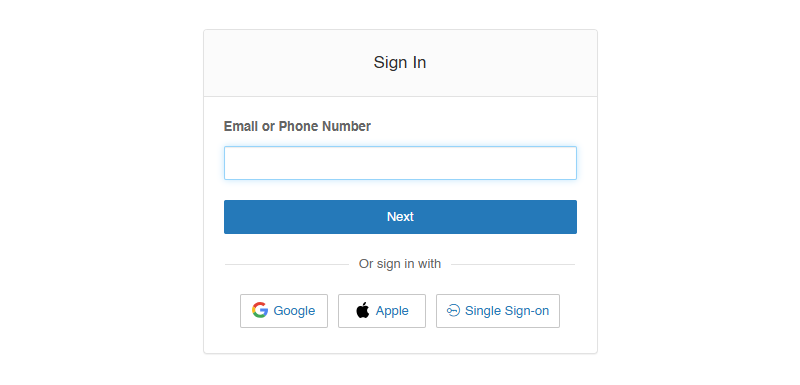
* Select how you want to sign in:
|-----------------------------------------------------------------------------------------------|----------------------------------------------------------------------------------------------------------------------------------------------------------------------------------------------|
| ** RingCentral
credentials** | * Enter your RingCentral
email address or phone number. * Click **Next**. * Enter your password and click **Sign in**. |
| **Google account** | * Click or tap the **Google** button. * Select your Google account or **Use another account**. * Follow the prompts to sign in to your Google account. * Click or tap **Allow** if prompted. |
| **Apple ID** | * Click or tap the **Apple** button. * Select the Apple ID you want to use. * Click or tap **Continue**. |
| **Single sign-on** | * Click the **Single Sign-on**button. * Enter your email address. * Click **Submit**. |
**Additional resources**
[Troubleshooting
RingCentral
sign-in issues](https://support.ringcentral.com/article-v2/Unable-to-sign-in-to-RingCentral.html?brand=RingCentral&product=RingEX&language=en_US "")
[Changing or resetting your
RingCentral
account password](https://support.ringcentral.com/article-v2/Changing-your-RingCentral-account-password.html?brand=RingCentral&product=RingEX&language=en_US "")
## My Account
My Account
----------
* Go to the [My Account page](https://support.ringcentral.com/myaccount.html "").
* Click **Sign in** .
Note
You can also click the **person** icon at the top right to access the **Sign in** button anywhere on the Support site.

* Select how you want to sign in:
|-----------------------------|---------------------------------------------------------------------------------------------------------------------------------------------------------------------------------------|
| **RingCentral credentials** | * Enter your RingCentral email address or phone number. * Click **Next**. * Enter your password and click **Sign in**. |
| **Google account** | * Click the **Google** button. * Select your Google account or **Use another account**. * Follow the prompts to sign in to your Google account. * Click or tap **Allow** if prompted. |
| **Single sign-on** | * Click the **Single Sign-on**button. * Enter your email address. * Click **Submit**. |
**Additional resources**
[Troubleshooting
RingCentral
sign-in issues](https://support.ringcentral.com/article-v2/Unable-to-sign-in-to-RingCentral.html?brand=RingCentral&product=RingEX&language=en_US "")
[Changing or resetting your
RingCentral
account password](https://support.ringcentral.com/article-v2/Changing-your-RingCentral-account-password.html?brand=RingCentral&product=RingEX&language=en_US "")
## RingCX
RingCX
------------------------------------------------------------------------
Visit [Signing in to
RingCX
and setting up your agent session](https://support.ringcentral.com/article-v2/Logging-in-to-the-RingCX-agent-interface.html?brand=RingCentral&product=RingCX&language=en_US "") for details on accessing the standalone
RingCX
app or
RingCX
in the
RingCentral
app.
## Contact Center
Contact Center
--------------
* Go to the [
RingCentral
Contact Center](http://ringcentral.nice-incontact.com/ "") sign-in page.
* Enter your **Username** and click **Next**.
* Enter your **Password** and click **Sign In**.
If you're having trouble logging in, visit the [Contact Center login process](https://help.nice-incontact.com/content/globalfeatures/authenticationandauthorization/loginprocess.htm?Highlight=login "") troubleshooting guide.