Using the standalone window for phone calls in the
RingCentral
app
====================================================================================================================================
You can manage phone calls using the standalone call window feature in the
RingCentral
app. The keypad window opens automatically, giving you a separate space for handling your calls.
Having a separate window allows you to focus on calls without being distracted by the main app window.
Once you turn on the standalone window feature, all calls will occur in that window. The window will close when the call ends.
Note: If you've turned on the [new app layout](https://support.ringcentral.com/article-v2/The-new-RingCentral-app-layout.html?brand=RingCentral&product=RingEX&language=en_US ""), you can use the pop-out keypad feature to handle calls in the standalone window.
Turning on the standalone window feature
----------------------------------------
* Click **Settings** in the navigation bar.
* Click **Phone** in the left pane.
* Under **General** , turn on the **Use standalone window for phone calls** toggle.

* If you want the keypad window to always stay in the foreground of the app, click **Manage** to the left of the toggle, then check the box next to **Always keep phone call window in front** .
Note: If checked, you can't move your keypad to a separate area on your screen.
* Click **Save** .

Using the standalone window for phone calls
-------------------------------------------
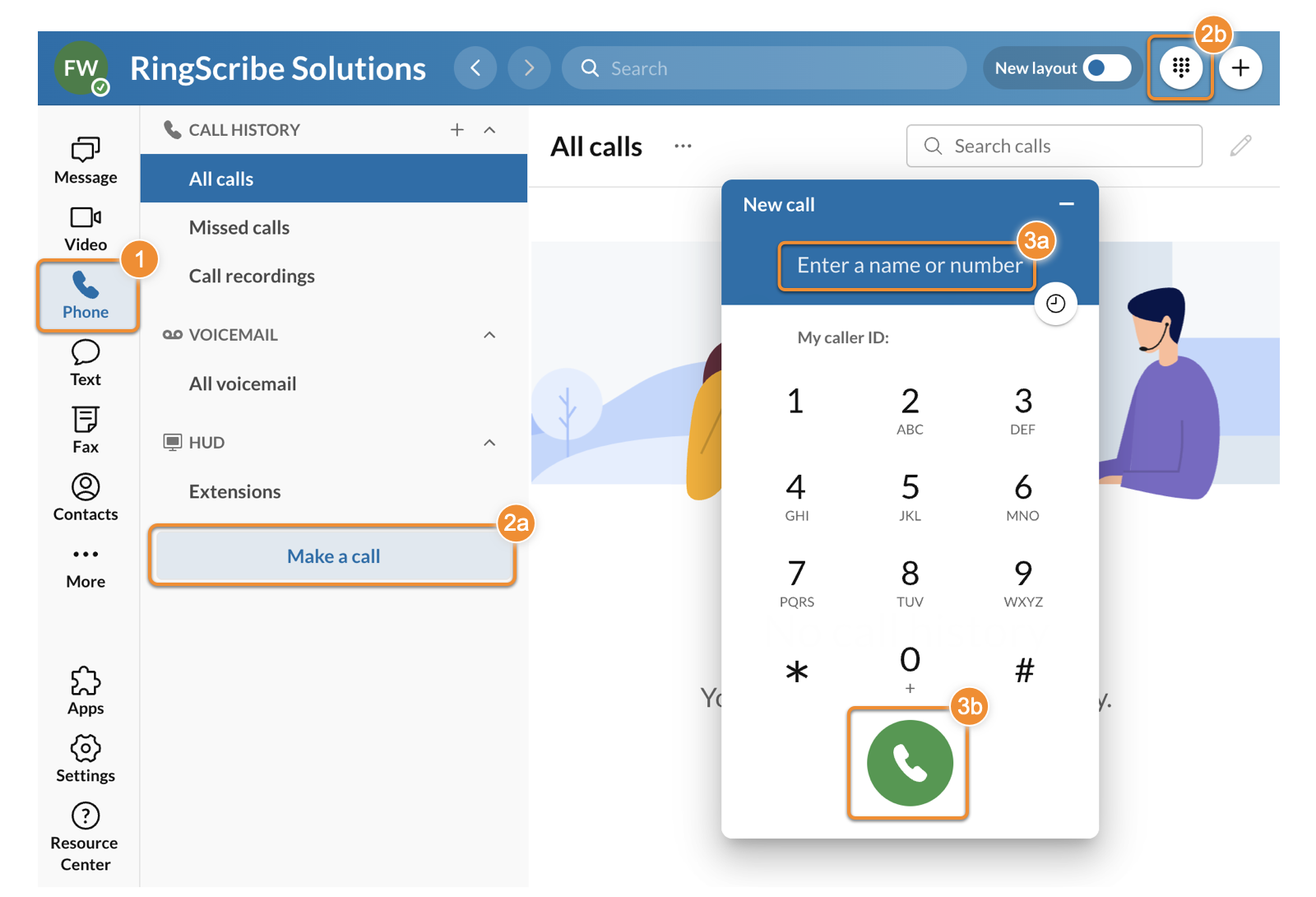
* Click **Phone** in the navigation bar.
* To open the keypad, click **Make a call** (a) in the left panel, or click the **Keypad** button (b) on the top right.
* Enter a name, number, or extension on the keypad (a), then select the contact you'd like to call. You can also enter a number, and then click the **Call** button (b) to start the call.
You can also make a phone call by clicking the **Phone** icon whenever it's beside a contact's name. When clicked, the standalone window will open, and the phone number will be dialed.

**Additional resources:**
[Making and receiving calls](https://support.ringcentral.com/article-v2/making-receiving-calls-desktop-web-app.html?brand=RC_US&product=RingCentral_App_Desktop&language=en_US "")