Applying a Template to a user
=============================
This article provides instructions on how to apply a template to a user.
Only Super Admins, User Admins, and Users with User Admin access can apply multiple templates with different settings to the user. Template settings override the corresponding existing user configuration. There is no option to remove a template once applied to a user. An admin would need to either manually change the settings or create and apply another template to change the settings.
Applying a template via the Users List
--------------------------------------
* Go to the [
Admin Portal
](https://service.ringcentral.com "") and sign in.
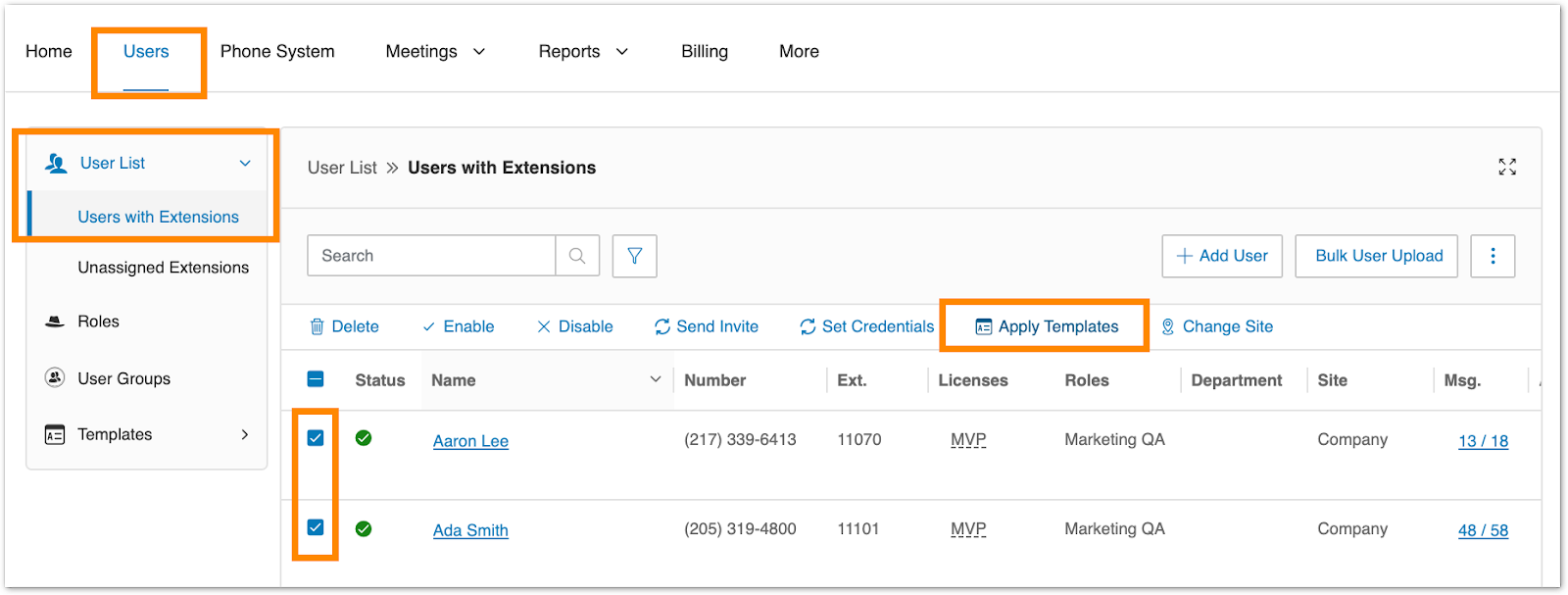
* Go to **Users \> Users List \> Users with Extensions**.
* Select the number of users.
* Click **Apply Templates** .
* Select a template to apply.
* Click **Apply Template**.
* Click **Continue** to confirm that you are about to make settings changes for all the selected user(s). This will overwrite any configuration the user might have done previously.
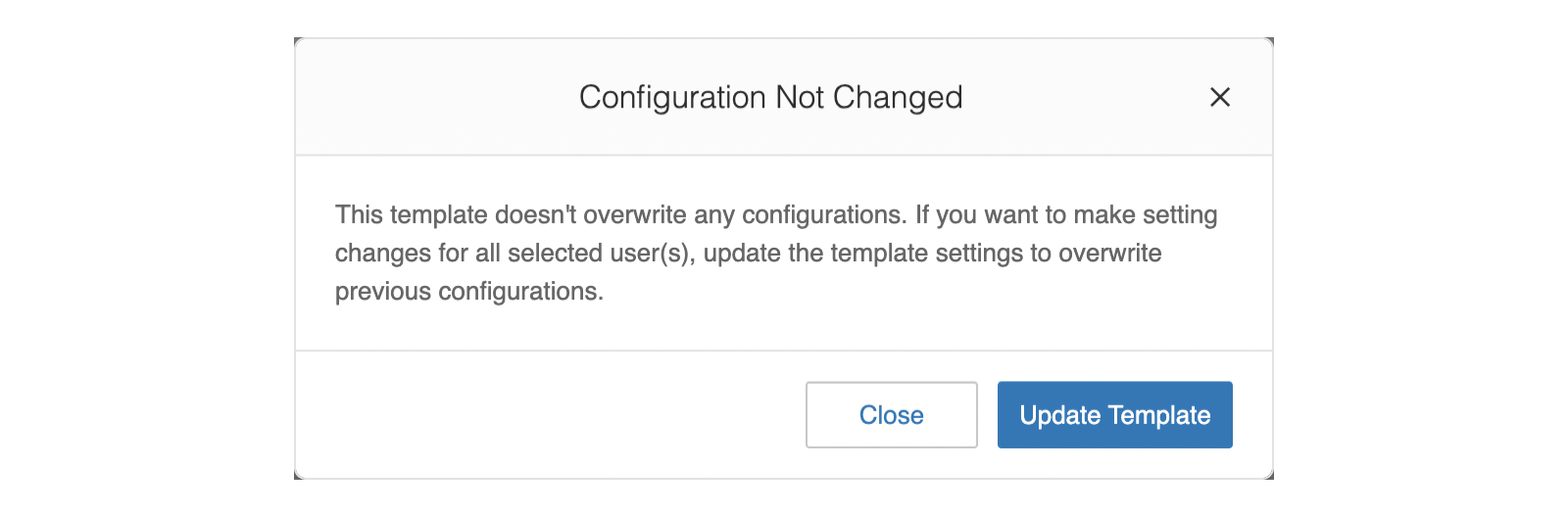
Note: A pop-up window may appear if the selected template has the same settings as the previously assigned template. Click **Update Template** to update the template settings to overwrite previous configurations.
* An email will be sent to you when it's completed. You may choose to notify active users of the change by email and also add more recipients. Click **Apply Template**.
Applying a template via User Settings under Templates
-----------------------------------------------------
* Go to the [
Admin Portal
](https://service.ringcentral.com "") and sign in.
* Go to **Users \> Templates \> User Settings**.
* Click the **More** menu at the far right of the template you want to use and select **Apply** .

* Select the users to whom the template should be assigned and click **Apply** from the pop-up menu.
* Click **Continue** on the prompt to confirm that the template will be applied to the selected users.
Note: A pop-up window may appear if the selected template has the same settings as the previously assigned template. Click **Update Template** to update the template settings to overwrite previous configurations.

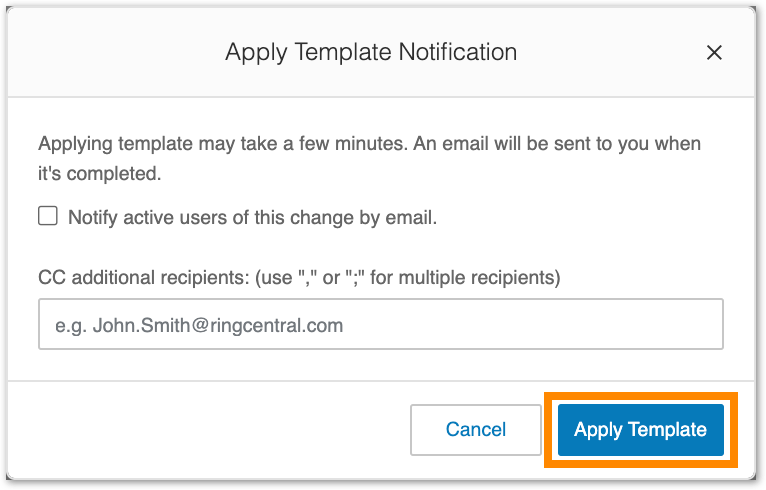
* An email will be sent when the template application is complete. You can tick on the box to notify only active users. You can also enter the additional recipients in the CC additional recipients field.
* Click **Apply Template** .
Applying a template via User Details
------------------------------------
* Go to the [
Admin Portal
](https://service.ringcentral.com "") and sign in.
* Go to **Users \> Users with Extensions**.
* Select a user to whom you want to apply a template.
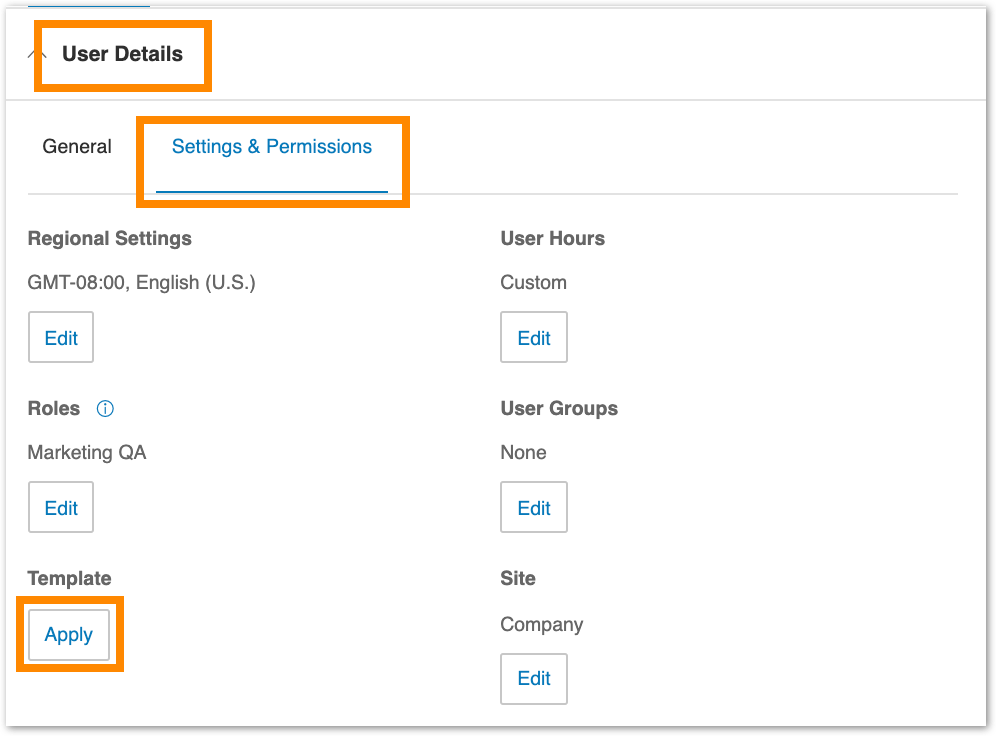
* Go to **User Details \> Settings \& Permissions**.
* Click **Apply** under **Template** .
* Select a template from the popup window.
* Click **Apply Template** .
Note: A pop-up window may appear if the selected template has the same settings as the previously assigned template. Click **Update Template** to update the template settings to overwrite previous configurations.

Applying a template when adding users
-------------------------------------
You can apply a template when adding users. You will see the option on the *Add Users* window.
* Click **Select** in the *Add Users* window.

* Select a template from the popup window.
* Click **Select**.
* Confirm your selected template in the popup window.
* If you have selected a template that overrides existing user settings, click **Confirm** .

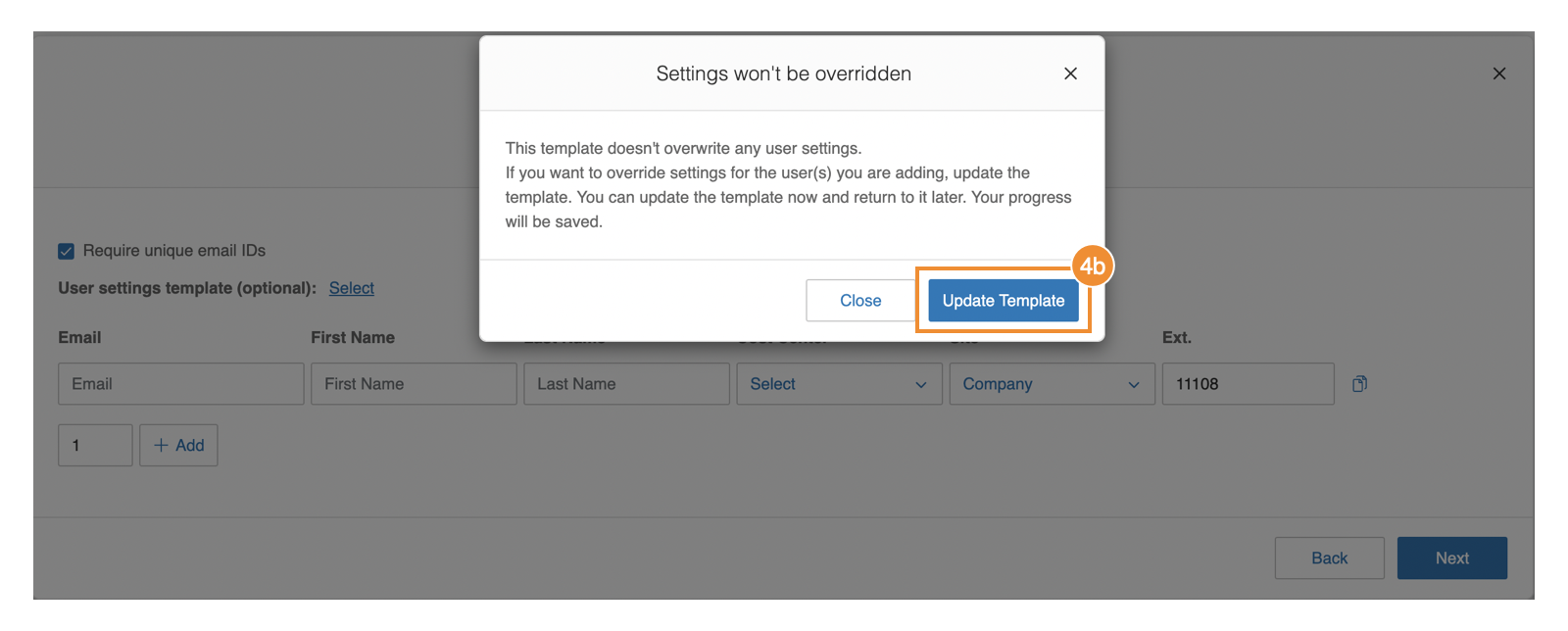
* If you have selected a template that doesn't overwrite any user settings, click **Update Template** to update right away or click **Close** to add the user and assign a template later.
Note: You can update the template right away and return to it later. Your progress will be saved.
* Continue the process of adding a user.