Using phone call controls in the
RingCentral
app
==================================================================================================================
You can control an active call with options like muting your call, putting it on hold, transferring it, and more.
Select where you want to use call controls.
## Desktop & web
Phone calls appear in a separate window with the name and number of the other person displayed at the top. Below that, use the following options to control an active call:
* **Network quality indicator** : Click the signal bar icon at the top left to check the quality of your network connection. You can click **Report Issue** at the bottom for any audio issues.
* **Background noise reduction**: Click the audio icon at the top left to reduce background noise.
* **Mute** : Click to mute your call. Click **Unmute** to continue speaking. You can also check your voice volume by looking at the volume meter when you speak.
* **Keypad**: Click to open the keypad. You can type numbers in the field at the top or click numbers on the pad.
* **Audio** : Click to [change your microphone, speaker, or volume](https://support.ringcentral.com/article-v2/Setting-up-your-microphone-and-speakers-for-RingEX-calls.html?brand=RingCentral&product=RingEX&language=en_US "").
* **Add** : Click to [add one or more participants to the call](https://support.ringcentral.com/article-v2/Adding-participants-to-phone-calls-in-the-RingCentral-app.html?brand=RingCentral&product=RingEX&language=en_US "").
* **Hold** : Click to [put the call on hold](https://support.ringcentral.com/article-v2/Placing-calls-on-hold-in-the-RingCentral-app.html?brand=RingCentral&product=RingEX&language=en_US ""). When a call is on hold, participants aren't able to hear each other.
* **Transfer** : Click to [transfer the call to another location](https://support.ringcentral.com/article-v2/Transferring-a-call-in-the-RingCentral-app.html?brand=RingCentral&product=RingEX&language=en_US ""). This is the only available control when a call is on hold. You can't record, park, or flip the call while it's on hold.
* **Record** : Click to start [recording the call](https://support.ringcentral.com/article-v2/Recording-phone-calls-in-the-RingCentral-app.html?brand=RingCentral&product=RingEX&language=en_US ""). Click **Stop** when you're done.
* **Notes** : Click to use [AI-powered notes](https://support.ringcentral.com/article-v2/Using-smart-notes-for-phone-calls-in-the-RingCentral-app.html?brand=RingCentral&product=RingEX&language=en_US "") to summarize your phone calls automatically. This feature is part of the [RingCentral AI Assistant](https://support.ringcentral.com/article-v2/Intro-to-the-RingCentral-AI-Assistant.html?brand=RingCentral&product=RingEX&language=en_US ""). Availability will depend on your plan.
* **Screen share** : Click to [switch from a voice call to a
RingCentral
Video meeting and share your screen](https://support.ringcentral.com/article-v2/Using-Call-to-Video-in-the-RingCentral-app.html?brand=RingCentral&product=RingEX&language=en_US "").
* **Closed captions** : Click to [turn on closed captions](https://support.ringcentral.com/article-v2/Using-closed-captions-and-live-transcription-for-RingCentral-phone-calls.html?brand=RingCentral&product=RingEX&language=en_US "").
* **End call**: Click to hang up.
* **More** : Click for additional options. These options may appear on the main screen, depending on your account plan:
* **Park** : Click to [park the call](https://support.ringcentral.com/article-v2/Parking-and-retrieving-calls-in-the-RingCentral-app.html?brand=RingCentral&product=RingEX&language=en_US ""). This will put the call on hold until it's picked up from the parked location.
* **Flip** : Click to [flip your call to a different number](https://support.ringcentral.com/article-v2/Flipping-a-call-in-the-RingCentral-app.html?brand=RingCentral&product=RingEX&language=en_US ""). Hover over this option and select the device where you'd like to flip your call.
* **End-to-end encrypted call** : Click to [use End-to-end encryption](https://support.ringcentral.com/article-v2/Using-End-to-end-encryption-for-RingCentral-phone-calls.html?brand=RingCentral&product=RingEX&language=en_US "") for a phone call to other users within your organization's account.
## Mobile
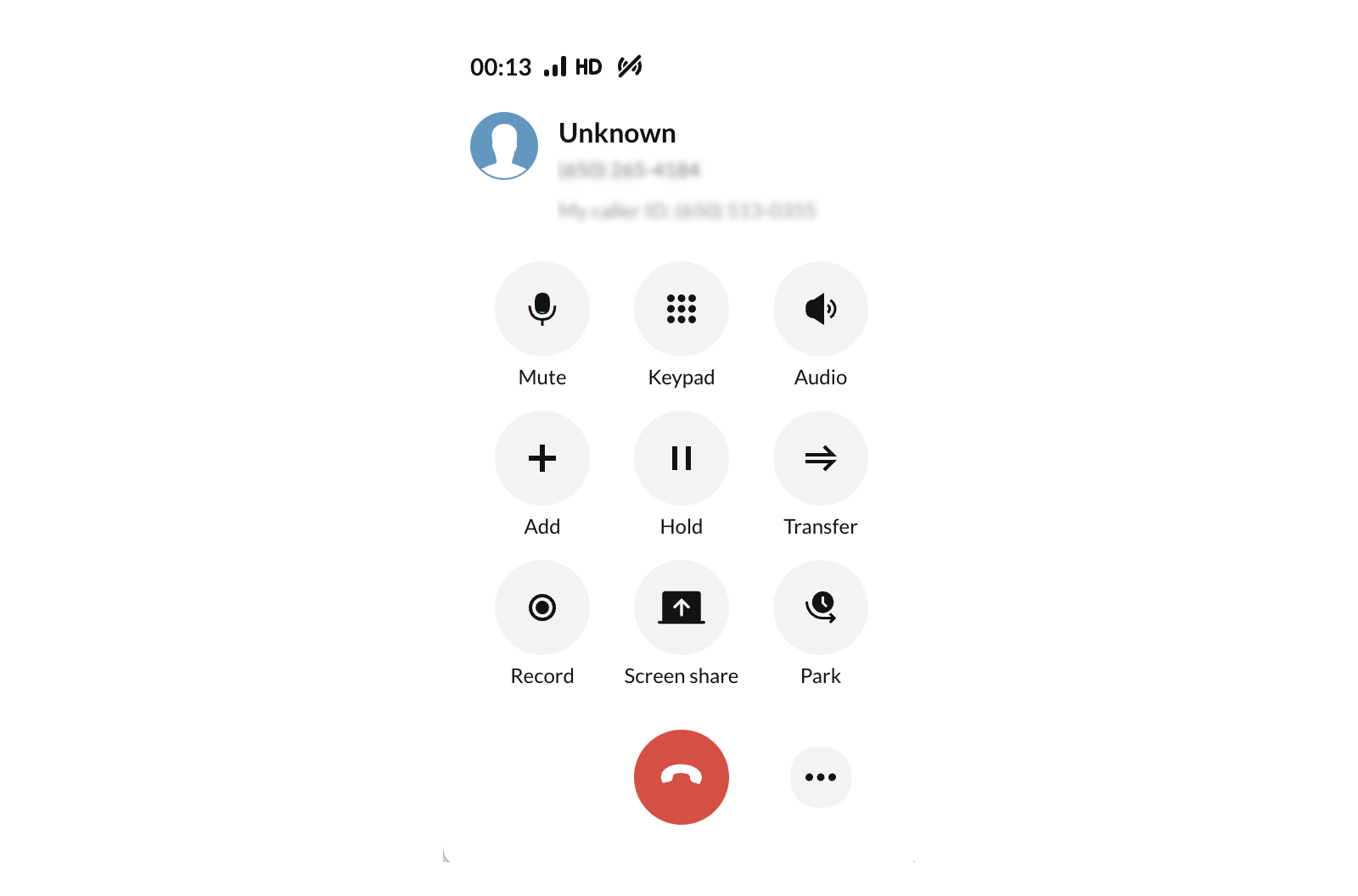
On the mobile app call screen, you'll see the name and number of the other person displayed at the top. Below that, use the following options to control an active call:
* **Network quality indicator** : Tap the signal bar icon at the top left to check the quality of your network connection. You can tap **Report Issue** at the bottom for any audio issues.
* **Background noise reduction** : Tap the blue audio icon at the top left to reduce background noise. You can also turn this feature on or off in the **Phone settings**.
* **Mute** : Tap to mute your call. Tap **Unmute** to continue speaking. You can also check how loud your voice is by looking at the volume meter when you speak.
* **Keypad**: Tap to open the keypad.
* **Speaker** : Tap to turn your device's loudspeaker on or off.
Note: The **Speaker** icon will be replaced by the **Audio** icon when a bluetooth device is connected to the mobile phone.
* **Add** : Tap to [add one or more participants to the call](https://support.ringcentral.com/article-v2/Adding-participants-to-phone-calls-in-the-RingCentral-app.html?brand=RingCentral&product=RingEX&language=en_US&pills-nav=mobile "").
* **Hold** : Tap to [put the call on hold](https://support.ringcentral.com/article-v2/Placing-calls-on-hold-in-the-RingCentral-app.html?brand=RingCentral&product=RingEX&language=en_US&pills-nav=mobile ""). When a call is on hold, participants aren't able to hear each other.
* **Transfer** : Tap to [transfer the call to another location](https://support.ringcentral.com/article-v2/Transferring-a-call-in-the-RingCentral-app.html?brand=RingCentral&product=RingEX&language=en_US&pills-nav=mobile "").
* **Record** : Tap to start [recording the call](https://support.ringcentral.com/article-v2/Recording-phone-calls-in-the-RingCentral-app.html?brand=RingCentral&product=RingEX&language=en_US&pills-nav=mobile ""). Tap **Stop** when you're done.
* **Notes** : Tap to use [AI-powered notes](https://support.ringcentral.com/article-v2/Using-smart-notes-for-phone-calls-in-the-RingCentral-app.html?brand=RingCentral&product=RingEX&language=en_US&pills-nav=mobile "") to summarize your phone calls automatically. This feature is part of the [RingCentral AI Assistant](https://support.ringcentral.com/article-v2/Intro-to-the-RingCentral-AI-Assistant.html?brand=RingCentral&product=RingEX&language=en_US ""). Availability will depend on your plan.
* **Screen share** : Tap to [switch from a voice call to a
RingCentral
Video meeting and share your screen](https://support.ringcentral.com/article-v2/Using-Call-to-Video-in-the-RingCentral-app.html?brand=RingCentral&product=RingEX&language=en_US&pills-nav=mobile "").
* **Carrier**: Tap to switch from a VoIP call to a mobile carrier call without disconnecting.
* **Closed captions** : Tap to [turn on closed captions](https://support.ringcentral.com/article-v2/Using-closed-captions-and-live-transcription-for-RingCentral-phone-calls.html?brand=RingCentral&product=RingEX&language=en_US&pills-nav=mobile "").
* **End call**: Click to hang up.
* **More** : Tap for additional options. These options may appear on the main screen, depending on your account plan:
* **Park** : Tap to [park the call](https://support.ringcentral.com/article-v2/Parking-and-retrieving-calls-in-the-RingCentral-app.html?brand=RingCentral&product=RingEX&language=en_US&pills-nav=mobile ""). This will put the call on hold until it's picked up from the parked location.
* **Flip** : Tap to [flip your call to a different number](https://support.ringcentral.com/article-v2/Flipping-a-call-in-the-RingCentral-app.html?brand=RingCentral&product=RingEX&language=en_US&pills-nav=mobile#mobile "").
* **End-to-end encrypted call** : Tap to [use End-to-end encryption](https://support.ringcentral.com/article-v2/Using-End-to-end-encryption-for-RingCentral-phone-calls.html?brand=RingCentral&product=RingEX&language=en_US&pills-nav=mobile "") for a phone call to other users within your organization's account.
