Using the
RingCentral
for Google Chrome extension
===================================================================================================================
The
RingCentral
for Google Chrome extension gives you access to key communication features from anywhere on the web. By installing the extension, you can seamlessly integrate the
RingCentral
communication features with Google Cloud to simplify workflows.
Note
This Chrome extension is an older version of the RingCentral integration. You can upgrade to the latest version from within the app. For details about the new experience, visit [Using RingCentral for Google](https://support.ringcentral.com/article-v2/2104.html?brand=RingCentral&product=RingEX&language=en_US "").
Key features
------------
###
RingCentral
for Google
* Access
RingCentral
from any web page in the Google Chrome browser.
* Visit the
RingCentral
message hub to view and respond to texts, voicemails, and faxes.
* View your complete communications history, including calls, texts, and voicemails.
* Manage call handling settings and active call controls.
* Combine
RingCentral
and Google contacts in one searchable screen.
* Click to call or text phone numbers from any web page.
* Set your presence status and view your team members'
RingCentral
and Google presence.
* Schedule
RingCentral
Video meetings directly from your Google Calendar.
Installing and launching the
RingCentral
for Google Chrome extension
--------------------------------------------------------------------------------------------------------------------------------------
You can quickly [install the
RingCentral
for Google Chrome extension](https://chromewebstore.google.com/detail/ringcentral-for-google/fddhonoimfhgiopglkiokmofecgdiedb?pli=1 "") from the Chrome Web Store. Admins can also [install the extension](https://support.google.com/chrome/a/answer/6306504?hl=en "") for multiple users.
After the
RingCentral
for Google Chrome extension is installed:
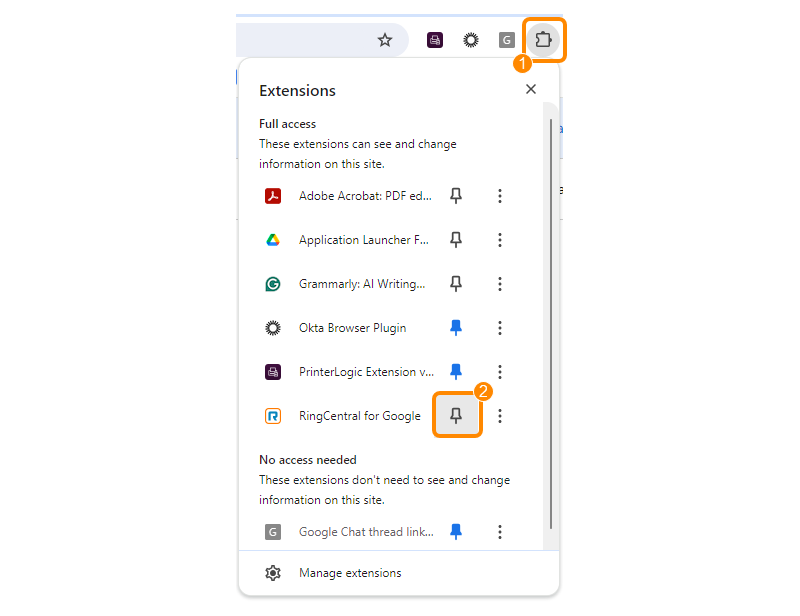
* Click the **Extensions** icon in your Google Chrome browser toolbar.
* Click the **Pin** icon next to
RingCentral
for Google to add the extension to your toolbar.
* Click the
RingCentral
icon, then sign in with your
RingCentral
credentials.
* First-time users need to authorize
RingCentral
Quick Access and choose where they would like the option to appear while using Google Chrome:
* *Only show in Google apps*
* *Only show in Microsoft 365 apps*
* *Show on all websites except my blocklist*
* *Show on websites I specify*
Using the
RingCentral
for Google Chrome extension
-------------------------------------------------------------------------------------------------------------------
Once you've installed the extension, you can start using your
RingCentral
communication features.
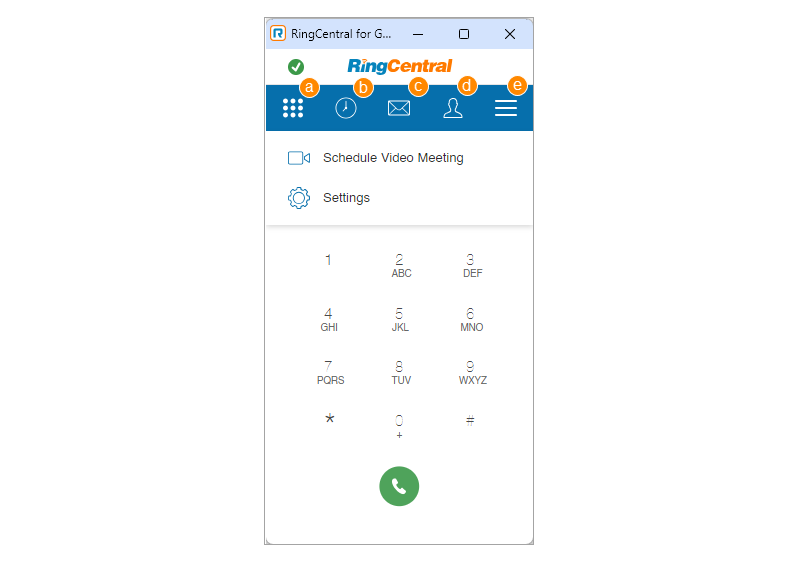
* **Phone** (a): Make and receive calls from the dialpad and access advanced active call controls.
* **History** (b): View your recent call history and call or text the contacts from this list.
* **Messages** (c): View all received voicemails, fax documents, and text messages. Send new text messages, search, and call contacts.
* **Contacts** (d): Access your contacts, filter by Company and Personal, and call or text individuals from the contacts list.
* **More Menu** (e):
* **Schedule Video Meeting** : [Install the
RingCentral
for Google Workspace Add-on](https://support.ringcentral.com/article-v2/9847.html?brand=RC_US&product=RingEX&language=en_US "") to schedule a
RingCentral
Video meeting and update the meeting settings.
* **Settings** : Choose how to make and receive your calls, update your call settings, change your presence status, turn on Click to Dial/SMS, sign in to your Google or Microsoft account, provide feedback to
RingCentral
, update where the Quick Access option appears, see what's new in the extension, and logout.
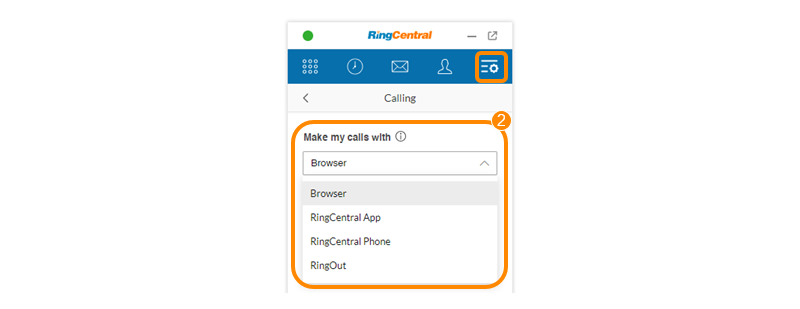
Under **Settings**, change how your calls are placed:
* Click **Calling**.
* Under Make my calls with, select *Browser* , *
RingCentral
app* , *
RingCentral
Phone* , or *RingOut*.
* Click **Save**.
Turning on **Click to Dial/SMS** under **Settings** allows you to call or text a number listed on a website by clicking the phone number. You can also connect your Google and Microsoft accounts to easily access contacts in your directories on those platforms.
