Completing your initial account setup
=====================================
After you complete your purchase of Business-Analytics-data-dictionary, you can use the account setup wizard to immediately select business hours, set up a company greeting, add users, and manage call handling. A visual of your call flow will build as you complete the steps in the setup.

## Single user accounts
Getting started with your single user account setup
---------------------------------------------------
### Set your business hours
To set your business hours:
* Click **Get started**.
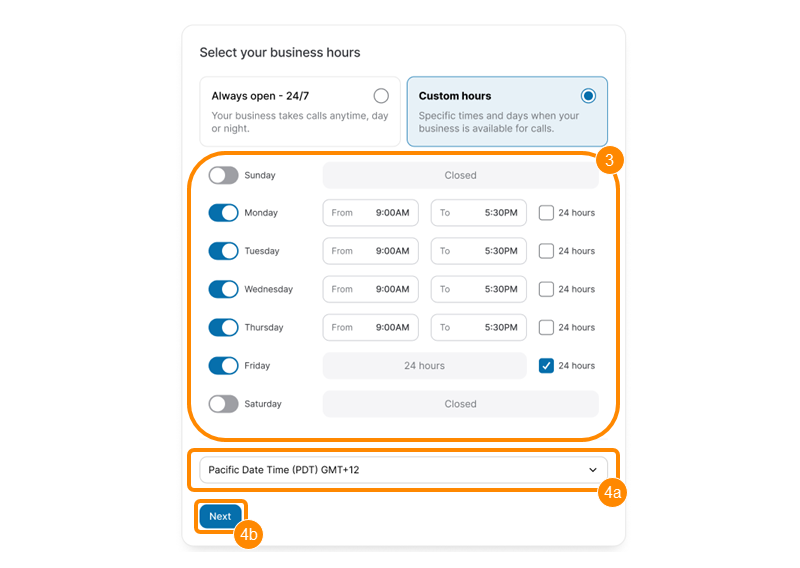
* Select when your business is available to take calls.
* **Always open - 24/7**: Your business takes calls anytime, day or night.
* **Custom hours**: Specific times and days when your business is available for calls.

* If you select **Custom Hours**, choose the days and times your business is available.
* Set your time zone (a), then click **Next** (b).
### Set up your company greeting
To set up your company greeting:
* Select how you'd like to answer calls.
* **Play welcome message**: Callers will be connected to you after the message plays. You can record your own message or use the default message. If you select the default message, choose your preferred voice and tone.
* **Connect to me**: Callers will reach your extension directly.
* **Send directly to voicemail**: Callers will be sent straight to voicemail. You can record your own voicemail greeting or use the default greeting. If you select the default greeting, choose your preferred voice and tone.

* Click **Next**.
* If you'd like to screen your calls, click the **Ask for name** toggle on. Select an option from the **Ask when** dropdown.
* *No Caller ID*
* *Not in contact list*
* *Always*
* Click **Next**.
### Set up your call handling
To set up your call handling:
* If you'd like calls to reach additional phone numbers, click **Add Number** and enter the number.
* Select an option from the dropdown to choose what happens if no one answers the call.
* *Send to voicemail* - Record your own voicemail greeting or use the default greeting. If you select the default greeting, choose your preferred voice and tone.
* *Forward the call* - Send the call to another user extension or external phone number.
* *Play announcement* - Select a default announcement in your preferred voice and tone, or record a custom announcement.
* Click **Next** .

Note: If you choose custom hours, you will repeat the company greeting and call handling steps to set up the caller experience for after business hours.
### Test your setup
You can test your setup in the final step of the onboarding process. You'll be prompted to dial your phone number and confirm that the call flow is working as expected.
When you click **Finish** , you'll be directed to access the
RingCentral
app in your browser or download the desktop app.
## Multi-user accounts
Getting started with your multi-user account setup
--------------------------------------------------
The account setup wizard will walk you through adding basic company details, team members, and call handling to get your account up and running.
### Set your business hours
To set your business hours:
* Click **Get started**.
* Select when your business is available to take calls.
* **Always open - 24/7**: Your business takes calls anytime, day or night.
* **Custom hours**: Specific times and days when your business is available for calls.

* If you select **Custom Hours**, choose the days and times your business is available.
* Set your time zone (a), then click **Next** (b).

### Add team members
The number of licenses you have available will appear in this section. To add users and set up phone numbers for your team:
* Click **Add team member** .

* Enter the user details:
* **First and last name**
* **Email**
* **RingCentral phone number**: The phone number will be automatically assigned and can't be changed.
* **Extension**
* Click the toggle on if you'd like to forward calls to another phone number, then enter the number. Calls can be forwarded to a device if users don't install the RingCentral app.
* Click **Add** .

* Repeat these steps to create additional users.
* Click **Next**.
Note: If you need to edit or remove users, click the **pencil** icon next to the user's name.
### Set up your company call handling
To set up your company call handling:
* Select the first step for incoming calls.
* **Play company greeting** : Callers will hear a default or custom greeting before the call is connected.
* Click the toggle on to allow callers to select a name from the dial-by-name directory.
* Select an action if no name is selected in the directory.
* **Connect to a team member** : Callers will reach a selected extension directly.
* Add the team member from the **Select a team member** dropdown or **Add a team member** to answer incoming calls.
* **Send to voicemail** : Callers will be sent straight to voicemail.
* Add a team member from the **Voicemail to direct calls to** dropdown or **Add a team member** to receive voicemails.
* The team member's voicemail greeting will display.
* Click **Next** .

### Set up your personal call handling
To set up your personal call handling:
* If you'd like to screen your calls, click the **Ask for name** toggle on. Select an option from the **Ask when** dropdown.
* *No Caller ID*
* *Not in contact list*
* *Always*
* Click **Next** .

* If you'd like calls to reach additional phone numbers, click **Add Number** and enter the number.
* Select an option from the dropdown to choose what happens if no one answers the call.
* *Send to voicemail* - Record your own voicemail greeting or use the default greeting. If you select the default greeting, choose your preferred voice and tone.
* *Forward the call* - Send the call to another user extension or external phone number.
* *Play announcement* - Select a default announcement in your preferred voice and tone, or record a custom announcement.
* Click **Next** .

Note: If you choose custom hours, repeat the call handling steps to set up the caller experience for after business hours.
### Test your setup
You can test your setup in the final step of the onboarding process. You'll be prompted to dial your phone number and confirm that the call flow is working as expected.
When you click **Finish** , you'll be directed to access the
RingCentral
app in your browser or download the desktop app.