Creating a new team in the
RingCentral
app
============================================================================================================
In the
RingCentral
app, teams are useful for discussing a specific task, project, or topic. The person who creates a team is the team admin and can manage its settings. You can create, duplicate, or convert a group message to a team.
Your company admin controls whether users can create teams and [what types of teams can be created](https://support.ringcentral.com/article-v2/Managing-the-types-of-teams-users-can-create.html?brand=RingCentral&product=RingEX&language=en_US "").
Where do you want to create a new team?
## Desktop & web
Creating a team in the desktop and web app
------------------------------------------
Teams can be created in New actions, from your [
Message
s](#message-tab ""), by [converting an existing conversation](#covert-group "") into a team, or by [duplicating an existing one](#duplicate "").
### Creating a team using the New actions button
* Click the **New actions** plus icon at the top right.
* Select *Create new team* from the dropdown.

* Enter a **Team name**.
* In the **Members** field, add people by entering their names or email addresses.
* Describe your team in the **Team description** field (optional).
* In the **Type of team** dropdown, select *Private* or *Public* .
* Users can search for and join any public team.
* An invitation is required to add users to a private team.
* Click the toggles on or off to [manage your team's settings](#team-settings "").
* Click **Create**.
Note
If you've added a non-
RingCentral
user to a team using their email address, they'll receive an invite that asks them to set up a
RingCentral
account. Once they do, they'll be added to the team [as a guest](https://support.ringcentral.com/article-v2/Guest-indicators-in-the-RingCentral-app.html?brand=RingCentral&product=RingEX&language=en_US "").
### Creating a team from the
Message
tab
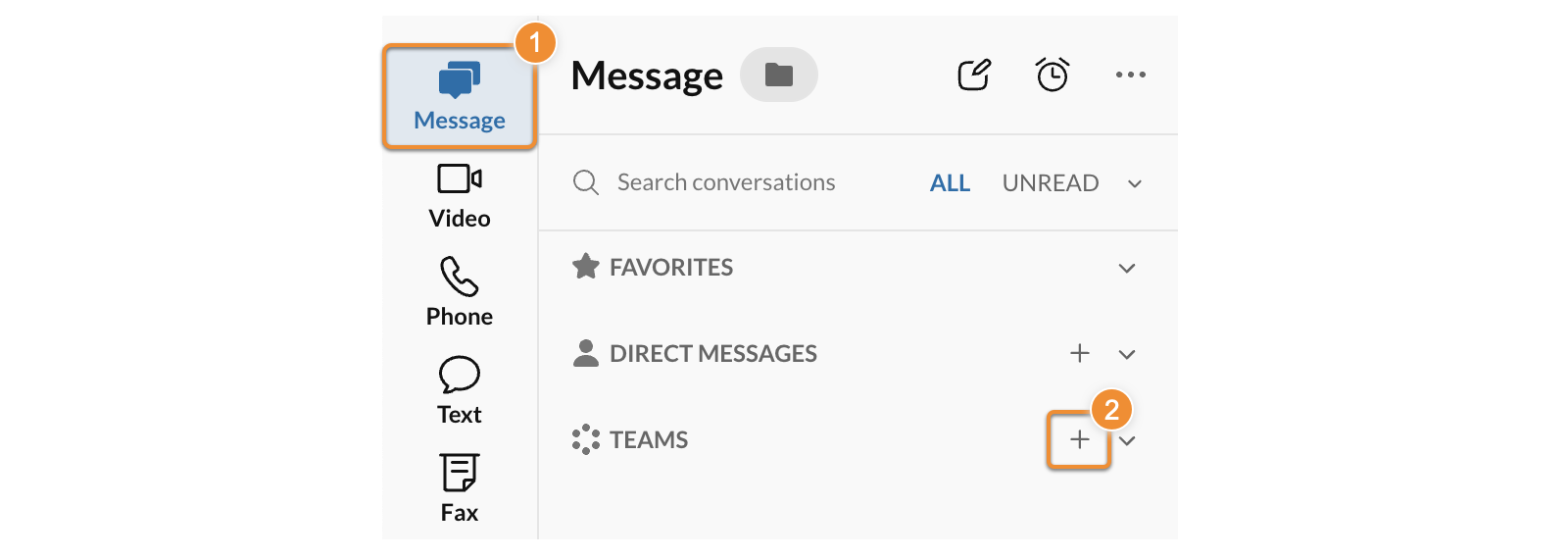
* In the navigation bar, click **
Message
**.
* Click the **Create team** plus icon next to Teams. This option is available only when the **Show folders** view is on. Click the folder icon at the top to change the view.
* Enter a **Team name**.
* In the **Members** field, add people by entering their names or email addresses.
* Describe your team in the **Team description** field (optional).
* In the **Type of team** dropdown, select *Private* or *Public* .
* Users can search for and join any public team.
* An invitation is required to add users to a private team.
* Click the toggles on or off to [manage your team's settings](#team-settings "").
* Click **Create** .

### Converting a group into a team
When you're in a group conversation, you may realize that it would work better as a team. Instead of creating a new team and losing your message history, you can convert an existing group into a team.
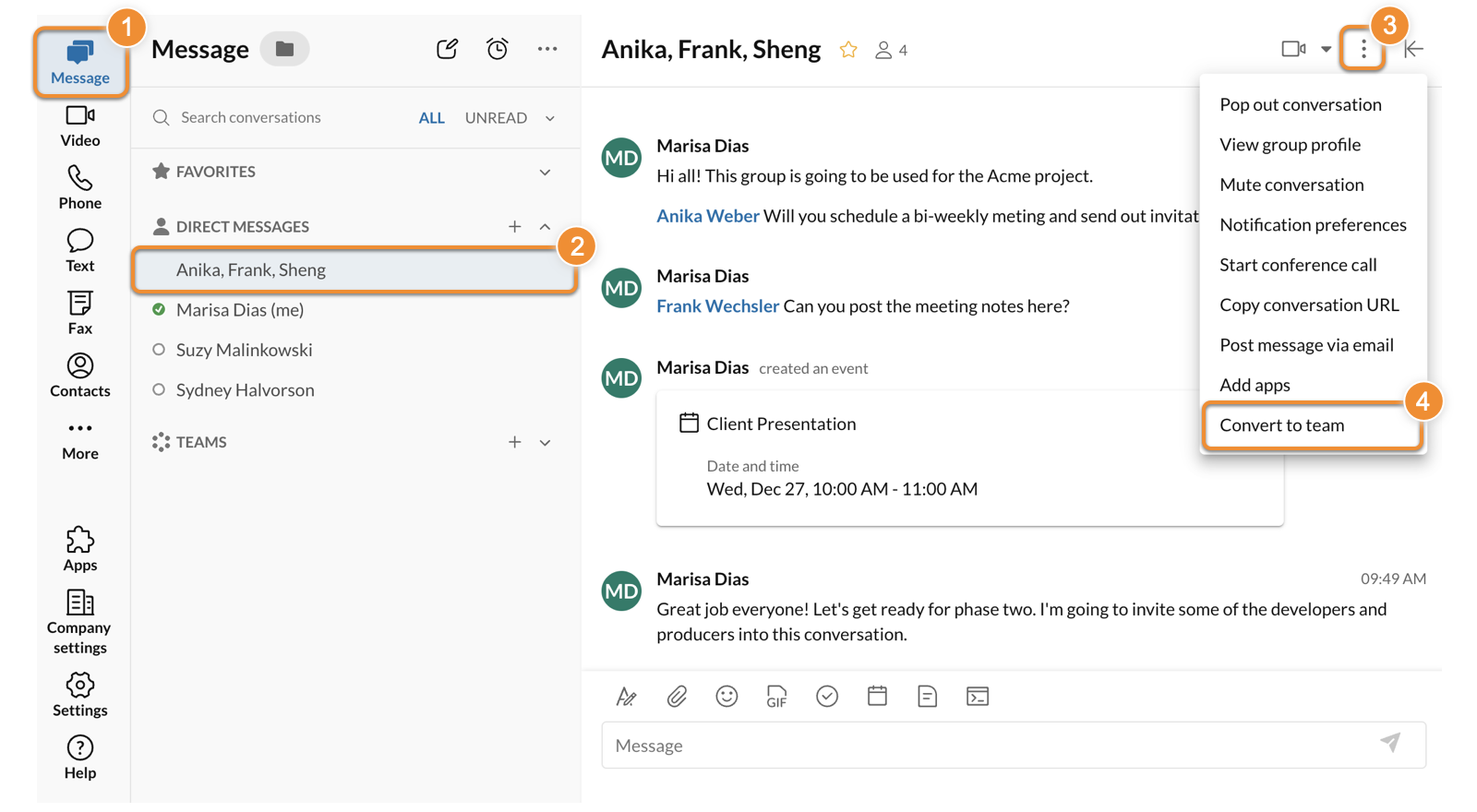
* In the navigation bar, click **
Message
**.
* Select the group chat to open the conversation.
* Click the three-dot **More** icon at the top right.
* Select *Convert to team* .
* In the popup window, enter a **Team name**.
* Click **Convert to team** .

### Duplicating a team
To duplicate a team, you have to be the team's admin.
* In the navigation bar, click **
Message
**.
* Select the team to open the conversation.
* Click the three-dot **More** icon at the top right. You can also click the three-dot **More** icon in the left panel, next to the team name.
* Select *Duplicate team* .

* Duplicating the team will copy the name, members, and type of team (private or public). In the Duplicate team window, update any of the fields and manage the team settings.
* Click **Create**.
Managing team settings
----------------------
When you create or duplicate a team, you can manage these settings:
* **Allow team members to add other members**: Allows non-admin members invite people to the team. This setting is available only for private teams. Anyone can join a public team without an invite.
* **Allow members to post messages**: Turn this off to make the team read-only for non-admin members.
* **Allow members to @team mention** : Allow non-admins to use [@team mention](https://support.ringcentral.com/article-v2/Using--mentions-in-the-RingCentral-app.html?brand=RingCentral&product=RingEX&language=en_US "") in a message.
* **Allow members to pin post** : Allow non-admins to [pin posts](https://support.ringcentral.com/article-v2/Managing-your-messages-in-the-RingCentral-app.html?brand=RingCentral&product=RingEX&language=en_US&pills-nav=desktop_%26_web#pin "").
* **Allow members to add apps** : Allow non-admins to add [apps and add-ins](https://support.ringcentral.com/article-v2/Intro-to-the-RingCentral-App-Gallery.html?brand=RingCentral&product=RingEX&language=en_US "").
**Additional resources**
[Managing your messages](https://support.ringcentral.com/article-v2/Managing-your-messages-in-the-RingCentral-app.html?brand=RingCentral&product=RingEX&language=en_US "")
[Managing message settings](https://support.ringcentral.com/article-v2/Managing-message-settings-in-the-RingCentral-app.html?brand=RingCentral&product=RingEX&language=en_US "")
[Organizing your conversations](https://support.ringcentral.com/article-v2/Organizing-your-conversations-in-the-RingCentral-app.html?brand=RingCentral&product=RingEX&language=en_US "")
## Mobile
Creating a team in the mobile app
---------------------------------
Teams can be created in New actions, from your [
Message
s](#new-actions ""), by [converting an existing conversation](#convert-group "") into a team, or by [duplicating an existing one](#duplicate "").
### Creating a team using the New actions button
* Tap **
Message
** or **Contacts** in the bottom toolbar.
* Tap the **New actions** plus icon at the top right.
* Select *Create team*.
* Enter a **Team name**.
* Tap **Team type** to select either *Private (invite only)* or *Public (visible to any co-worker)*.
* Tap **Members** , then enter a list of names or email addresses in the **Members** field, or scroll and tap the contacts name.
* Tap **Done** at the top right.
* Tap **Next** at the top right.
Once you've created your team, the app will open the team's message thread for you to add more members, draft a new message, or [manage your team's settings](#team-settings "").
Note
If you've added a non-
RingCentral
user to a team using their email address, they'll receive an invite that asks them to set up a
RingCentral
account. Once they do, they'll be added to the team [as a guest](https://support.ringcentral.com/article-v2/Guest-indicators-in-the-RingCentral-app.html?brand=RingCentral&product=RingEX&language=en_US&pills-nav=mobile "").
### Converting a group into a team
When you're in a group conversation, you may realize that it would work better as a team. Instead of creating a new team and losing your message history, you can convert an existing group into a team.
* Tap **
Message
** in the bottom toolbar.
* Tap a group chat to open the conversation.
* Tap the names at the top of the conversation to open the conversation profile.
* Tap the **Settings** gear icon at the top right.
* Tap **Convert to team**.
* If prompted, tap **Continue**.
* Enter a **Team name**.
* Tap **Next** at the top right.
Once you've created your team, the app will open the team's message thread for you to add more members, draft a new message, or [manage your team's settings](#team-settings "").
### Duplicating a team
To duplicate a team, you have to be the team's admin.
* Tap **
Message
** in the bottom toolbar.
* Tap the **Teams** tab.
* Tap the team you'd like to duplicate.
* Tap the team name at the top of the conversation to open the team profile.
* Tap the **Settings** gear icon at the top right.
* Tap **Duplicate team** . Duplicating the team will copy the name, members, and type of team (private or public). Update the team name, type, or members, then tap **Next**.
* Tap **Create**.
Once you've created your team, the app will open the team's message thread for you to add more members, draft a new message, or manage your team's settings.
Managing your team settings
---------------------------
To manage a team's settings:
* Tap the team name at the top of the message thread.
* Tap the **Settings** gear icon at the top right.
From here you can update and manage:
* **Team description**: Tap to add or edit a description.
* **Team name**: Tap to change the team's name.
* **Team type** : Tap to make the team *Private (invite only)* or *Public (visible to any co-worker)*.
* **Remove team members** : Tap to select the members you want to remove from the team, then tap **Remove**.
* **Update team admins** : Tap to [add or remove members as team admins](https://support.ringcentral.com/article-v2/Assigning-a-team-member-as-an-admin.html?brand=RingCentral&product=RingEX&language=en_US&pills-nav=mobile ""), then tap **Update**.
Tap the toggles to turn these settings on or off:
* **Allow team members to add other members**: Allows non-admin members invite people to the team. This setting is available only for private teams. Anyone can join a public team without an invite.
* **Allow members to post messages**: Turn this off to make the team read-only for non-admin members.
* **Allow members to @team mention** : Allow non-admins to use [@team mention](https://support.ringcentral.com/article-v2/Using--mentions-in-the-RingCentral-app.html?brand=RingCentral&product=RingEX&language=en_US&pills-nav=mobile "") in a message.
* **Allow members to pin post** : Allow non-admins to [pin posts](https://support.ringcentral.com/article-v2/Managing-your-messages-in-the-RingCentral-app.html?brand=RingCentral&product=RingEX&language=en_US&pills-nav=mobile#pin "").
* **Allow members to add apps** : Allow non-admins to add [apps and add-ins](https://support.ringcentral.com/article-v2/Intro-to-the-RingCentral-App-Gallery.html?brand=RingCentral&product=RingEX&language=en_US "").
**Additional resources**
[Managing your messages](https://support.ringcentral.com/article-v2/Managing-your-messages-in-the-RingCentral-app.html?brand=RingCentral&product=RingEX&language=en_US&pills-nav=mobile "")
[Managing messages settings](https://support.ringcentral.com/article-v2/Managing-message-settings-in-the-RingCentral-app.html?brand=RingCentral&product=RingEX&language=en_US&pills-nav=mobile "")
[Organizing your conversations](https://support.ringcentral.com/article-v2/Organizing-your-conversations-in-the-RingCentral-app.html?brand=RingCentral&product=RingEX&language=en_US&pills-nav=mobile "")