Getting the SIP settings for manual provisioning
================================================
This article provides steps for getting the SIP settings for manually provisioning third-party phones.
The **Session Initiation Protocol (SIP)** settings allow third-party IP phones to be manually provisioned and connected to the
RingCentral
server. This will enable the phone to make and receive phone calls.
* Go to the [
Admin Portal
](https://service.ringcentral.com "") and sign in.
* Go to **Phone System \> Phones \& Devices \> User Phones**.
* Select **Existing Phone** . If you don't have this under your User Phones list, you can add one by clicking **Add Device**.
* Click **Set Up and Provision**.
* Click the **Set up manually using SIP** .

* Select **No** for **Step 1: Will you be using secure voice transport on this device?**
* For **Step 2** , click the dropdown menu to choose the appropriate *Outbound Proxy* based on the location of your device.
* Copy the SIP information and click **Done** to close the window.
Adding an Existing Phone for manual provisioning
------------------------------------------------
* Go to the [
Admin Portal
](https://service.ringcentral.com "") and sign in.
* Navigate to **Phone System \> Phones \& Devices \> User Phones**.
* Click **Add Device**.
* Select **Domestic** , then click **Next** . To add a desk phone that will be used in an international location, go to [Add Global
RingEX
User With a Phone](https://support.ringcentral.com/article-v2/8353.html?brand=RC_US&product=RingEX&language=en_US#IDFD "").
* Select the user to whom you want to assign the phone and click **Next**.
* Under Select Devices, go to **Other Phones** tab and select **Existing Phone** .
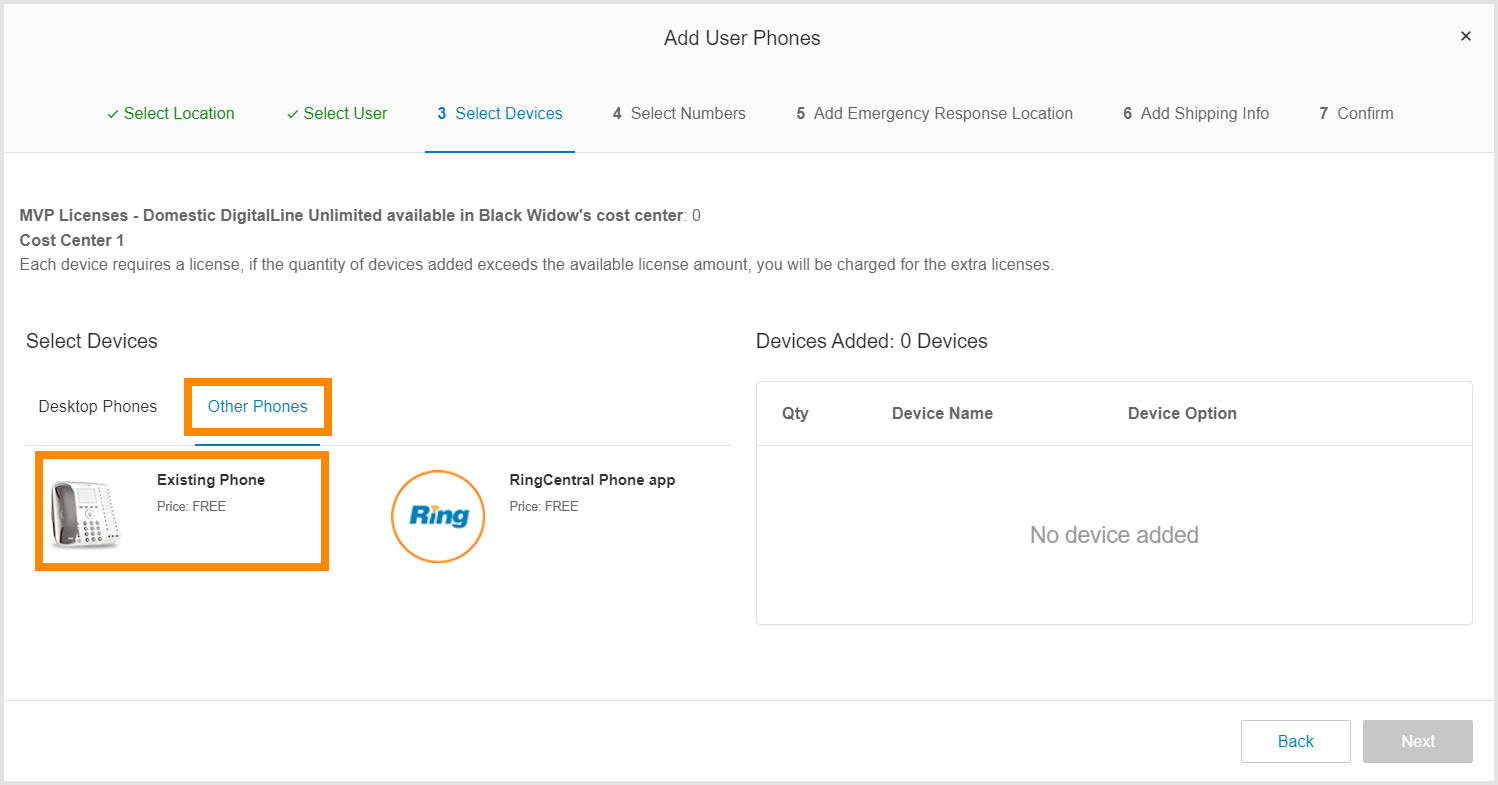
* Select the number of devices you want to add, click **Add** , then click **Next**.
* Complete the purchase by assigning the number, adding the emergency response location, and selecting the shipping information.
* Confirm your purchase by ticking the acknowledgment checkbox and clicking **Next**.
* Click **Done**.