Sending a
Message
in the
RingCentral
app
============================================================================================================================================================================
The [
Message
feature](https://support.ringcentral.com/article-v2/Intro-to-Message-in-the-RingCentral-app.html?brand=RingCentral&product=RingEX&language=en_US "") in the
RingCentral
app lets you send direct messages to one or more people or to a team.
You can also send a message to people who don't use the
RingCentral
app, [inviting them to join](https://support.ringcentral.com/article-v2/Inviting-a-new-user-in-the-RingCentral-app.html?brand=RingCentral&product=RingEX&language=en_US "").
Note
Your ability to send out-of-network invitations depends on your permissions. Contact your company admin for assistance.
Where would you like to send a message?
## Desktop & web
Sending a
Message
in the desktop and web app
--------------------------------------------------------------------------------------------------------------
You can send a
Message
in an existing conversation, in the [
Message
tab](https://support.ringcentral.com/article-v2/Sending-a-message-in-the-RingCentral-app.html?brand=RingCentral&product=RingEX&language=en_US&pills-nav=desktop_%26_web#sending-in-message-tab ""), using the [New actions button](#new-actions ""), or by using the [search bar](#search "").
### Sending a
Message
using an existing conversation
If you've already started a conversation with the person, group, or team, you can use the existing conversation to send a
Message
from the main conversation panel. With this method, you can use formatting, [@mentions](https://support.ringcentral.com/article-v2/Using--mentions-in-the-RingCentral-app.html?brand=RingCentral&product=RingEX&language=en_US&pills-nav=desktop_%26_web ""), and other customization options.
* Click **
Message
** in the navigation bar.
* Select the conversation from the left panel.
* Enter your
Message
in the **
Message
** field or [use AI to draft a message for you](https://support.ringcentral.com/article-v2/Using-AI-to-write-and-improve-messages-in-the-RingCentral-app.html?brand=RingCentral&product=RingEX&language=en_US "") if the AI Assistant is available on your account.
* Click the **Send** icon.
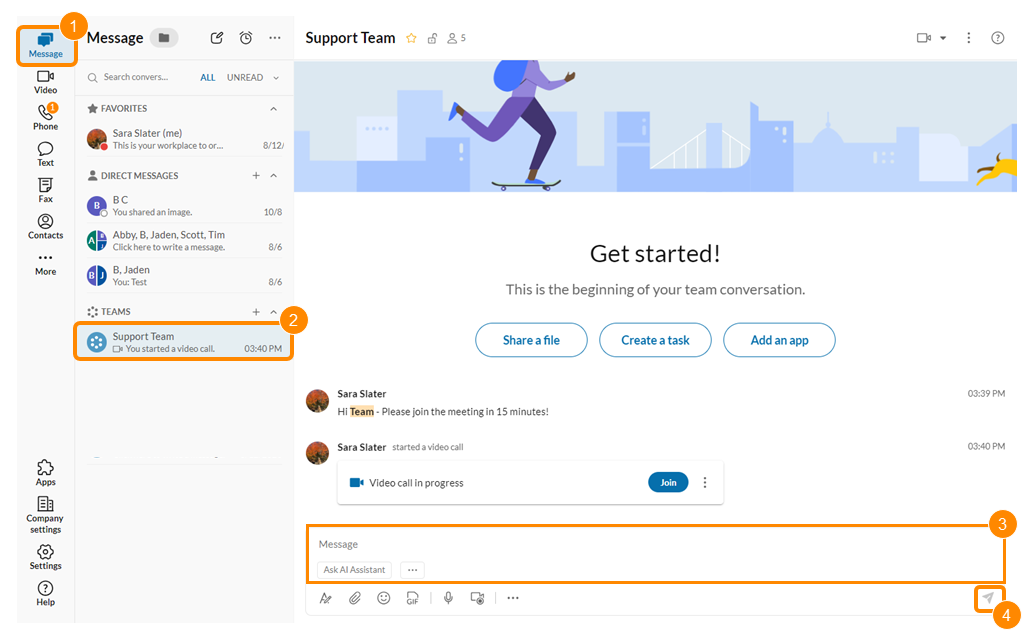
If your
Message
doesn't send, the **Resend post** icon will appear at the far right of the
Message
. Click it to try sending the
Message
again.

Chats sent within two minutes will be grouped together. You can still take actions like adding emoji reactions or quoting each of the clustered messages by hovering over them. Messages sent after two minutes won't be clustered into the same group.
### Sending a
Message
in the
Message
tab
You can send a message from the **Message** tab by clicking the **New message** pencil icon at the top of the panel.

If you are in the folder view, you can also send a direct or group message from your conversations list. If you don't have your conversations grouped into folders, click the **Folder** icon at the top of the left panel.
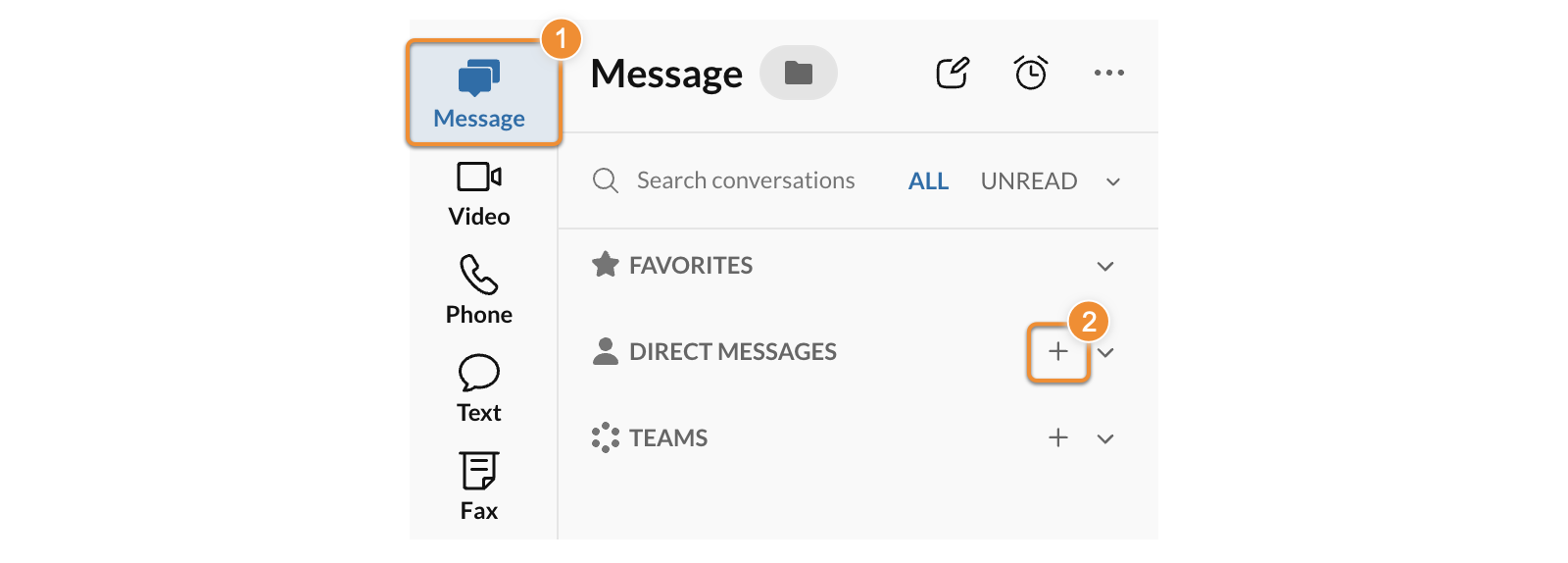
* Click **Message** in the navigation bar.
* Click the **+** icon to the right of **Direct messages** .
* In the **Members** field, enter one or more names or email addresses. Separate multiple entries with commas or semicolons.
Note
If you're sending a message to a group and decide to create a team instead, click **create a team** at the bottom of the New message window. You can also [create a team](https://support.ringcentral.com/app/message/desktop-web/creating-new-team-ringcentral-app-desktop-web.html "") in the previous step by clicking the **Plus (+)** icon to the right of Teams instead of Direct messages.
* Enter your message in the **Type new message** field.
* Click **Send** .
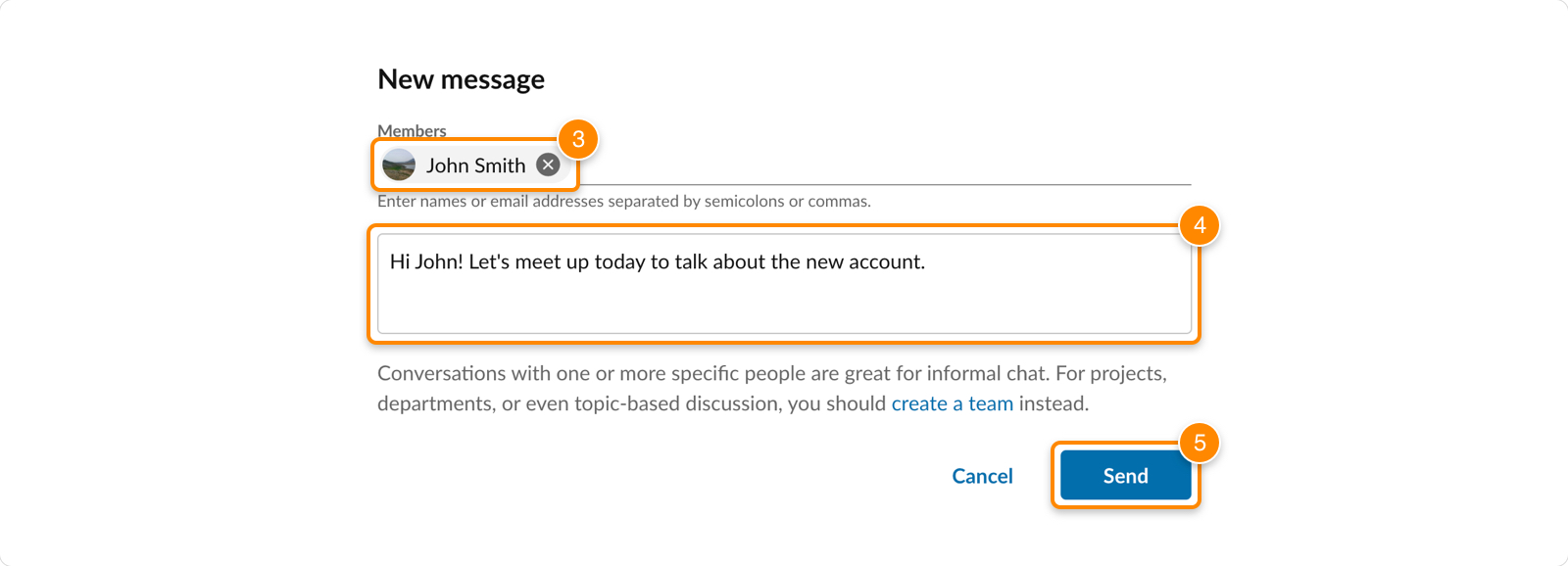
If you want to use formatting and other customization options before sending the message, enter the names or email addresses, but leave the **Type new message** field empty. Click **Send** to go to the main conversation panel, where you can write and customize your message before sending it.
### Sending a
Message
using the New actions button
Use the **New actions** plus icon to send a quick message from a popup window. With this method, you won't be able to use formatting or other customization options.
* From any screen, click the + **New actions** button at the top right.
* Select **New message** .

* In the **Members** field, enter one or more names or email addresses. Separate multiple entries with commas or semicolons.
Note: If you're sending a message to a group and decide to [create a team](https://support.ringcentral.com/article-v2/Creating-a-new-team-in-the-RingCentral-app.html?brand=RingCentral&product=RingEX&language=en_US "") instead, click **create a team** at the bottom of the New message window.
* Enter your message in the **Type new message** field.
* Click **Send** .

If you want to use formatting and other customization options before sending the message, enter the names or email addresses, but leave the **Type new message** field empty. Click **Send** to go to the main conversation panel, where you can write and customize your message before sending it.
### Sending a
Message
using the search bar
Use the search bar to send a message from the main conversation panel. With this method, you can use formatting and other customization options.
* From any screen, click the search bar at the top.
* Begin entering the name of a person or team.
* Click the name of the person, group, or team when it appears.
* Enter your message in the **Message** field.
* Click the **Send** icon.
### Customizing a
Message
When sending a message, you can use [@mentions](https://support.ringcentral.com/article-v2/Using--mentions-in-the-RingCentral-app.html?brand=RingCentral&product=RingEX&language=en_US&pills-nav=desktop_%26_web "") to alert a specific person or team. You can also customize your message with text formatting and additional content to add context.
#### In-
Message
options
You can format your messages using the options at the bottom of the message field:
* **AI writing tools** (A): Click **Improve** to use AI to change the tone, length, or language of your message. Or click the three-dot **More** icon to the right for all [AI Assistant options](https://support.ringcentral.com/article-v2/Using-AI-to-write-and-improve-messages-in-the-RingCentral-app.html?brand=RingCentral&product=RingEX&language=en_US "").
* **Text formatting tools** : Click the **Format message** icon (B) to show the following tools above the message field (C):
* **Bold**
* Underline
* *Italics*
* ~~Strikethrough~~
* Numbered list
* Bulleted list
* Increase indent
* Decrease indent
* Insert link
* Insert horizontal line

You can customize your messages using the options above the message field:
* **File attachment** (D): Click the **Attach file** icon, or drag and drop a file into the **Message** field, to [attach a file](https://support.ringcentral.com/article-v2/Attaching-files-to-messages-in-the-RingCentral-app.html?brand=RingCentral&product=RingEX&language=en_US "") of any type to your message. Files can be:
* Documents, images, or videos
* Up to 5 GB each
* Attached from your computer or a cloud-based storage service such as Google Drive, OneDrive, Box, or Dropbox
* **Emoji** (E): Click the **Emoji** icon to open the emoji menu. To [find and enter emojis](https://support.ringcentral.com/article-v2/Using-emojis-in-your-messages-in-the-RingCentral-app.html?brand=RingCentral&product=RingEX&language=en_US ""), scroll down or enter keywords into the search bar, then click the emoji you want to use.
* **GIF** (F): Click the **Share a GIF** icon to open a library of GIFs. Scroll down or enter keywords into the search bar, then click the GIF you want to use.
* **Record audio message** (G): Click the audio icon to [record an audio message](https://support.ringcentral.com/article-v2/Sending-audio-and-video-messages-in-the-RingCentral-app.html?brand=RingCentral&product=RingEX&language=en_US "") and send in the conversation.
* **Record video message** (H): Click the video icon to [record a video or screenshare](https://support.ringcentral.com/article-v2/Sending-audio-and-video-messages-in-the-RingCentral-app.html?brand=RingCentral&product=RingEX&language=en_US "") and send in the conversation.

Click the three-dot **More** icon to access:
* **Create a task** : Click the **Create a task** icon and enter the information in the popup window to [add a task to your message](https://support.ringcentral.com/article-v2/Creating-a-task-in-the-RingCentral-app.html?brand=RingCentral&product=RingEX&language=en_US "").
* **New event** : Click the **New event** icon and enter the information in the popup window to [add an event to your message](https://support.ringcentral.com/article-v2/Creating-an-event-in-the-RingCentral-app.html?brand=RingCentral&product=RingEX&language=en_US "").
* **New note** : Click the **New note** icon to [write a note](https://support.ringcentral.com/article-v2/Creating-and-managing-notes-in-the-RingCentral-app.html?brand=RingCentral&product=RingEX&language=en_US ""). Notes are longer-form, formatted documents that you can send or save for later. Saved notes appear in the right panel, in the Notes tab of the conversation in which they were created.
* **New code snippet** : Click the **New code snippet** icon and enter the information in the popup window to [add a code snippet to your message](https://support.ringcentral.com/article-v2/Using-code-snippets-in-the-RingCentral-app-desktop-and-web.html?brand=RingCentral&product=RingEX&language=en_US "").

#### Keyboard shortcuts
You can also use [keyboard shortcuts](https://support.ringcentral.com/article-v2/Using-keyboard-shortcuts-in-the-RingCentral-app.html?brand=RingCentral&product=RingEX&language=en_US "") or the simple character coding below (known as markdown) to format text in your message:
* For **bold**, type double asterisks before and after your text: \*\*bold example\*\*
* For *italics*, type single asterisks before and after your text: \*italics example\*
* For underline, type an underscore before and after your text: __underline example__
* For ~~strikethrough~~, type two tildes before and after your text: \~\~strikethrough example\~\~
* For keyword highlighting, type the back quote before and after your text: \`back quote example\` The back quote key is at the top left below the **Esc** key.
### Viewing a sent message
Once you've sent a message, the conversation will appear in the left panel in one of the following locations:
* At the top of your **Direct messages** list (default)
* At the top of your **Favorites** list, if you've moved the conversation there
* At the top of your **Teams** list, if you sent the message to a team
* Within a folder, if you've added the conversation to a folder
**Additional resources**
[Managing your messages](https://support.ringcentral.com/article-v2/Managing-your-messages-in-the-RingCentral-app.html?brand=RingCentral&product=RingEX&language=en_US "")
[Using emoji reactions](https://support.ringcentral.com/article-v2/Using-emojis-in-your-messages-in-the-RingCentral-app.html?brand=RingCentral&product=RingEX&language=en_US "")
[Using @mentions](https://support.ringcentral.com/article-v2/Using--mentions-in-the-RingCentral-app.html?brand=RingCentral&product=RingEX&language=en_US&pills-nav=desktop_%26_web "")
[Managing message settings](https://support.ringcentral.com/article-v2/Managing-message-settings-in-the-RingCentral-app.html?brand=RingCentral&product=RingEX&language=en_US "")
## Mobile
Sending a message in the mobile app
-----------------------------------
* Tap **Message** in the bottom toolbar.

* Do either of the following:
* Tap the + **New actions** button at the bottom right (Android) or top right (iOS), then tap **New message** . Enter one or more names or email addresses in the **To** field.

* Tap the **Search** icon at the top right, then begin entering the name of a person or team in the search bar. Tap the name of the person, group, or team when it appears.
* Enter your message in the **Message** field or [use AI to draft or improve your message](https://support.ringcentral.com/article-v2/Using-AI-to-write-and-improve-messages-in-the-RingCentral-app.html?brand=RingCentral&product=RingEX&language=en_US&pills-nav=mobile "").
* Tap the **Send** icon.
Messages sent within two minutes will be grouped together. You can still take actions like adding emoji reactions or quoting each of the clustered messages by hovering over them. Messages sent after two minutes won't be clustered into the same group.
### Using message options
Tap the **+** icon to the left of the **Message** field to view the following:
* Tap **New task** , then enter the information to [add a task to your message](https://support.ringcentral.com/article-v2/Creating-a-task-in-the-RingCentral-app.html?brand=RingCentral&product=RingEX&language=en_US "").
* Tap **New event** , then enter the information to [add an event to your message](https://support.ringcentral.com/article-v2/Creating-an-event-in-the-RingCentral-app.html?brand=RingCentral&product=RingEX&language=en_US "").
* Tap **New note** to write a longer-form, formatted message. After entering the note's title, tap anywhere in the **Content** field to [create a note](https://support.ringcentral.com/article-v2/Creating-and-managing-notes-in-the-RingCentral-app.html?brand=RingCentral&product=RingEX&language=en_US "").
* Tap **Attach files** [to view and attach files](https://support.ringcentral.com/article-v2/Attaching-files-to-messages-in-the-RingCentral-app.html?brand=RingCentral&product=RingEX&language=en_US "") to your message. You can attach up to 20 files at a time from your mobile device or a cloud-based storage service such as Google Drive or Dropbox.
* Tap **Attach photos or videos** to open your photo library or take a photo. From your photo library, follow the prompts to select and attach photos or videos.
* Tap **Share GIF** to open a library of GIFs. Scroll down or enter keywords into the search bar, then tap the GIF you want to use.

To the right of the message field:
* Tap **Record audio message** to [record an audio message](https://support.ringcentral.com/article-v2/Sending-audio-and-video-messages-in-the-RingCentral-app.html?brand=RingCentral&product=RingEX&language=en_US "") and send in the conversation.
* Tap **Record video message** to [record a video or screenshare](https://support.ringcentral.com/article-v2/Sending-audio-and-video-messages-in-the-RingCentral-app.html?brand=RingCentral&product=RingEX&language=en_US "") and send in the conversation.

### Viewing a sent message
* Tap **Message** in the bottom menu bar.

* Select from the following tabs below the top bar:
* Tap **All** to view all your recent messages.
* Tap **Direct** to view your recent messages to one or more individuals.
* Tap **Teams** to view your recent messages to a team.
* Tap **Favorites** to view direct or team messages if you've moved the conversation there.
* To further filter which messages are shown, tap the **Filter** icon near the top right and select from the menu options.

**Additional resources**
[Managing your messages](https://support.ringcentral.com/article-v2/Managing-your-messages-in-the-RingCentral-app.html?brand=RingCentral&product=RingEX&language=en_US&pills-nav=mobile "")
[Using emoji reactions](https://support.ringcentral.com/article-v2/Using-emojis-in-your-messages-in-the-RingCentral-app.html?brand=RingCentral&product=RingEX&language=en_US&pills-nav=mobile "")
[Using @mentions](https://support.ringcentral.com/article-v2/Using--mentions-in-the-RingCentral-app.html?brand=RingCentral&product=RingEX&language=en_US&pills-nav=mobile "")
[Managing message settings](https://support.ringcentral.com/article-v2/Managing-message-settings-in-the-RingCentral-app.html?brand=RingCentral&product=RingEX&language=en_US&pills-nav=mobile "")
## Email
Posting a message via email
---------------------------
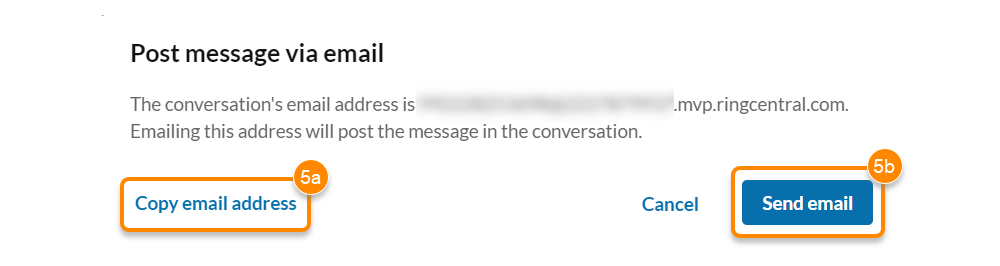
**Post message via email** allows people to send messages in the app by emailing a specific address.
Note
Admins can set up security validation rules settings to control what kind of emails can be converted into a message.
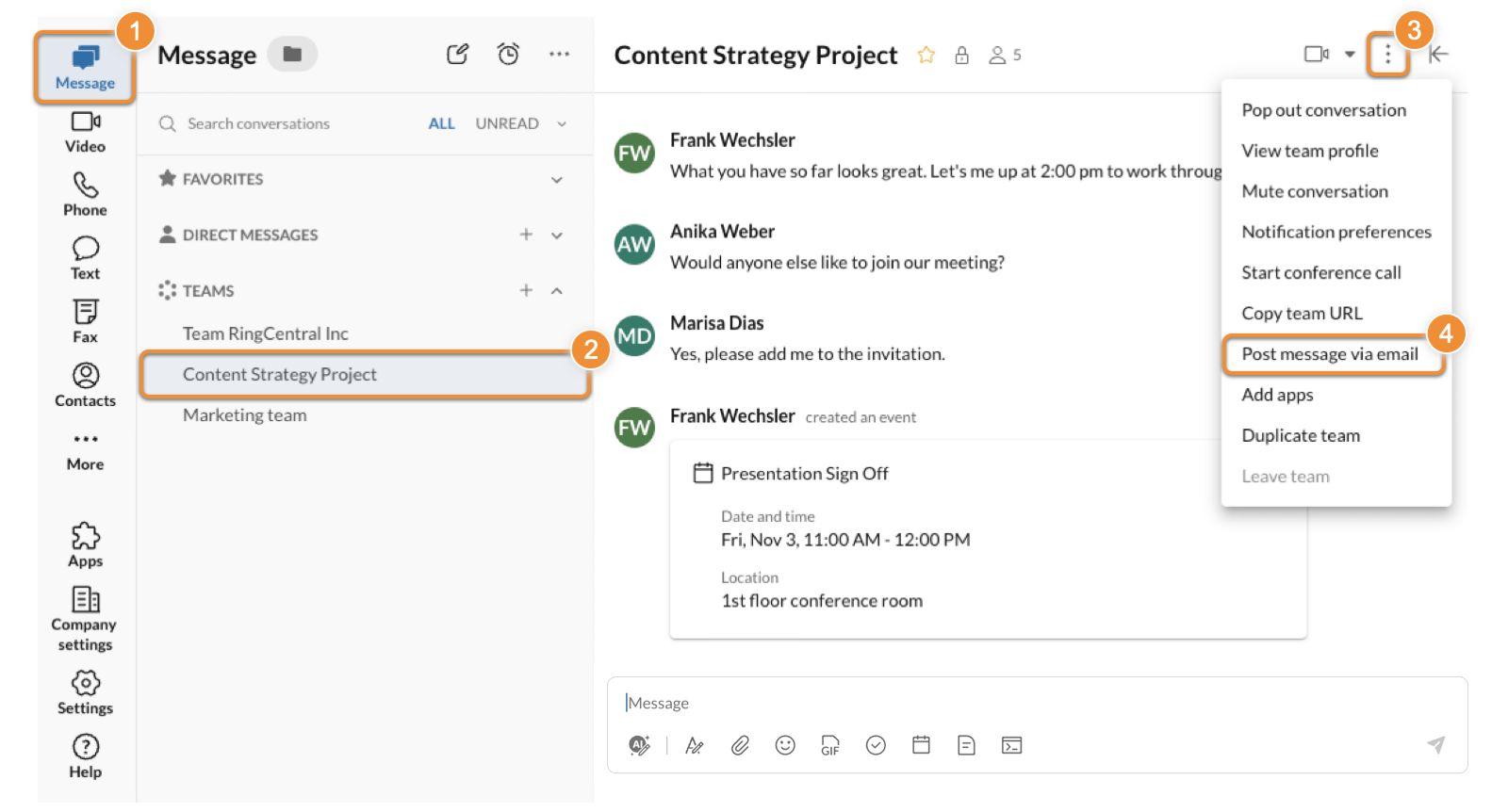
* Click **Message** in the navigation bar.
* Select an individual conversation, group, or team.
* Click the three-dot **More** icon in the upper right corner.
* Click **Post message via email** from the dropdown.
* To post a message via email:
* Click **Copy email address** (a) and paste it into your email website or app. Enter your message, then send it.
* Click **Send email** (b) to automatically open a draft in your default email app.
* If your mail provider is set as the default app, it will open with the email address filled in. Enter your message, then send it.
* If you don't have a default mail app, you'll need to select one. Read [Microsoft's](https://support.microsoft.com/en-us/office/make-outlook-the-default-program-for-email-contacts-and-calendar-ff7990c4-54c4-4390-8fe3-c0285226f021#ID0EBBD=Newer_versions "") or [Apple's](https://support.apple.com/en-us/102362 "") article for more information.
You can't forward, quote, or reply to a message posted via email in the
RingCentral
app.
**Additional resources**
[Managing your messages](https://support.ringcentral.com/article-v2/Managing-your-messages-in-the-RingCentral-app.html?brand=RingCentral&product=RingEX&language=en_US&pills-nav=mobile "")
[Managing message settings](https://support.ringcentral.com/article-v2/Managing-message-settings-in-the-RingCentral-app.html?brand=RingCentral&product=RingEX&language=en_US&pills-nav=desktop_%26_web "")